Pachyderm
Pachyderm is a data versioning and pipeline orchestration platform for machine learning and data science workflows. It tracks changes in data and code and automates pipeline execution to produce reproducible results. When you integrate Pachyderm with Scality ARTESCA, Pachyderm’s pipeline containers read input data from ARTESCA S3 buckets and write processed outputs back to ARTESCA, enabling automated, reproducible data pipelines on on-premises object storage.
The integration workflow covers four phases:
Deploying Pachyderm in a Minikube Kubernetes cluster.
Configuring ARTESCA S3 credentials as Kubernetes secrets.
Defining pipeline specifications that reference ARTESCA buckets.
Verifying that data flows correctly from the source bucket through the processing pipeline to the output bucket.
Prerequisites
The Pachyderm deployment runs on an Ubuntu 24.04 host with the following minimum resources:
At least 4 vCPUs and 8 GB RAM (6 CPU cores and 16 GB RAM recommended for running multiple concurrent pipelines)
Network access to the ARTESCA S3 endpoint
Admin access to a ARTESCA instance with an account in place
Set Up S3 Resources for Pachyderm
These steps prepare the ARTESCA account, buckets, Identity and Access Management (IAM) identity, and access policy that Pachyderm’s pipeline containers authenticate against.
Create an Account for Pachyderm.
Create a bucket for the Pachyderm source data.
Create a bucket for the Pachyderm output data.
Create IAM users for Pachyderm.
Create an IAM policy to grant Pachyderm access to the source and target buckets.
The following policy grants Pachyderm access to both buckets. The source bucket requires list and read permissions; the target bucket requires list, write, and multipart upload permissions. Each statement scopes its actions to only the required bucket.
Note
Replace
source_bucket_nameandtarget_bucket_namewith the actual names of your buckets.{ "Version": "2012-10-17", "Statement": [ { "Sid": "PachydermIngestListBucketA", "Effect": "Allow", "Action": ["s3:ListBucket"], "Resource": "arn:aws:s3:::source_bucket_name" }, { "Sid": "PachydermIngestReadObjectsFromBucketA", "Effect": "Allow", "Action": ["s3:GetObject"], "Resource": "arn:aws:s3:::source_bucket_name/*" }, { "Sid": "PachydermEgressListBucketB", "Effect": "Allow", "Action": ["s3:ListBucket"], "Resource": "arn:aws:s3:::target_bucket_name" }, { "Sid": "PachydermEgressWriteObjectsToBucketB", "Effect": "Allow", "Action": [ "s3:PutObject", "s3:AbortMultipartUpload", "s3:ListMultipartUploadParts" ], "Resource": "arn:aws:s3:::target_bucket_name/*" } ] }
Install Certificates
Install the ARTESCA Certificate Authority (CA) on the Pachyderm host so the CA certificate is available for use in the pipeline containers.
Deploy Pachyderm on Minikube
These steps install the required tools and deploy Pachyderm 2.12.2 into a Minikube Kubernetes cluster on an Ubuntu 24.04 host.
Important
The following setup was validated on an AWS EC2 t3.xlarge instance (4 vCPUs, 16 GB RAM),
with Minikube configured to use 4 CPUs and 8 GB RAM. Running multiple active pipelines
simultaneously on this configuration requires pausing inactive pipelines to avoid CPU scheduling
failures.
Install Docker as the Minikube hypervisor.
# Remove existing Docker versions
sudo apt-get remove -y docker docker-engine docker.io containerd runc

# Set up the Docker apt repository
sudo apt-get update
sudo apt-get install -y ca-certificates curl
sudo install -m 0755 -d /etc/apt/keyrings
sudo curl -fsSL https://download.docker.com/linux/ubuntu/gpg -o /etc/apt/keyrings/docker.asc
sudo chmod a+r /etc/apt/keyrings/docker.asc

echo \
  "deb [arch=$(dpkg --print-architecture) signed-by=/etc/apt/keyrings/docker.asc] \
  https://download.docker.com/linux/ubuntu \
  $(. /etc/os-release && echo "$VERSION_CODENAME") stable" | \
  sudo tee /etc/apt/sources.list.d/docker.list > /dev/null

sudo apt-get update

# Install Docker Engine
sudo apt-get install -y docker-ce docker-ce-cli containerd.io \
  docker-buildx-plugin docker-compose-plugin

# Verify Docker installation
sudo docker run hello-world

# Add the current user to the docker group
sudo usermod -aG docker $USER
newgrp docker
Install
kubectl.sudo apt-get update sudo apt-get install -y apt-transport-https ca-certificates curl gpg curl -fsSL https://pkgs.k8s.io/core:/stable:/v1.30/deb/Release.key | \ sudo gpg --dearmor -o /etc/apt/keyrings/kubernetes-apt-keyring.gpg echo 'deb [signed-by=/etc/apt/keyrings/kubernetes-apt-keyring.gpg] \ https://pkgs.k8s.io/core:/stable:/v1.30/deb/ /' | \ sudo tee /etc/apt/sources.list.d/kubernetes.list sudo apt-get update sudo apt-get install -y kubectl
Install Minikube.
curl -LO https://storage.googleapis.com/minikube/releases/latest/minikube-linux-amd64
sudo install minikube-linux-amd64 /usr/local/bin/minikube
rm minikube-linux-amd64
Install
pachctl2.12.2.VERSION="2.12.2" ARCH_DEB="amd64" curl -o /tmp/pachctl.deb -L \ "https://github.com/pachyderm/pachyderm/releases/download/v${VERSION}/pachctl_${VERSION}_${ARCH_DEB}.deb" sudo dpkg -i /tmp/pachctl.deb rm /tmp/pachctl.debInstall Helm.
curl -fsSL -o get_helm.sh https://raw.githubusercontent.com/helm/helm/main/scripts/get-helm-3
chmod 700 get_helm.sh
./get_helm.sh
rm get_helm.sh
Start a Minikube cluster with a Pachyderm-compatible Kubernetes version.
minikube delete
minikube start --driver=docker --cpus=4 --memory=8g --disk-size=50g \
  --kubernetes-version=v1.29.3
Create a file named
values.yamlwith the following Helm configuration.The following configuration sets the deployment target to local and adjusts resource requests for the
pachd, PostgreSQL, and etcd components to fit a resource-constrained single-node environment.deployTarget: "LOCAL" postgresql: persistence: size: 10Gi resources: requests: memory: 512Mi cpu: 500m limits: memory: 1536Mi cpu: 1000m etcd: persistence: size: 10Gi resources: requests: memory: 512Mi cpu: 500m limits: memory: 512Mi cpu: 500m pachd: resources: requests: memory: 512Mi cpu: 250m limits: memory: 2Gi cpu: 2000m storage: backend: LOCAL local: hostPath: /var/pachydermDeploy Pachyderm using Helm and wait for all core pods to reach the
Runningstate.helm repo add pachyderm https://helm.pachyderm.com helm repo update helm install pachyderm pachyderm/pachyderm \ --namespace pachyderm --create-namespace -f values.yaml kubectl get pods --namespace pachyderm -w
Configure Pachyderm Authentication
These steps configure the pachctl command-line interface (CLI) to connect to the deployed
cluster and complete the initial admin login.
Configure the
pachctlcontext for the Minikube deployment.pachctl config import-kube localpachyderm --namespace pachyderm --overwrite pachctl config set active-context localpachyderm
Log in as the admin user.
Initial authentication uses OpenID Connect (OIDC) through Dex. Because an EC2 host has no display, authentication requires a port-forward from the EC2 host and an SSH tunnel from your local machine.
In a dedicated EC2 terminal, start a port-forward for the Pachyderm proxy service and keep the terminal open.
kubectl port-forward --namespace pachyderm svc/pachyderm-proxy 8081:80
In a new local terminal, open an SSH tunnel to the EC2 host and keep the terminal open.
ssh -L 8080:localhost:8081 ubuntu@<EC2_INSTANCE_IP>
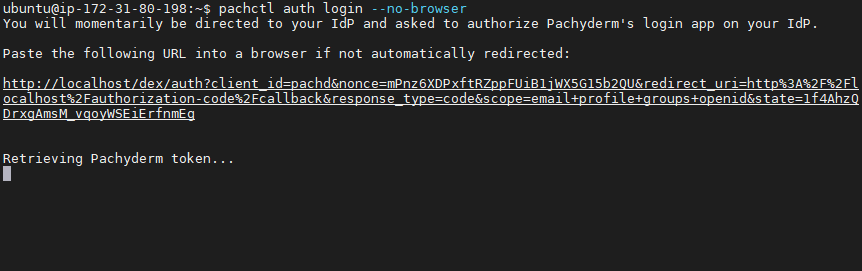
On the EC2 instance, start the login flow.
pachctl auth login --no-browser
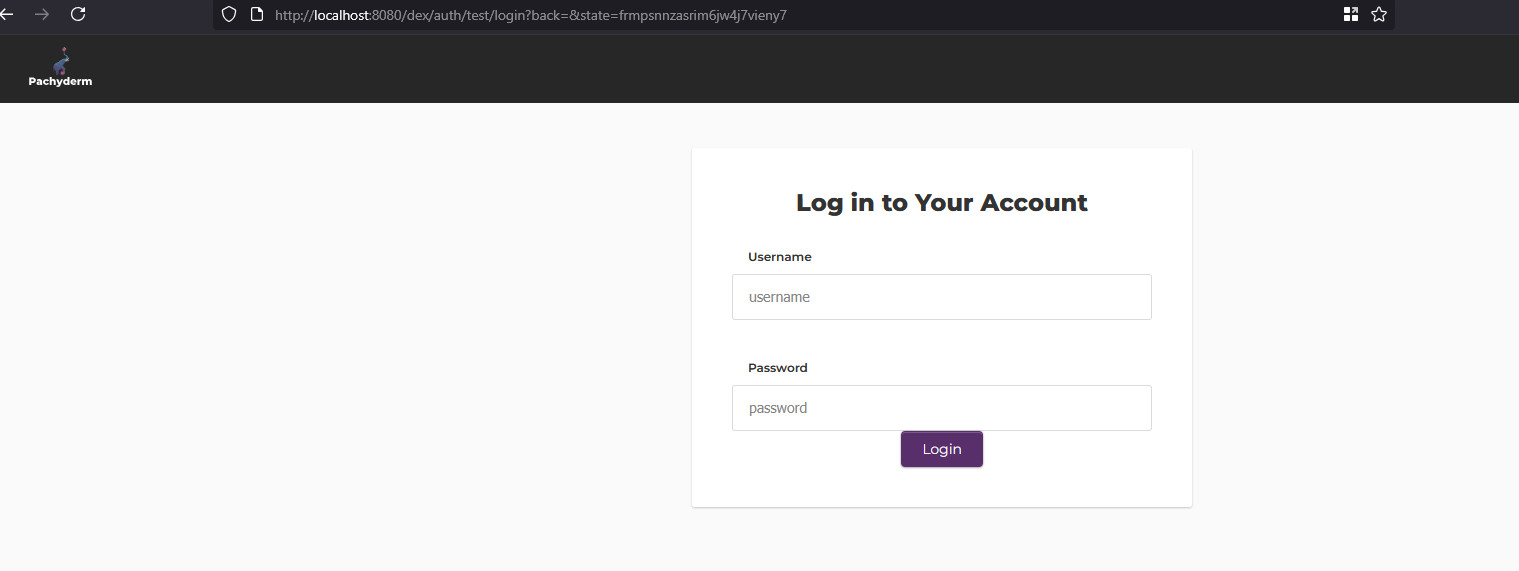
Copy the returned
http://localhost/dex/auth?...URL, replacelocalhostwithlocalhost:8080, open the modified URL in your local browser, and complete the login with theadmincredentials.

Configure the ARTESCA S3 Integration
These steps encode the CA certificate and create the Kubernetes secret that Pachyderm pipeline containers use to authenticate against the ARTESCA S3 endpoint.
Encode the ARTESCA CA certificate as a Base64 string.
Pipeline containers cannot access the host certificate store directly. Encoding the CA certificate as Base64 allows it to be passed as an environment variable in the pipeline specification, where each container writes it to a temporary file at runtime.
sudo base64 -w 0 /usr/local/share/ca-certificates/artesca-ca.crt
Copy the output string. You use it as the value of
ARTESCA_CA_CERT_B64in the pipeline YAML specifications that follow.Create a Kubernetes secret for the ARTESCA credentials.
Note
Replace
<YOUR_ACCESS_KEY>and<YOUR_SECRET_KEY>with the IAM user access key and secret key you created in Set Up S3 Resources for Pachyderm.kubectl create secret generic artesca-creds \ --namespace pachyderm \ --from-literal=AWS_ACCESS_KEY_ID='<YOUR_ACCESS_KEY>' \ --from-literal=AWS_SECRET_ACCESS_KEY='<YOUR_SECRET_KEY>'
Create the Ingestion Pipeline
The ingestion pipeline downloads files from the ARTESCA source bucket into a Pachyderm Parallel File System (PFS) repository on a scheduled cron trigger.
Create a file named
ingest_artesca_a.yamlwith the following content.Note
Replace
<YOUR_ENDPOINT>,source_bucket_name, and<YOUR_ARTESCA_CA_CERT_BASE64>with your ARTESCA endpoint URL, source bucket name, and the Base64-encoded CA certificate string from the previous section.The following pipeline specification configures a scheduled ingest: the cron trigger causes the pipeline container to list and download all objects from the ARTESCA source bucket into the Pachyderm PFS output directory (
/pfs/out).pipeline: name: ingest-from-artesca-a project: name: default input: cron: name: periodic_check spec: "@every 2m" overwrite: true transform: image: python:3.12-slim secrets: - name: artesca-creds key: AWS_ACCESS_KEY_ID env_var: S3_ACCESS_KEY - name: artesca-creds key: AWS_SECRET_ACCESS_KEY env_var: S3_SECRET_KEY env: S3_ENDPOINT_URL: "https://<YOUR_ENDPOINT>" SOURCE_S3_BUCKET: "source_bucket_name" ARTESCA_CA_CERT_B64: "<YOUR_ARTESCA_CA_CERT_BASE64>" cmd: - python3 - -c - | import os, sys, base64 try: import boto3 from boto3.s3.transfer import TransferConfig as S3TransferConfig from botocore.exceptions import NoCredentialsError, ClientError except ImportError: import subprocess subprocess.check_call([sys.executable, "-m", "pip", "install", "boto3"]) import boto3 from boto3.s3.transfer import TransferConfig as S3TransferConfig from botocore.exceptions import NoCredentialsError, ClientError endpoint_url = os.getenv('S3_ENDPOINT_URL') access_key = os.getenv('S3_ACCESS_KEY') secret_key = os.getenv('S3_SECRET_KEY') source_bucket = os.getenv('SOURCE_S3_BUCKET') ca_cert_b64 = os.getenv('ARTESCA_CA_CERT_B64') output_dir = "/pfs/out" temp_ca_path = "/tmp/artesca_custom_ca.crt" # Decode the CA certificate and write it to a temporary file so # boto3 can verify the ARTESCA S3 endpoint. verify_ssl = True if ca_cert_b64: with open(temp_ca_path, 'wb') as f: f.write(base64.b64decode(ca_cert_b64)) verify_ssl = temp_ca_path if not all([endpoint_url, access_key, secret_key, source_bucket]): print("ERROR: Missing S3 configuration environment variables.") sys.exit(1) s3_client = boto3.client( 's3', endpoint_url=endpoint_url, aws_access_key_id=access_key, aws_secret_access_key=secret_key, verify=verify_ssl ) # Set a 100 MB multipart threshold to ensure single-part uploads. transfer_config = S3TransferConfig( multipart_threshold=100 * 1024 * 1024, multipart_chunksize=20 * 1024 * 1024 ) os.makedirs(output_dir, exist_ok=True) # List and download all objects from the source bucket. paginator = s3_client.get_paginator('list_objects_v2') for page in paginator.paginate(Bucket=source_bucket): for obj in page.get('Contents', []): key = obj['Key'] if key.endswith('/'): continue local_path = os.path.join(output_dir, key) if '/' in key: os.makedirs(os.path.dirname(local_path), exist_ok=True) s3_client.download_file( source_bucket, key, local_path, Config=transfer_config ) print(f"Downloaded {key}") resource_requests: cpu: 0.1 memory: "256Mi"Create the ingestion pipeline.
pachctl create pipeline -f ingest_artesca_a.yaml
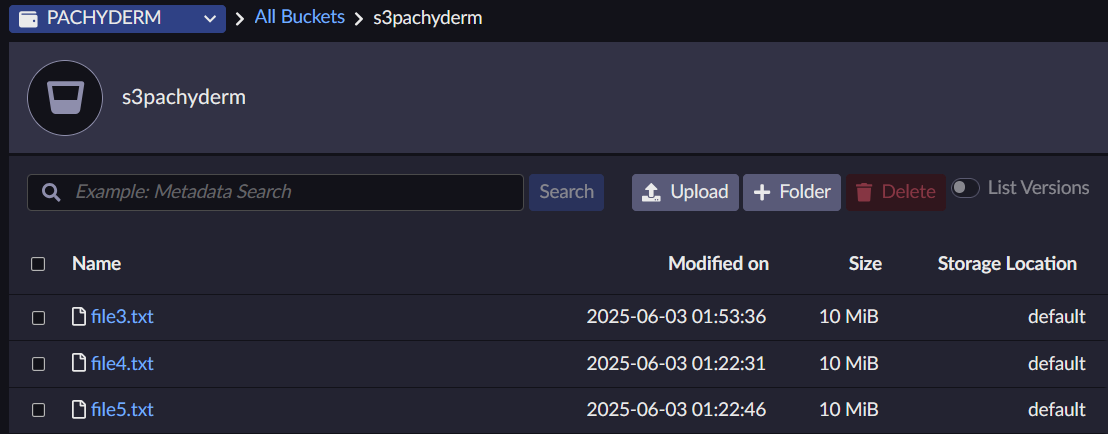
Verify that the pipeline downloaded files from the source bucket.
pachctl list file ingest-from-artesca-a@master
Create the Labeling Pipeline
The labeling pipeline reads files ingested by ingest-from-artesca-a and appends a label line
to each file, writing the labeled output to a new PFS repository.
Create a file named
labeling_pipeline.yamlwith the following content.The following pipeline specification reads files from the
ingest-from-artesca-aPFS repository and appends a label line to each text file.pipeline: name: file-labeler project: name: default transform: image: python:3.12-slim cmd: - python3 - -c - | import os input_repo_name = "ingest-from-artesca-a" input_base_dir = os.path.join("/pfs", input_repo_name) output_dir = "/pfs/out" label_line = "Labeled by Pachyderm labeling pipeline - 2025-05-30" for root, dirs, files in os.walk(input_base_dir): for item_name in files: input_path = os.path.join(root, item_name) rel_path = os.path.relpath(input_path, input_base_dir) output_path = os.path.join(output_dir, rel_path) os.makedirs(os.path.dirname(output_path), exist_ok=True) if os.path.isfile(input_path): with open(input_path, 'r', encoding='utf-8') as f: content = f.read() separator = "\n" if not content.endswith("\n") else "" with open(output_path, 'w', encoding='utf-8') as f: f.write(content + separator + label_line + "\n") print(f"Labeled: {output_path}") input: pfs: repo: ingest-from-artesca-a branch: master glob: "/**" resource_requests: cpu: 0.1 memory: "128Mi"Create the labeling pipeline.
pachctl create pipeline -f labeling_pipeline.yaml
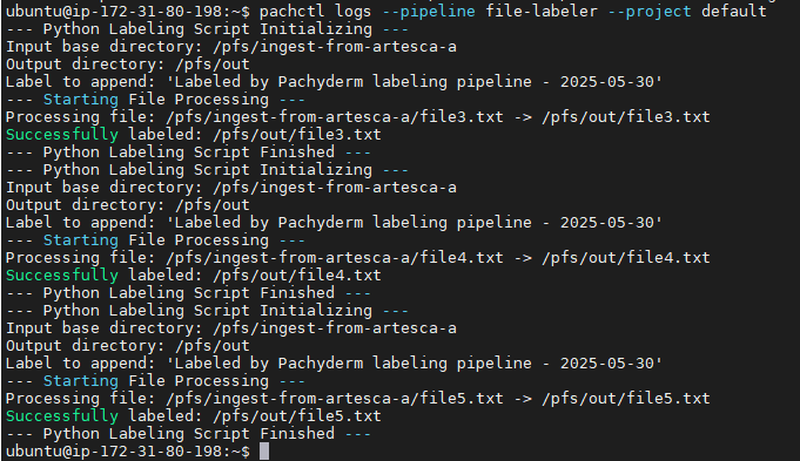
Verify that the pipeline labeled the ingested files.
pachctl list file file-labeler@master
Create the Egress Pipeline
The egress pipeline reads labeled files from the file-labeler PFS repository and uploads each
file to the ARTESCA target bucket.
Create a file named
egress_artesca_b.yamlwith the following content.Note
Replace
<YOUR_ENDPOINT>,target_bucket_name, and<YOUR_ARTESCA_CA_CERT_BASE64>with your ARTESCA endpoint URL, target bucket name, and the Base64-encoded CA certificate string.The following pipeline specification uploads each file from the
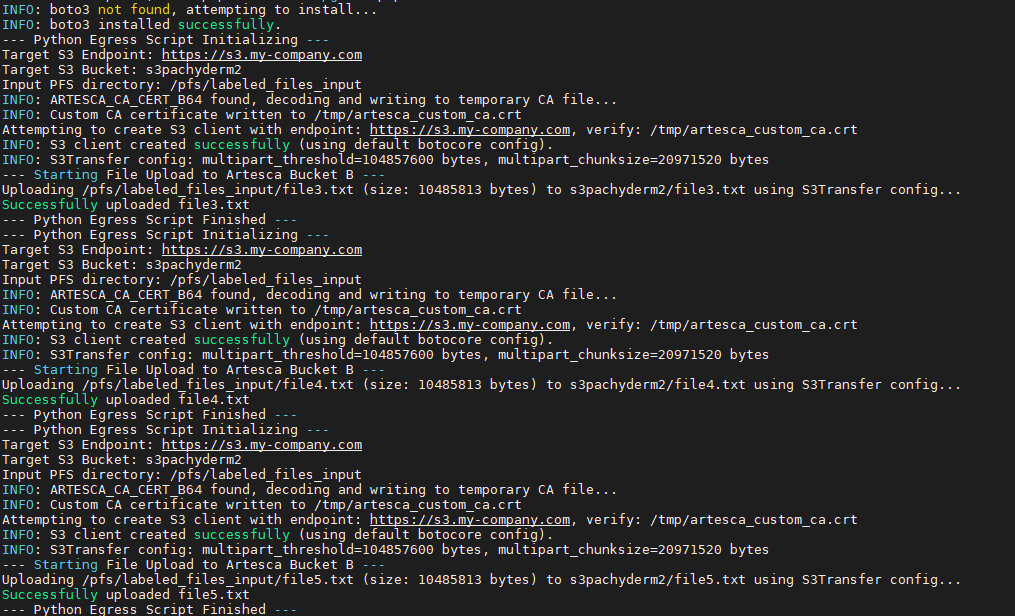
file-labelerPFS repository to the ARTESCA target bucket usingboto3.pipeline: name: export-to-artesca-b project: name: default transform: image: python:3.12-slim secrets: - name: artesca-creds key: AWS_ACCESS_KEY_ID env_var: S3_ACCESS_KEY - name: artesca-creds key: AWS_SECRET_ACCESS_KEY env_var: S3_SECRET_KEY env: S3_ENDPOINT_URL: "https://<YOUR_ENDPOINT>" TARGET_S3_BUCKET: "target_bucket_name" ARTESCA_CA_CERT_B64: "<YOUR_ARTESCA_CA_CERT_BASE64>" cmd: - python3 - -c - | import os, sys, base64 try: import boto3 from boto3.s3.transfer import TransferConfig as S3TransferConfig from botocore.exceptions import NoCredentialsError, ClientError except ImportError: import subprocess subprocess.check_call([sys.executable, "-m", "pip", "install", "boto3"]) import boto3 from boto3.s3.transfer import TransferConfig as S3TransferConfig from botocore.exceptions import NoCredentialsError, ClientError endpoint_url = os.getenv('S3_ENDPOINT_URL') access_key = os.getenv('S3_ACCESS_KEY') secret_key = os.getenv('S3_SECRET_KEY') target_bucket = os.getenv('TARGET_S3_BUCKET') ca_cert_b64 = os.getenv('ARTESCA_CA_CERT_B64') input_dir = "/pfs/labeled_files_input" temp_ca_path = "/tmp/artesca_custom_ca.crt" # Decode the CA certificate and write it to a temporary file so # boto3 can verify the ARTESCA S3 endpoint. verify_ssl = True if ca_cert_b64: with open(temp_ca_path, 'wb') as f: f.write(base64.b64decode(ca_cert_b64)) verify_ssl = temp_ca_path if not all([endpoint_url, access_key, secret_key, target_bucket]): print("ERROR: Missing S3 configuration environment variables.") sys.exit(1) s3_client = boto3.client( 's3', endpoint_url=endpoint_url, aws_access_key_id=access_key, aws_secret_access_key=secret_key, verify=verify_ssl ) # Set a 100 MB multipart threshold to force single-part uploads, # ensuring compatibility with ARTESCA checksum handling. transfer_config = S3TransferConfig( multipart_threshold=100 * 1024 * 1024, multipart_chunksize=20 * 1024 * 1024 ) if not os.path.exists(input_dir) or not os.listdir(input_dir): print(f"INFO: No files in {input_dir}.") sys.exit(0) for root, dirs, files in os.walk(input_dir): for filename in files: local_path = os.path.join(root, filename) rel_key = os.path.relpath(local_path, input_dir) s3_client.upload_file( local_path, target_bucket, rel_key, Config=transfer_config ) print(f"Uploaded {rel_key}") input: pfs: name: labeled_files_input repo: file-labeler branch: master glob: "/**" resource_requests: cpu: 0.1 memory: "256Mi"Create the egress pipeline.
pachctl create pipeline -f egress_artesca_b.yaml
Verify that the egress pipeline job completed successfully.
pachctl list job --pipeline export-to-artesca-b
Verify the Pachyderm and ARTESCA Integration
Confirm that the complete pipeline ran successfully by checking both the Pachyderm output and the ARTESCA target bucket.
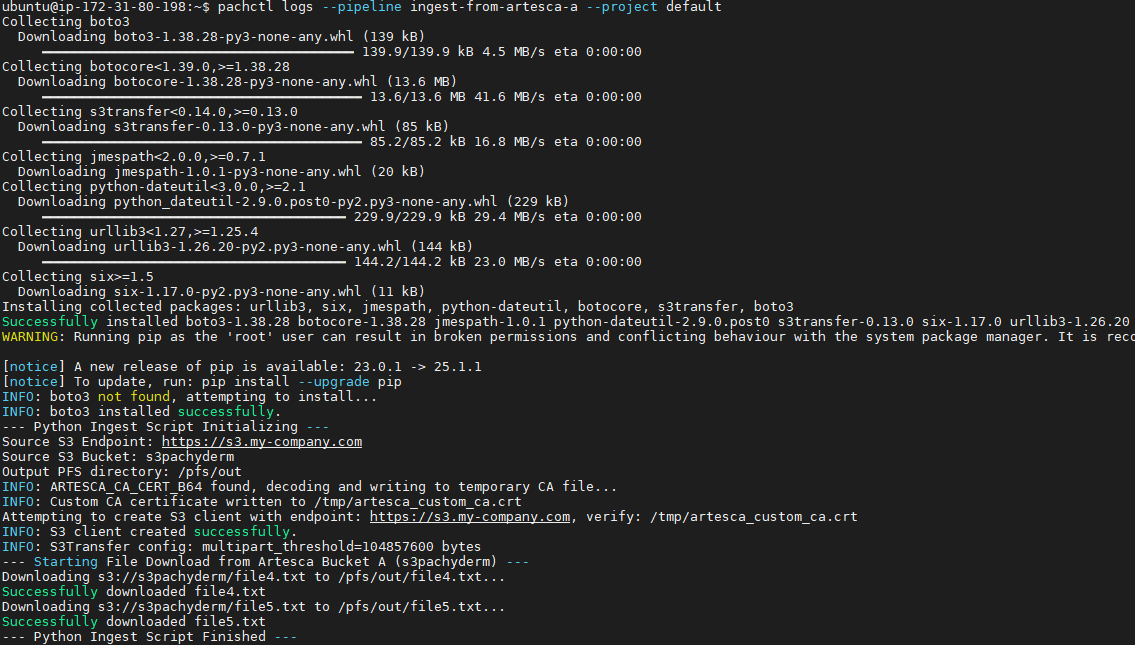
Verify the egress pipeline output in Pachyderm.
pachctl list file export-to-artesca-b@master
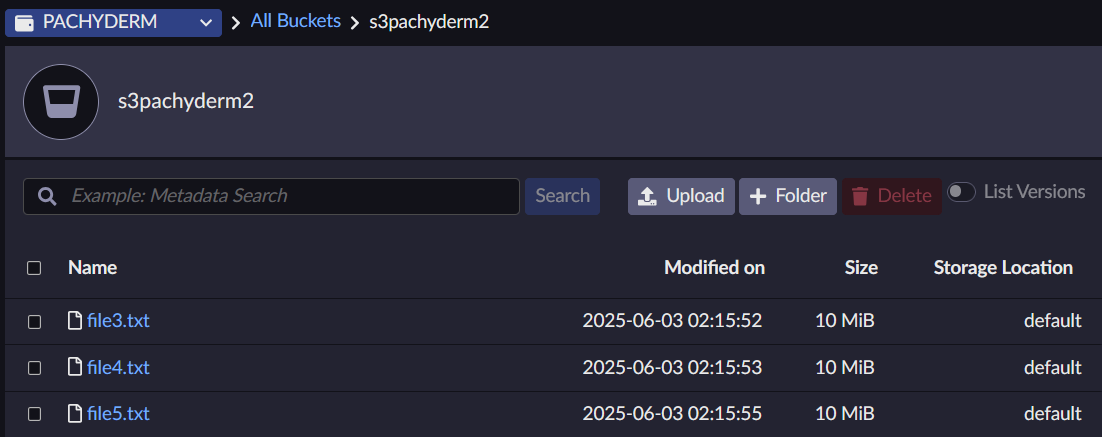
Access the ARTESCA management interface and navigate to the target bucket.
Verify the labeled files exist in the target bucket.
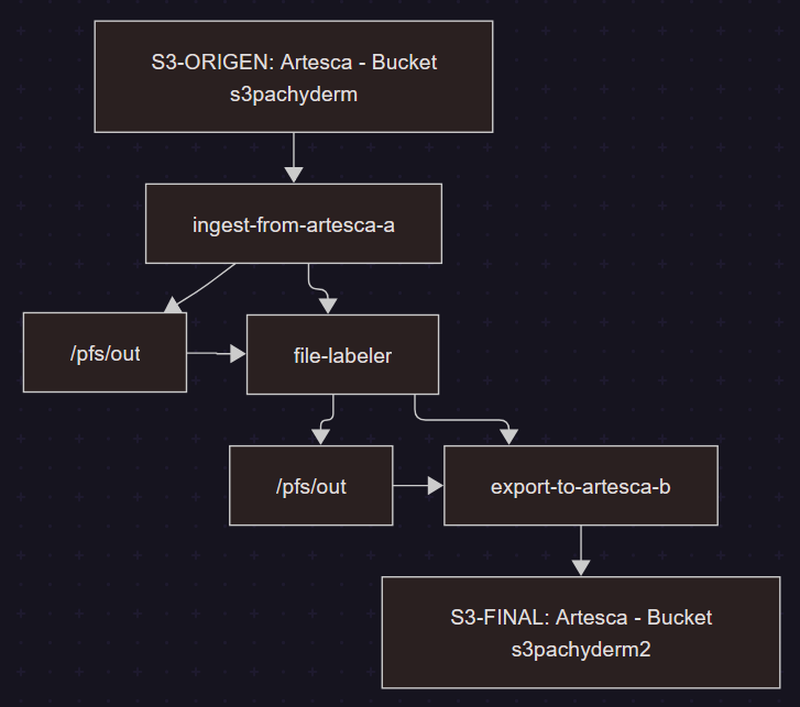
The following diagram illustrates the complete data flow from the ARTESCA source bucket through the Pachyderm processing pipeline to the ARTESCA output bucket.