

Create IAM Policies
This procedure creates a managed policy in your ARTESCA account. The permissions granted by the policy are defined in a JSON policy document. Once created, the policy can be attached to IAM users, groups, and roles.
You must have the predefined StorageAccountOwner IAM role to
perform this procedure.
Click Data Management on the top menu and select Accounts on the left.
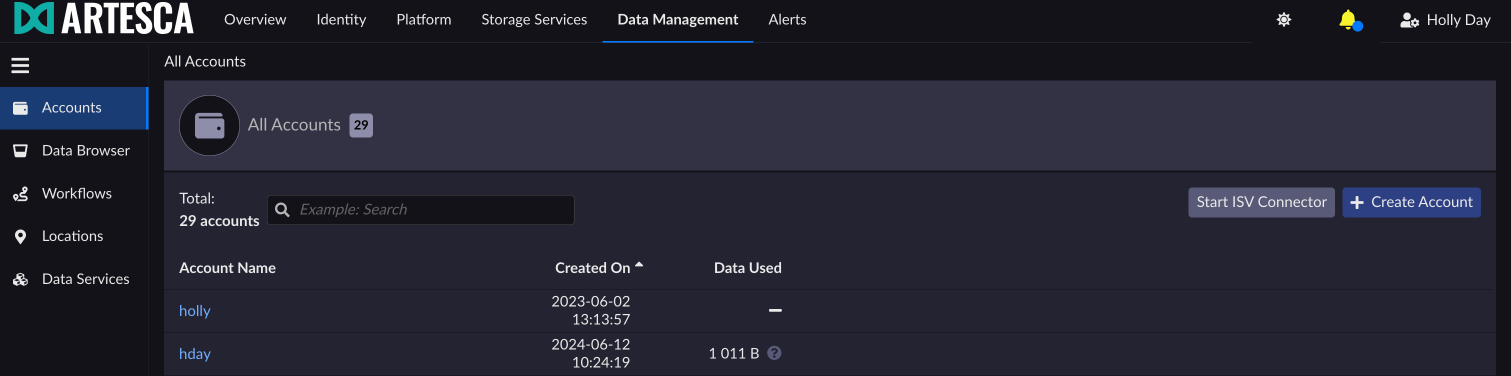
Select the account you want to create a policy on.
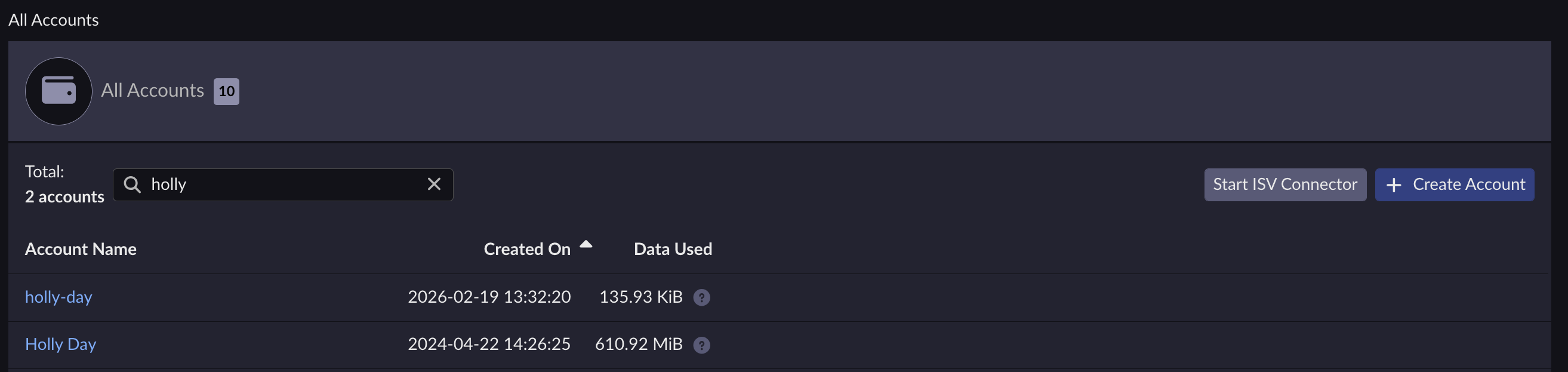
Under the Policies tab, click Create Policy.

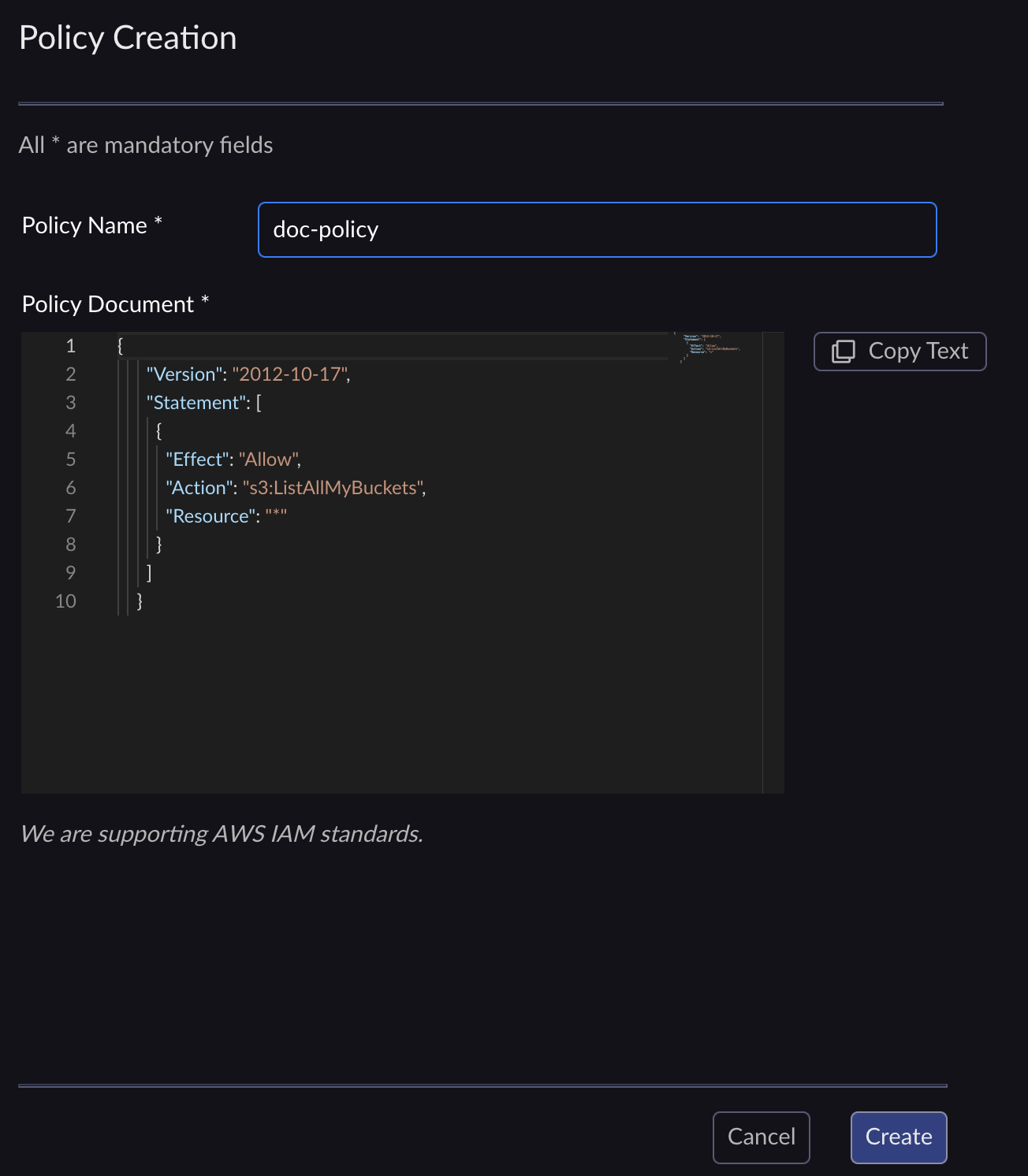
In the Policy Creation dialog box, provide a name to your policy, edit the Policy Document if needed, and click Create.
Note
A default policy document is displayed when creating a policy. You can edit the content of the document to specify the permissions you want to set in the policy.
The created policy is added to the list. Refer to the Manage IAM Policies section for more information on the operations you can perform.
Create a JSON policy document that contains a standard AWS Policy.
For example, a policy that grants access to all resources:
{
    "Version": "2012-10-17",
    "Statement": [
        {
            "Sid": "FullAccess",
            "Effect": "Allow",
            "Action": [
                "*"
            ],
            "Resource": "*"
        }
    ]
}
Upload the policy document.
aws --endpoint-url https://iam.<base-domain-name> iam create-policy --policy-name policyName --policy-document file://policy
{
"Policy": {
    "PolicyName": "policyName",
    "CreateDate": "2015-06-01T19:31:18.620Z",
    "AttachmentCount": 0,
    "IsAttachable": true,
    "PolicyId": "ZXR6A36LTYANPAI7NJ5UV",
    "DefaultVersionId": "v1",
    "Path": "/",
    "Arn": "arn:aws:iam::0123456789012:policy/policyName",
    "UpdateDate": "2015-06-01T19:31:18.620Z"
}
}


