Rubrik Cloud Data Management
Rubrik Cloud Data Management (CDM) offers a comprehensive suite of tools for data protection, threat detection, and recovery. By integrating with existing IT infrastructure, Rubrik CDM simplifies data management with a unified platform. Rubrik CDM along with Rubrik Cloud Data Manager can be used to backup virtual machines and applications alike.
During backups, the data is first snapshotted to Rubrik appliance and then tiered to ARTESCA. During Restore operations, snapshots are first copied from ARTESCA to Rubrik appliances and then restored.
Architecture
Rubrik CDM integrates with ARTESCA over S3. The following configuration is supported:
Deploy Rubrik and ARTESCA on single site.
Rubrik integration with ARTESCA over S3.
For dual sites or more, Rubrik’s replication can be used to replicate data to another Rubrik cluster, archiving to its own ARTESCA directly.
Note
Rubrik supports bucket level locking using S3 Object Lock with ARTESCA.
Prerequisites
Rubrik CDM is installed, this documentation has been built with version 9.1
Storage Profile
Rubrik uploads objects to ARTESCA’s buckets with an average object size of 8MB.
Performance
Architecture |
Backup |
Restore |
|---|---|---|
1 Node |
Up to 8 TB/H |
Up to 6.5 TB/H |
3 Nodes |
Up to 12 TB/H |
Up to 10 TB/H |
6 Nodes |
Up to 18 TB/H |
Up to 15 TB/H |
Note
The performance numbers are applicable for HPE, SMC, or Dell standard configurations with spinners, and 25 Gbps networks.
Best Practices
If the Rubrik cluster cannot resolve the ARTESCA S3 endpoint when no DNS service or Load Balancer is available in the environment, the following steps can be taken to resolve the ARTESCA S3 endpoint manually.
Connect to the Rubrik cluster as an administrator via ssh.
Create a host file mapping.
Note
Use this command only when Rubrik nodes are in the OK status.
network configure_ip_hosts_mappingSelect the following options from the menu:
IP Address - IP address of one of the ARTESCA nodes.
<s3 endpoint name> as the alias.
Save and commit the mapping.
The Rubrik cluster now resolves the ARTESCA S3 endpoint to the given IP address.
Configure ARTESCA for Rubrik
Access the connector page:
On first login, as no account exists, the connector page displays.
Click Start ISV Connector.
From the Accounts page.

From the Data Browser page.

Note
This option is only available if you have already created an account.
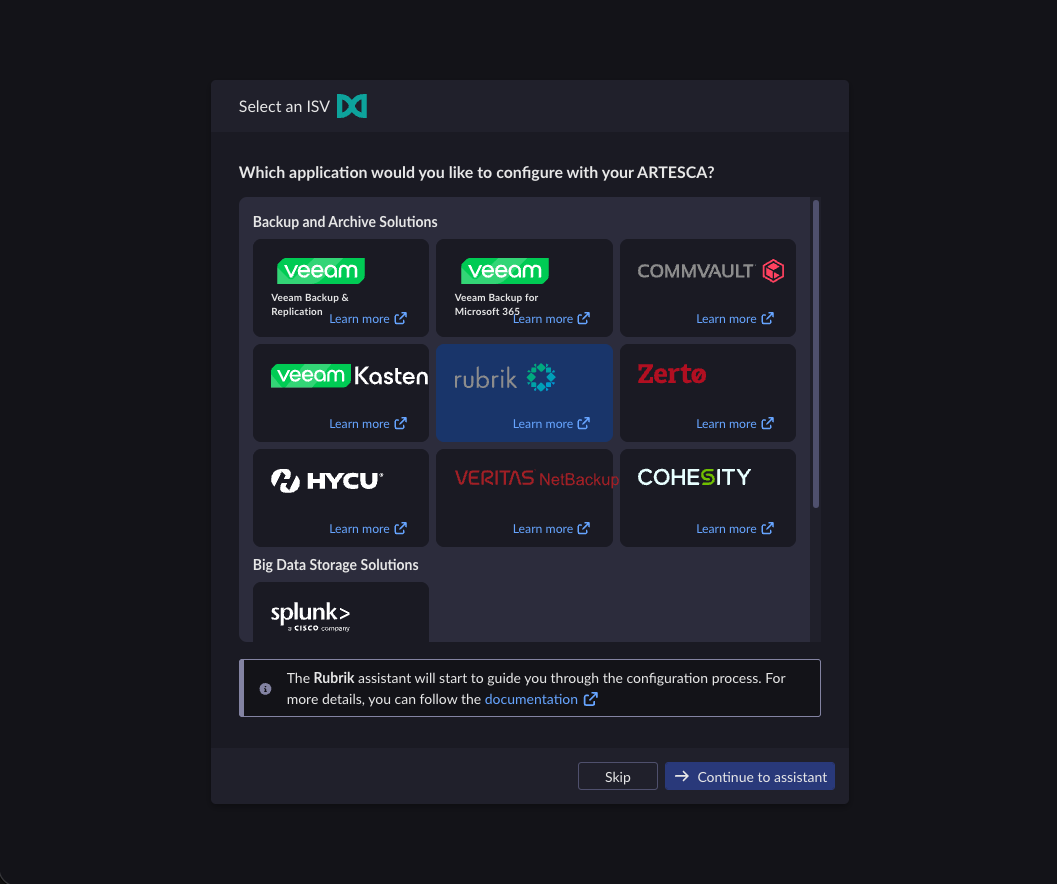
On the connector page, select the Rubrik partner application and click Continue to assistant.
Fill in the required fields.
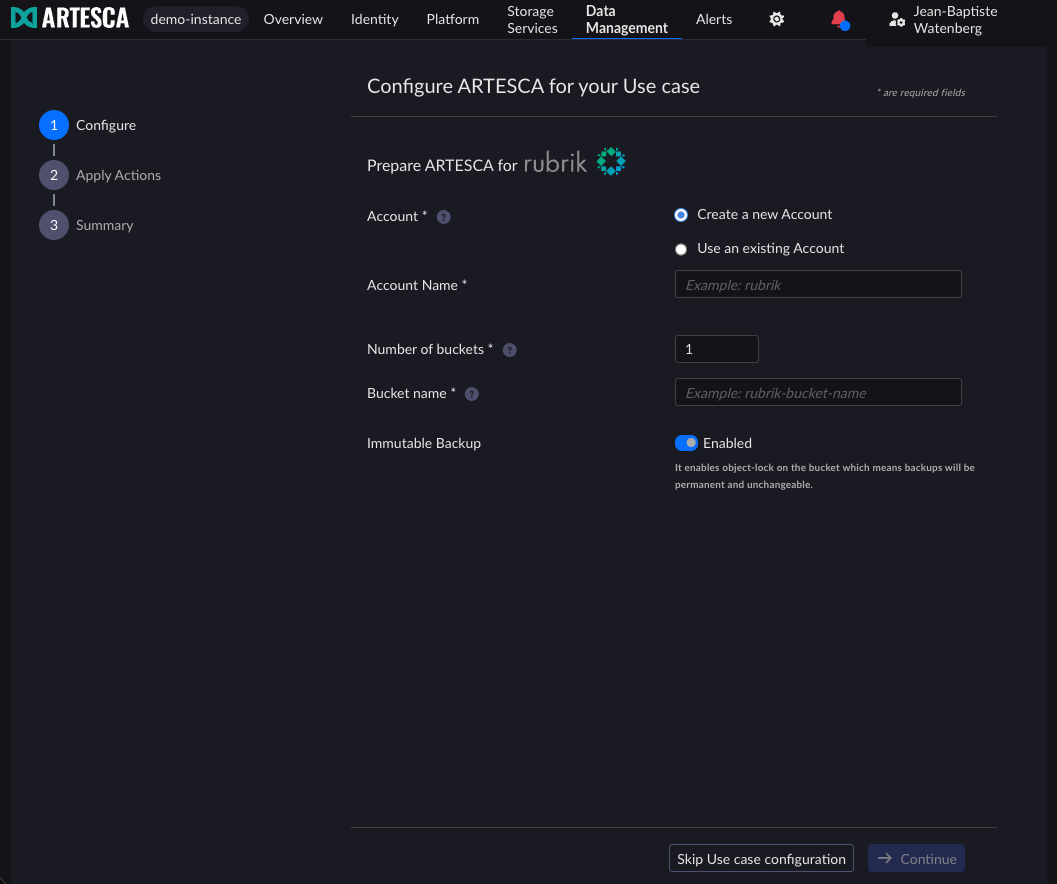
Field Descriptions
Field
Description
Account
Create a new Account: Select this option to create a new account dedicated to Rubrik.
Use an existing Account: Select this option to reuse an account that already exists. This option is only available if at least one account has been created previously.
Note
If starting the configuration from the Data Browser page, this field is automatically pre-filled and locked.
Account Name
Enter the name of the account to create, or select an existing account from the drop-down list.
Number of buckets
Enter the number of buckets to create. Rubrik uses one bucket by default.
Bucket name
Enter a name for the bucket. Rubrik CDM expects bucket names in the format
<prefix>-rubrik-<n>, where<prefix>is a value of your choice and<n>is a sequential number starting at0. For example:my-archive-rubrik-0.Immutable Backup
When enabled, S3 Object Lock is activated on the bucket, making backups permanent and unchangeable. This toggle is enabled by default.
Disable this toggle only if you do not require immutable backups.
Click Continue.
The assistant runs all the required configuration steps automatically and displays their status.
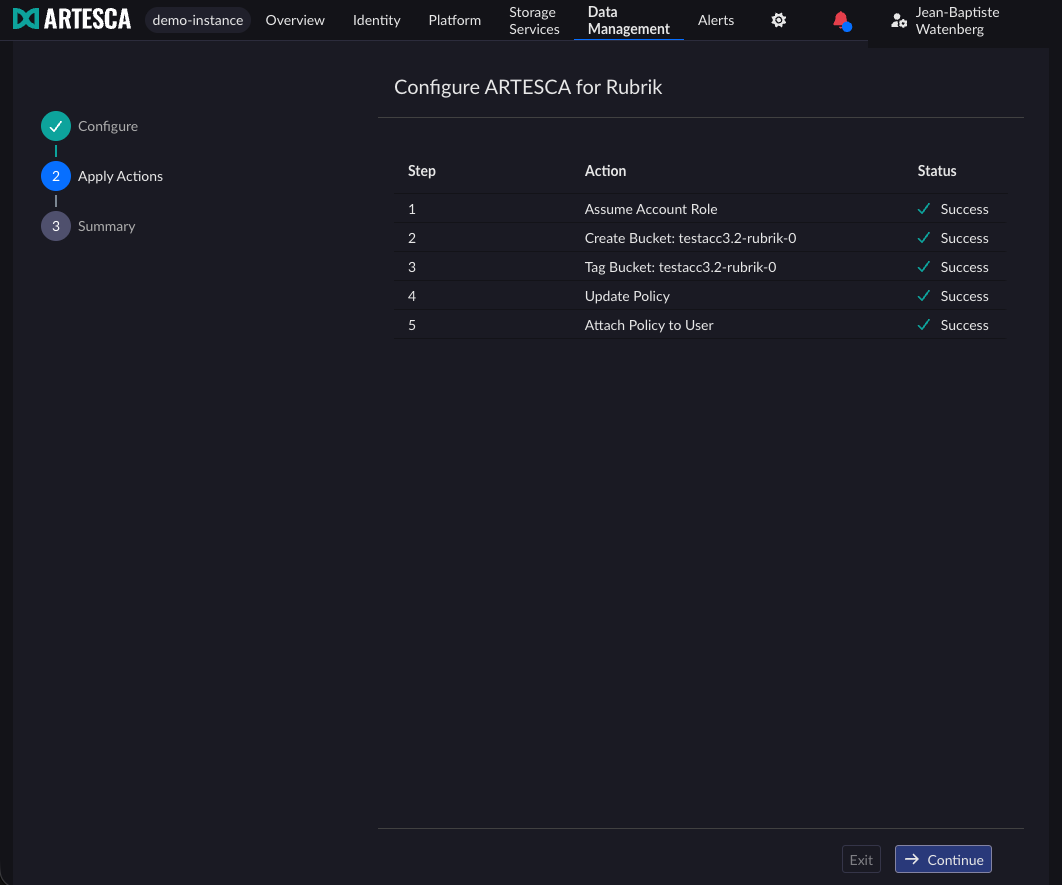
If a step fails, click Retry next to the corresponding step. If it fails again, refer to your ARTESCA administrator.
Note
If you exit the assistant after a failure, the resources already created remain. To restart the configuration from an account that was already created, trigger the assistant manually from the Accounts page by clicking Start ISV Connector.
Click Continue once all the steps have succeeded.
The assistant displays the Rubrik Archive Location preparation summary.
Important
Do not click Finish yet. You need the information on this page to complete the configuration in Rubrik CDM.
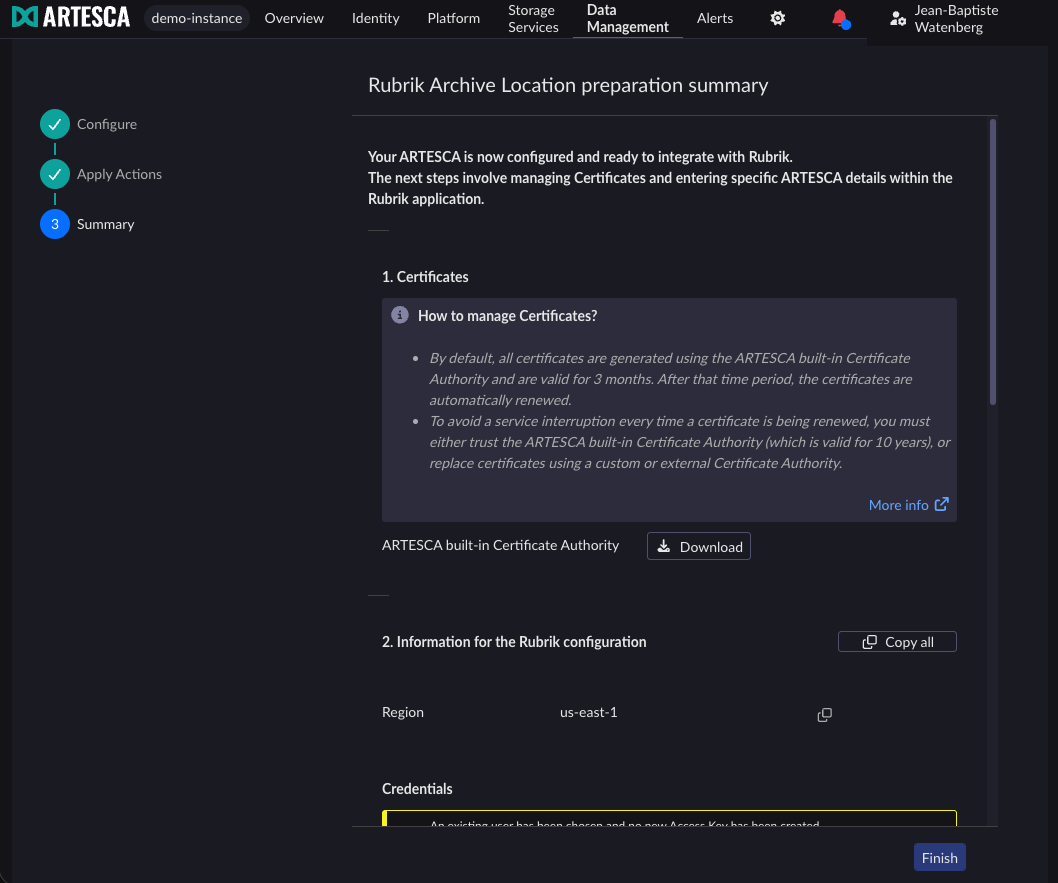
In the Certificates section, download or configure the ARTESCA Certificate Authority so that Rubrik CDM can trust the ARTESCA S3 endpoint.
Refer to Security Implementation Guidelines for more information about managing certificates.
In the Information for the Rubrik configuration section, copy the values you need to configure Rubrik CDM.
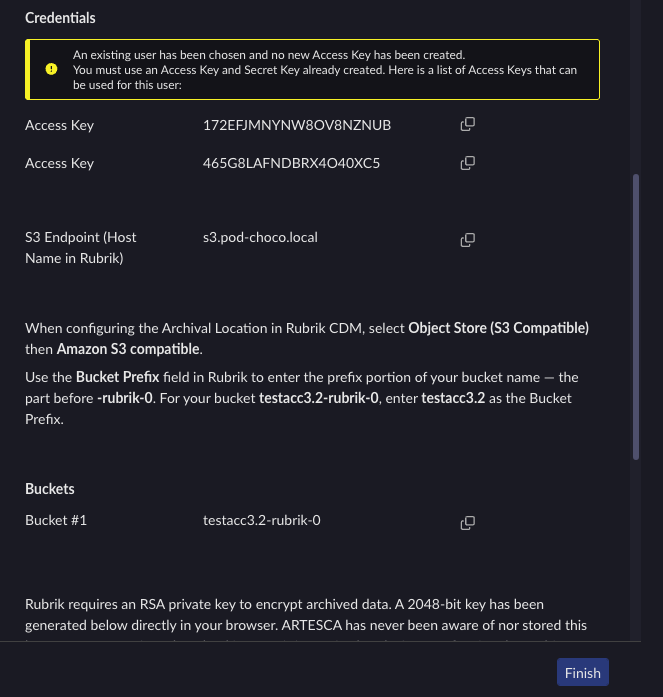
The section provides the following information:
Region — Use this value in the Region field in Rubrik CDM.
Credentials — The Access Key and Secret Key of the IAM user created for Rubrik.
Important
If a new Access Key and Secret Key were generated, the Secret Key is only displayed here. Copy it now. If you did not copy it, you must generate a new one. Refer to Create IAM User Access Keys for more information.
S3 Endpoint (Host Name in Rubrik) — The URL of the ARTESCA S3 endpoint. Use this value in the Host Name field when creating the Archive Location in Rubrik CDM.
Bucket Prefix — When configuring the Archival Location in Rubrik CDM, select Object Store (S3 Compatible) then Amazon S3 compatible. Enter the prefix portion of your bucket name — the part before
-rubrik-0— in the Bucket Prefix field in Rubrik CDM.Buckets — The list of buckets created for Rubrik.
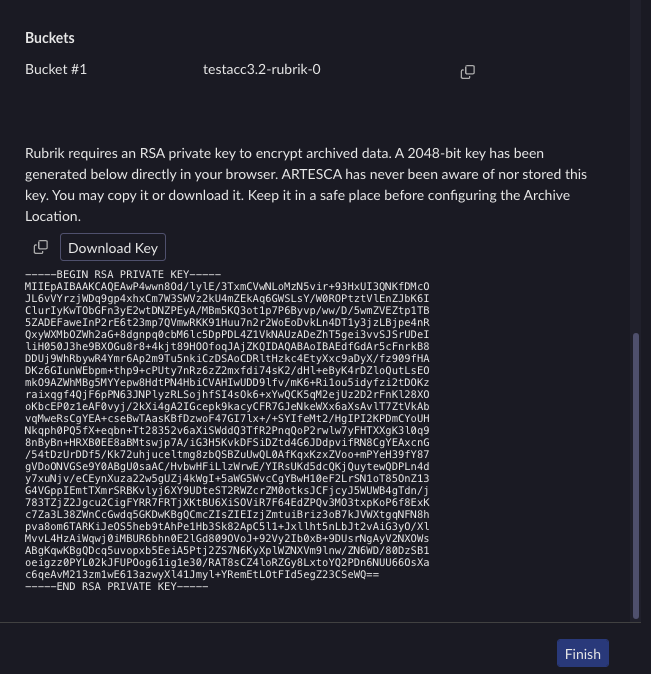
At the bottom of the summary, copy or download the RSA private key generated for this configuration.
Important
The RSA private key was generated directly in your browser. ARTESCA has never stored this key. Keep it in a safe place before clicking Finish. You will need it when configuring the Archive Location in Rubrik CDM.
Click Copy to copy the key to the clipboard, or click Download Key to save it as
rubrik_encryption_key.pem.Click Finish to close the assistant.
The resources created by the assistant (account, bucket, IAM user, and policy) are available in the respective ARTESCA UI pages.
Create an Account for Rubrik.
Create a Bucket to be used with Rubrik.
Create an IAM User for Rubrik.
Create an IAM Policy to grant Rubrik access to the S3 bucket and manage data.
Note
Replace
bucketnamewith your bucket’s name.Example of an IAM policy for non-immutable bucket
 {
 "Version": "2012-10-17",
 "Statement": [
   {
       "Sid": "RubrikPolicy",
       "Effect": "Allow",
       "Action": [
           "s3:PutObject",
           "s3:GetObject",
           "s3:ListBucket",
           "s3:DeleteObject",
           "s3:GetBucketLocation",
           "s3:AbortMultipartUpload",
           "s3:ListMultipartUploadParts",
           "s3:ListBucketMultipartUploads",
           "s3:RestoreObject",
           "s3:CreateBucket",
           "s3:GetBucketAcl"
       ],
       "Resource": "arn:aws:s3:::datacenter-1-rubrik-0/*"
   }
]
}
Example of an IAM policy for immutable bucket
{
  "Version": "2012-10-17",
  "Statement": [
    {
      "Sid": "GlobalPermission",
      "Effect": "Allow",
      "Action": ["s3:ListAllMyBuckets"],
      "Resource": "*"
    },
    {
      "Sid": "BucketLevel",
      "Effect": "Allow",
      "Action": [
        "s3:ListBucket",
        "s3:ListBucketMultipartUploads",
        "s3:GetBucketLocation",
        "s3:GetBucketAcl",
        "s3:GetBucketPolicy",
        "s3:GetBucketVersioning",
        "s3:GetBucketPublicAccessBlock",
        "s3:GetBucketObjectLockConfiguration",
        "s3:PutBucketObjectLockConfiguration"
      ],
      "Resource": "arn:aws:s3:::bucketname"
    },
    {
      "Sid": "ObjectLevel",
      "Effect": "Allow",
      "Action": [
        "s3:AbortMultipartUpload",
        "s3:ListMultipartUploadParts",
        "s3:PutObject",
        "s3:GetObject",
        "s3:DeleteObject",
        "s3:RestoreObject",
        "s3:PutObjectTagging",
        "s3:GetObjectTagging",
        "s3:PutObjectAcl",
        "s3:GetObjectAcl",
        "s3:GetObjectVersion",
        "s3:DeleteObjectVersion",
        "s3:GetObjectVersionTagging",
        "s3:PutObjectVersionTagging",
        "s3:PutObjectRetention",
        "s3:GetObjectRetention",
        "s3:PutObjectLegalHold",
        "s3:GetObjectLegalHold",
        "s3:BypassGovernanceRetention"
      ],
      "Resource": "arn:aws:s3:::bucketname/*"
    }
  ]
}
Attach the IAM policy to the IAM user previously created.
Create Access Key and Secret Key for the IAM user.
Note
Rubrik expects bucket names with the format <prefix><bucket name>-n, where the prefix
is a user-chosen value and n is the number of buckets. This document focuses on
creating one bucket only.
Generate RSA Keys
Rubrik uses an RSA private key to encrypt data before sending it to ARTESCA.
On a secure computer, open a terminal window.
At the command prompt, type the OpenSSL key generation command.
openssl genrsa -out rubrik_encryption_key.pem 2048
openssl genrsa -traditional -out rubrik_encryption_key.pem 2048
Rubrik CDM expects the RSA key in the traditional PKCS#1 format, which begins with
-----BEGIN RSA PRIVATE KEY-----and ends with-----END RSA PRIVATE KEY-----.
Configure ARTESCA as an Archive Location in Rubrik
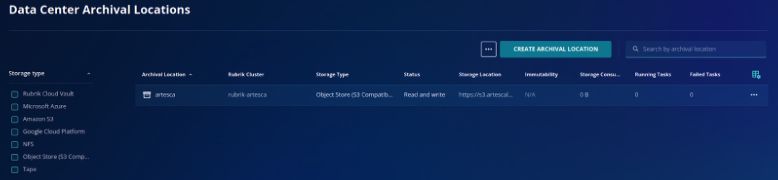
In the Rubrik CDM UI, on the side bar, navigate to Archival and Storage > Data Center Archival Locations > CREATE ARCHIVAL LOCATION
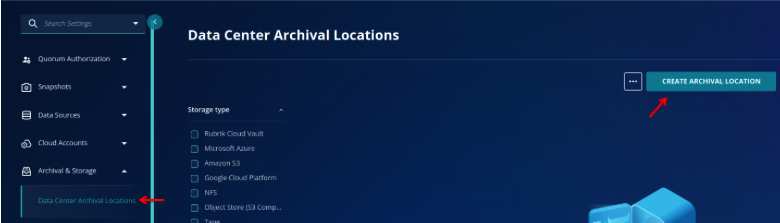
Select Object Store (S3 Compatible) and click Next.
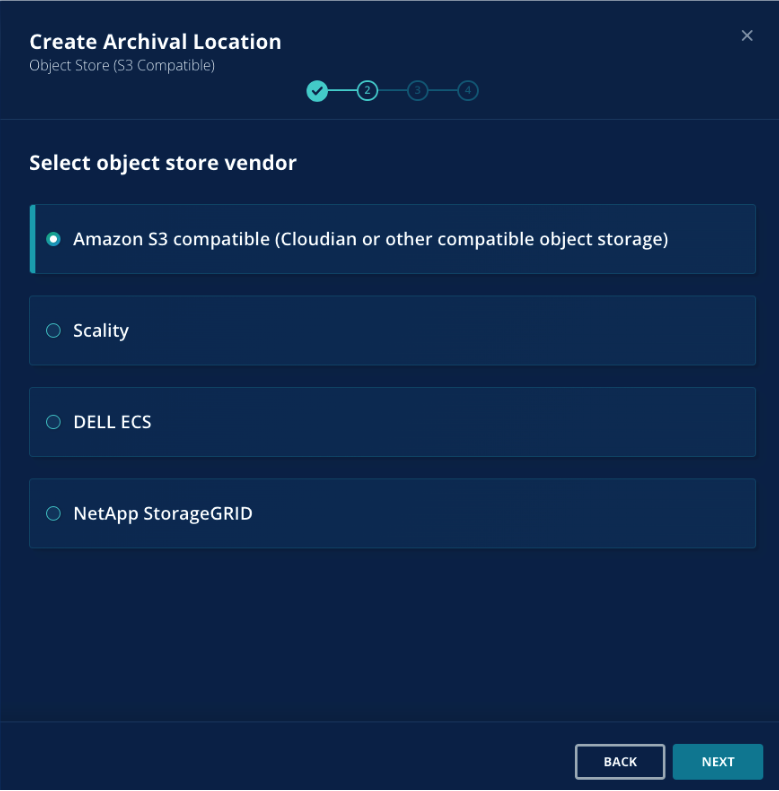
Note
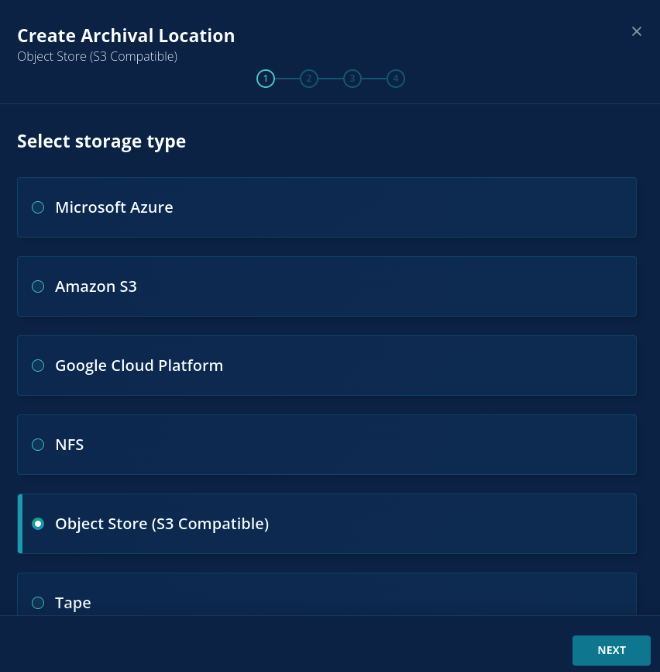
Do not select Scality as it pertains to non-supported implementation. Rubrik’s UI is expected to be updated soon removing the option as ARTESCA is fully Amazon S3 compatible object storage.
In the options to select Amazon S3 compatible.
Enter the following details:
Access Key - Access Key of the IAM user created.
Secret Key - Secret Key of the IAM user created.
Host Name - URL of the ARTESCA S3 endpoint including the protocol, for example:
https://s3.artescademo.com.Note
Host name of the ARTESCA’s S3 endpoint must be resolvable by the Rubrik cluster. If the endpoint is not resolvable, follow the instructions in Best Practices to setup hosts entry on the Rubrik cluster.
- Bucket Prefix - type a prefix to use for naming the buckets.
The Bucket Prefix value cannot contain uppercase letters. The Rubrik cluster uses the Bucket Prefix value as the common first part of the names for the buckets assigned to the Rubrik cluster. For example, when the Bucket Prefix is datacenter-1 and the Number of Buckets is
1, the Rubrik cluster uses thebucket datacenter-1-rubrik-0at the archival location.Note
The bucket must be created prior to adding it as an archival location in Rubrik.
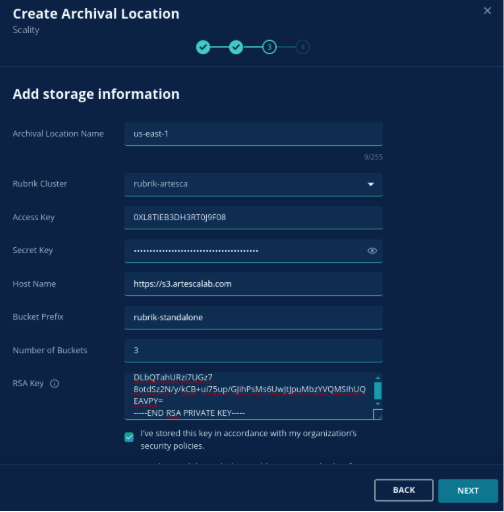
Number of Buckets - Enter the number of buckets as 1.
RSA Key - Enter the private key created during the Generate RSA Keys step.
Enable Archive Consolidation - Select to Enable Archive Consolidation. When enabled, the Archive Consolidation feature removes expired and unnecessary snapshot data from the ARTESCA bucket.
Confirm the details, and click NEXT
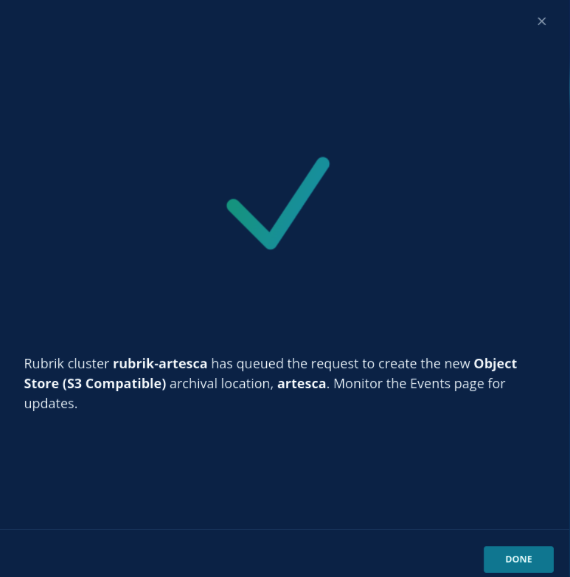
The new archival location will appear in the list.