

Commvault
Commvault software is an enterprise-level data platform that contains modules to back up, restore, archive, replicate, and search data. It is built from the ground-up on a single platform and unified code base. There are four product lines: Complete Backup and Recovery, HyperScale integrated appliances, Orchestrate disaster recovery, and Activate analytics.
Commvault can interact with Cloud libraries as a primary target. This means it can back-up directly to on-prem S3 targets without a file system intermediary. Cloud libraries can be deduplicated (with deduplication databases on fast file system storage) or compressed. Cloud libraries support ObjectLocking, when configured as a replication target (i.e. secondary copy). Commvault backups are self-describing, meaning that all the infrastructure can be recovered from the S3 repository in case the Commvault servers are lost.
Architecture
Backup architecture is a common controller/server, media agent and client model.
Prerequisites
Commvault installed. Current LTS version is 11.32
ARTESCA Performance Information
Architecture for HPE, SMC, or Dell standard configurations with 25 Gbps network |
Configuration with spinners |
Configuration with flash drives |
||
|---|---|---|---|---|
Backup |
Restore |
Backup |
Restore |
|
1 node |
Up to 4 TB/H |
Up to 3.4 TB/H |
Up to 8 TB/H |
Up to 6.7 TB/H |
3 nodes |
Up to 6 TB/H |
Up to 5 TB/H |
Up to 12 TB/H |
Up to 10 TB/H |
6 nodes |
Up to 9 TB/H |
Up to 7.5 TB/H |
Up to 18 TB/H |
Up to 15 TB/H |
Best Practices
When the object lock option is enabled on a bucket to enable WORM storage, versioning is automatically enabled on this bucket. If WORM storage lock is not enabled in Commvault, object lock and versioning must not be enabled on the bucket.
Manage space reclamation with Commvault WORM based on the version.
Commvault WORM in versions below 11.26 may not remove all non-current versions and delete markers. To ensure that space is regularly reclaimed, contact Commvault support.
Commvault WORM in versions 11.26 and later manages the deletion of object versions and delete markers.
Configure ARTESCA for Commvault
Access the connector page:
On first login, as no account exists, the connector page displays.
From the Accounts page.

From the Data Browser page.

Note
This option is only available if you have already created an account.
On the connector page, select the COMMVAULT partner application and click Continue to assistant.
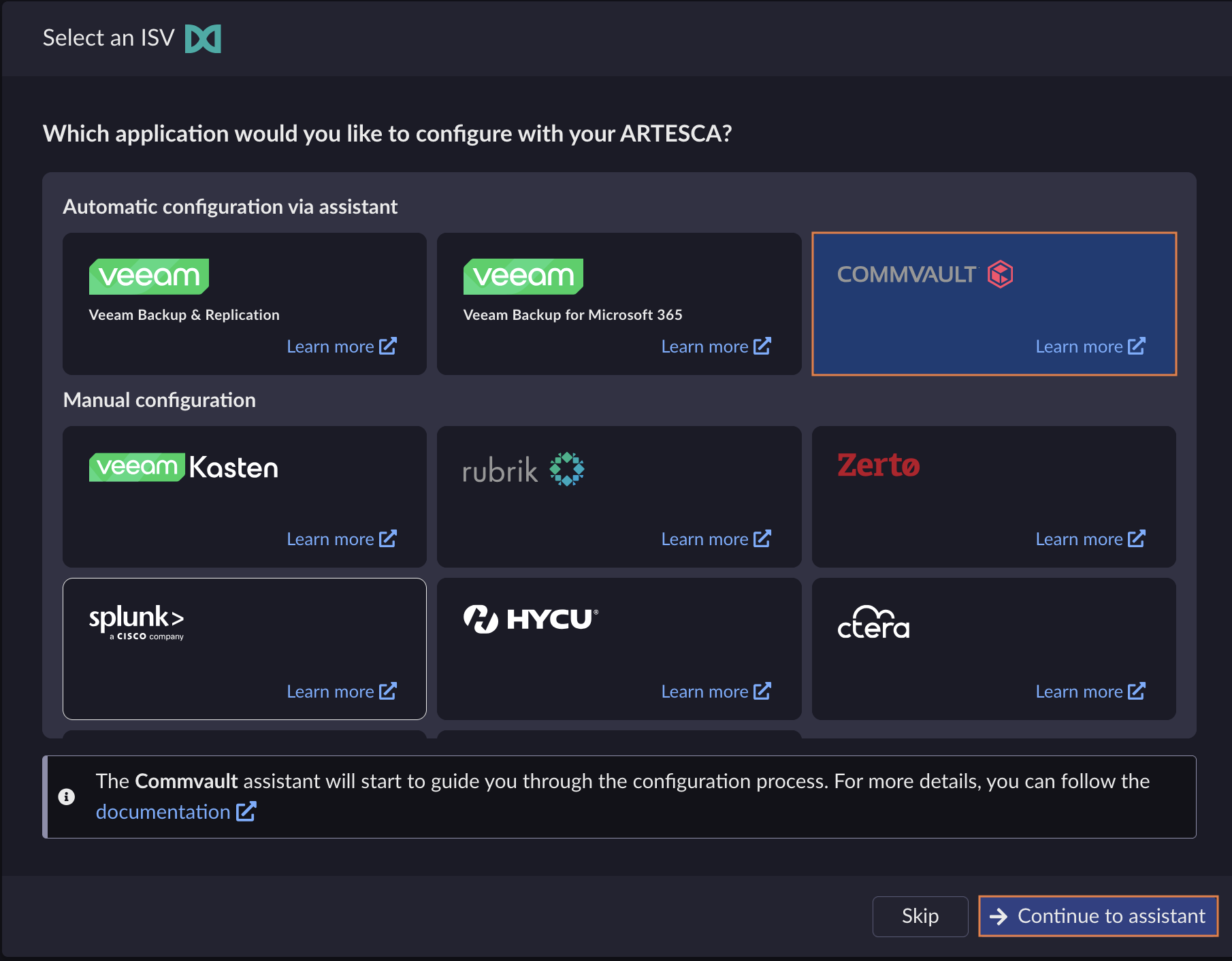
The startup assistant dialog box displays.
Fill in the required fields.

Field
Description
Account
Create a new account: Select this option if you want to create a new account.
Use an existing account: Select this option if you want to use an existing account. This option is only available if you have already created an account.
Note
If starting the configuration from the Data Browser page, this field is automatically pre-filled and locked.
Account Name
Enter the name of the account you want to create or choose an already existing account from the drop-down list.
Advanced settings
This field is only available if selecting the Use an existing account option.
By default, the system checks if an IAM user already exists for the given account and partner application. If a matching user is found, the system will preselect it and extend its permissions without creating new AK/SK credentials.
Create a new IAM user: Select this option if you want to create a new IAM user within your existing account. In that case, you must provide an IAM user name.
Use an existing IAM User: Select this option if you want to use an existing IAM user. In that case, choose the user from the drop-down list. You can also choose to generate a new set of AK/SK credentials.
Number of buckets
Choose the number of buckets you want to create. The limit is 20 buckets.
Bucket name
Enter a unique name for the bucket. The name must conform to AWS naming conventions.
Tip
For more information, refer to Bucket naming rules.
WORM bucket
By default, object-lock is enabled on buckets. which means that objects are locked and cannot be deleted.
Toggle the switch if you want to disable this feature.
Click Continue.
The assistant displays all the automated configuration steps and the status for each step. The list of steps differs depending on the options chosen.
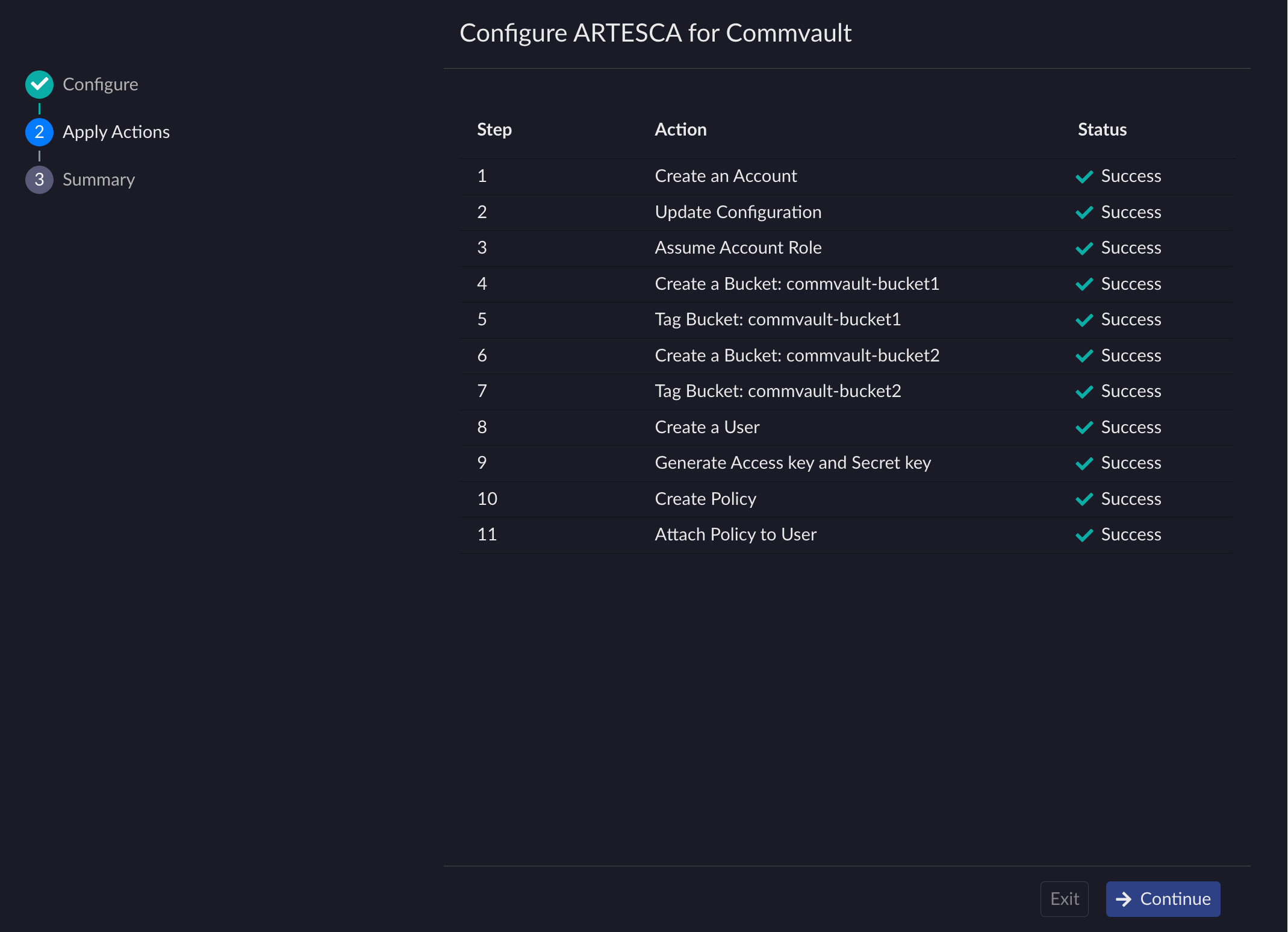
If a step fails, click Retry.
Note
If you decide to exit the assistant during a step failure, the resources created remain. If an account has been created and you want to restart the configuration, you must trigger the assistant manually from the Accounts page by clicking Start ISV Connector.
Click Continue once all the steps have succeeded.
The assistant displays the summary of the configuration.
Important
You need the information displayed in this page to complete the configuration in the Commvault application, so do not click Finish yet.
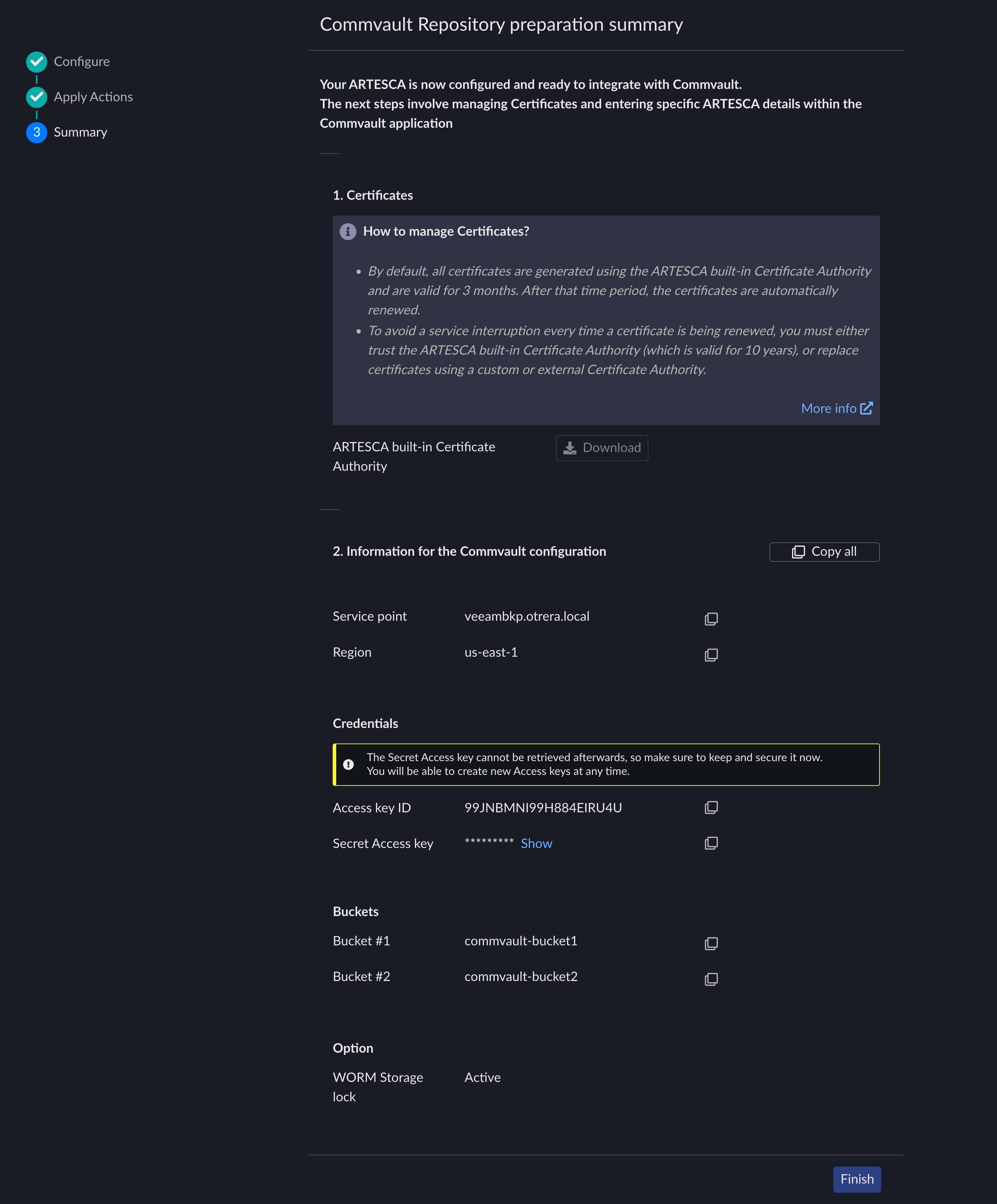
From the summary page, copy the different information one by one, or click Copy all to copy all the information at once.
Note
Scality recommends retrieving the information at this point as it is all grouped in one place. You can still retrieve some of the information later in the UI, but it will have to be done individually.
Besides, the secret key (if generated at this moment) is only available here. If you have not copied it, you will need to generate a new one later. Refer to Create IAM User Access Keys for more information.
Click Finish to close the assistant.
The resources created by the assistant (account, buckets, users, and policies) are available in the respective UI pages.
Create an Account for the Commvault application.
Create a Bucket to be used with Commvault application.
Create IAM Users for the Commvault application.
Create an IAM policy to grant the Commvault application access to S3 repository and manage data from an object repository
Note
Replace
bucketnamewith the name of the bucket that will be used with the Commvault application.{ "Version": "2012-10-17", "Statement": [ { "Effect": "Allow", "Action": [ "s3:GetObject", "s3:PutObject", "s3:DeleteObject", "s3:GetBucketLocation", "s3:GetBucketVersioning", "s3:GetBucketObjectLockConfiguration", "s3:ListBucketVersions", "s3:GetObjectVersion", "s3:GetObjectRetention", "s3:GetObjectLegalHold", "s3:PutObjectRetention", "s3:PutObjectLegalHold", "s3:DeleteObjectVersion" ], "Resource": [ "arn:aws:s3:::bucketname/*", "arn:aws:s3:::bucketname" ] }, { "Effect": "Allow", "Action": [ "s3:ListAllMyBuckets", "s3:ListBucket" ], "Resource": "*" } ] }{ "Version": "2012-10-17", "Statement": [ { "Effect": "Allow", "Action": [ "s3:GetObject", "s3:PutObject", "s3:DeleteObject", "s3:GetBucketLocation", "s3:GetBucketVersioning", "s3:GetBucketObjectLockConfiguration" ], "Resource": [ "arn:aws:s3:::bucketname/*", "arn:aws:s3:::bucketname" ] }, { "Effect": "Allow", "Action": [ "s3:ListAllMyBuckets", "s3:ListBucket" ], "Resource": "*" } ] }Attach an IAM policy to the IAM user previously created.
Note
Enable Object lock configuration on the bucket without any default retention policy if the object storage repository is being configured with WORM.
Integration
Set Up Credentials to be Used with Cloud Storage
On the Commvault’s CommCell Console, navigate to Manage>Security>Credential vault and click Add.
Enter/select the following information for each field:
Account type: Cloud account
Vendor type: S3 Compatible Storage
Credential name: <a unique name>
Access key ID: <Access Key of the IAM user created for Commvault>
Secret access Key: <Secret Key of the IAM user created for Commvault>
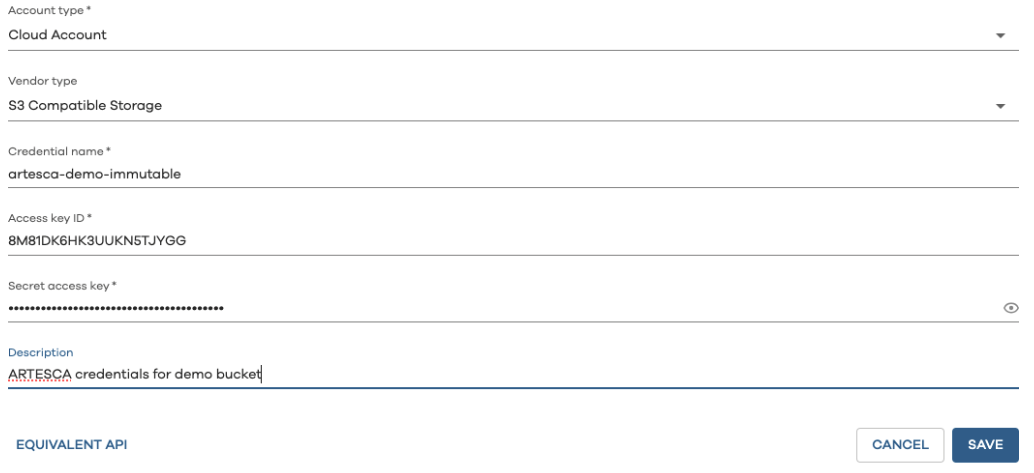
Click Save to save the information. The newly created credentials will appear in the list in Credentials vault.
Configure Media Agent with SSL Certificates
Follow this procedure to install ARTESCA’s root certificate on Media Agents and proxies for a successful SSL connection from Commvault to ARTESCA.
On the Commvault’s CommCell Console, navigate to Manage > System > Settings > Add > CommCell settings.
Enter the following information for each field:
Name: nCloudServerCertificateNameCheck
Category: MediaAgent
Type: Integer
Value: 2
Comment: Accept self signed certificates
Note
For test environments, certificate verification can be skipped by setting Value to 1.
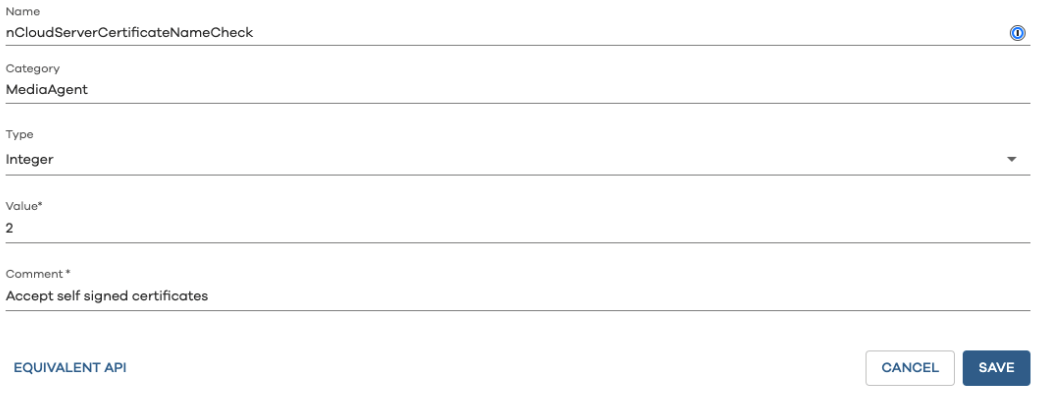
Click Save.
Configure Storage
On the Commvault’s CommCell Console, navigate to Storage > Cloud > Add.
Enter/Select the following information for each field
Type: S3 Compatible Storage
Name: <choose a unique name>
MediaAgent: <select all the Media Agents that will write to the cloud storage>
Service host: <ARTESCA S3 endpoint URL>
Credentials: Choose the credentials created a part of the Set Up Credentials to be Used with Cloud Storage section.
Bucket: Enter the bucket name created during the Configure ARTESCA for Commvault section.
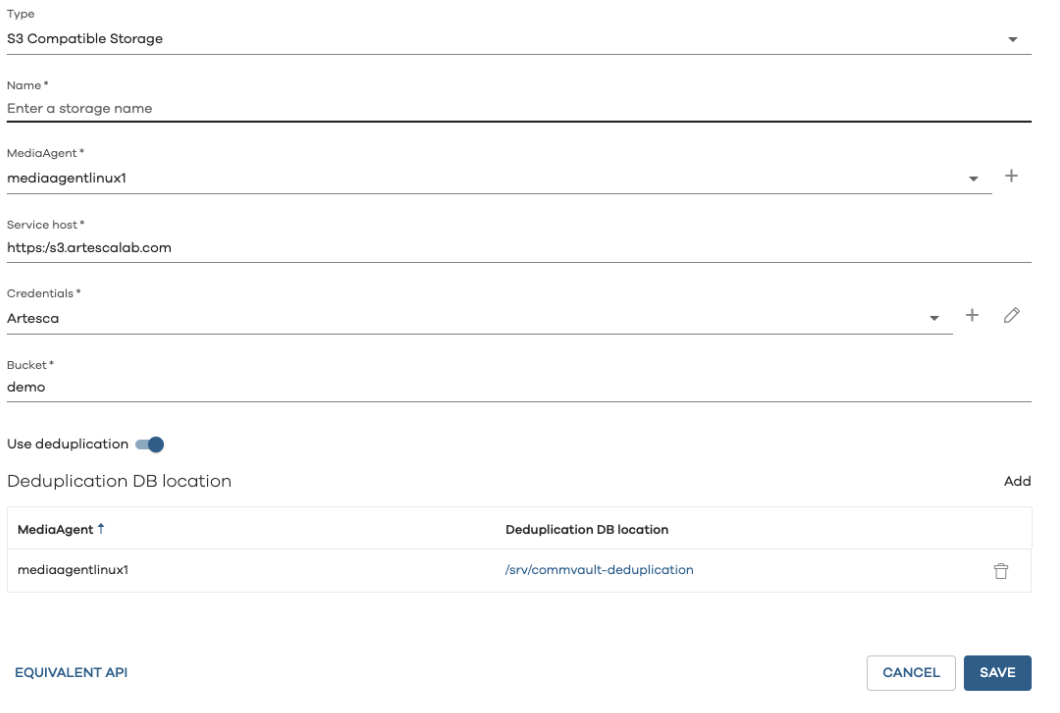
Enable Deduplication and select the directory on the Media Agent where the Deduplication DB will be stored.
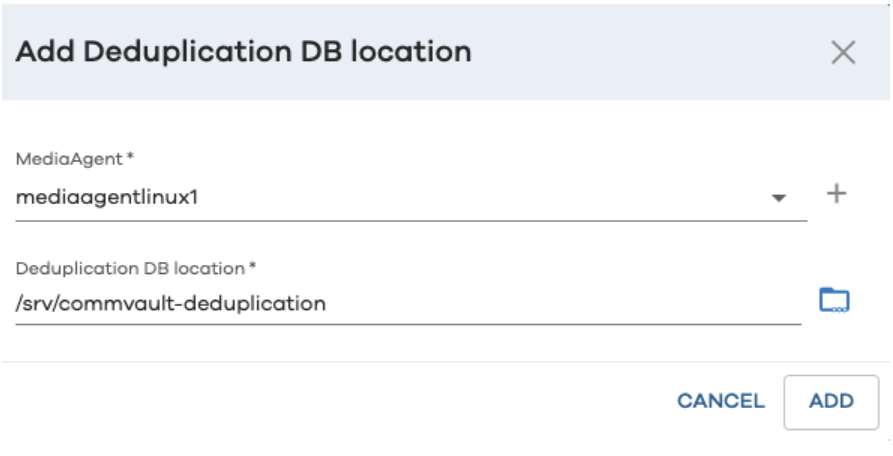
Click SAVE. The newly created cloud storage will appear under the Cloud section of Storage.
Activating WORM Storage Lock (Optional)
WORM storage lock ensures that backups are protected from accidental deletion of data.
To activate WORM storage lock, select the cloud storage created in the previous step, and click Configuration.
Toggle the WORM storage lock switch to enable the option.
Note
Compliance lock is enabled automatically when WORM storage lock is enabled.
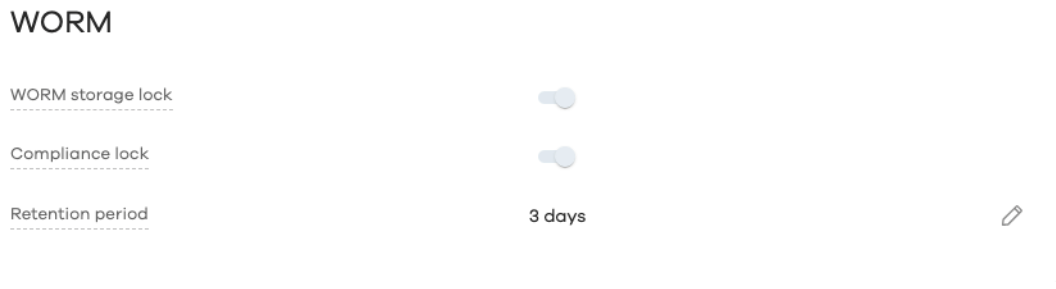
Set the desired Retention period.
Read the conditions, check them, and type Confirm on the text box. Click CONFIRM to save the options.
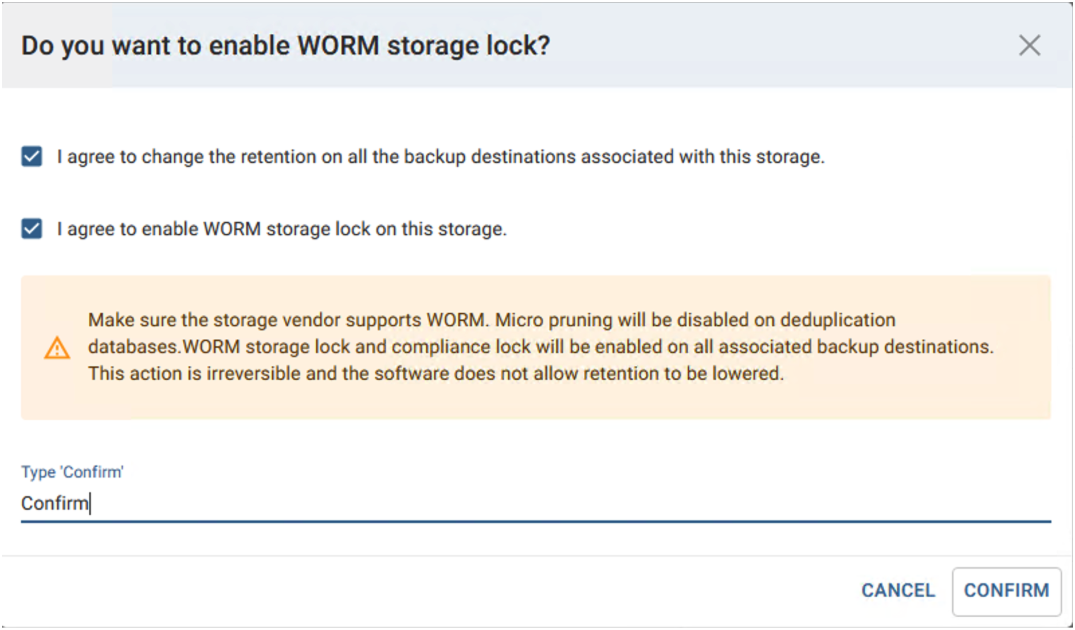
Warning
WORM storage lock must only be enabled on buckets with object lock enabled. Enabling on non-object lock buckets may result in backup failures.
Create a Backup Plan with ARTESCA as Primary Storage
On the Commvault’s CommCell Console, navigate to Manage > Plans and click Create Plan.
Select Create a new plan and enter a name for the plan.
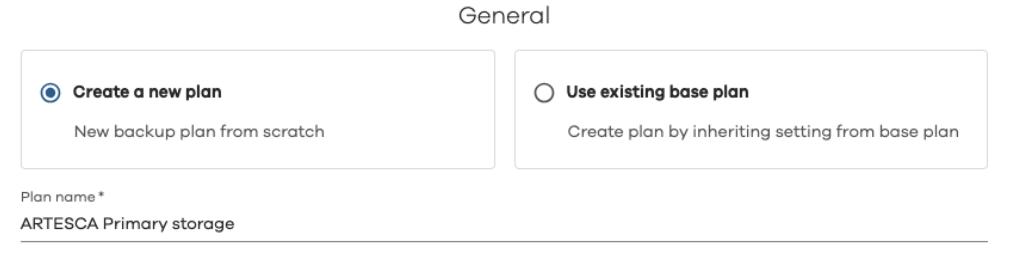
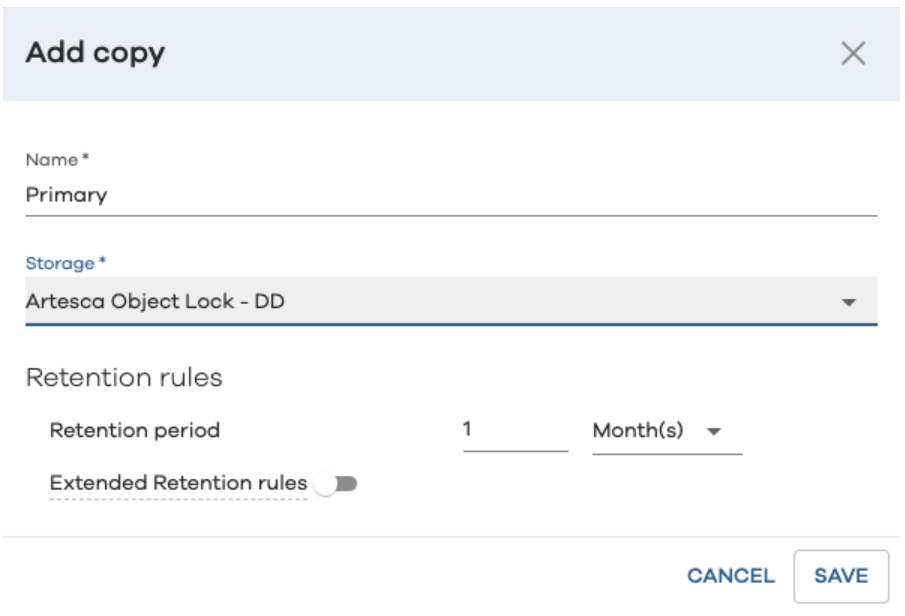
Click Add copy and choose the cloud storage created during the Configure Storage step.
Choose the Retention Period that matches your backup strategy and click Next.
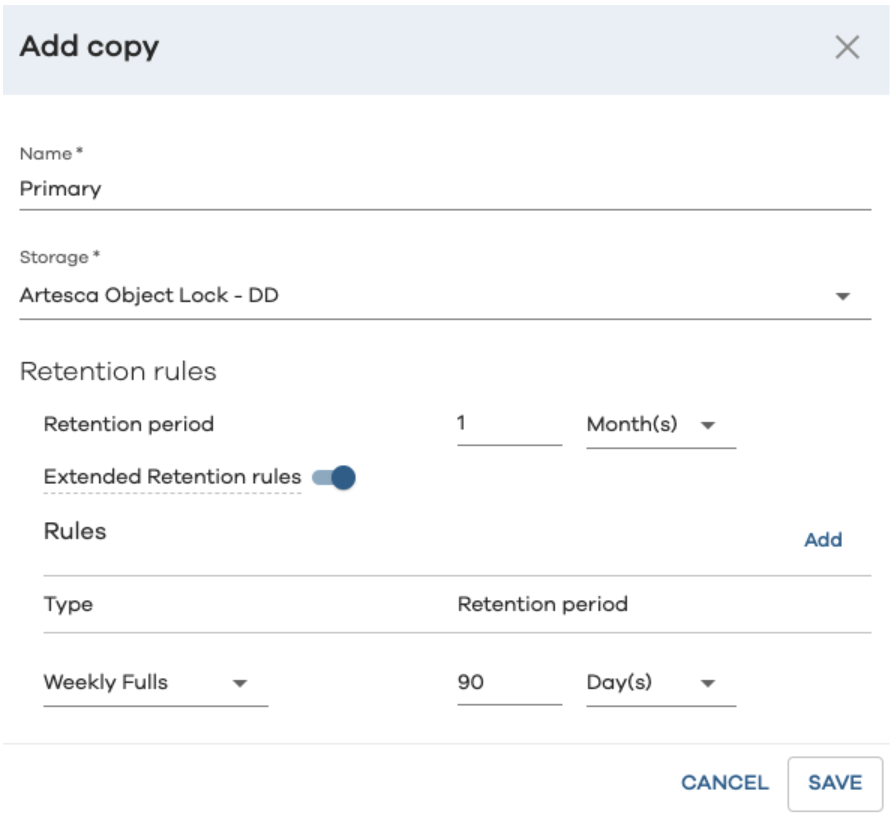
(Optional) Toggle Extended Retention rules to retain primary backups longer than the set retention period.
Click Save, and click Next.
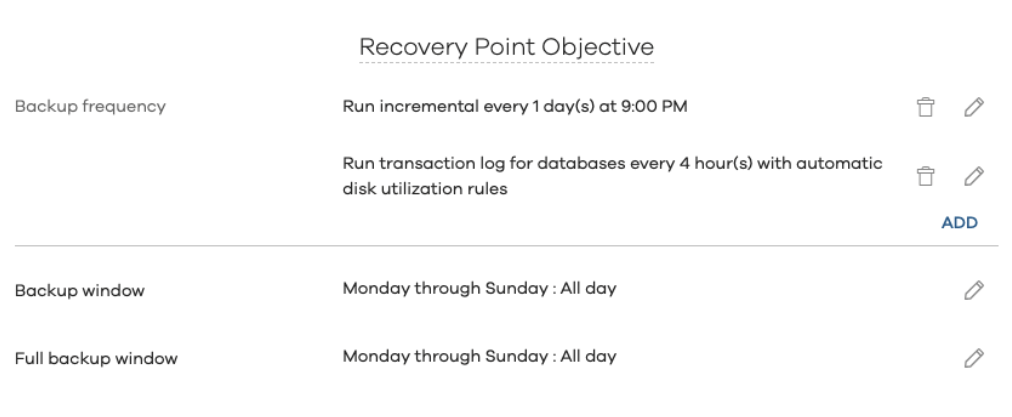
Set the desired Recovery Point Objective (RPO) settings to setup automatic backups at the desired frequency.
Choose the retention period for Snapshots.
Note
(Optional) If the plan uses an entity with IntelliSnap enabled, enter the number of snapshots to retain in Number of snap recovery points.
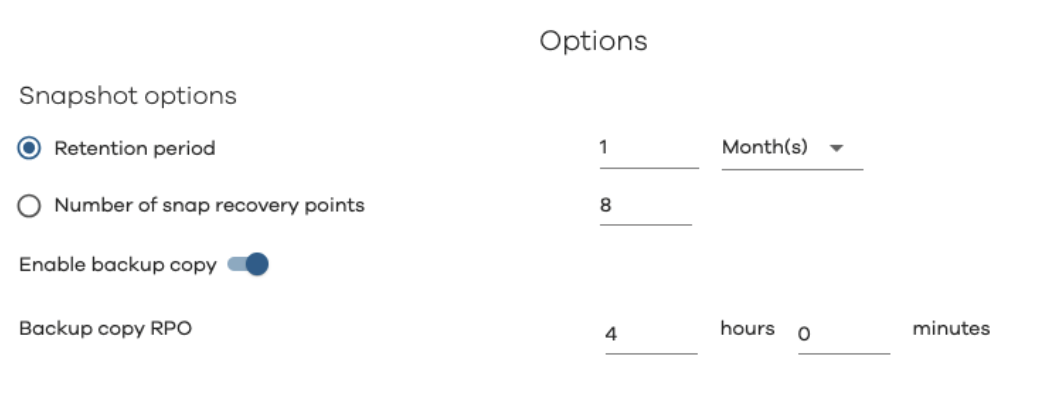
Click Submit to create the backup plan. The newly created plan will show under the list of Plans.
Create a Backup Plan with ARTESCA as Secondary Storage
On the Commvault’s CommCell Console, navigate to Manage > Plans and click Create Plan.
Select Create a new plan, and enter a name for the plan.
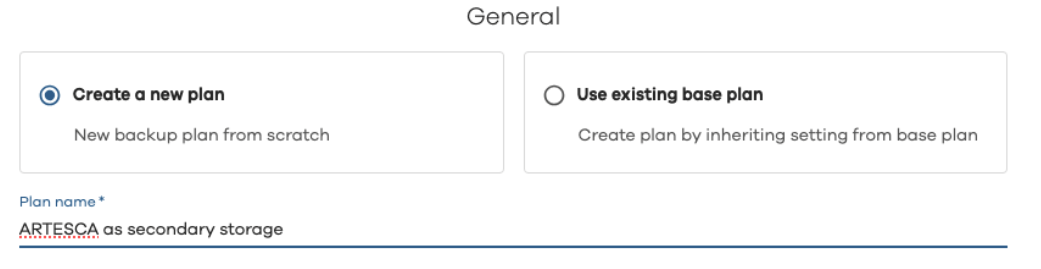
Choose the desired Storage for primary storage.
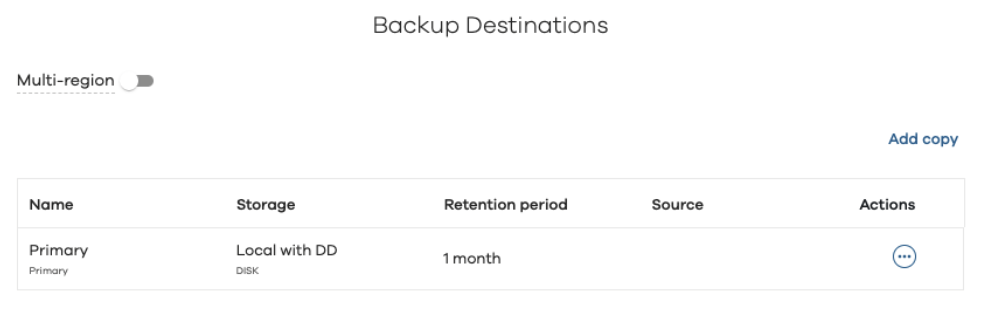
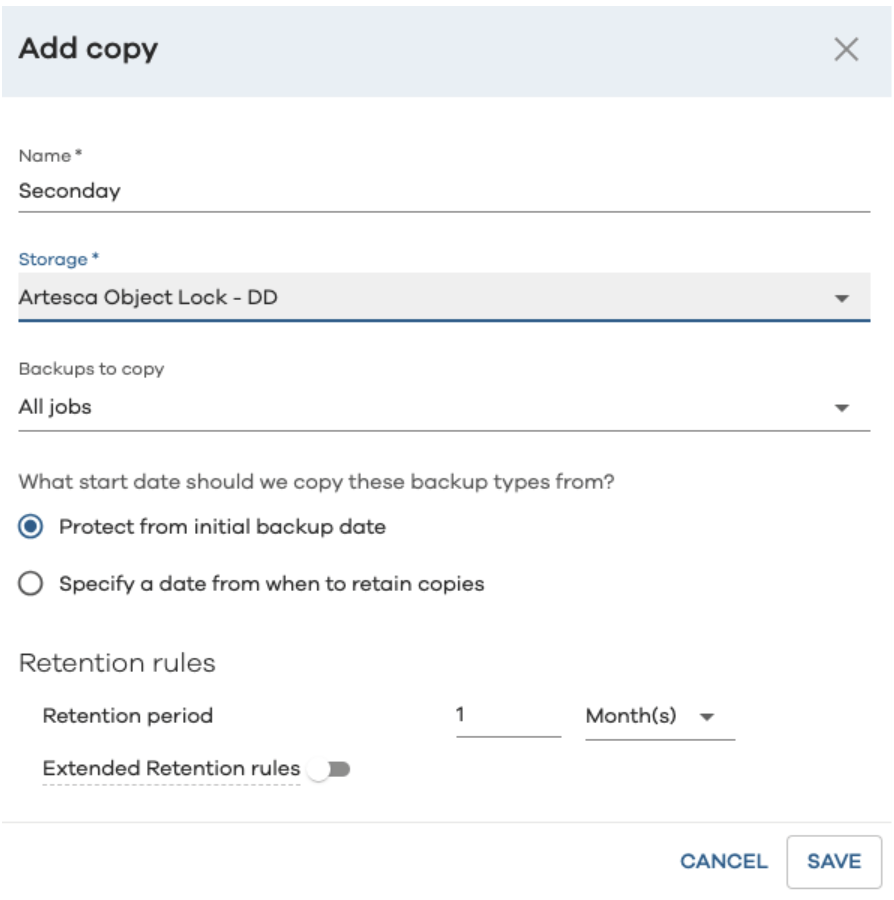
Click Add copy to add a secondary copy for backups. Choose the cloud storage created in the Configure Storage section.
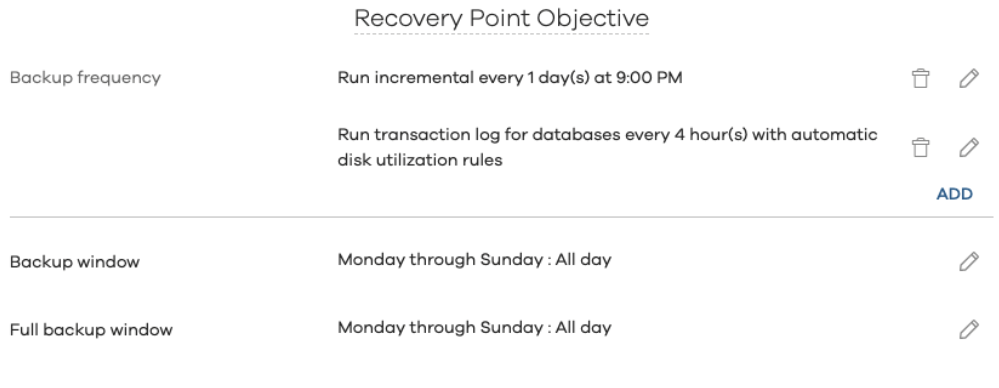
Set the desired Recovery Point Objective (RPO) settings to setup automatic backups at the desired frequency.
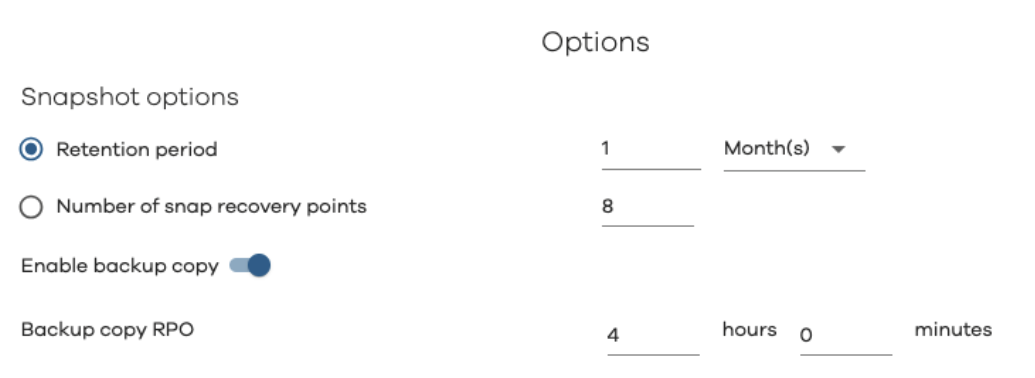
Choose the retention period for Snapshots.
Note
(Optional) If the plan uses an entity with IntelliSnap enabled, enter the number of snapshots to retain in Number of snap recovery points.
Click Submit to create the backup plan. The newly created plan will show under the list of Plans.


