Cohesity NetBackup
Cohesity NetBackup is a comprehensive data protection solution designed for enterprise environments. It provides a unified platform for backup and recovery, helping organizations protect their critical data across physical, virtual, and cloud environments.
Architecture
Cohesity NetBackup integrates with ARTESCA over S3. The following configurations are supported:
Deploy NetBackup and ARTESCA on single site.
NetBackup integration with ARTESCA over S3.
NetBackup integration with ARTESCA over S3 w/ object lock enabled.
Prerequisites
NetBackup is installed. This documentation is representative of NetBackup version 10.4.
Install ARTESCA root certificate.
Follow the instructions below to allow NetBackup to successfully connect to ARTESCA.
Note
Perform the following steps on the NetBackup server:
Download and import ARTESCA’s root certificate on the NetBackup server.
Append the ARTESCA root certificate content to the end of the file
/usr/openv/var/global/cloud/cacert.pemon the NetBackup server.
Storage Profile
NetBackup uploads objects to ARTESCA’s buckets with an average object size of 16 MB.
Performance
Architecture |
Backup |
Restore |
|---|---|---|
1 Node |
Up to 8 TB/H |
Up to 6.5 TB/H |
3 Nodes |
Up to 12 TB/H |
Up to 10 TB/H |
6 Nodes |
Up to 18 TB/H |
Up to 15 TB/H |
Note
The performance numbers are applicable for HPE, SMC, or Dell standard configurations with spinners, and 25 Gbps networks.
Configure ARTESCA for NetBackup
Create an Account for NetBackup.
Create a Bucket to be used with NetBackup.
Create an IAM User for NetBackup.
Create an IAM Policy to grant NetBackup access to the S3 bucket and manage data.
{
   "Version": "2012-10-17",
   "Statement": [
   {
      "Sid": "NetbackupPolicy",
      "Effect": "Allow",
      "Action": [
         "s3:PutObject",
         "s3:GetObject",
         "s3:ListBucket",
         "s3:DeleteObject",
         "s3:GetBucketLocation",
         "s3:AbortMultipartUpload",
         "s3:ListMultipartUploadParts",
         "s3:ListBucketMultipartUploads",
         "s3:CreateBucket",
         "s3:GetBucketAcl",
         "s3:GetBucketObjectLockConfiguration"
      ],
      "Resource": "arn:aws:s3:::datacenter-1-Netbackup-0/*"
   }
   ]
}
{
   "Version": "2012-10-17",
   "Statement": [
   {
      "Sid": "NetbackupPolicy",
      "Effect": "Allow",
      "Action": [
         "s3:PutObject",
         "s3:GetObject",
         "s3:ListBucket",
         "s3:DeleteObject",
         "s3:GetBucketLocation",
         "s3:AbortMultipartUpload",
         "s3:ListMultipartUploadParts",
         "s3:ListBucketMultipartUploads",
         "s3:CreateBucket",
         "s3:GetBucketAcl"
      ],
      "Resource": "arn:aws:s3:::datacenter-1-Netbackup-0/*"
   }
   ]
}
Attach IAM policy to the IAM user previously created.
Note
Cohesity NetBackup automatically detects WORM configuration on buckets if the bucket has object lock enabled and the WORM bucket IAM policy is set.
Configure ARTESCA as a cloud storage in NetBackup
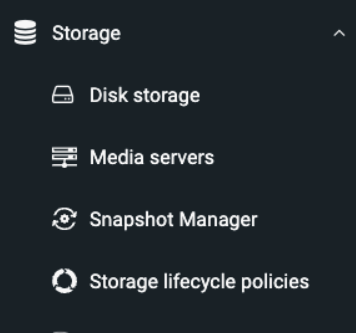
In the NetBackup UI, on the side bar, navigate to Storage > Disk Storage
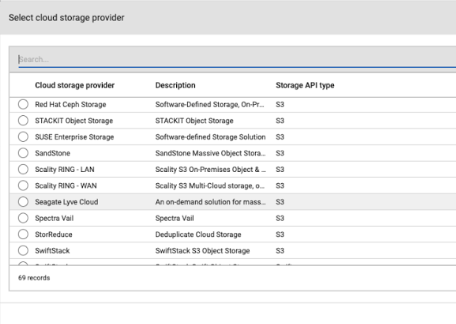
Select Cloud Connector in the Add Storage dialog box.

Select Cloud Storage Provider as SCALITY RING - LAN.
Note
This documentation will be updated when NetBackup updates their UI with Scality ARTESCA option
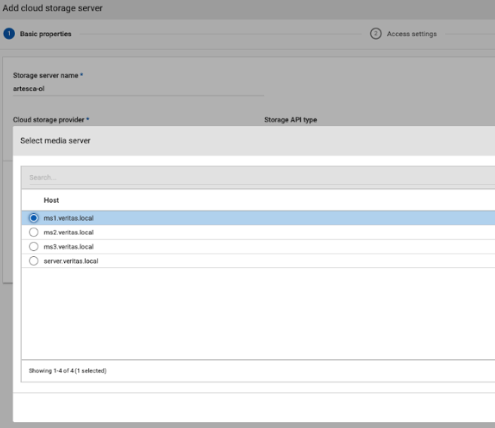
Select a Media server.
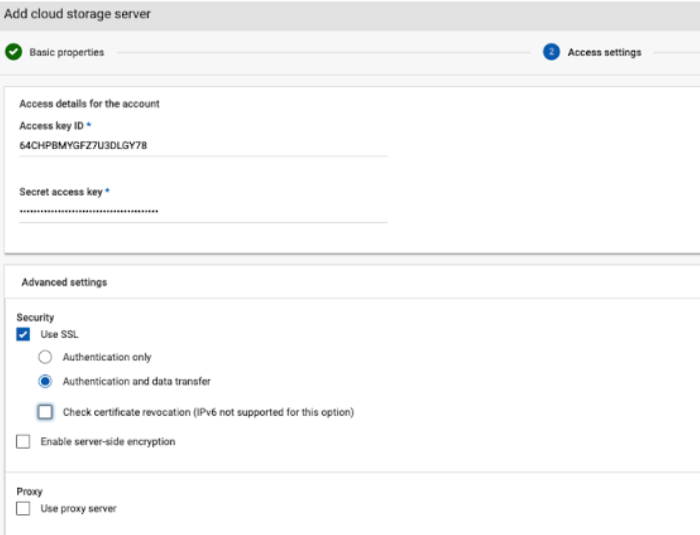
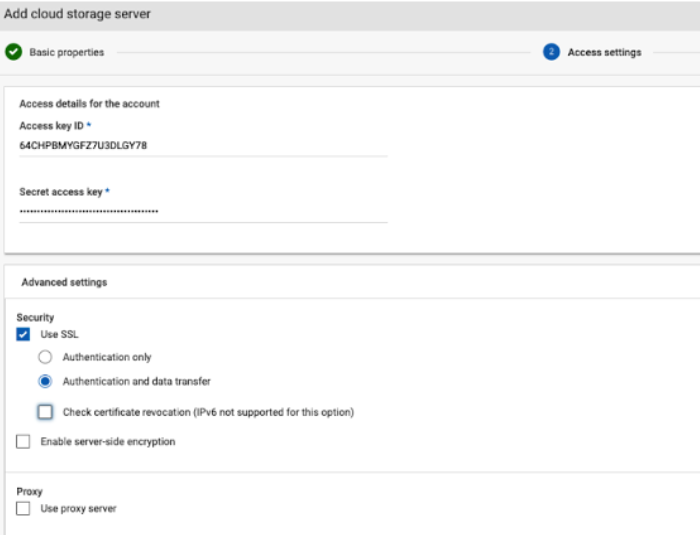
Enter the details for ARTESCA
Important
Uncheck the option to Check certificate revocation.
In the next screen, select to enable Compression.
Select additional Media Servers.

Add Disk Pool.
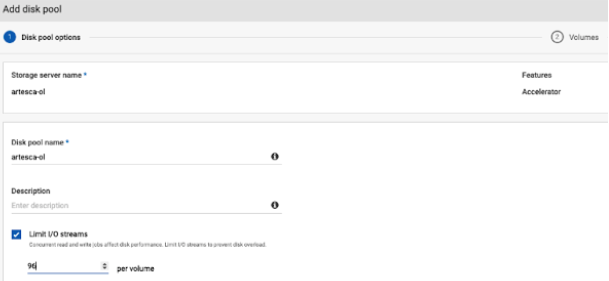
Choose the ARTESCA bucket to be added.

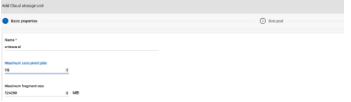
Select the default for Maximum concurrent jobs and Maximum fragment size.
Setup a Media Deduplication Pool to Cloud in NetBackup
In the NetBackup UI, on the side bar, navigate to Storage > Disk Storage and click Add storage.
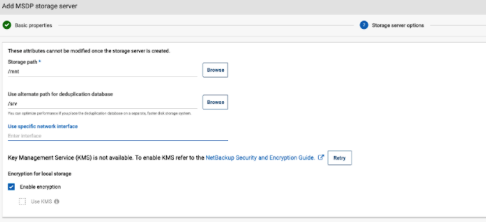
Select Media Server Deduplication Pool to local or cloud storage option.

Configure the Media Server.

Add the local path and DB.

Click to add to the Cloud Disk Pool.