HYCU for Enterprise Clouds
HYCU for Enterprise Clouds is a backup solution by HYCU that may be deployed on different private and public clouds. For the purposes of this document we will be deploying to a vCenter environment.
The HYCU product consists of three components:
HYCU Backup Controller - for backing up Virtual Machines.
HYCU Instance - for backing up file servers and applications.
HYCU Manager - an overview interface for the other two components.
Architecture
HYCU integrates with ARTESCA over S3. The following configurations are supported:
Deploy HYCU and ARTESCA on single site.
HYCU integration with ARTESCA over S3.
HYCU integration with ARTESCA over S3 with object lock enabled.
Prerequisites
HYCU, and ARTESCA are installed.
Create an Account for HYCU.
Create an IAM user for HYCU.
The IAM policy permissions necessary to grant the HYCU access to the S3 repository are listed in the HYCU documentation section: Setting up an AWS S3/Compatible target.
Note
Replace <bucketname> with the name of the bucket you are using for HYCU.
{
"Version": "2012-10-17",
"Statement": [
   {
           "Sid": "VisualEditor0",
           "Effect": "Allow",
           "Action": [
                "s3:GetObject",
                "s3:GetObjectRetention",
                "s3:DeleteObject",
                "s3:PutObject",
                "s3:ListBucket",
                "s3:GetBucketAcl",
                "s3:ListBucketMultipartUploads",
                "s3:GetBucketLocation",
                "s3:GetBucketObjectLockConfiguration",
                "s3:DeleteObjectVersion",
                "s3:ListBucketVersions",
                "s3:GetBucketVersioning",
                "s3:ListMultipartUploadParts",
                "s3:AbortMultipartUpload"
           ],
           "Resource": [
               "arn:aws:s3:::<bucketname>/*",
               "arn:aws:s3:::<bucketname>"
           ]
       },
       {
           "Sid": "VisualEditor1",
           "Effect": "Allow",
           "Action": [
               "s3:ListAllMyBuckets",
               "s3:ListBucket"
           ],
           "Resource": "*"
       }
    ]
}
Configure ARTESCA for HYCU
Attach the IAM policy to the IAM user previously created.
Create a bucket with the bucket name used in the IAM policy.
Import the ARTESCA CA Certificate
Follow this procedure to download the ARTESCA CA certificate.
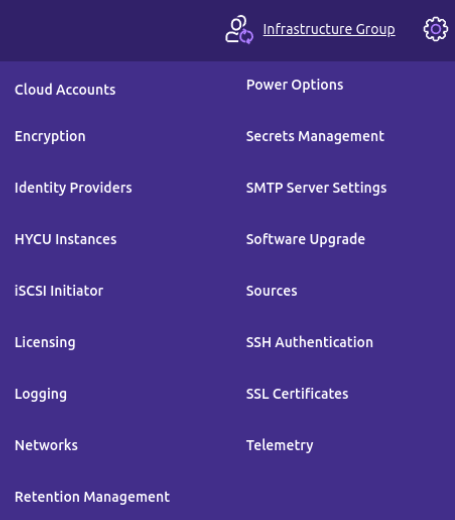
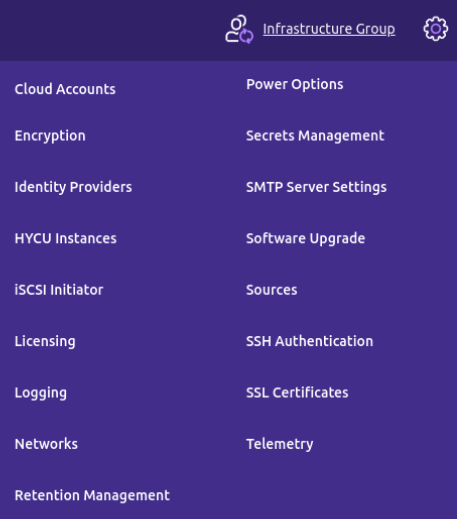
On HYCU, from the cogwheel menu on the top right, select SSL Certificates.
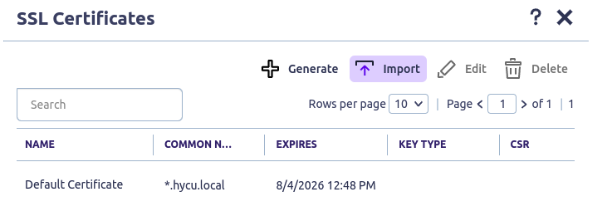
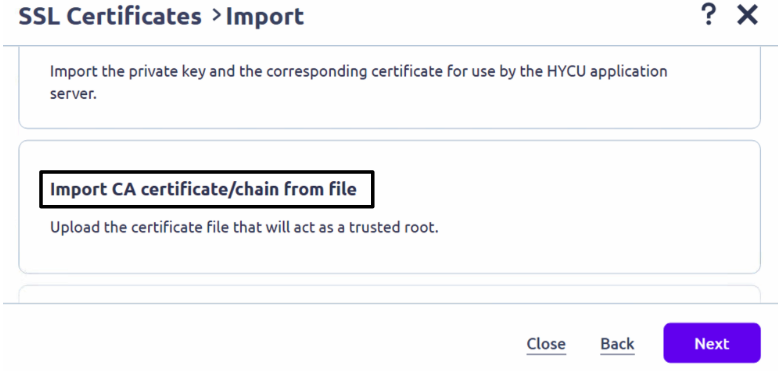
From the SSL Certificates dialog, click Import.
Select the Import CA certificate/chain from file option. Click Next.
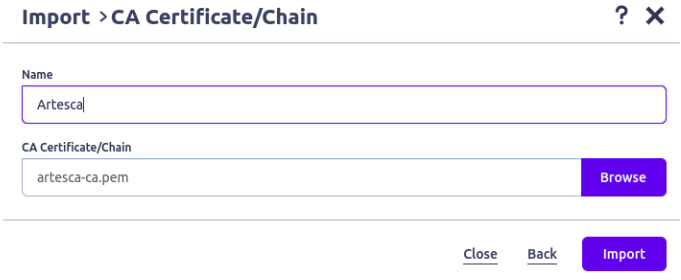
Browse your filesystem for the file, choose a name for it. Click Import.
Important
These steps must be done from the HYCU Backup Controller UI.
Add Sources
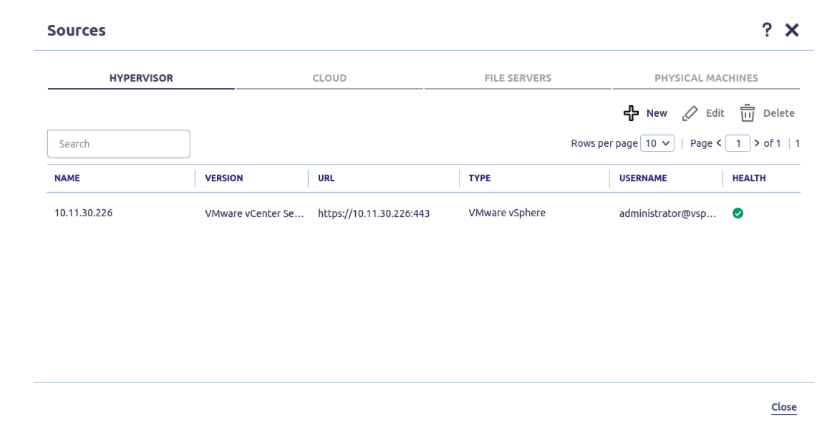
Click the cogwheel icon on the top right, and select Sources.
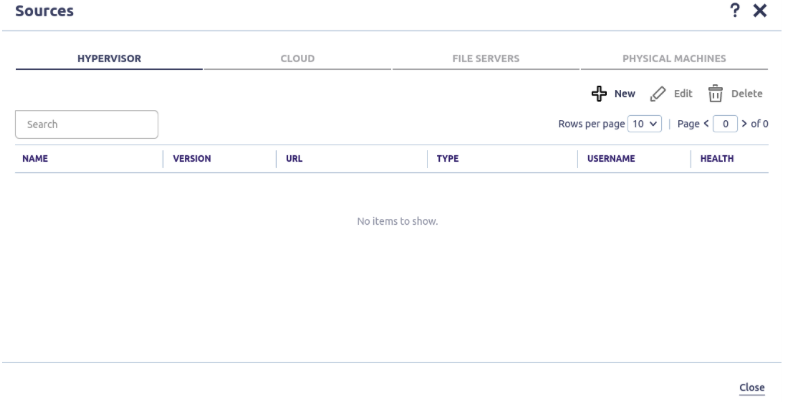
On the Sources dialogue that appears, make sure the Hypervisor tab is selected. Click New.
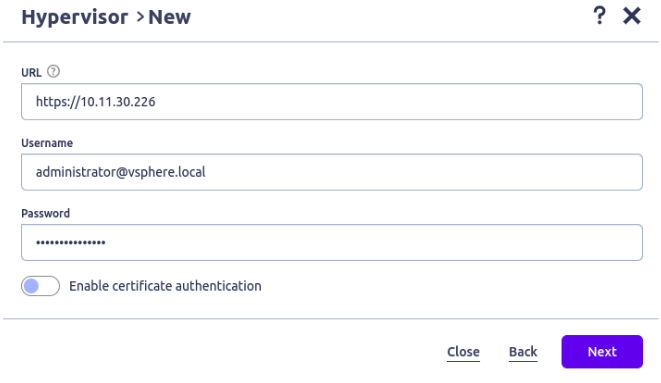
Fill in the the URL, Username and Password fields. Click Next.
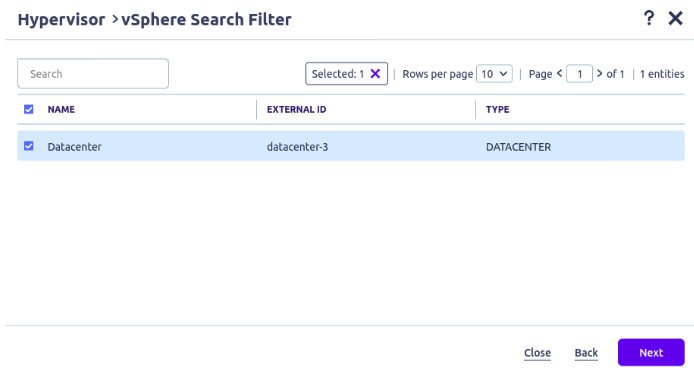
Select the Location and click Next.
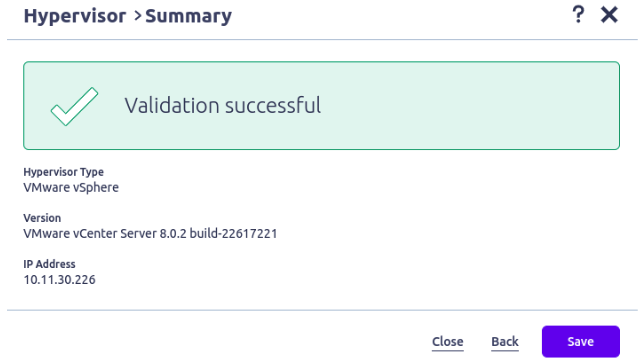
The summary will show the vCenter host was added successfully. Click Save.
The source will appear in the Sources list.
Add Targets
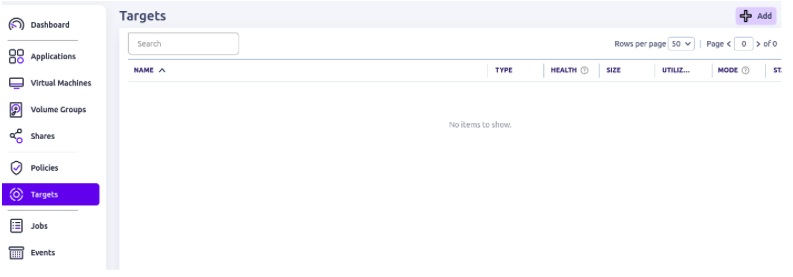
From the Backup controller, navigate to the Targets icon on the left navigation bar. Click Add.
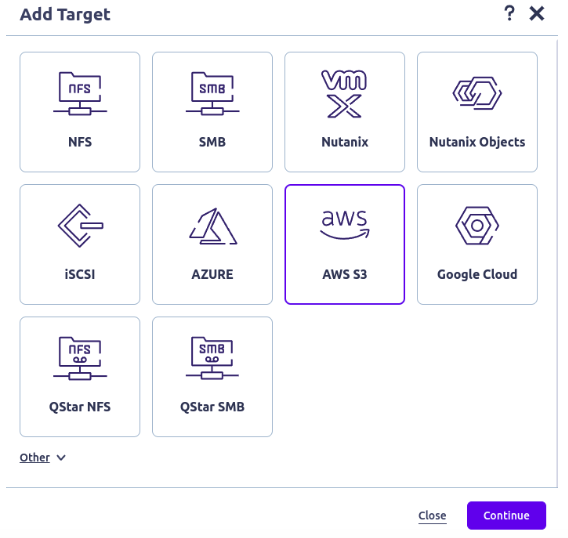
Select AWS S3 from the list. Click Continue.
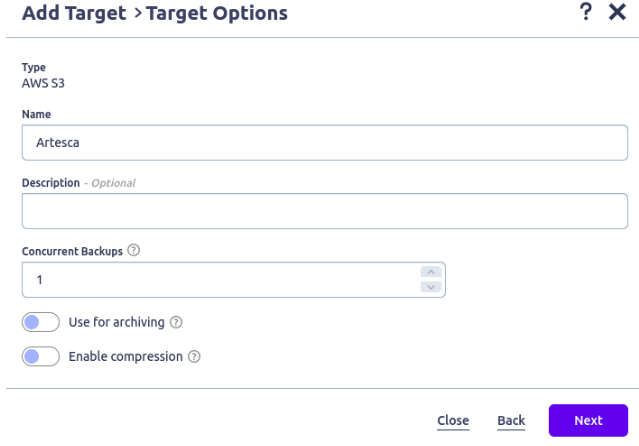
Fill in the Name field. Click Next.
Enter the target details, enable Path-style access, and disable Metered target.
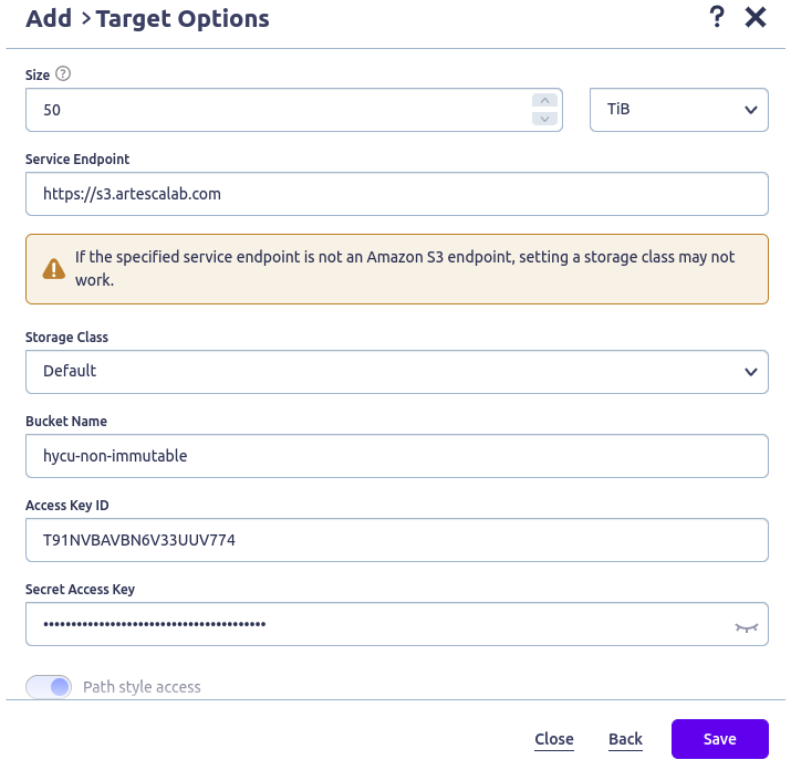
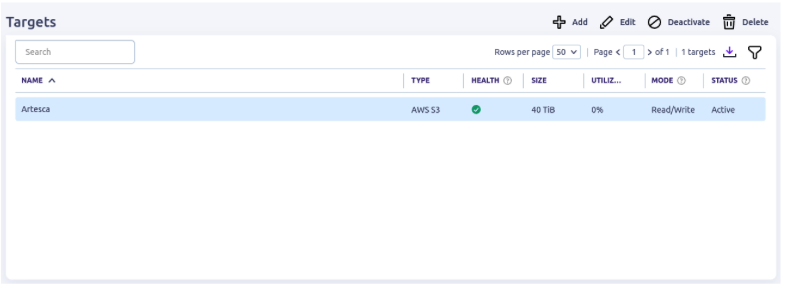
Click Save. The ARTESCA target will appear.
Create a Backup Policy
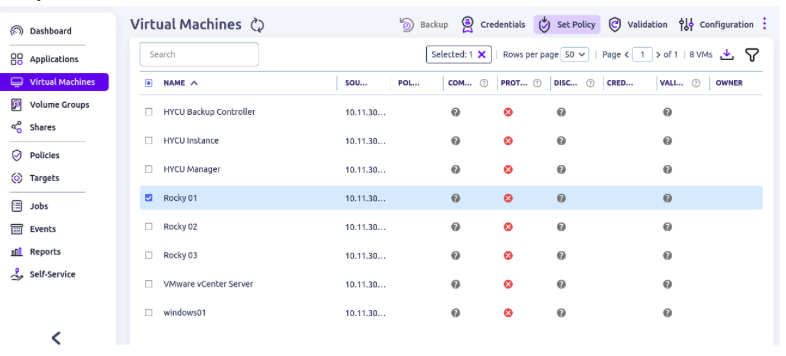
On the left navigation bar, click Virtual Machines. Select a VM from the list. Click Set Policy.
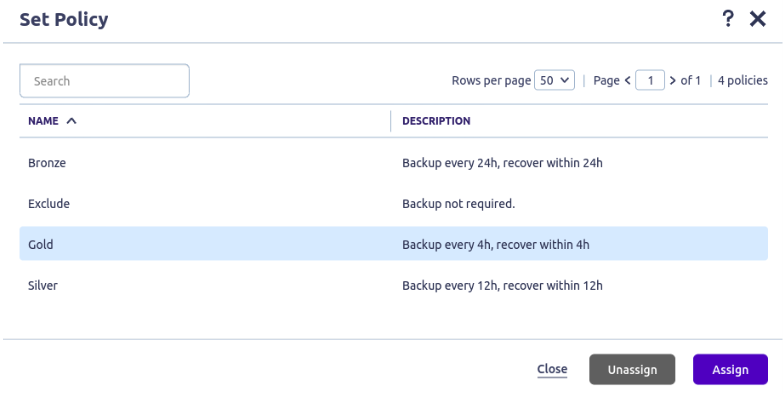
Select a policy from the list, and click Assign.
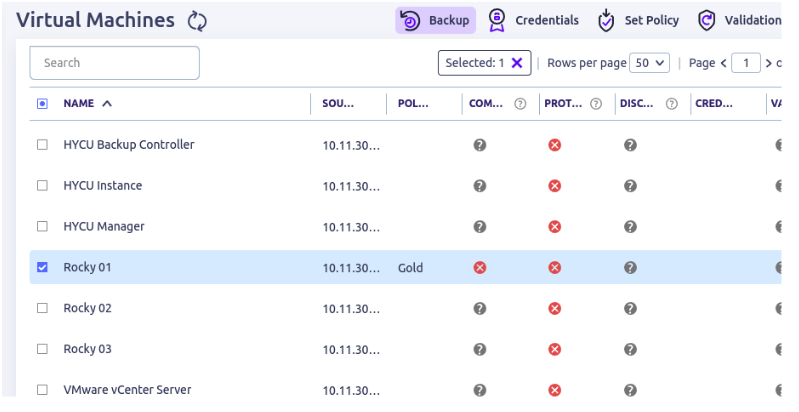
The VM now appears on the list with the assigned policy. Select it, and click Backup.
Check the option for Force full backup. Click Yes.
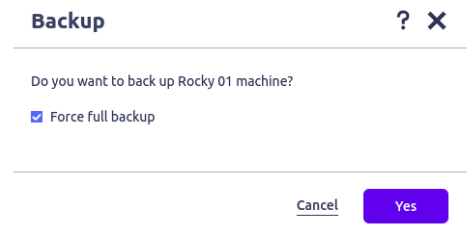
Select Jobs on the left navigation bar. The backup job will show as completed successfully once it ends. You can select it and click “View Report” to get a detailed summary of events.
On the left navigation bar, select on Virtual Machines, select the VM, and click Validation.
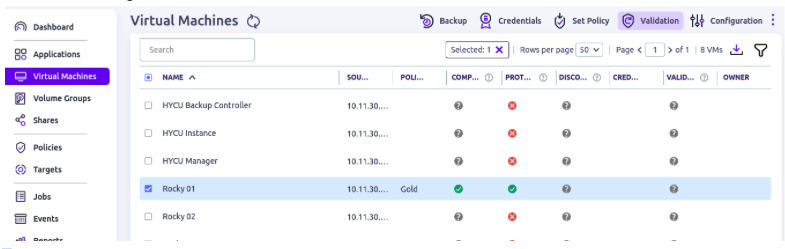
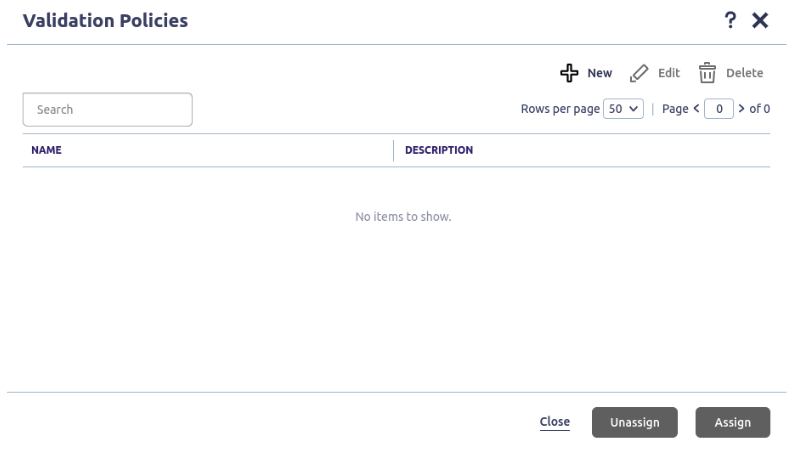
Click New.
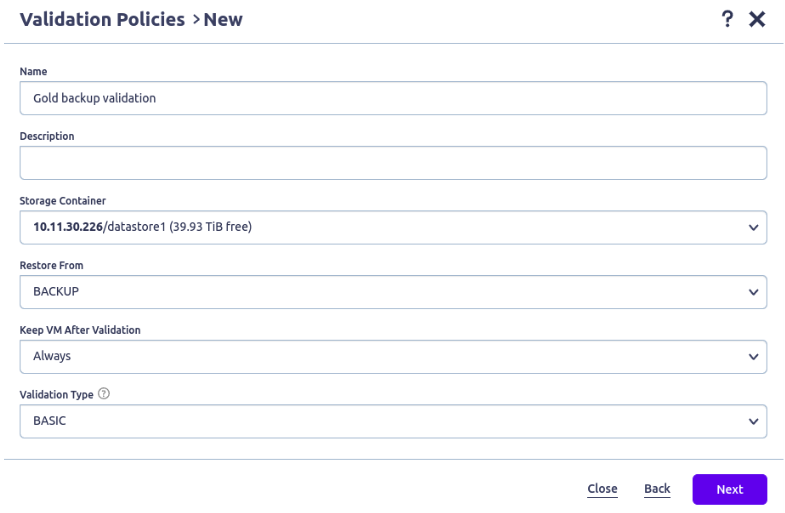
Fill in the details. Click Next.
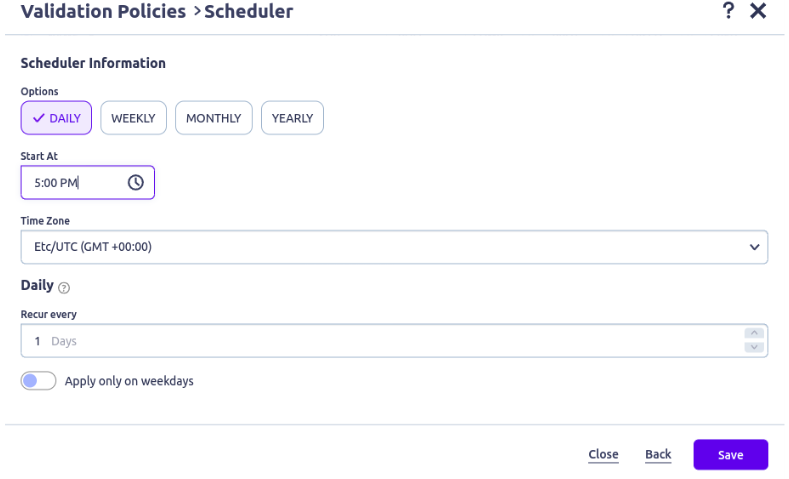
Select an a time. Click Save.
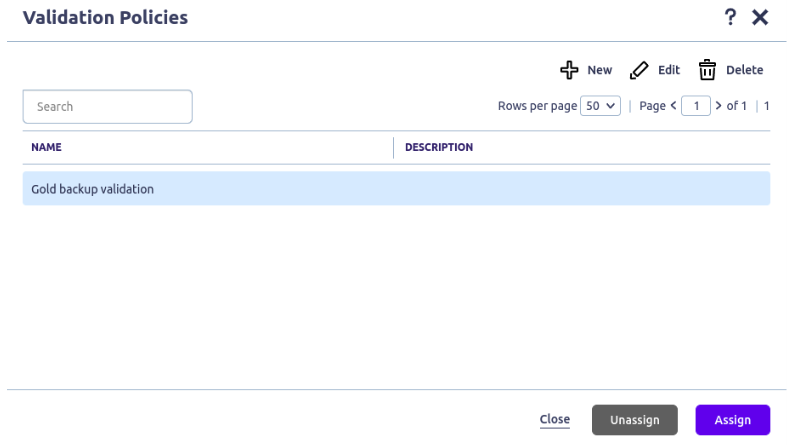
Select the policy you just created. Click Assign.
Restore
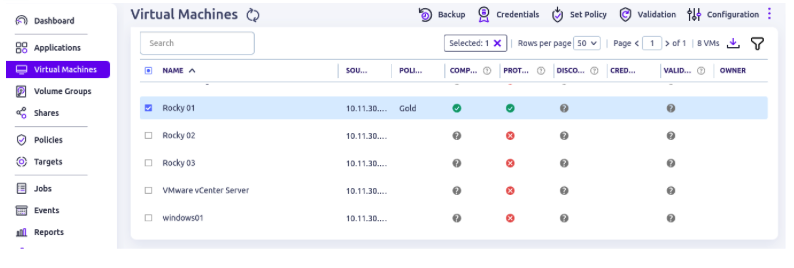
On the left navigation bar, select Virtual Machines, and click the VM you previously backed up.
On the bottom is a Details section.
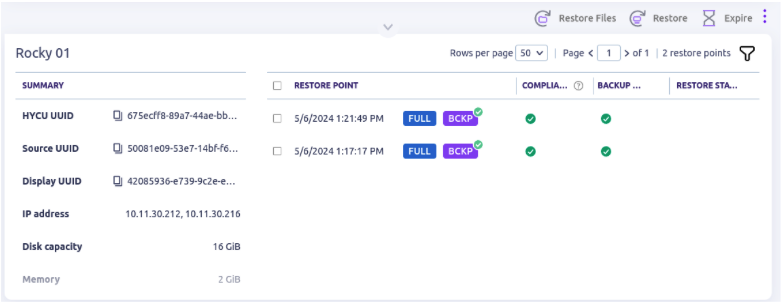
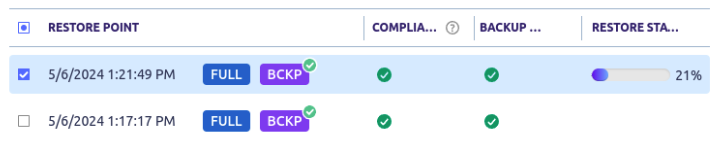
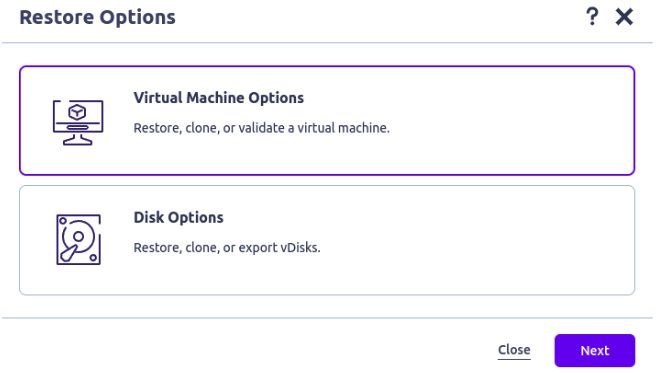
Select the appropriate Restore point, and click Restore. Select Virtual Machine Options, and click Next.
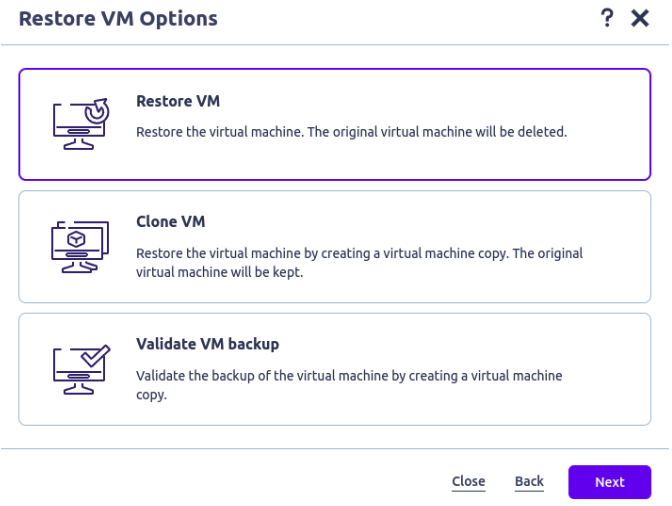
Select Restore VM. Click Next.
Review the options. Click Restore.
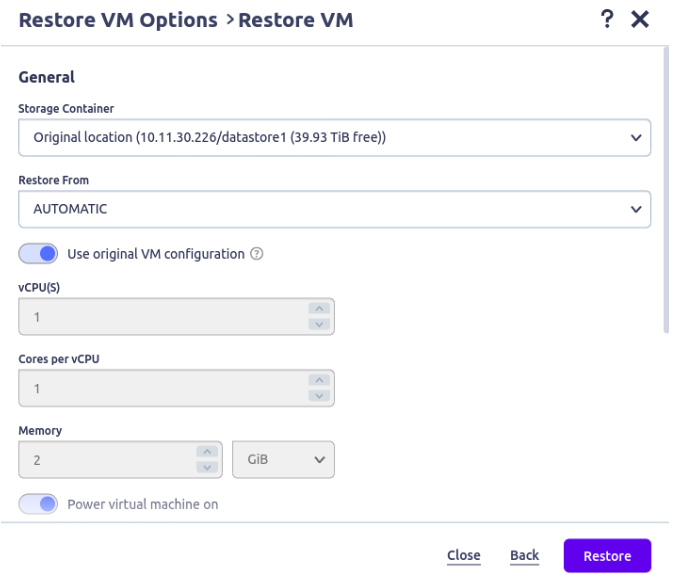
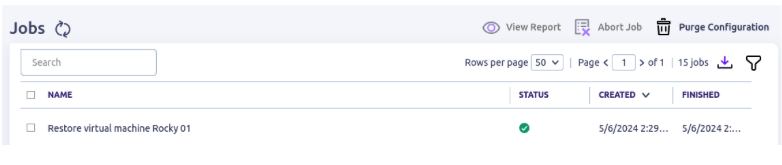
The job will show as running in the details section, and in the list of jobs.