Acronis
Acronis provides data protection to enable partners to protect their clients’ data no matter where it might reside across physical, virtual, and cloud-based environments. Backup and recovery capabilities include the ability to bring data back in whatever form it is needed: full image, file-based, and more. Disaster recovery minimizes downtime with the ability to quickly spin-up workloads in case of a DR event, and offers runbooks and test failover to help ensure everything will work when needed.
Prerequisites
Acronis Agent is installed.
ARTESCA is installed.
ARTESCA root certificate is installed on Cohesity server.
Install ARTESCA Root Certificate Authority to ensure a successful connection between ARTESCA and CloudArchive.
Storage Profile
Acronis writes to ARTESCA’s’ buckets with an average object size of 64MB.
Integration
Configure ARTESCA for Acronis
Create an Account for Acronis.
Create a Bucket to be used with Acronis.
Create an IAM user for Acronis.
Create IAM Policies to grant Acronis access and management permission to the S3 bucket.
Note
Replace
bucketnamewith your bucket’s nameObject Lock Enabled
{
    "Version": "2012-10-17",
    "Statement": [
        {
            "Sid": "VisualEditor0",
            "Effect": "Allow",
            "Action": [
                "s3:GetBucketLocation",
                "s3:GetObject",
                "s3:PutObject",
                "s3:DeleteObject",
                "s3:GetBucketVersioning",
                "s3:GetBucketObjectLockConfiguration",
                "s3:ListBucketVersions",
                "s3:GetObjectVersion",
                "s3:GetObjectRetention",
                "s3:GetObjectLegalHold",
                "s3:PutObjectRetention",
                "s3:PutObjectLegalHold",
                "s3:DeleteObjectVersion"
            ],
            "Resource": [
                "arn:aws:s3:::bucketname/*",
                "arn:aws:s3:::bucketname"
            ]
        },
        {
            "Sid": "VisualEditor1",
            "Effect": "Allow",
            "Action": [
                "s3:ListAllMyBuckets",
                "s3:ListBucket"
            ],
            "Resource": "*"
        }
                   ]
}
Object Lock Not Enabled
{
  "Version": "2012-10-17",
     "Statement": [
         {
             "Sid": "SecureBucketPolicy0",
             "Effect": "Allow",
             "Action": [
                 "s3:PutObject",
                 "s3:GetObject",
                 "s3:DeleteObject",
                 "s3:GetBucketLocation",
                 "s3:GetBucketVersioning",
                 "s3:GetBucketObjectLockConfiguration"
             ],
             "Resource": [
                 "arn:aws:s3:::bucketname/*",
                 "arn:aws:s3:::bucketname"
             ]
         },
         {
             "Sid": "SecureBucketPolicy1",
             "Effect": "Allow",
             "Action": [
                 "s3:ListAllMyBuckets",
                 "s3:ListBucket"
             ],
             "Resource": "*"
         }
                   ]
}
Attach Policies to the IAM user previously created.
Create Access Keys for the IAM user.
Configure ARTESCA as an Archive Location in Acronis
Important
The bucket must be created in ARTESCA prior to creation of the archive location.
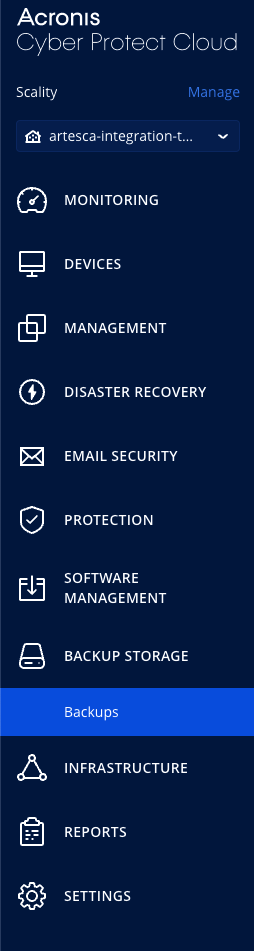
In the Acronis Cyber Protect Cloud UI, on the side bar, navigate to BACKUP STORAGE -> Backups.
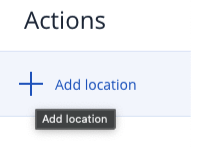
Go to the top right and click on Actions then click Add location.
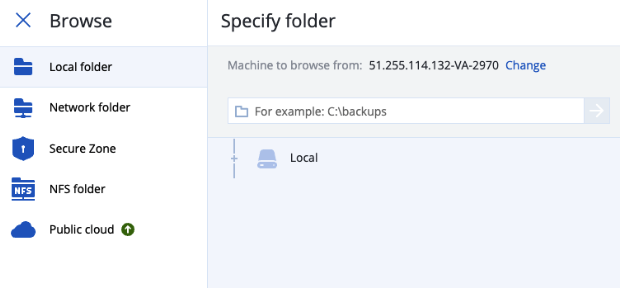
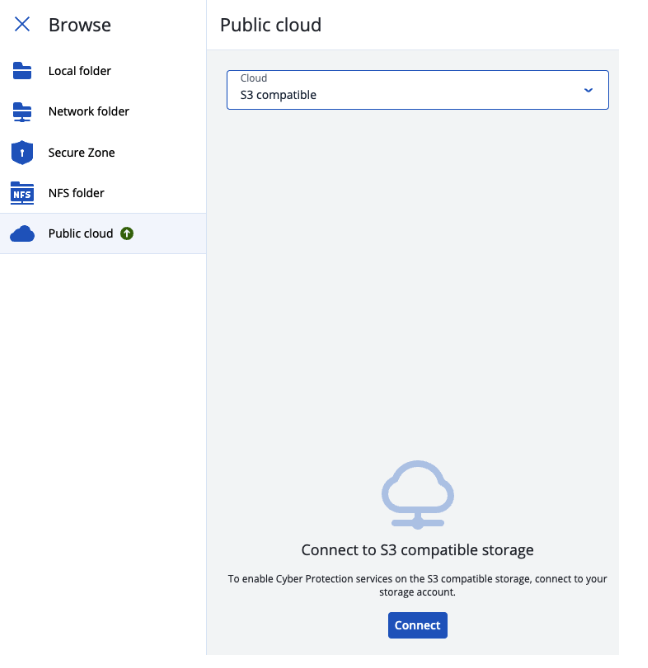
Select Public Cloud.
Select S3 Compatible then click Connect.
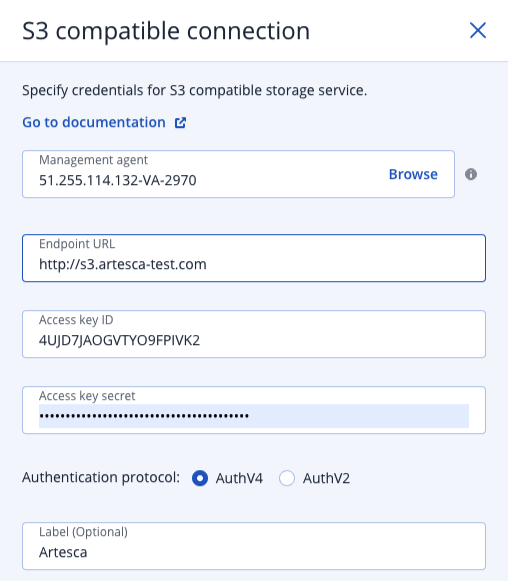
Enter the following details:
Access Key ID - Access Key of the IAM user created.
Access Key Secret - Secret of the IAM user created.
ENDPOINT URL - URL of the ARTESCA S3 endpoint including the protocol.
Host name of the ARTESCA S3 endpoint must be resolvable by the Acronis Agent.
Authentication Protocol - Select AuthV4.
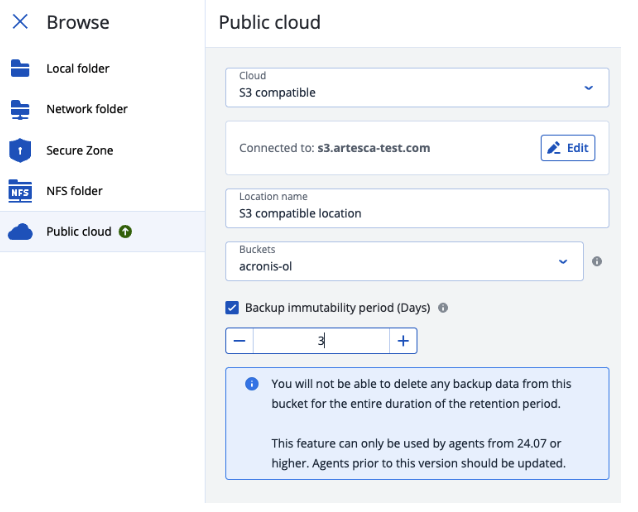
Select the Bucket, and the Backup immutability period.
Create a Protection Plan
Navigate to MANAGEMENT -> Protection Plans.
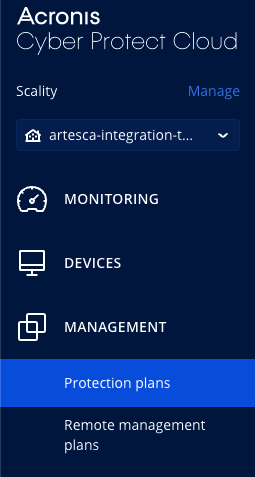
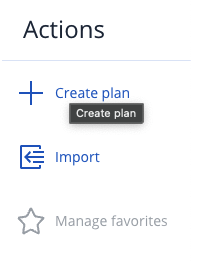
In the top right, select Actions, then click Create Plan.
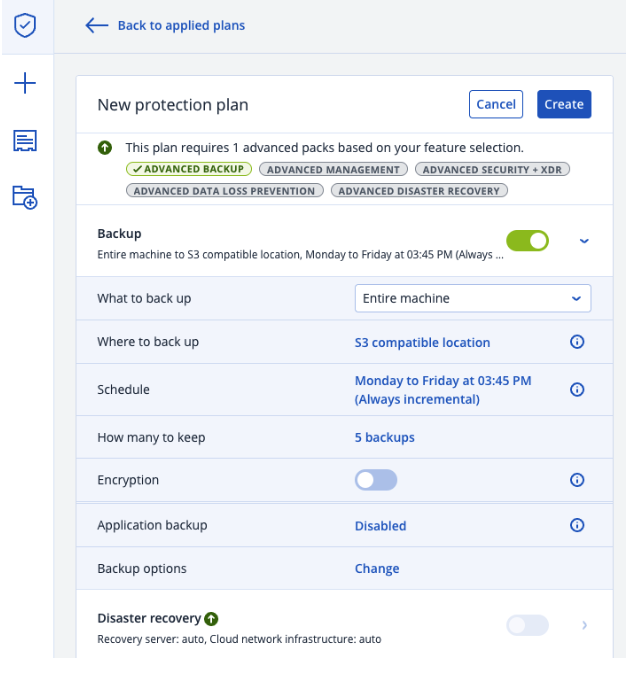
Define the destination and the rules.
Go to DEVICES and choose the machines to be protected with the plan.