ARTESCA+ Veeam Integration with VBR
With the startup assistant, you can easily configure the integration between ARTESCA+ Veeam and VBR. The assistant automates the configuration of the necessary resources such as accounts, buckets, users, and repositories.
Note
If you choose to configure VBR manually, refer to Configure ARTESCA for Veeam Backup & Replication for more information.
Prerequisites
Important
The Veeam license must be deployed before starting the configuration.
To create the Veeam repository automatically using the startup assistant, you must have valid and up-to-date Veeam credentials.
If you are prompted to enter Veeam credentials during the configuration, provide a Username and Password for a Veeam Backup Administrator.
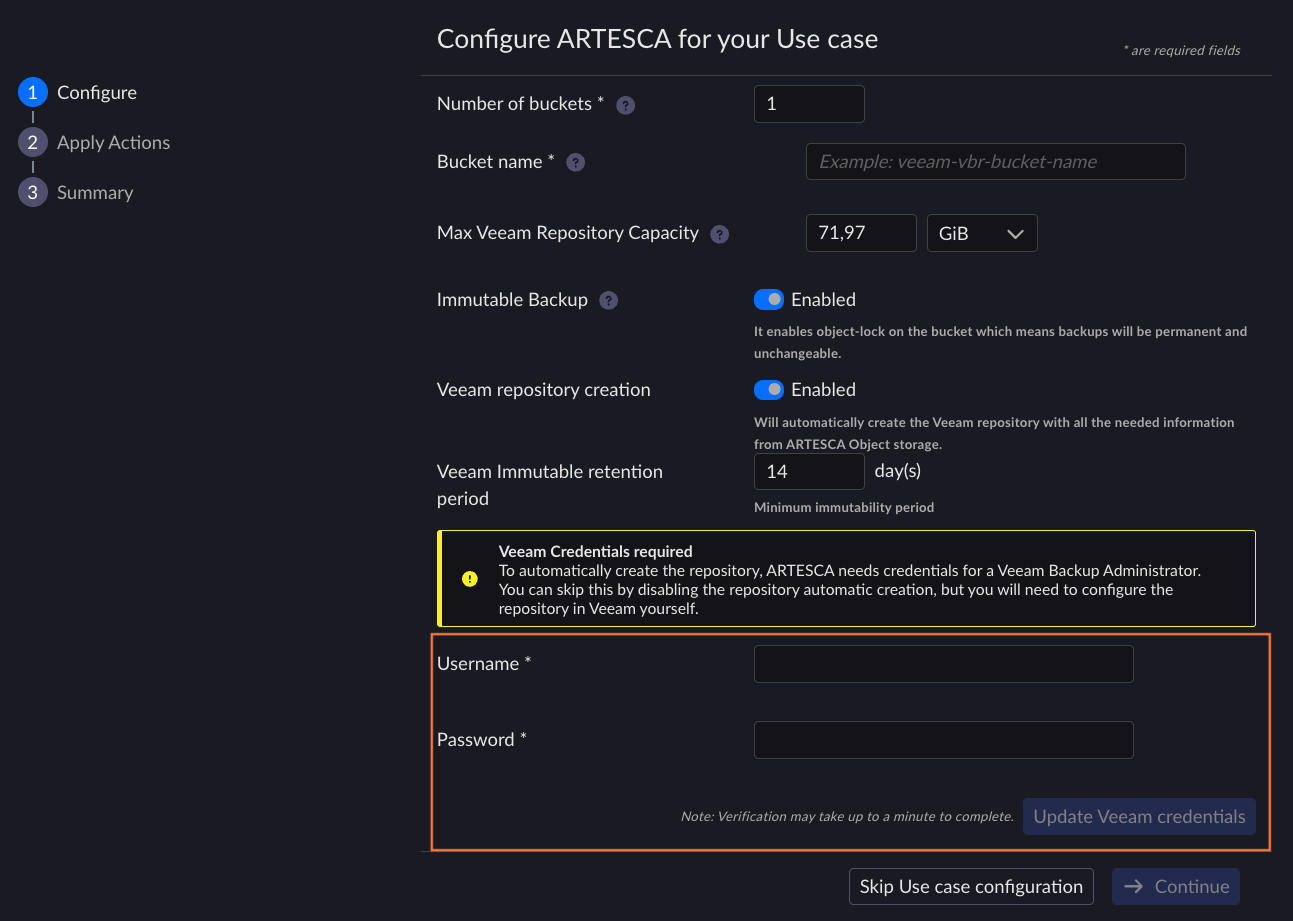
Refer to Integrate Veeam Information in to the ARTESCA UI for more information.
Configure ARTESCA+ Veeam for Veeam Backup & Replication
Access the startup assistant:
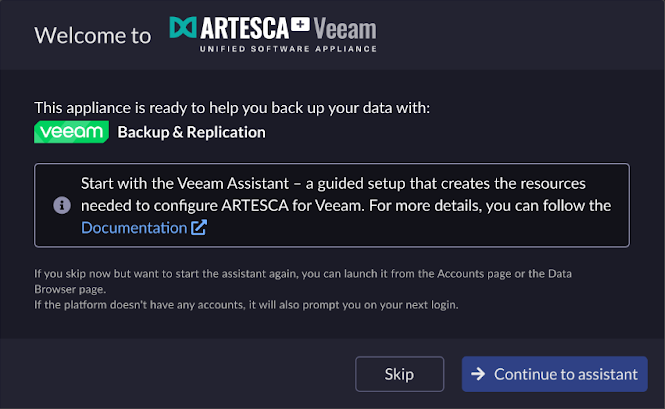
On first login to the ARTESCA+ Veeam UI, click Continue to assistant.
On next logins, click Start ISV Connector.

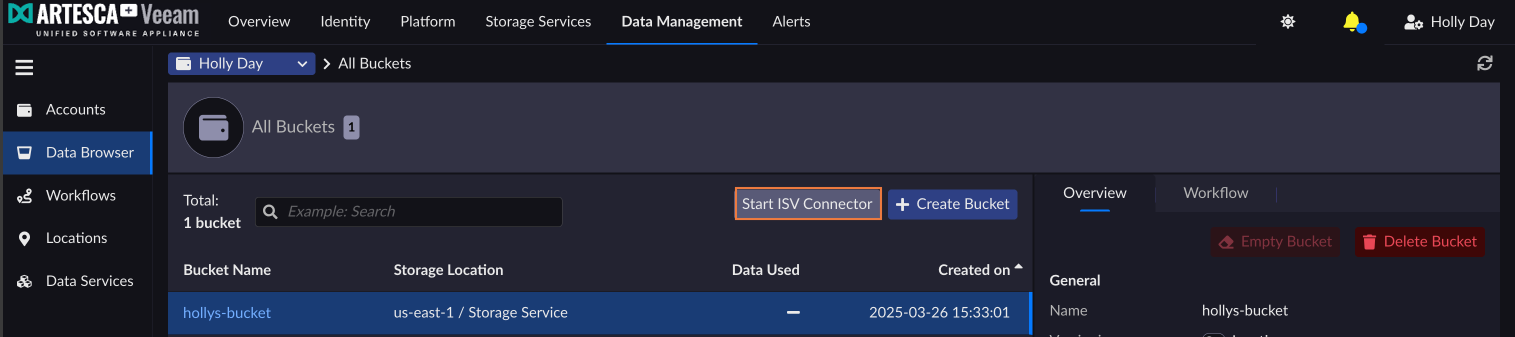
Note
This option is only available if you already created an account.
Fill in the required fields.
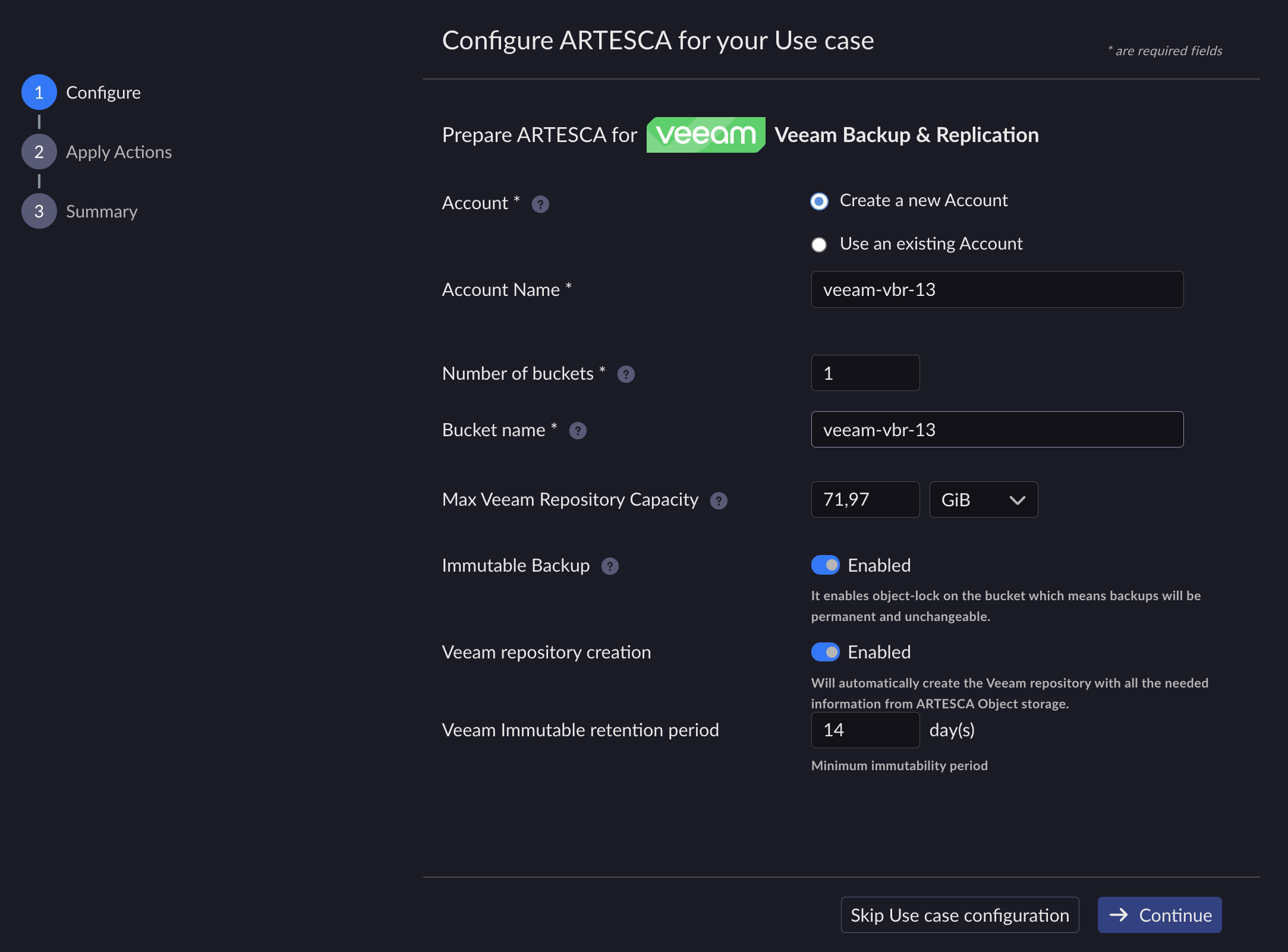
Field Descriptions
Field
Description
Account
Create a new account: Select this option if you want to create a new account.
Use an existing account: Select this option if you want to use an existing account. This option is only available if you have already created an account.
Note
If starting the configuration from the Data Browser page, this field is automatically pre-filled and locked.
Account Name
Enter the name of the account you want to create or choose an already existing account from the drop-down list.
Advanced settings
This field is only available if selecting the Use an existing account option.
By default, the system checks if an IAM user already exists for the given account and partner application. If a matching user is found, the system will preselect it and extend its permissions without creating new AK/SK credentials.
Create a new IAM user: Select this option if you want to create a new IAM user within your existing account. In that case, you must provide an IAM user name.
Use an existing IAM User: Select this option if you want to use an existing IAM user. In that case, choose the user from the drop-down list. You can also choose to generate a new set of AK/SK credentials.
Number of buckets
Choose the number of buckets you want to create. The limit is 20 buckets.
Bucket name
Enter a unique name for the bucket. The name must conform to AWS naming conventions.
Tip
For more information, refer to Bucket naming rules.
Max Veeam Repository Capacity
Maximum value for the repository capacity.
By default, this field is preset with a value corresponding to 80% of the Storage Services capacity level. If multiple buckets are created, this value is redistributed evenly among buckets.
If the threshold is reached, an alert is triggered on the application.
Immutable Backup
By default, object-lock is enabled on buckets which means that objects are locked and cannot be deleted.
Toggle the switch if you want to disable this feature.
Veeam repository creation
This option creates a Veeam repository automatically with all the needed information from ARTESCA.
If an account does not exist, the option is enabled by default.
Note
If you disable this option, you must create the repository manually. Refer to Configure ARTESCA for Veeam Backup & Replication for more information.
If an account already exists, the option is disabled by default.
Veeam Immutable retention period
If you enabled the Immutable Backup option, you must set an immutable retention period.
Click Continue.
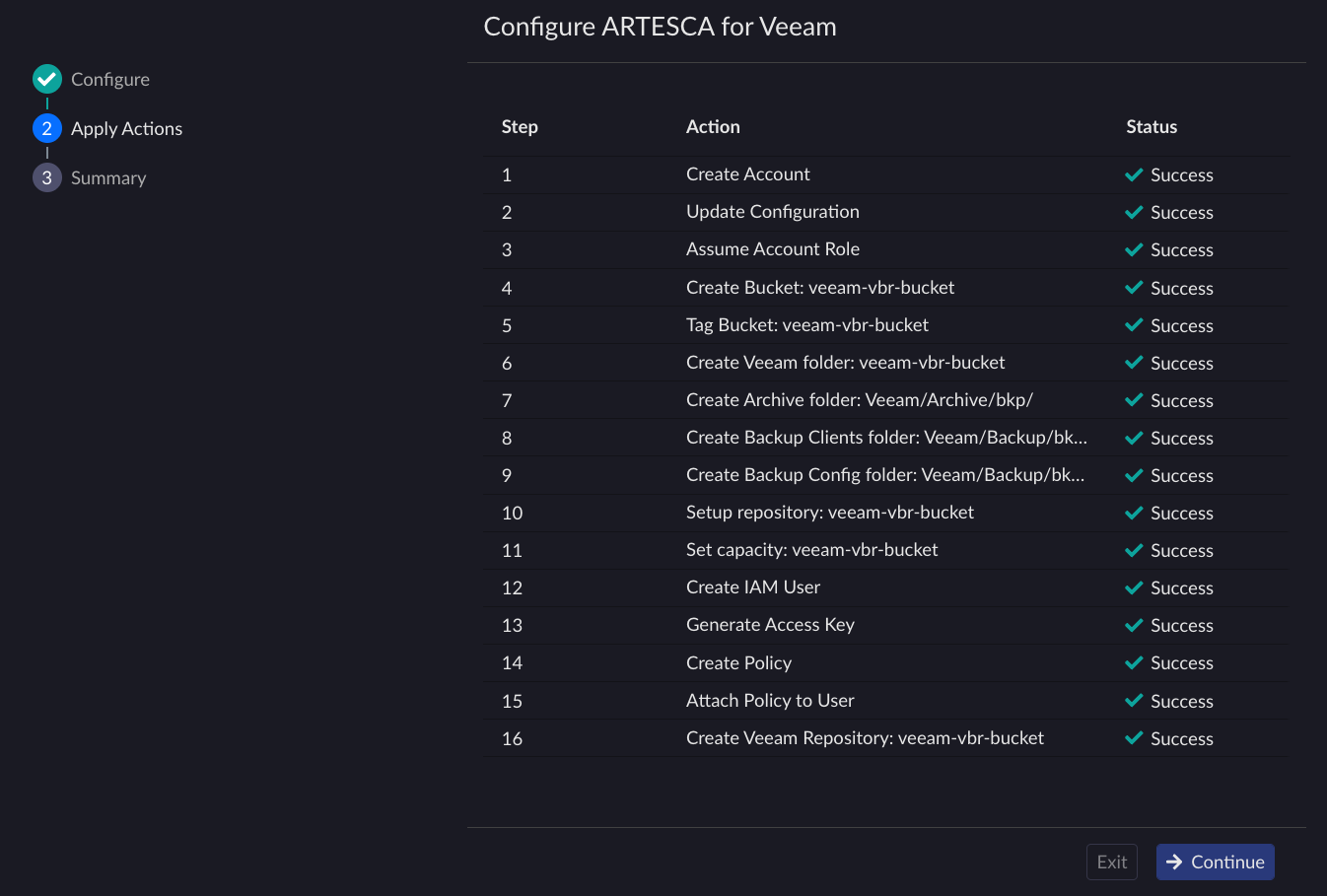
The assistant displays all the automated configuration steps and the status for each step. The list of steps differs depending on the options chosen.
Note
If the Create Veeam Repository step fails, you must continue the configuration manually. Refer to Automatic Veeam Repository Creation Fails for more information.
Click Continue once all the steps have succeeded.
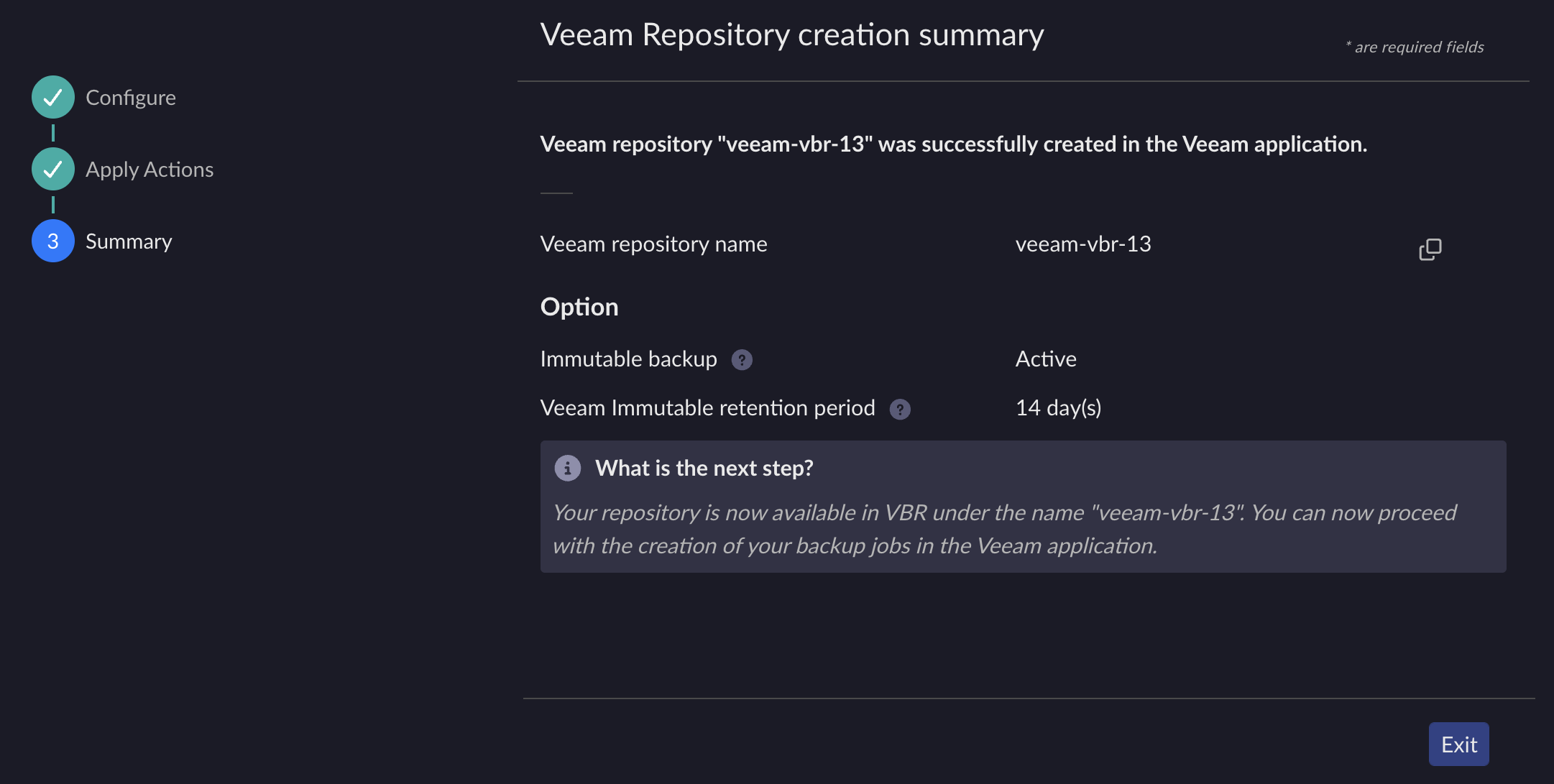
The Veeam repository and all required ARTESCA S3 resources are successfully created. You can exit the assistant and start configuring your backup jobs in the Veeam application.