

ARTESCA Integration with VBR
To integrate ARTESCA with Veeam Backup & Replication, you must:
Configure ARTESCA for VBR using the ARTESCA UI.
Configure the respective repositories using the Veeam Backup & Replication console.
Best Practices
When integrating ARTESCA with Veeam Backup & Replication:
Ensure that ARTESCA’s S3/STS/IAM & CRL endpoints can be resolved by a valid DNS server.
If no DNS server is available, configure the endpoint resolution in the Client machine host file:
/etc/hostson Linux,C:\Windows\System32\drivers\etc\hostson Windows.Configure certificates for ARTESCA endpoints (s3, iam and sts). You can either install the ARTESCA built-in Certificate Authority on all the Veeam agents consuming ARTESCA endpoints, or replace ARTESCA certificates using a custom or external Certificate Authority. Refer to Manage Ingress Certificates for more information.
Important
If ARTESCA was installed on version 4.0 or below and integrated with Veeam Backup & Replication 13, and you are using the built-in CA, you must enable the Certificate Revocation List (CRL) service to ensure service continuity.
Data in the ARTESCA bucket must be managed solely by Veeam, including retention and data management. Enabling lifecycle rules is not supported as it can result in backup and restore failures. Refer to Veeam Best Practices for more information.
Cross-Region Replication is not a supported way to replicate a Veeam repository. Backup replication must be managed by Veeam using backup copy jobs (see above).
Do not use versioned buckets if immutability is not enabled.
Use only one bucket per Veeam Object Storage S3 Compatible Repository.
Configure ARTESCA for Veeam Backup & Replication
Access the connector page:
On first login, as no account exists, the connector page displays.
Click Start ISV Connector.
From the Accounts page.

From the Data Browser page.

Note
This option is only available if you have already created an account.
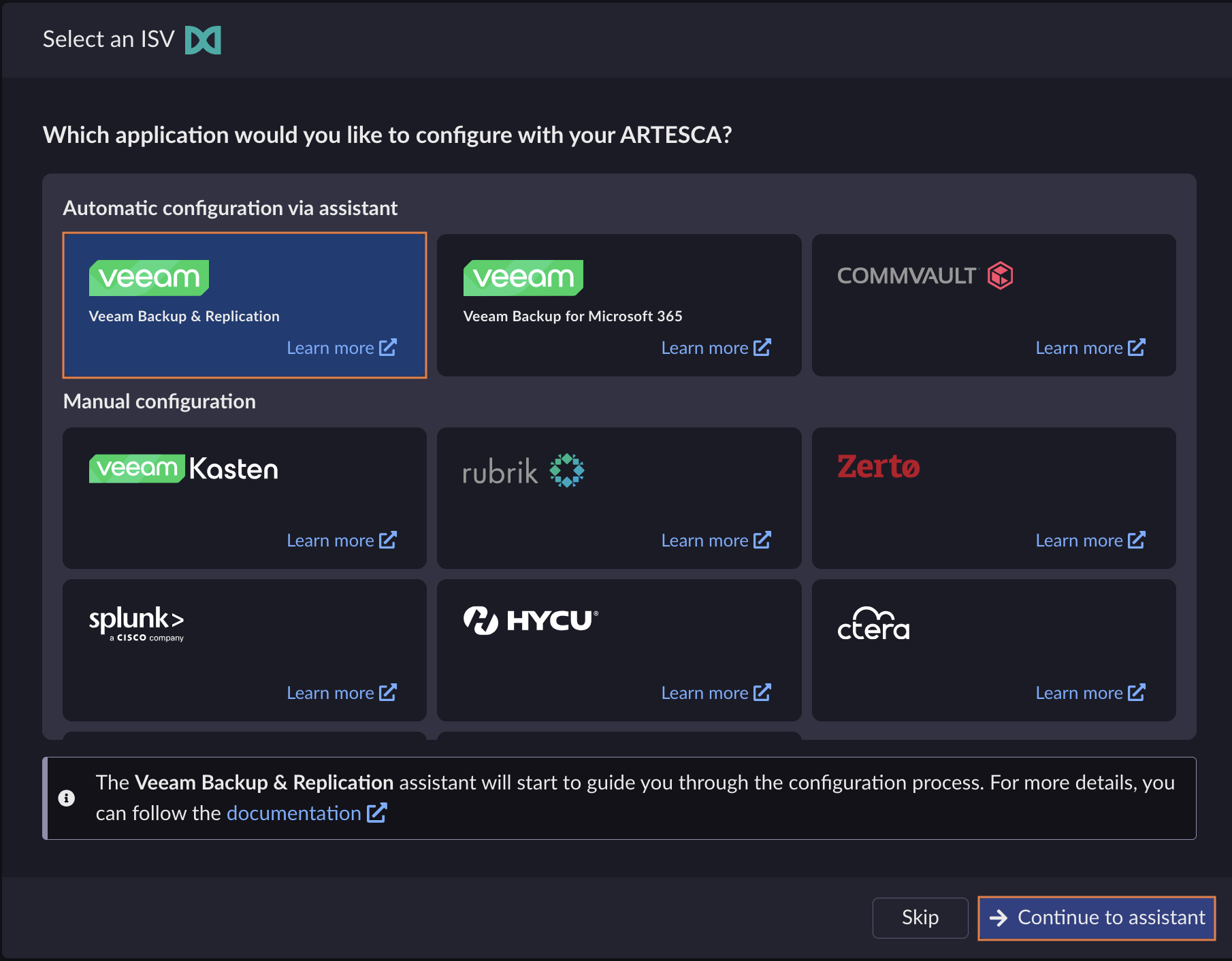
On the connector page, select the Veeam Backup & Replication partner application and click Continue to assistant.
Fill in the required fields.
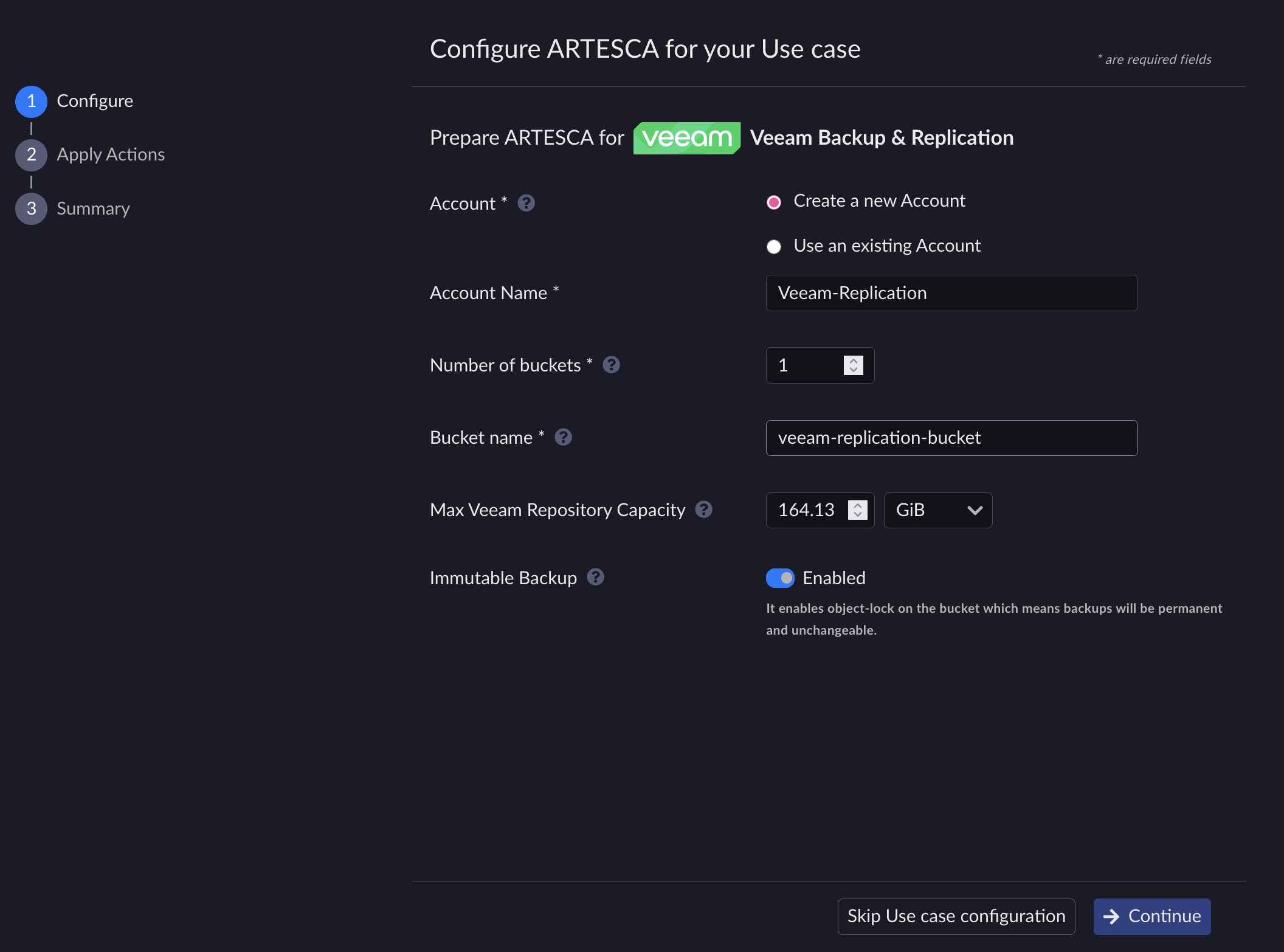
Field Descriptions
Field
Description
Account
Create a new account: Select this option if you want to create a new account.
Use an existing account: Select this option if you want to use an existing account. This option is only available if you have already created an account.
Note
If starting the configuration from the Data Browser page, this field is automatically pre-filled and locked.
Account Name
Enter the name of the account you want to create or choose an already existing account from the drop-down list.
Advanced settings
This field is only available if selecting the Use an existing account option.
By default, the system checks if an IAM user already exists for the given account and partner application. If a matching user is found, the system will preselect it and extend its permissions without creating new AK/SK credentials.
Create a new IAM user: Select this option if you want to create a new IAM user within your existing account. In that case, you must provide an IAM user name.
Use an existing IAM User: Select this option if you want to use an existing IAM user. In that case, choose the user from the drop-down list. You can also choose to generate a new set of AK/SK credentials.
Number of buckets
Choose the number of buckets you want to create. The limit is 20 buckets.
Bucket name
Enter a unique name for the bucket. The name must conform to AWS naming conventions.
Tip
For more information, refer to Bucket naming rules.
Max Veeam Repository Capacity
Maximum value for the repository capacity.
By default, this field is preset with a value corresponding to 80% of the Storage Services capacity level. If multiple buckets are created, this value is redistributed evenly among buckets.
If the threshold is reached, an alert is triggered on the application.
Immutable Backup
By default, object-lock is enabled on buckets which means that objects are locked and cannot be deleted.
Toggle the switch if you want to disable this feature.
Click Continue.
The assistant displays all the automated configuration steps and the status for each step. The list of steps differs depending on the options chosen.
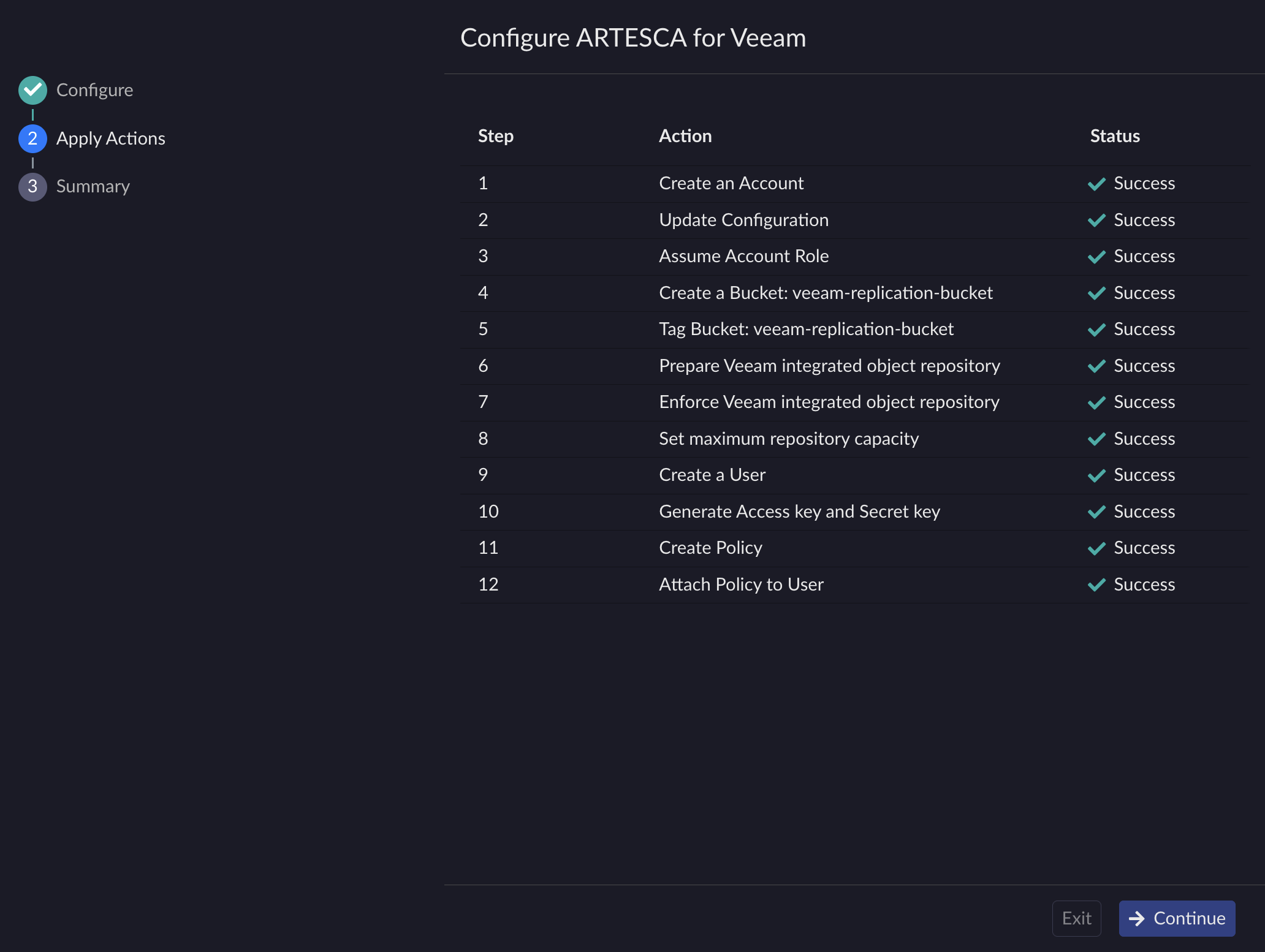
If a step fails, click Retry next to the corresponding step. If the step fails again, refer to Veeam Startup Assistant Fails for more information.
Note
If you decide to exit the assistant during a step failure, the resources created remain. If an account has been created and you want to restart the configuration, you must trigger the assistant manually from the Accounts page by clicking Start ISV Connector.
Click Continue once all the steps have succeeded.
The assistant displays the summary of the configuration.
Important
You need the information displayed in this page to complete the configuration in the Veeam Backup & Replication application, so do not click Finish yet.

From the summary page, copy the different information one by one, or click Copy all to copy all the information at once.
Note
Scality recommends retrieving the information at this point as it is all grouped in one place. You can still retrieve some of the information later in the UI, but it will have to be done individually.
Besides, the secret key (if generated at this moment) is only available here. If you have not copied it, you will need to generate a new one later. Refer to Create IAM User Access Keys for more information.
Click Finish to close the assistant.
The resources created by the assistant (account, buckets, users, and policies) are available in the respective UI pages.
Note
The bucket created with the Veeam Backup & Replication assistant is set for a specific use-case. To prevent mishandling, the Default Object-lock Retention option is disabled as this is managed by Veeam.
Create an Account for the Veeam application.
Create a Bucket to be used with the Veeam application.
Create an IAM user for the Veeam application.
Create an IAM policy to grant the Veeam application access to the S3 repository and manage data from an object repository.
Immutable buckets
{
   "Version": "2012-10-17",
   "Statement": [
       {
           "Sid": "VisualEditor0",
           "Effect": "Allow",
           "Action": [
               "s3:GetBucketLocation",
               "s3:GetObject",
               "s3:PutObject",
               "s3:DeleteObject",
               "s3:GetBucketVersioning",
               "s3:GetBucketObjectLockConfiguration",
               "s3:ListBucketVersions",
               "s3:GetObjectVersion",
               "s3:GetObjectRetention",
               "s3:GetObjectLegalHold",
               "s3:PutObjectRetention",
               "s3:PutObjectLegalHold",
               "s3:DeleteObjectVersion"
           ],
           "Resource": [
               "arn:aws:s3:::bucketname/*",
               "arn:aws:s3:::bucketname"
           ]
       },
       {
           "Sid": "VisualEditor1",
           "Effect": "Allow",
           "Action": [
               "s3:ListAllMyBuckets",
               "s3:ListBucket"
           ],
           "Resource": "*"
       }
                  ]
}
Note
Replace
bucketnamewith your bucket’s name.Non-immutable buckets
{
   "Version": "2012-10-17",
   "Statement": [
       {
           "Sid": "SecureBucketPolicy0",
           "Effect": "Allow",
           "Action": [
               "s3:PutObject",
               "s3:GetObject",
               "s3:DeleteObject",
               "s3:GetBucketLocation",
               "s3:GetBucketVersioning",
               "s3:GetBucketObjectLockConfiguration"
           ],
           "Resource": [
               "arn:aws:s3:::bucketname/*",
               "arn:aws:s3:::bucketname"
           ]
       },
       {
           "Sid": "SecureBucketPolicy1",
           "Effect": "Allow",
           "Action": [
               "s3:ListAllMyBuckets",
               "s3:ListBucket"
           ],
           "Resource": "*"
       }
                 ]
}
Note
Replace
bucketnamewith your bucket’s name.Attach the IAM policy to the IAM user previously created.
Configure the Repositories in Veeam Backup & Replication
Veeam Backup & Replication can use ARTESCA as a Performance Tier for backups, or as a Capacity tier for backup copies.
When using ARTESCA as a performance tier for backups, you must:
Create an S3 compatible object storage repository.
Configure storage on a backup job.
Create an S3 Compatible Object Storage Repository
Important
This procedure must be done using the Veeam Backup & Replication Console (even if you are running the Veeam Software Appliance).
From the Veeam Backup & Replication Console, click Add Repository on the top left.
Select the Object storage type of backup repository.
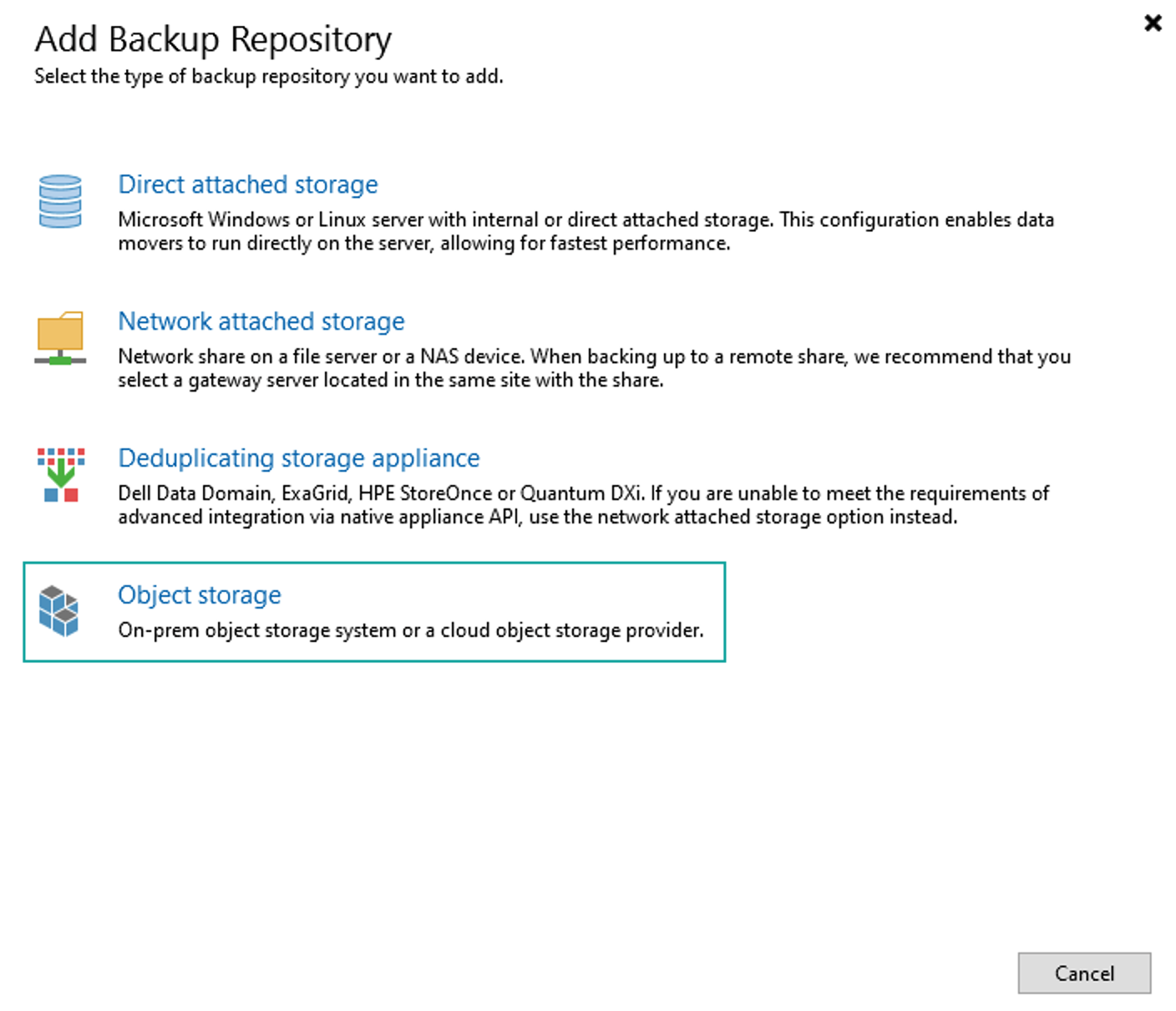
Select the S3 Compatible type of object storage.
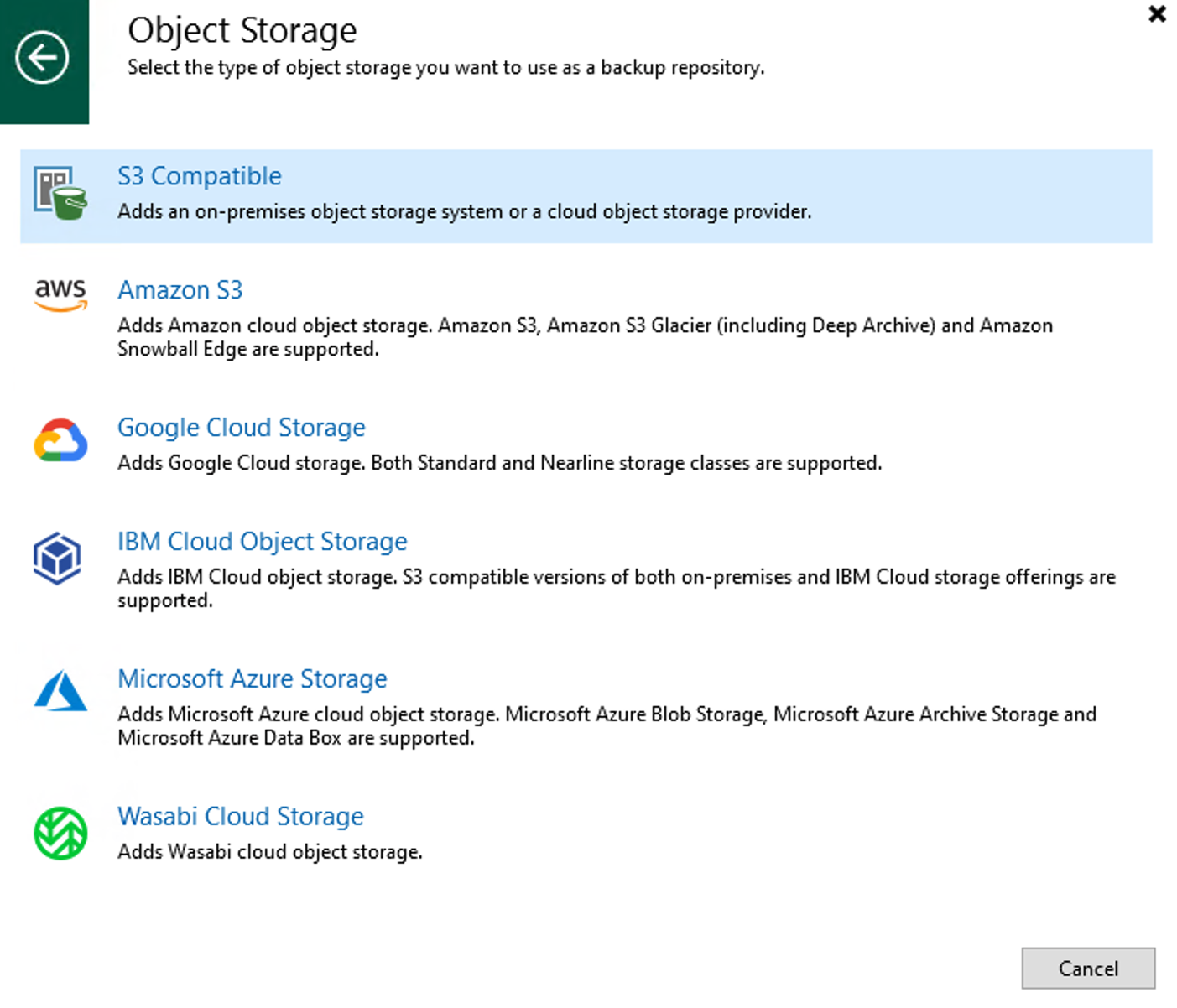
Name the repository.

Note
Limiting the number of concurrent tasks reduces the total number of connections to the S3 endpoint. For each concurrent task, 64 connections are opened with an S3 endpoint. This parameter can be adjusted to streamline performance between proxies and the S3 storage.
Enter the S3 endpoint exposed by ARTESCA and provide the Veeam account’s credentials.

Configure Veeam to copy the backup into a dedicated folder belonging to the bucket previously created.
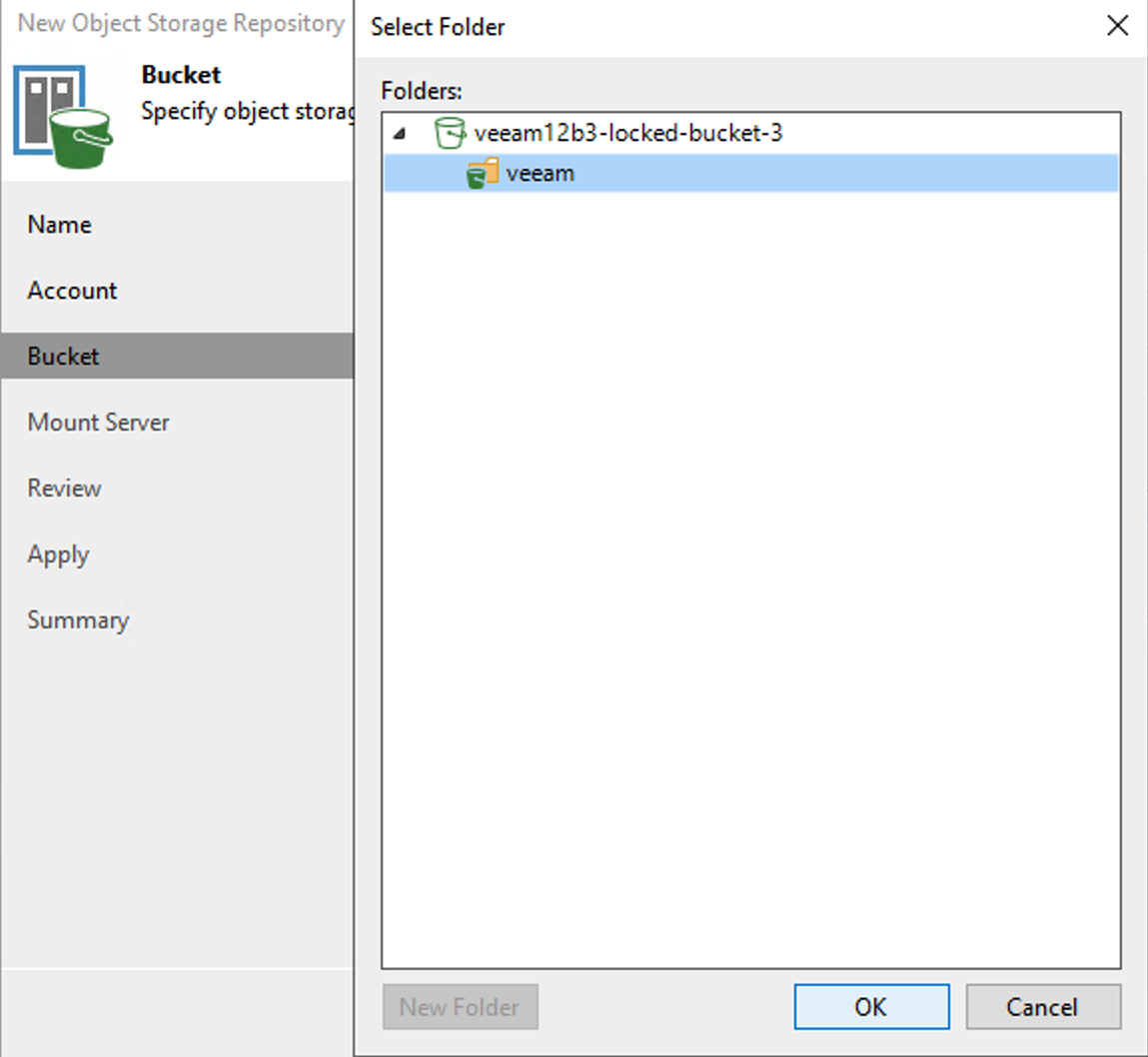
Warning
As of VBR version 12.3.1.1139, you must disable the option: Automatic bucket creation. If the feature is not disabled, the ARTESCA - Veeam integration will not work properly. If relevant, this option is located under the Bucket dropdown.
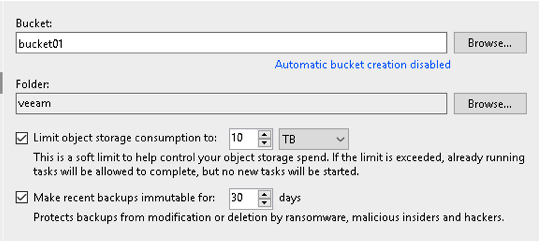
Select the backup immutability option and set it depending on what best fits your backup. This option protects your backup from alterations made by ransomware attacks and hackers.
Important
Immutability is optional and requires Object Lock. If you enable this option, you cannot modify or delete your backup during the time period set.
Warning
Use the Limit object storage consumption option and set a value which maximum must not exceed 90% of the usable capacity on ARTESCA.
Click Finish in the Summary dialog box to validate the creation of the repository. The created repository displays in the list of Backup Repositories.
Configure Storage on a Backup Job
Choose the ARTESCA repository (of the scale-out backup repository) previously created.
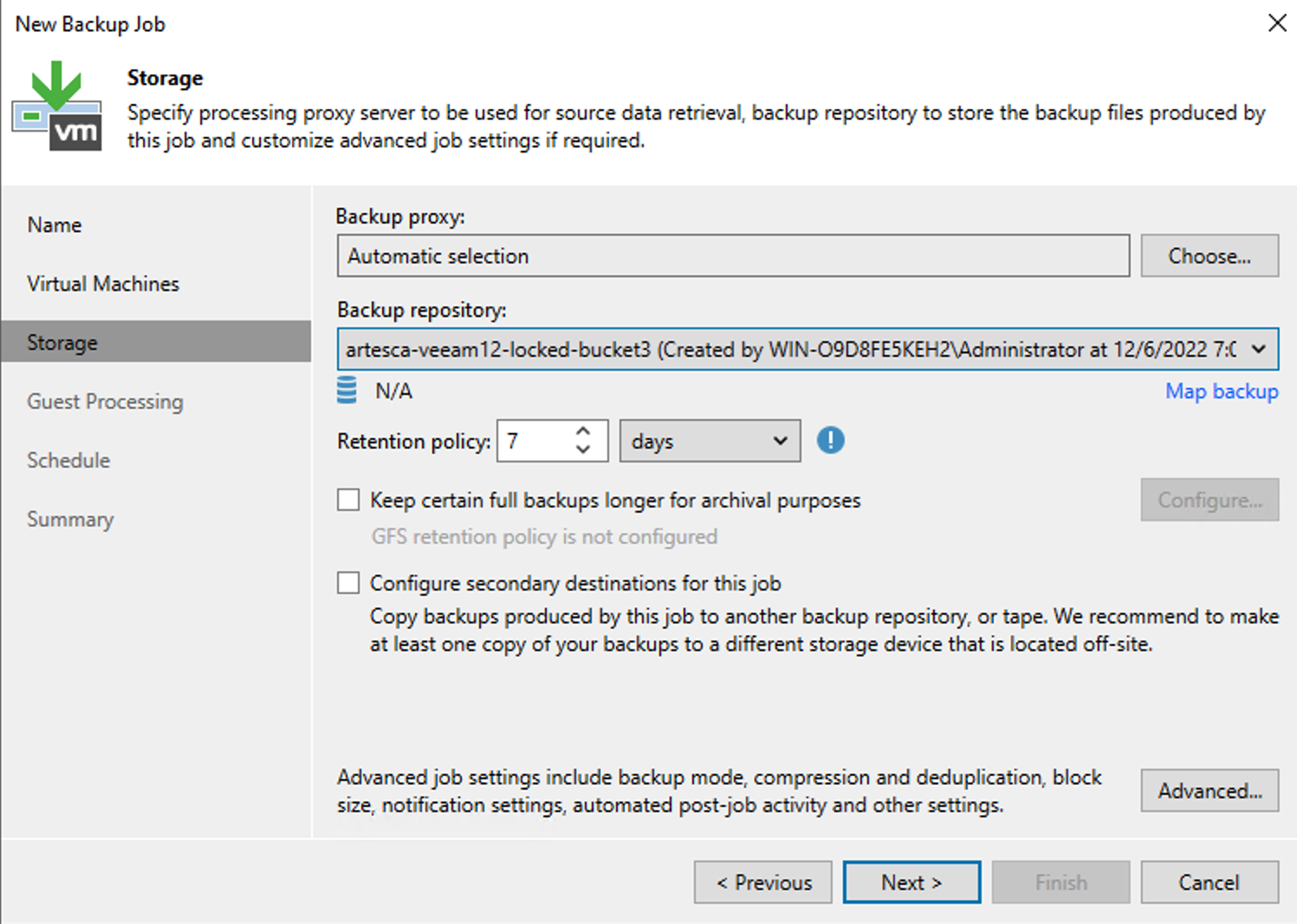
Click Advanced and select one of the following storage optimizations.
Local target: This is the default configuration to be used for most backup jobs. Veeam chunks data into 1 MB blocks and compresses them in ~500 KB S3 objects.
Local target (large blocks): This is the configuration recommended for critical VMs. Veeam chunks data into 4 MB blocks and compresses them in ~2 MB S3 objects.
Important
This configuration leads up to 2x faster backup and restore throughput, but it consumes up to 2x more space than the incremental backups using Local Target.
When using ARTESCA as a capacity tier for backup copies, you must:
Create an S3 compatible object storage repository.
Configure a scale-out backup repository.
Configure storage on a backup job.
Create an S3 Compatible Object Storage Repository
Important
This procedure must be done using the Veeam Backup & Replication Console (even if you are running the Veeam Software Appliance).
From the Veeam Backup & Replication Console, click Add Repository on the top left.
Select the Object storage type of backup repository.
Select the S3 Compatible type of object storage.
Name the repository.
Note
Limiting the number of concurrent tasks reduces the total number of connections to the S3 endpoint. For each concurrent task, 64 connections are opened with an S3 endpoint. This parameter can be adjusted to streamline performance between proxies and the S3 storage.
Enter the S3 endpoint exposed by ARTESCA and provide the Veeam account’s credentials.
Configure Veeam to copy the backup into a dedicated folder belonging to the bucket previously created.
Warning
As of VBR version 12.3.1.1139, you must disable the option: Automatic bucket creation. If the feature is not disabled, the ARTESCA - Veeam integration will not work properly. If relevant, this option is located under the Bucket dropdown.
Select the backup immutability option and set it depending on what best fits your backup. This option protects your backup from alterations made by ransomware attacks and hackers.
Important
Immutability is optional and requires Object Lock. If you enable this option, you cannot modify or delete your backup during the time period set.
Warning
Use the Limit object storage consumption option and set a value which maximum must not exceed 90% of the usable capacity on ARTESCA.
Click Finish in the Summary dialog box to validate the creation of the repository. The created repository displays in the list of Backup Repositories.
Configure a Scale-Out Backup Repository
If ARTESCA is used as a capacity tier for backup copies, you must create a scale-out backup repository.
Important
This procedure must be done using the Veeam Backup & Replication Console (even if you are running the Veeam Software Appliance)
Click Add Scale-out Repository on the top left.
Name the repository and select the performance tier and the ARTESCA repository previously created. The scale-out backup repository leverages these two tiers.
Select the option to copy backups to object storage as soon as they are created.
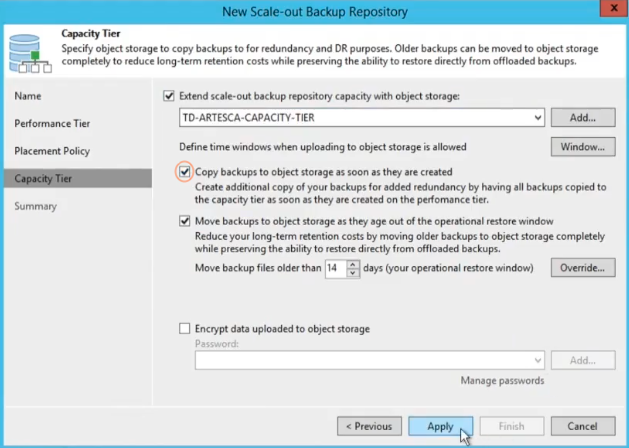
Click Finish to validate the creation of the scale-out backup repository.
Configure Storage on a Backup Job
Choose the ARTESCA repository (of the scale-out backup repository) previously created.
Click Advanced and select one of the following storage optimizations.
Local target: This is the default configuration to be used for most backup jobs. Veeam chunks data into 1 MB blocks and compresses them in ~500 KB S3 objects.
Local target (large blocks): This is the configuration recommended for critical VMs. Veeam chunks data into 4 MB blocks and compresses them in ~2 MB S3 objects.
Important
This configuration leads up to 2x faster backup and restore throughput, but it consumes up to 2x more space than the incremental backups using Local Target.


