

Veeam Software Appliance Optional Configurations
Resolve ARTESCA’s S3, STS, IAM, and CRL Endpoint on the Veeam Software Appliance
Note
This procedure is only required if a DNS server is not available in the environment and ARTESCA’s S3, STS, IAM, and CRL endpoints need to be resolved manually.
Log in to the Veeam Software Appliance’s host management console.
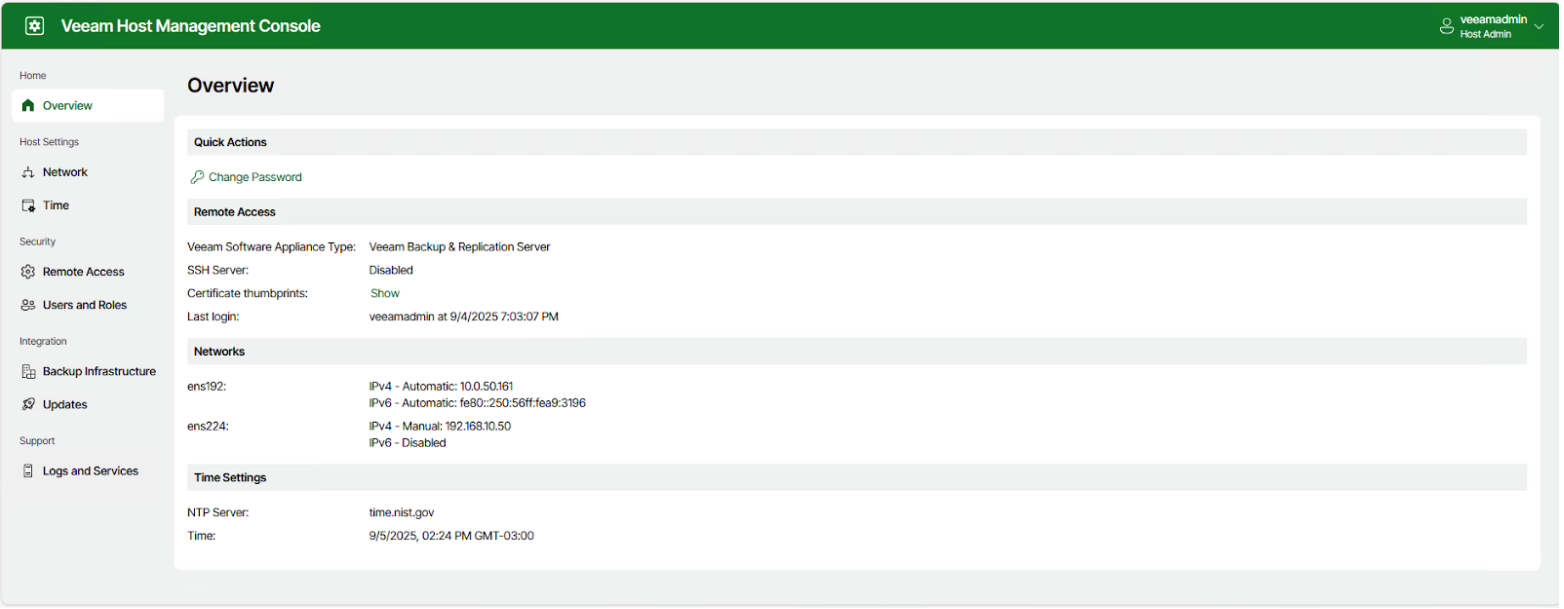
Navigate to Logs and Services section and select Host Configuration.
Search for hosts under Configuration Files to find the
/etc/hostsfile on the server.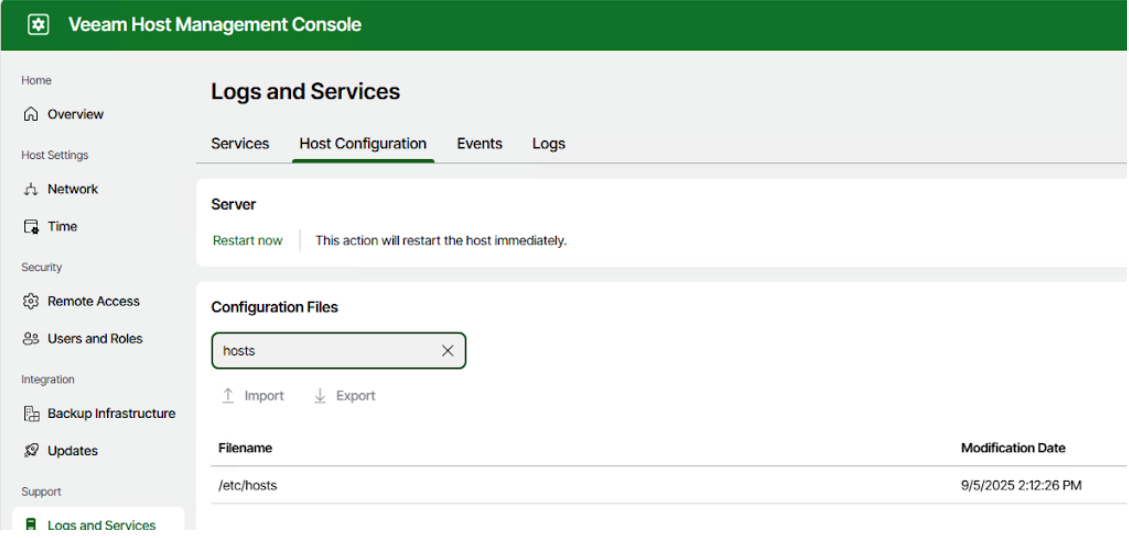
Export the
/etc/hostsfile by clicking Export.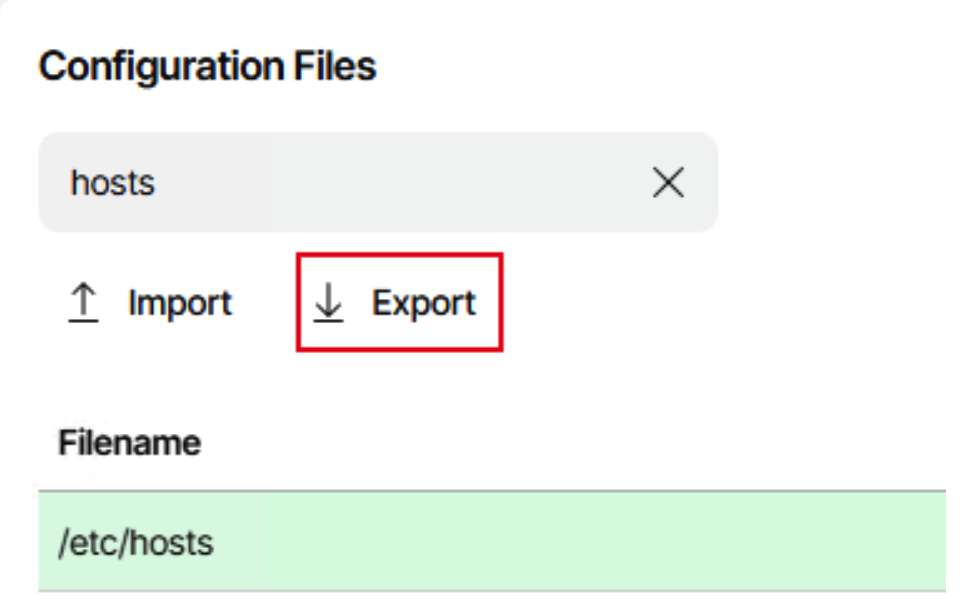
Open the downloaded hosts file in an editor and add the entry to resolve ARTESCA’s S3/IAM/STS/CRL endpoint. For more information on endpoints, refer to General DNS Setup.
Import the hosts file back into the appliance from the Veeam Host Management Console.
Navigate to Host Configuration and enter hosts in the Configuration Files section.
Click Import to load the updated hosts file.
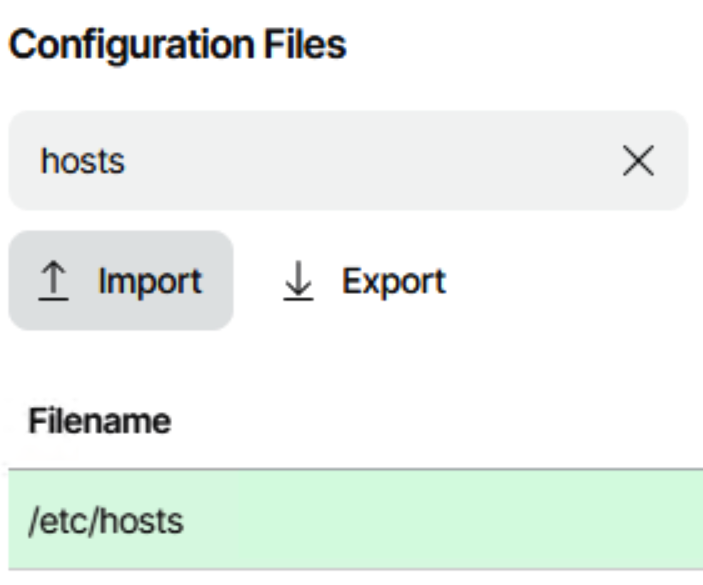
Veeam Backup & Replication v13 hosted by the VSA can now resolve the ARTESCA’ S3 endpoint.
Import ARTESCA’s CA Root Certificate on the Veeam Software Appliance
Prerequisites
Access to the Veeam Software Appliance’s Host management console.
Follow this procedure to download the ARTESCA’s CA Root Certificate.
Import the Certificate
Upload the certificate to the Veeam Software Appliance using
scpinto the/tmpfolder with the userveeamadmin.
Log in to the Veeam Software Appliance.
Note
The following example shows how to access the remote console when Veeam Software Appliance is in a vSphere environment. Please adapt accordingly to match your environment.
In vSphere, select the VM and click Launch Web Console.
Press Enter to log in to the VM and input the One-Time Password if prompted.
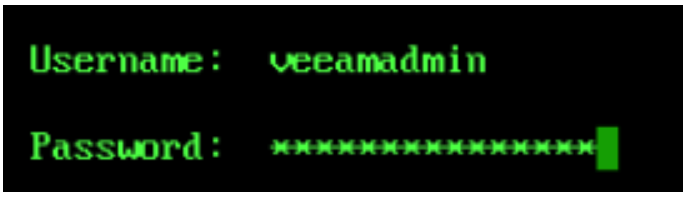
After authentication, in the Host Management console, access the bash console by clicking Remote access configuration and then Enter Shell. This will direct you to the bash console.
Import the certificate into the Linux vault.
cp /tmp/artesca-ca.pem /etc/pki/ca-trust/source/anchors \
update-ca-trust
Veeam Backup & Replication on the Veeam Software Appliance is now able to connect to the ARTESCA’s S3 HTTPS endpoint.


