

CTERA and ARTESCA on two Sites for Disaster Recovery
Disaster Recovery
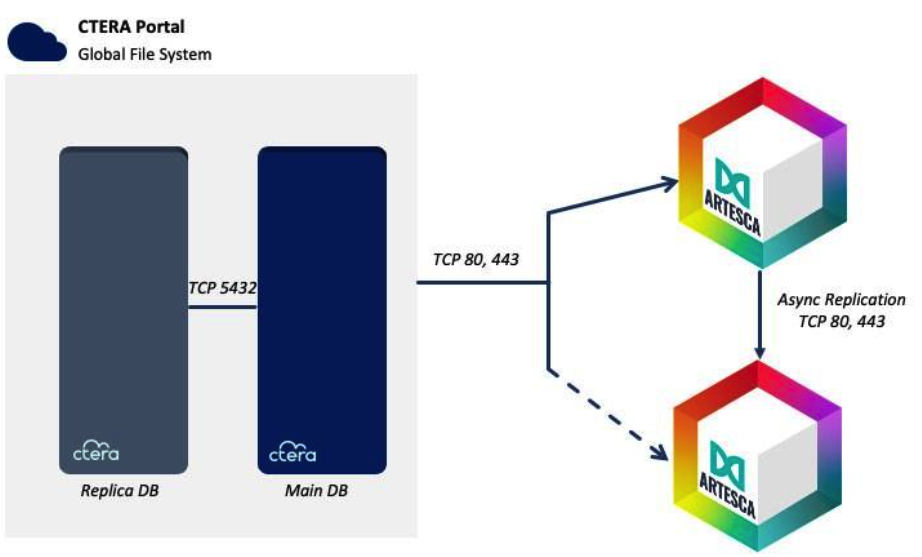
CTERA Failover mechanism and Scality ARTESCA replication ensure that data is always fully protected and resilient in disaster scenarios.
CTERA Portal uses PostgreSQL to store metadata in order to ensure data and metadata, persistence and consistency on the CTERA platform. This also keeps Recovery Time Objective (RTO) and Recovery Point Objective (RPO) values to a minimum. This is achieved through mechanisms such as Continuous Archiving, Point in Time Recovery, and Continuous Streaming Replication.
Apart from metadata, the data itself must also be secured and protected. This is achieved using the ARTESCA replication mechanism that allows replicating data between multiple instances. This allows a fast and easy to manage recovery mechanism.
Warning
ARTESCA installed on two sites as Active-Active is not supported.
During a disaster scenario, when CTERA fails over to the secondary ARTESCA, only read operations are supported.
Prerequisites
Prerequisites and configuration steps are in support of ARTESCA installed on two sites for diaster recovery, not for ARTESCA installed on a single site.
Two ARTESCA deployments are installed and DNS is resolvable between them.
CTERA DB Backup & Replication configured. Refer to Configuring the CTERA portal database for backup for more details.
Configure ARTESCA for CTERA
The following steps need to be run on both primary and secondary ARTESCA.
Create an Account for the CTERA application.
Create a Bucket to be used with CTERA application.
Important
Bucket names must match between Primary and Secondary ARTESCA deployments. Bucket versioning must be enabled on both Primary, and Secondary ARTESCA deployments.
Create an IAM user for the CTERA application.
Create an IAM policy to grant the CTERA application access to the S3 repository and manage data.
Use the following policy for primary ARTESCA:
{
   "Version": "2012-10-17",
   "Statement": [
   {
      "Sid": "Stmt1691642496520",
      "Action": [
          "s3:AbortMultipartUpload",
          "s3:DeleteObject",
          "s3:DeleteObjectTagging",
          "s3:DeleteObjectVersionTagging",
          "s3:GetBucketLocation",
          "s3:GetBucketVersioning",
          "s3:GetObject",
          "s3:GetObjectVersion",
          "s3:ListBucket",
          "s3:ListBucketMultipartUploads",
          "s3:ListBucketVersions",
          "s3:PutObject",
          "s3:PutObjectTagging",
          "s3:PutObjectVersionTagging"
      ],
      "Effect": "Allow",
      "Resource": [
         "arn:aws:s3:::${BucketName}",
         "arn:aws:s3:::${BucketName}/*"
      ]
   }
   ]
}
Use the following policy for the secondary ARTESCA:
{
   "Version": "2012-10-17",
   "Statement": [
   {
      "Sid": "Stmt1691642496520",
         "Action": [
             "s3:GetBucketLocation",
             "s3:GetBucketVersioning",
             "s3:GetObject",
             "s3:GetObjectVersion",
             "s3:ListBucket",
             "s3:ListBucketMultipartUploads",
             "s3:ListBucketVersions"
      ],
      "Effect": "Allow",
      "Resource": "arn:aws:s3:::${BucketName}"
   }
   ]
}
Attach the IAM policy to the IAM user previously created.
Configure Replication Between Primary and Secondary ARTESCA Instances
Configure the Secondary ARTESCA Instance as Target for Replication
Go to Accounts, select the Account Name.
Create a Bucket to be used with CTERA application.
Note
Bucket names must match between Primary and Secondary ARTESCA deployments
Create an IAM user that will be used by primary ARTESCA.
Create an IAM policy to grant the primary ARTESCA access and rights to replicate data.
{
"Version": "2012-10-17",
"Statement": [
   {
      "Sid": "cteraPolicy",
      "Action": [
         "s3:AbortMultipartUpload",
         "s3:DeleteObject",
         "s3:DeleteObjectTagging",
         "s3:DeleteObjectVersionTagging",
         "s3:GetBucketLocation",
         "s3:GetBucketVersioning",
         "s3:GetObject",
         "s3:GetObjectVersion",
         "s3:ListBucket",
         "s3:ListBucketMultipartUploads",
         "s3:ListBucketVersions",
         "s3:PutObject",
         "s3:PutObjectTagging",
         "s3:PutObjectVersionTagging"
      ],
      "Effect": "Allow",
      "Resource": "arn:aws:s3:::${BucketName}"
   }
]
}
Attach the IAM policy to the IAM user previously created.
Create an access key for this IAM user.
Note
Copy the access key and secret key to a safe place. These credentials will be used with the primary ARTESCA instance configuration.
Configure Primary Instance of ARTESCA
Disable SSL verification for locations using the following command:
[artesca-os@bootstrap ~]$sudo kubectl --kubeconfig=/etc/kubernetes/admin.conf -n zenko patch Zenko artesca-data --type=merge --patch '{"spec":{"egress":{"skipTLSVerify":true}}}'
Go to Accounts and select the Account Name.
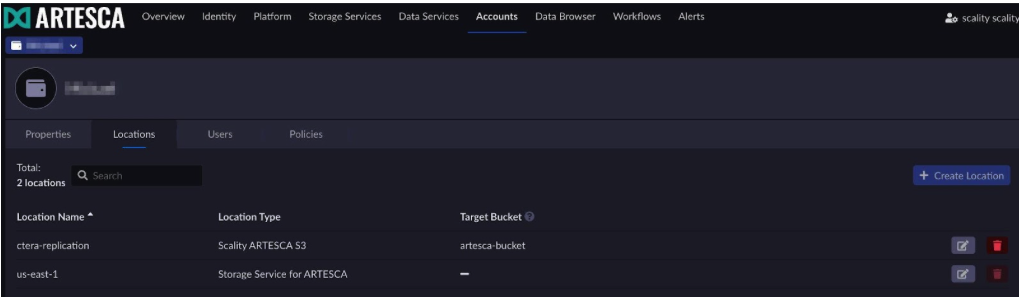
Go to Locations and select Create Location.
Fill in the following information:
Location Name: The name must be unique across all ARTESCA instances. For example, “ctera-replication”.
Location Type: Scality ARTESCA S3.
Access Key / Secret Key: Paste the Access Key generated previously on the secondary instance.
Target Bucket Name: Bucket name created on a secondary instance.
Endpoint: S3 Endpoint of the secondary endpoint. For example,
https://s3.artesca.myctera.comWrite objects without prefix: Check the box.
Once created, the location should appear under the Locations tab.
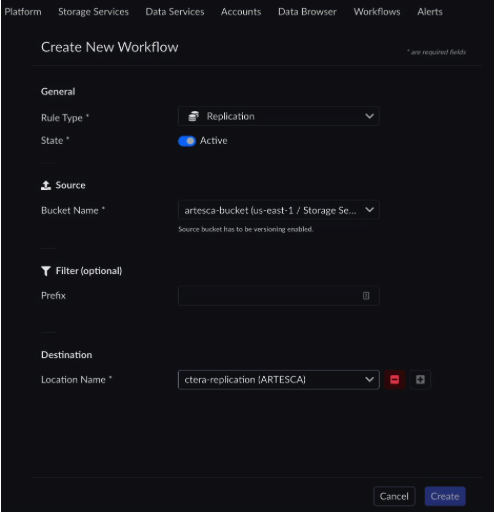
Go to Workflows, select Create Workflow.
Fill in the following:
Rule Type: Replication
State: Active
Source Bucket Name: Select the bucket name of the Primary ARTESCA instance.
Filter: Leave it empty.
Destination: Select the location of the Secondary ARTESCA instance (created previously here).
Click Create.
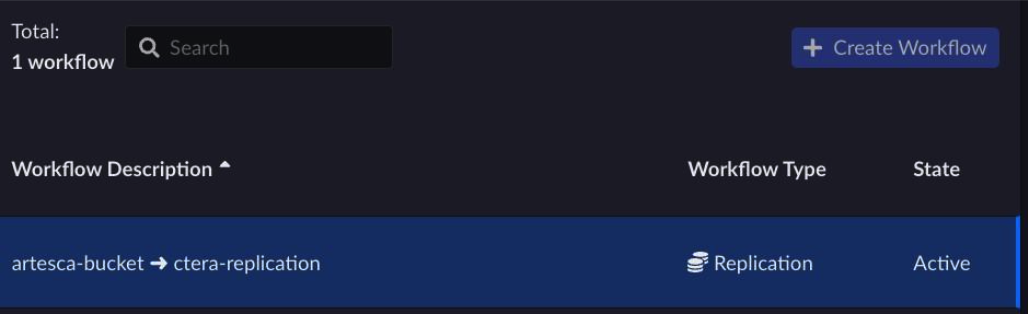
This creates a Replication workflow.
Important
Only the blocks that were added to CTERA after the replication has been configured are transferred to the secondary ARTESCA.
Configure Lifecycle Expiration
To ensure space is reclaimed on ARTESCA when CTERA overwrites or deletes an object, Lifecycle Expiration needs to be configured.
Important
This step needs to be run on both the primary and the secondary ARTESCA instances.
Create a Lifecycle Expiration Policy on the CTERA bucket.
Set state to Active.
Leave the Filter > Prefix and Filter > Tags empty.
Select the following from Actions
Expire Previous version of objects, set the number of days to 7.
Select Remove expired Delete markers.
Expire incomplete Multipart uploads, set the number of days to 7.
Click Create.
This creates a Lifecycle Expiration workflow to remove non-current object versions, delete markers and incomplete multipart uploads after the number of days set.
Failover During Disaster
Configure CTERA Portal
To failover the CTERA Portal and ARTESCA backend storage, perform the following steps on CTERA:
Use this procedure to failover the CTERA database.
Login to the as Global Administrator using
https://<CTERA_Portal_URL>/admin.Go to Main > Storage Nodes and edit your Primary ARTESCA bucket.
Change the Access Key, Secret Key, and Endpoint to the Secondary ARTESCA instance.
Click Save.
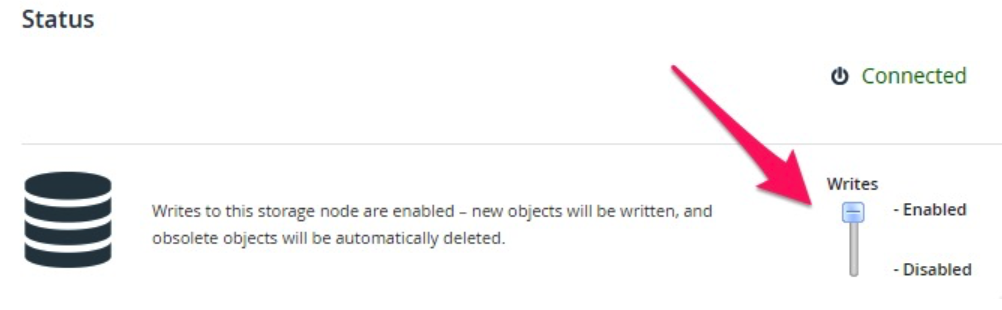
Configure CTERA to use ARTESCA in Read-Only mode.
Failback to Nominal Operation
To failback the CTERA database, start by using the procedure described in CTERA KB
Once the process is completed, login to the CTERA Portal as Global Administrator using: https://<CTERA_Portal_URL>/admin.
Go to Main > Storage Nodes and edit your Primary ARTESCA bucket.
Change the Access Key, Secret Key, and Endpoint back to the Primary ARTESCA instance.
Click Save.
Configure CTERA to use ARTESCA with Writes enabled.
Data Consistency
In the case of a major disaster scenario, you need to check data consistency. Contact the CTERA Support team for assistance using the CTERA data consistency tool.


