

CTERA and ARTESCA on a single Site
Prerequisites
CTERA is installed. This documentation is relevant with CTERA version 8.3.
ARTESCA root certificate is installed on CTERA.
Note
Follow this procedure to install ARTESCA’s root certificate and to ensure a successful connection between ARTESCA and CTERA.
Limitations
CTERA with S3 Object Lock is currently supported only on single-site deployments.
WORM functionality is supported only with enterprise mode. Compliance mode is not supported.
Storage Profile
CTERA uploads objects to ARTESCA buckets with an average object size of 4 MB.
Performance
Upload speed: 1160 Mbps Download speed: 1077 Mbps
Note
These speeds were observed using CTERA’s benchmark tool.
Integration
Configure ARTESCA for CTERA
Create an Account for CTERA.
Create a Bucket to be used with CTERA.
Create an IAM User for CTERA.
Create an IAM Policy to grant CTERA access to the S3 bucket and manage data.
{ "Version": "2012-10-17", "Statement": [ { "Sid": "CTERAPolicy", "Effect": "Allow", "Action": [ "s3:PutObject", "s3:GetObject", "s3:ListBucket", "s3:DeleteObject", "s3:GetBucketLocation", "s3:AbortMultipartUpload", "s3:ListMultipartUploadParts", "s3:ListBucketMultipartUploads", "s3:RestoreObject", "s3:CreateBucket", "s3:GetBucketAcl" ], "Resource": [ "arn:aws:s3:::bucketname/*", "arn:aws:s3:::bucketname" ] }, { "Sid": "VisualEditor1", "Effect": "Allow", "Action": [ "s3:ListAllMyBuckets", "s3:ListBucket" ], "Resource": "*" } ] }{ "Version": "2012-10-17", "Statement": [ { "Sid": "CTERAOLPolicy", "Effect": "Allow", "Action": [ "s3:GetObject", "s3:GetObjectRetention", "s3:PutObjectRetention", "s3:DeleteObject", "s3:PutObject", "s3:ListBucket", "s3:GetBucketAcl", "s3:ListBucketMultipartUploads", "s3:GetBucketLocation", "s3:GetBucketObjectLockConfiguration", "s3:DeleteObjectVersion", "s3:ListBucketVersions", "s3:GetBucketVersioning", "s3:ListMultipartUploadParts", "s3:AbortMultipartUpload" ], "Resource": [ "arn:aws:s3:::bucketname/*", "arn:aws:s3:::bucketname" ] }, { "Sid": "VisualEditor1", "Effect": "Allow", "Action": [ "s3:ListAllMyBuckets", "s3:ListBucket" ], "Resource": "*" } ] }Attach the IAM policy to the IAM user previously created.
Create Access Key and Secret Key for the IAM user.
Enable CTERA to Resolve ARTESCA S3 Endpoint
If the CTERA installation cannot resolve the ARTESCA S3 endpoint when no DNS service is available in the environment, the following steps can be taken to resolve the ARTESCA S3 endpoint manually.
Log in to the CTERA server over SSH.
Edit the
/etc/hostsfile, and add an entry for the ARTESCA server.
Assign and Manage Compliance Settings Permissions
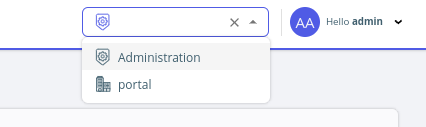
Select Administration page on top right.
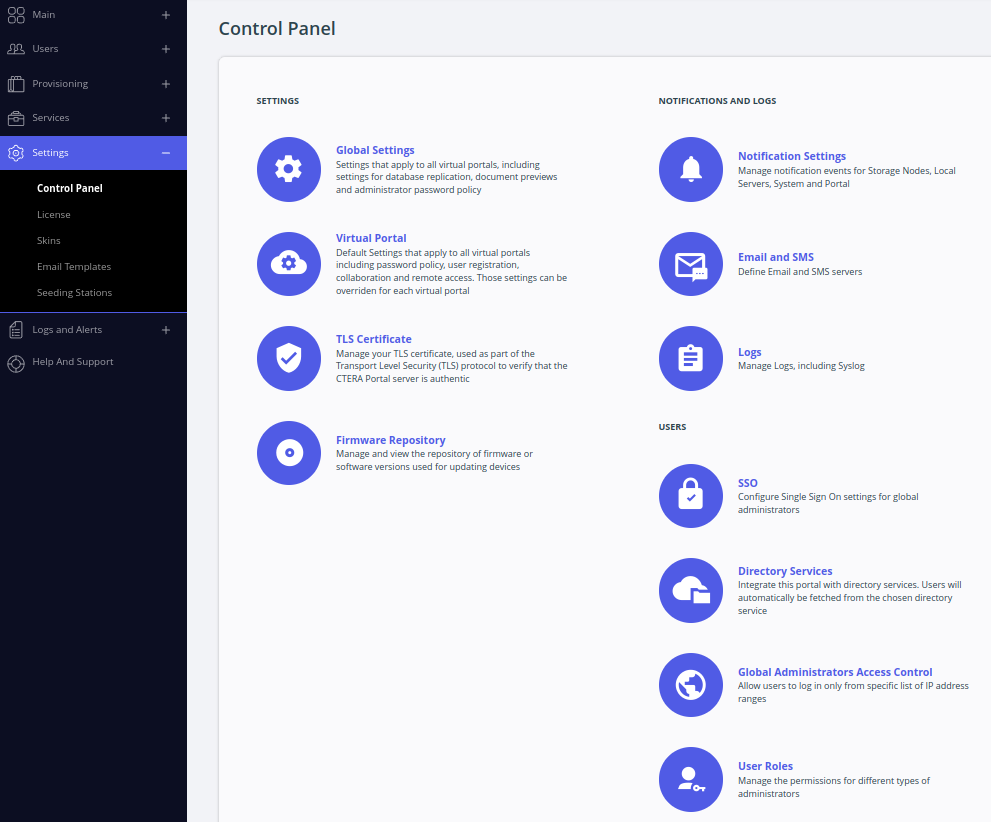
Go to Settings > Control Panel > User Roles.
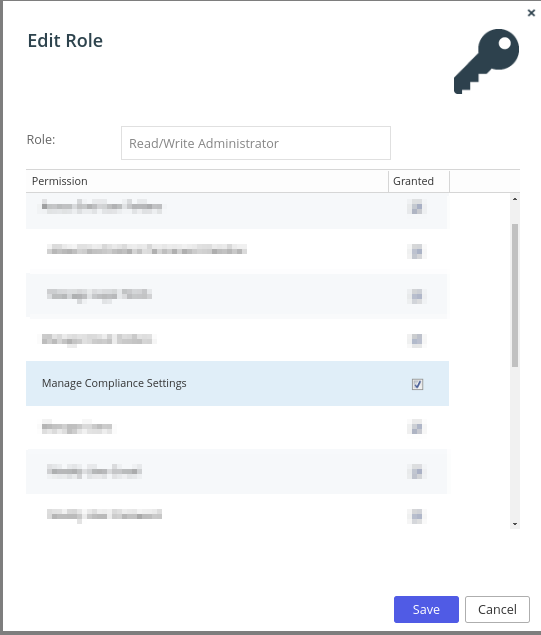
Assign Manage Compliance Settings permission to the Read/Write Administrator Role.
Configure ARTESCA as a Storage Node in CTERA
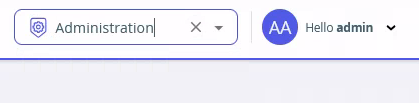
In the CTERA UI, select Administration from the dropdown on the top right.
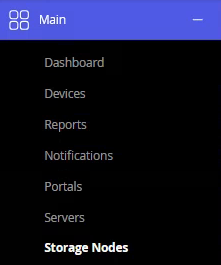
Select Main > Storage Nodes from the navigation bar on the left. Click New Storage Node.
Fill in parameters as follows:
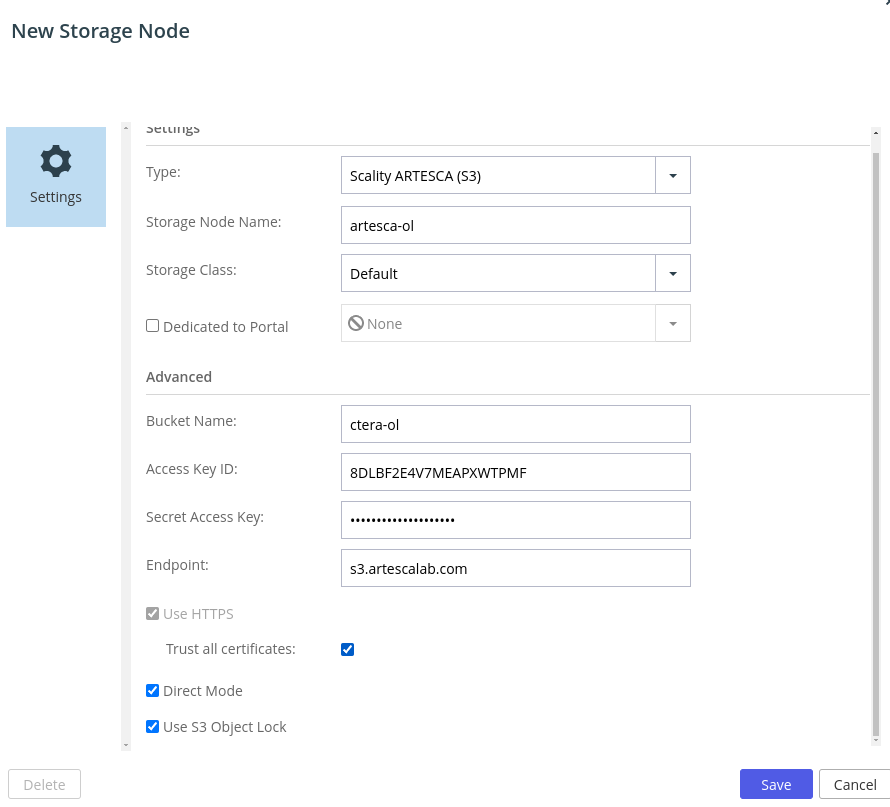
Important
Enabling Direct Mode is recommended as the data is uploaded and downloaded directly to and from the storage, not via the portal.
S3 Object Lock is optional, and can be enabled if ARTESCA has been configured with a bucket with object lock enabled.
Click Save. The node will show up in the list, the status should be Connected.
Folder Group Creation
Select Portal on the top right.
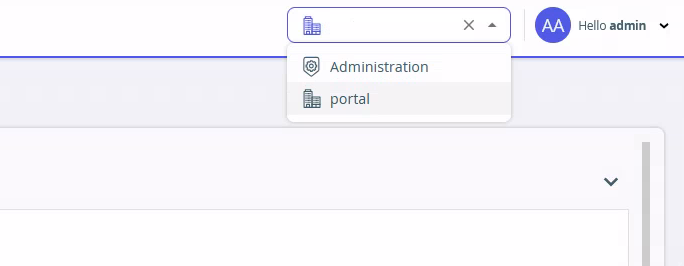
Click Folder Groups menu, and create New folder group.
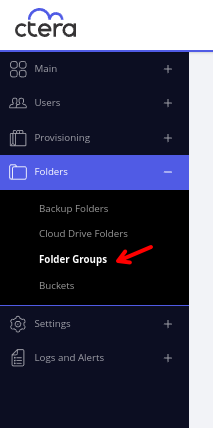
Create New folder group.
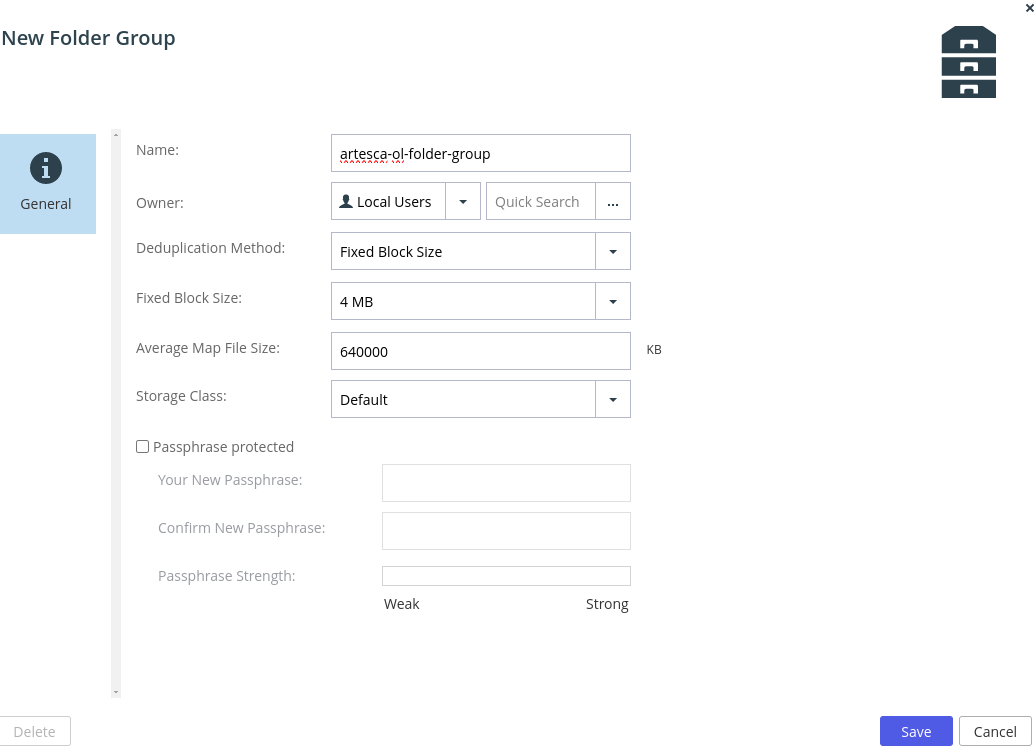
Click Save.
Cloud Drive Folder Creation
Select Portal on the top right.
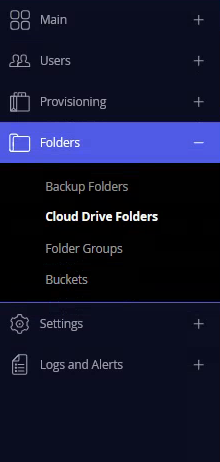
Select Folders > Cloud Drive Folders on the navigation bar.
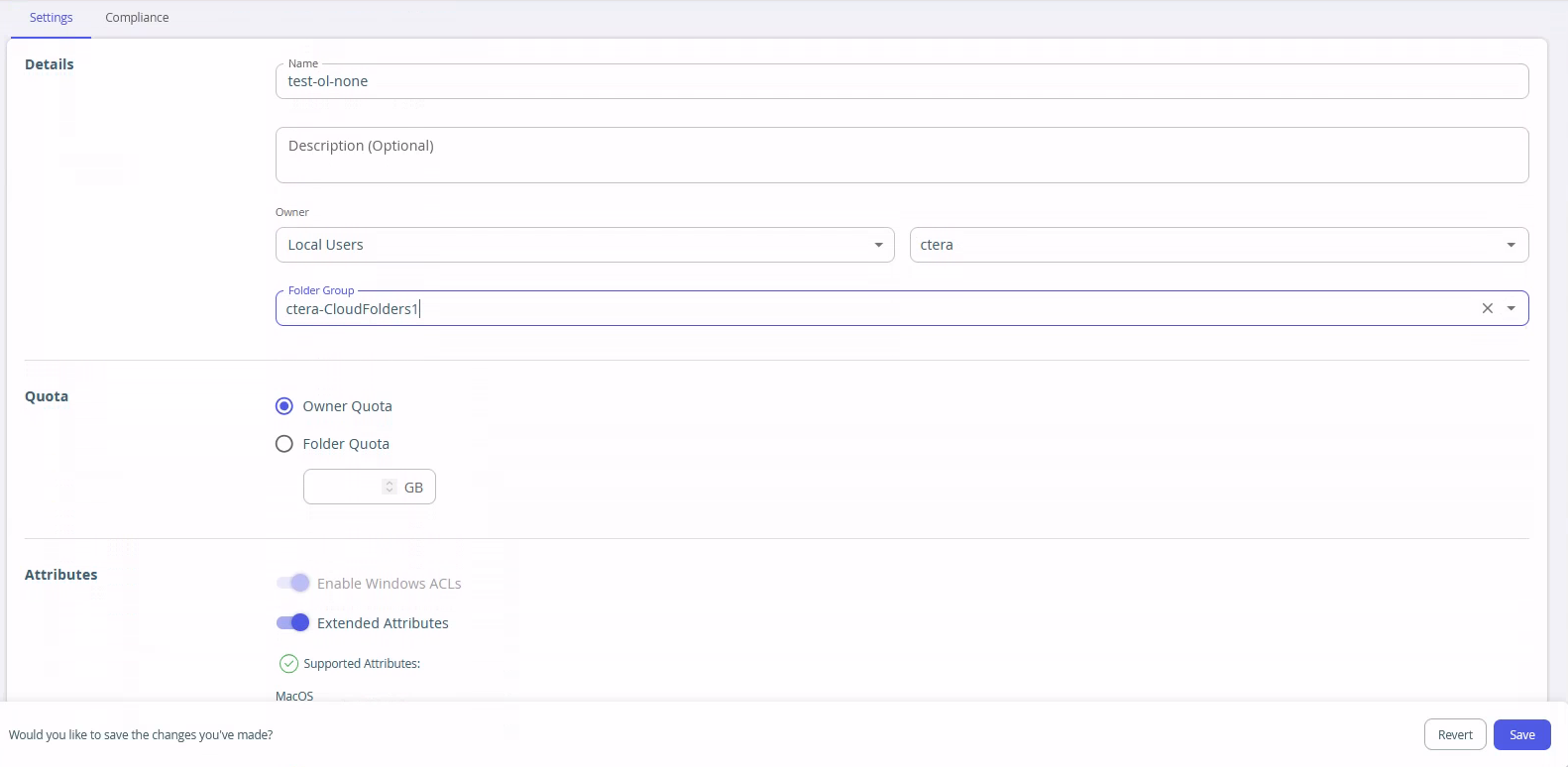
Fill in the details selecting the Folder Group created in the previous step.
(Optional) In the Compliance tab, enable WORM to use S3 Object Lock.
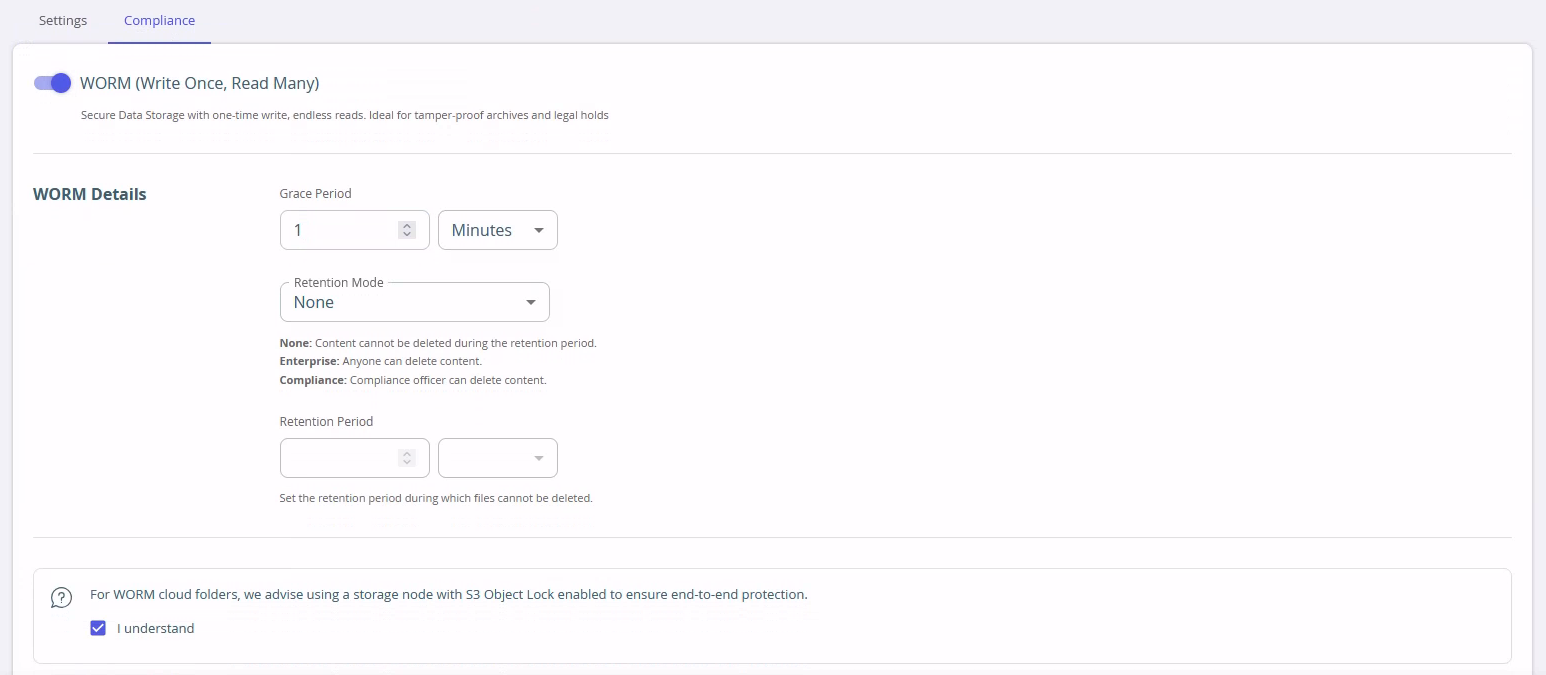
Select a Retention Mode which can be one of the following:
None: No retention is placed on the objects. Files can be deleted by users.
Enterprise: Sets objects with Governance mode, users with special privileges may be able to delete objects.


