

Set up AD/LDAP Authentication
This procedure allows you to set up AD/LDAP authentication in ARTESCA.
This may also be accomplished by accessing Identity from the main menu. Only a user with a Platform Admin role can do so.
Prerequisites
Gather all information necessary to establish a connection to the AD/LDAP server. This includes the IP or DNS name, the port number, and the certificates.
Get a “binding” account to request the AD/LDAP server. This is an account that has the necessary permissions to query the AD/LDAP server. It is not used by an individual user, but by the ARTESCA application to interact with the LDAP server.
Gather the following information:
IP or DNS name and port
Binding account credentials
Users Distinguished Name (DN)
Group Distinguished Name (DN)
(Optional) If you are using a standard AD implementation, the wizard will be prepopulated with values that matches standard implementation. If you are using an AD implementation that is not strictly standard, refer to these pre-filled default values, compare them with your AD implementation, and update the fields in the UI form if there are any differences.
Values to check for not strictly standard AD implementation
Default Value for Active Directory (Users)
LDAP user query:
User Object classes = person, organizationalPerson, user
RDN LDAP attribute = cn
UUID LDAP attribute = objectGUID
User LDAP filter (optional) = (empty)
Search scope = One level
LDAP user mapping:
Username LDAP attribute = sAMAccountName
Email LDAP attribute = mail
First name LDAP attribute = givenName
Last name LDAP attribute = sn
Default Value for Active Directory (Groups)
LDAP group query:
Group Object classes = group
LDAP group mapping:
Group name LDAP attribute = cn
Group membership strategy = LOAD_GROUPS_BY_MEMBER_ATTRIBUTE
Membership LDAP Attribute = member
Membership Attribute Type = DN
Note
If you have questions concerning the gathering of this information, contact your AD expert who is familiar with the AD/LDAP tree and can accurately retrieve user and group data.
Prepare the list of AD/LDAP groups that will be mapped to ARTESCA roles.
Warning
Non-compliant configurations may require assistance from the AD administrator, and or Scality support.
- Unique username
Each username must be unique within the (imported) LDAP user entity to ensure consistent user identification during import.
- Complete attribute mapping
Each user entity is expected to have username, email, first name, and last name defined. Missing values may result in failed or incomplete imports (missing users or incomplete profiles).
- Unique email
The same email address must not be shared by multiple LDAP users. If duplicates exist, only the first matching user will have the email imported; subsequent users will be considered incomplete.
Configuring AD/LDAP First Authentication
To configure AD/LDAP authentication, follow these steps:
Connection Setup
Important
Log in the ARTESCA UI with a Platform Admin role.
Click Identity on the top menu.
Go to Identity Providers on the sidebar menu.
Click Add Identity Provider. The form guides you through the multiple steps of the integration.
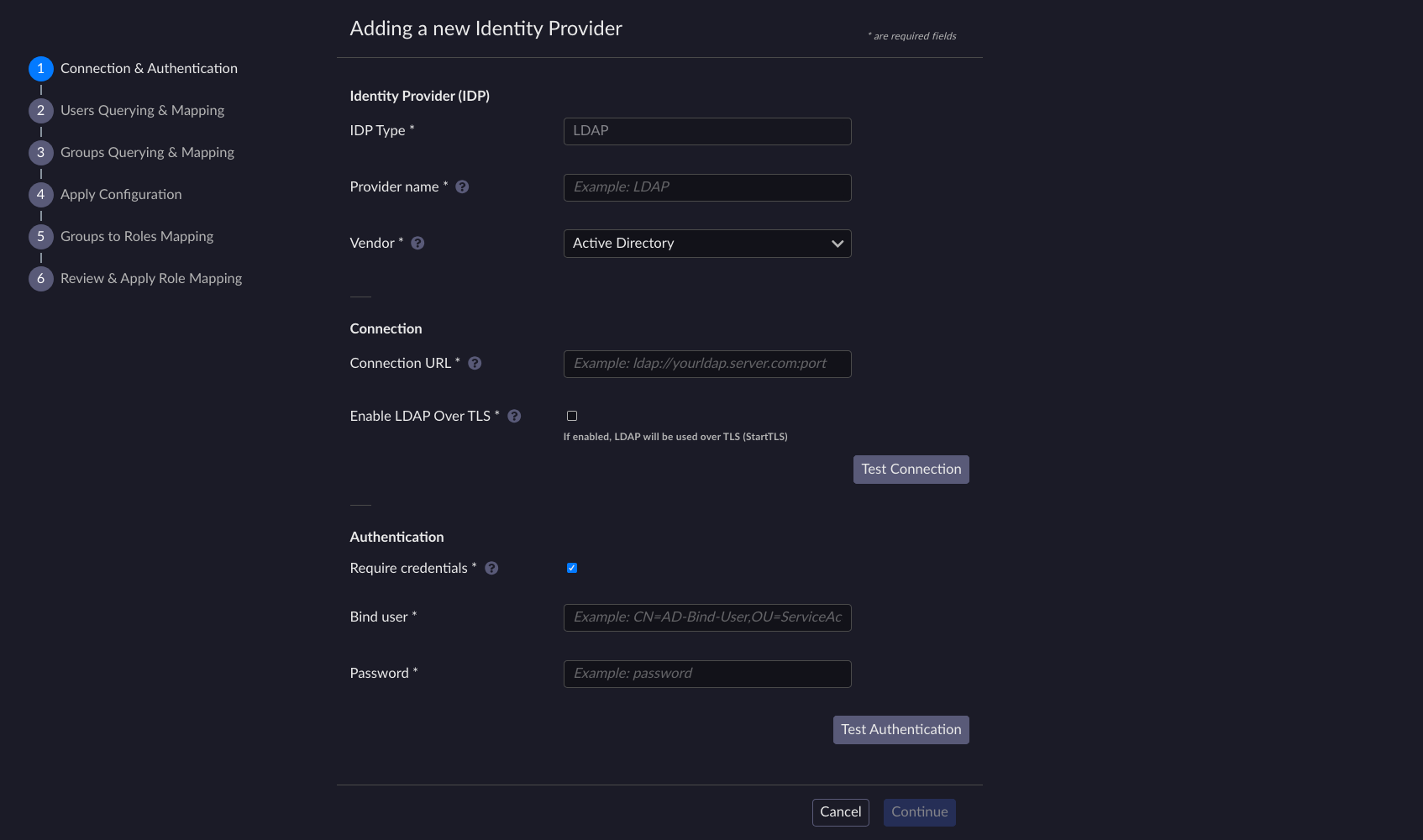
Select LDAP as the IDP Type.
Select a name for your external Identity Provider in Provider name. This name will be displayed in the ARTESCA UI.
Select a Vendor from the dropdown list. This will prepopulate the fields of this assistant based on the default configuration of a standard implementation. If the values differ from your implementation, update the fields accordingly. If you do not know, choose Other. In that case, be careful of the fields.
Provide a Connection URL.
Note
Multiple URL addresses can be provided, separated by a comma, to point to several AD controllers for increased resilience.
The URL must follow this format:
[Protocol][Server]:[Port]
Protocol:
Use
ldap://for unencrypted LDAP server connections.Use
ldaps://for encrypted LDAP server connections.
Port:
Use 389 for unencrypted LDAP server connections.
Use 636 for encrypted LDAP server connections.
Warning
When using
ldaps://, if you are using a FQDN (Fully Qualified Domain Name) to join the LDAP server, make sure that this FQDN is resolvable from the ARTESCA environment. Refer to Domain Name System (DNS) for more information on DNS.If you configure ARTESCA to connect to the LDAP server using an IP address, make sure that the certificate presented by the LDAP server explicitly includes this IP address.
Based on your protocol:
When using
ldap://, you can choose to click Enable LDAP Over TLS. In this case, you must import a certificate and the connection will be encrypted. If you do not check this box, no certificate is necessary and the connection will be unencrypted.When using
ldaps://, you must import a certificate. The connection will be encrypted.
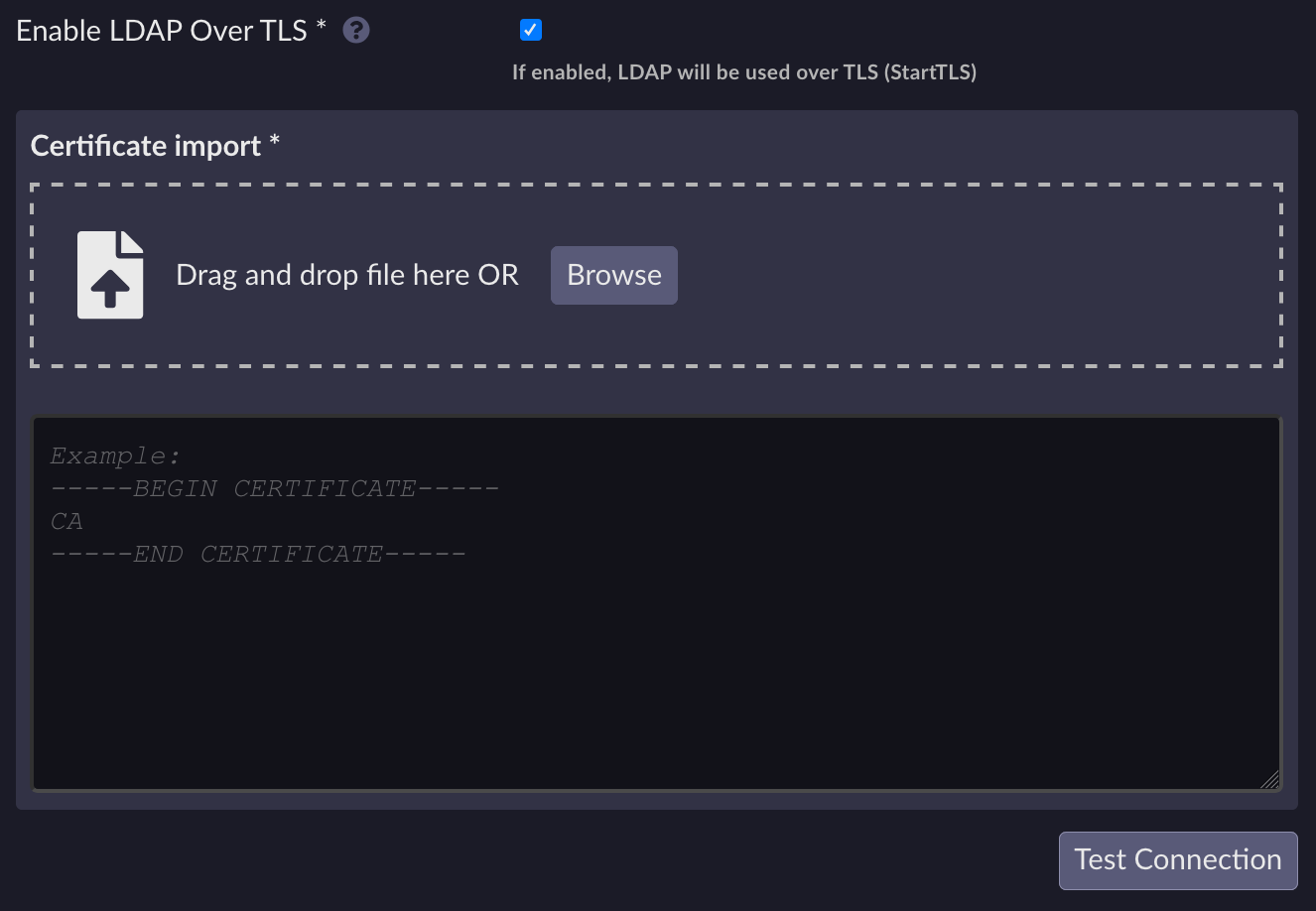
If your AD admin has not provided the certificate, you can use the following command to display the server’s certificates:
[artesca-os@bootstrap ~]$openssl s_client -connect <server>:<port (likely 636)> -showcerts
Then select the certificate you want to import.
Important
Re-import the certificate upon its expiration or renewal.
Click Test Connection. If the connection is successful, you will have a success message.
Authenticate using a user account that has necessary permissions to do requests on AD/LDAP server.
By default, you need to provide credentials as your user is assumed to be bound. Uncheck the box if you do not need to provide credentials.
Once you provide the credentials (username and password), click Test Authentication, then click Continue.
Important
You must provide credentials of a user that has permission to retrieve the LDAP resources (users and groups). The Scality Identity management cannot check these credentials, therefore, it is possible to enter incorrect credentials, and to continue on the next step. Wrong credentials describe a person that does not have the correct rights. Unchecking the “Require credentials” option also will not trigger an error. The configuration of the LDAP server on the customer side might not trigger an error when the Test Authentication button is triggered. It is only on the action moment itself that the error would appear.
User/Group Import Configuration
This step allows you to retrieve users and groups from the AD/LDAP server by building your LDAP queries.
During user import, four attributes are retrieved from LDAP through the mappers and used to populate the imported user entity:
Username
Email
First name
Last name
When importing users and groups from the AD/LDAP server, consider the following:
Imported users can be removed using the Drop synced button.
Imported groups can only be removed manually, one at a time.
As such, carefully check the query before bulk importing users and groups. For more information, refer to Remote Users and Groups.
Provide the correct information for requests to query users that you want to integrate.

By clicking Advanced settings, you can build your LDAP user query and mapping.

Build the LDAP user query
Provide Users Distinguished Name (DN)
Provide User Object Class
The Object Class is pre-filled based on Vendor value.
Use this to ensure only objects that are users will be returned by the query.
Provide Relative Distinguished Name (RDN) LDAP attribute
Pre-filled base on Vendor value.
A RDN is a part of the full DN that uniquely identifies an entry within a specific level of the LDAP directory. Using an RDN allows for faster location and management of entries without needing the complete DN.
Provide UUID LDAP attribute
Pre-filled based on Vendor value.
This attribute serves as a unique identifier for each LDAP directory entry, ensuring no two entries are identical.
(Optional) Provide the User LDAP Filter This field allows the application of specific criteria to selectively import users within an LDAP directory. By leaving this field empty, all users under the specified Users DN will be imported. This field adheres to the standard LDAP custom filter syntax.
LDAP query syntax
Common filter attributes include: objectClass, memberOf, and user identifiers like uid.
Logical operators such as
&(AND),|(OR), and!(NOT) can be used to combine multiple filter conditions.(&(|(objectCategory=Person)(objectCategory=User))(sAMAccountName=*)(memberOf=cn=mygroup,cn=users,dc=sitename,dc=com)(|(department=Sales)(department=Marketing))(!(accountStatus=disabled)))can be decomposed as:& (AND): All enclosed conditions must be true for the filter to match.
- (OR): At least one of the conditions must be true. It is used twice in this filter:
To allow either person or user object categories.
To match users from either the sales or marketing departments.
sAMAccountName=*: Matches users with any non-empty sAMAccountName.
memberOf=cn=mygroup,cn=users,dc=sitename,dc=com: The user must be a member of “mygroup” within the “users” group at “sitename.com”.
! (NOT): The condition inside must not be true, excluding users whose accountStatus is disabled.
Select the depth of the Search scope.
One Level: Searches only the direct children of the base DN. It is ideal for most AD configurations to efficiently find users without descending into further nested levels.
Subtree: Searches the base DN and all its descendants recursively.
Build the LDAP user mapping
Map LDAP user attributes (username, email, first name, last name) to the required values in ARTESCA. These fields are prefilled based on the Vendor value (except for Other).
Check and update these values to ensure it matches the attribute used in your LDAP directory. You must provide:
Username LDAP attribute.
Email LDAP attribute.
First name.
Last name.
Provide the correct information for requests to query groups that you want to integrate.
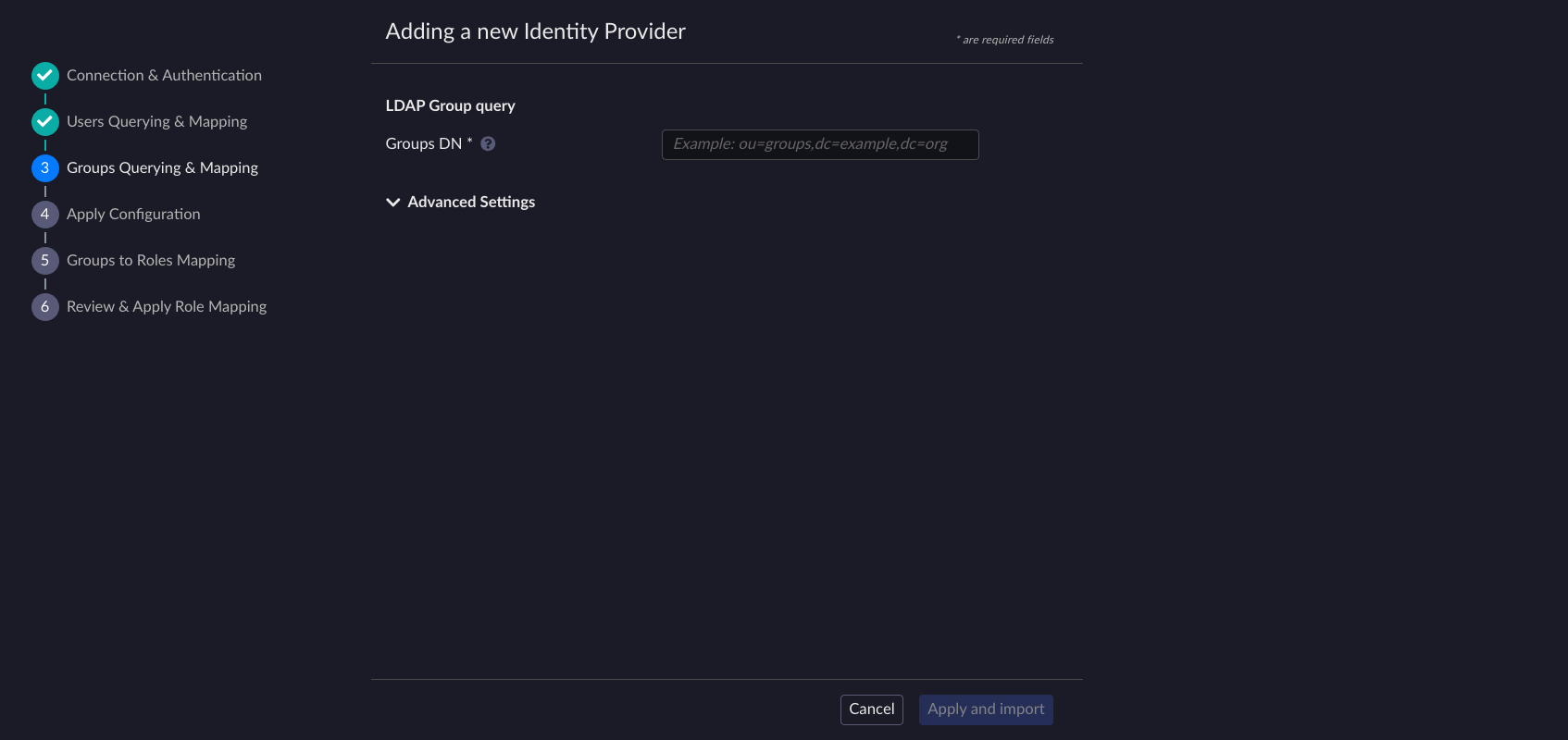
By clicking Advanced settings, you can build your LDAP group query and mapping.

Build the LDAP group query
Provide LDAP Group DN
Provide User Object Class. It is pre-filled based on Vendor value.
(Optional) You can
filterout some Groups with Group LDAP Filter.
Build the LDAP group mapping
Provide the Group name LDAP attribute. This attribute is used to identify the name and RDN of groups.
Select Group membership strategy. This could be:
LOAD_GROUPS_BY_MEMBER_ATTRIBUTE: This strategy requires examining the
memberattribute within each group’s LDAP entry to determine its membership. Each group entry lists its members.Provide the LDAP Group Member attribute. This attribute lists the DNs of members in group entries.
Select the Membership Attribute Type. DN if the member attribute uses DNs to reference the members or UID if it is necessary to map the unique identifiers of members rather than their full DNs. Provide Group LDAP UID attribute.
GET_GROUPS_FROM_USER_MEMBEROF_ATTRIBUTE: This strategy uses the
memberofattribute in a user’s LDAP entry to directly identify the groups to which the users belongs.
Once your query is built, click Apply and Import. This will trigger the action and the query you have built will be used to import LDAP users and groups in ARTESCA IdentityUI.
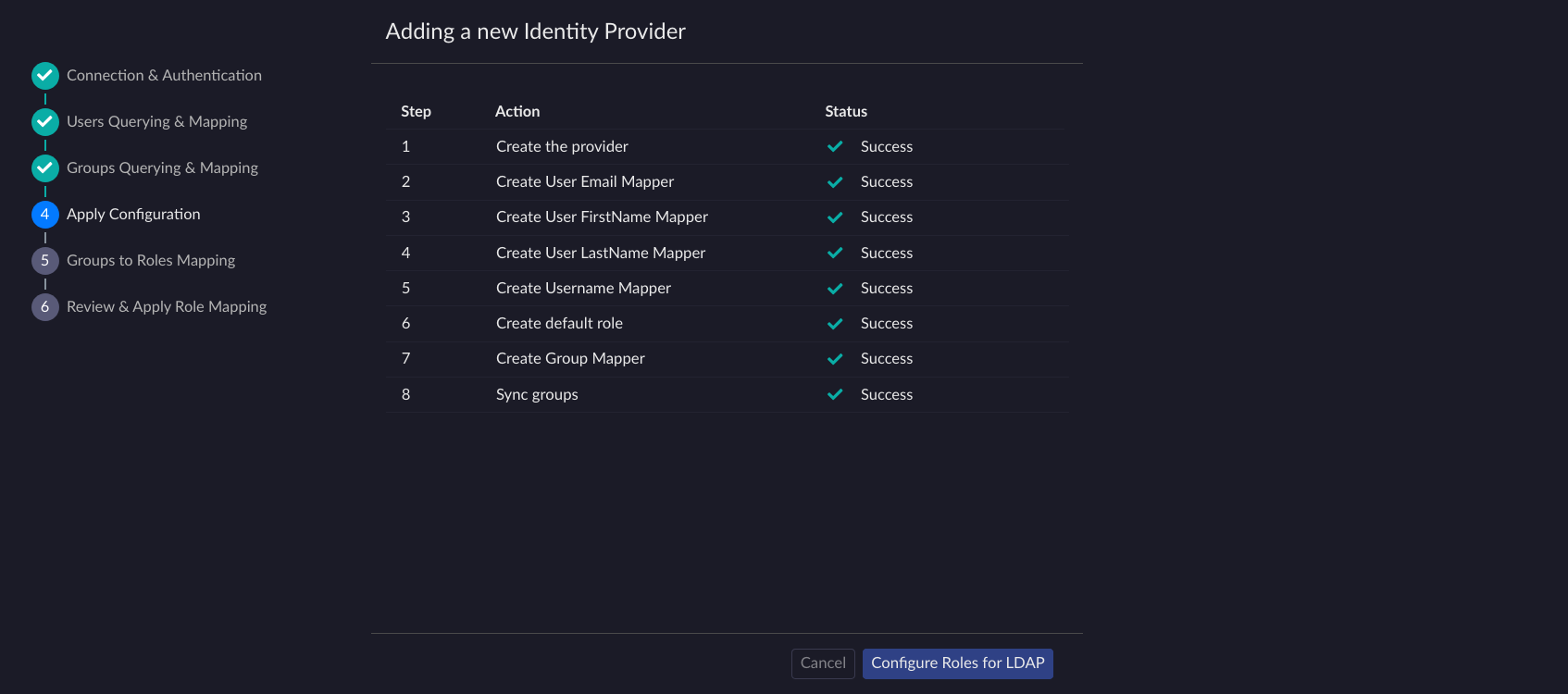
This table displays the result of these actions. If a step fails, you can retry it.
(Optional) Imported Groups Mapping with Roles
You can decide to Map the Role with your imported LDAP groups by clicking Continue or to map them after by clicking Skip and Exit. Refer to ARTESCA User Management for more information. You may skip this and exit, or you can map the roles now and click Continue.
After the import, a list of all imported LDAP groups is displayed. You can filter them using the search bar.
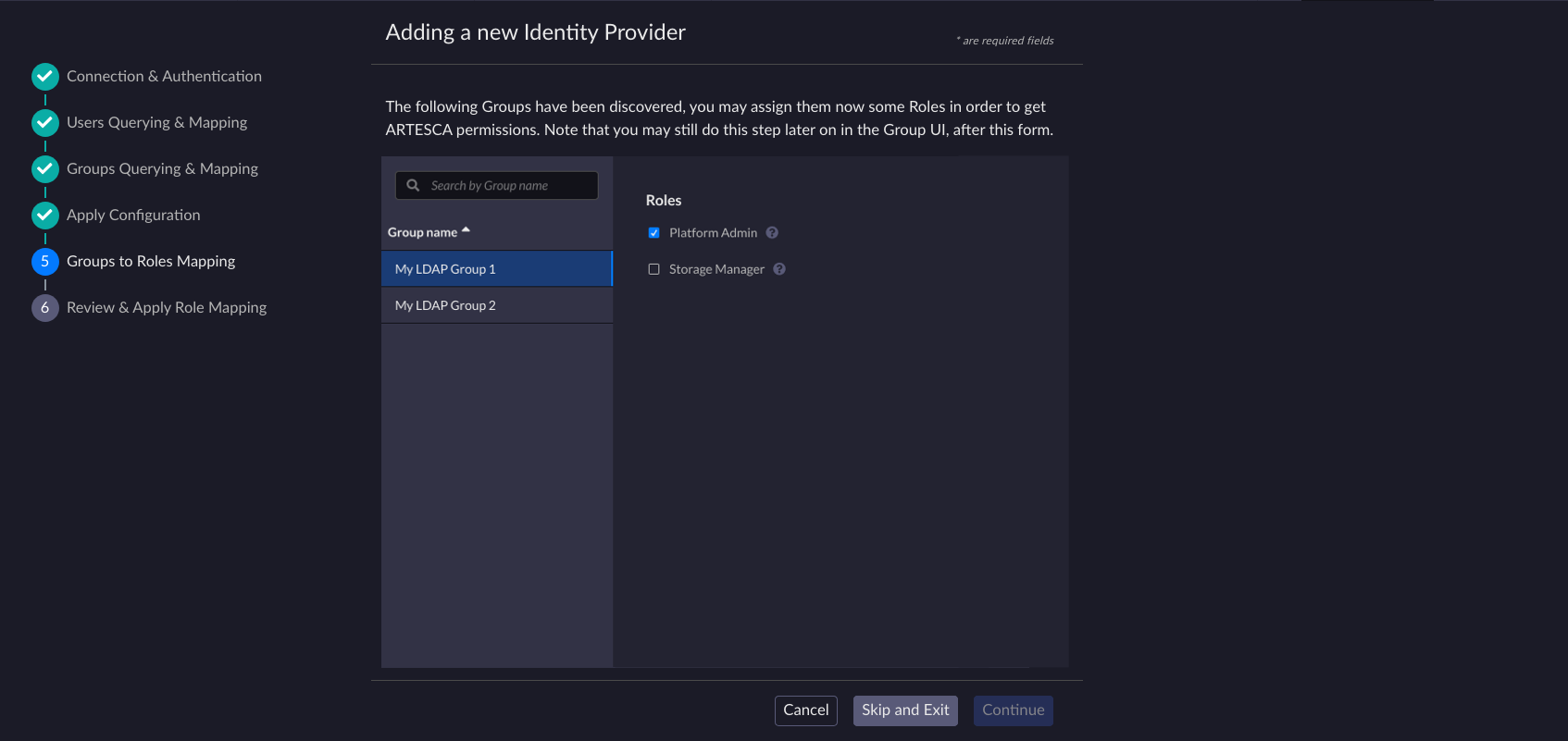
Select the group you want to map to a role and click the row on the left table, then click the Role you want to map on the right tab.
Click Continue to apply the mapping.
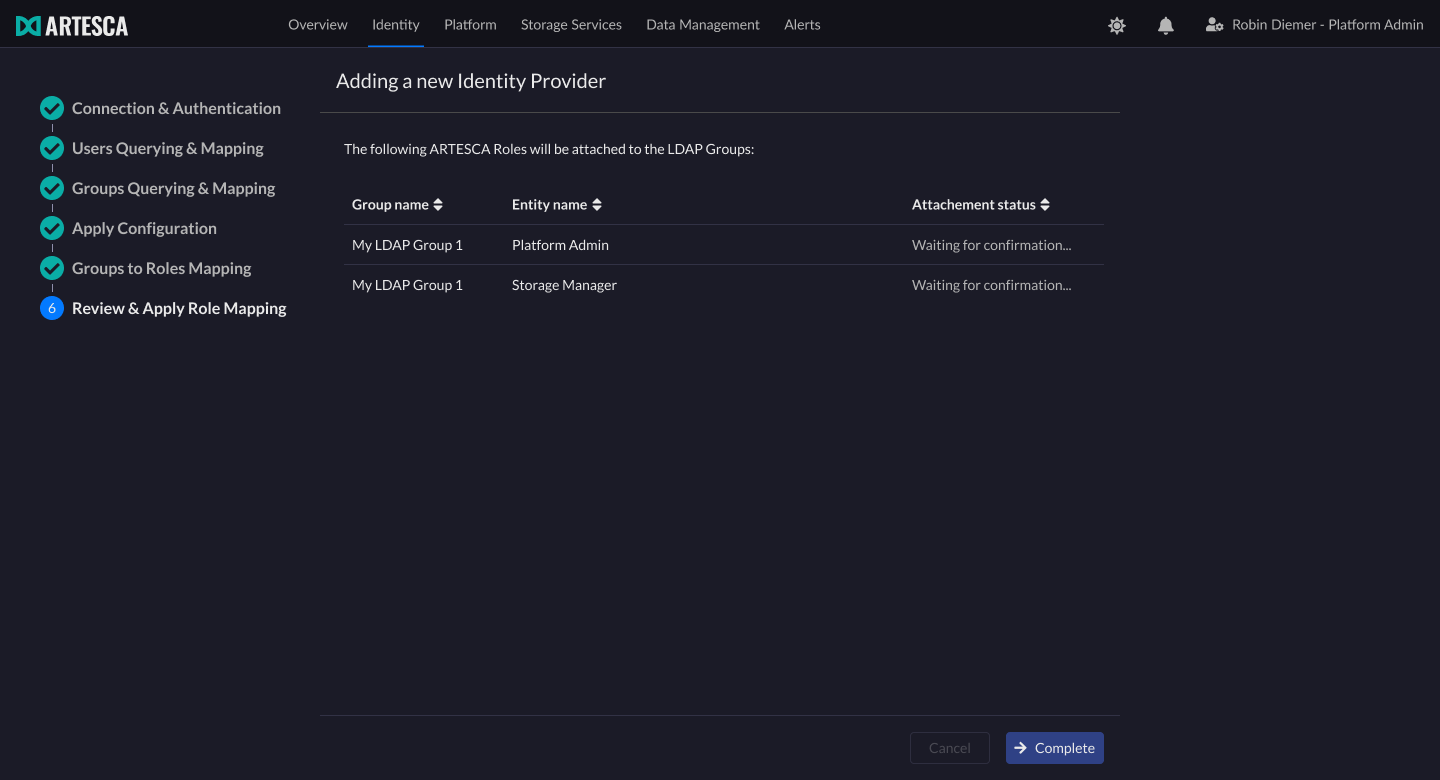
Click Complete to exit the LDAP integration assistant.
Integration Check
This step allows you to check the status of the integration.
Click Identity on the top menu. All imported users and groups are displayed in the Users and Groups tabs in IdentityUI.
Note
For an imported users and groups, the User/Group type is Remote.
To check that AD/LDAP authentication is set, go to ARTESCA login page and authenticate using a valid AD/LDAP user.
Note
Both local users and LDAP remote users can coexist in ARTESCA platform. You can choose to maintain a hybrid model (keep both local and LDAP users) or switch to LDAP only depending on your security and organizational policy.


