

Add a Storage Location
For some use-cases and workflows, it can be relevant to provide storage in other clouds such as public Clouds like AWS, Azure, GCP, or private clouds like Scality RING next to the storage provided by your local ARTESCA instance. This is specifically required if you want to set up workflows in the ARTESCA UI. You need existing access credentials and a bucket/container in the destination cloud you are targeting to configure these storage locations.
Note
ARTESCA cannot operate more than 10 data storage locations on a platform.
Cloud Storage Locations
All the cloud storage services serviced by ARTESCA Data Services require the same basic information: an access key, a secret key, and a target bucket name. [1] The ARTESCA Data Services UI also presents the following requirements for each cloud storage system.
Service |
Endpoint |
Bucket Match |
Server-Side Encryption |
Target Helper for MPU |
Cold Storage |
Authentication |
|---|---|---|---|---|---|---|
Amazon S3 |
- |
- |
Yes |
- |
- |
AK/SK |
Google Cloud Storage |
- |
- |
- |
Yes |
- |
AK/SK |
Microsoft Azure Blob Storage |
Yes |
- |
- |
- |
- |
|
Microsoft Azure Archive |
Yes |
- |
- |
- |
Yes |
|
Scality RING with S3 Connector [2] |
Yes |
- |
- |
- |
- |
AK/SK |
Scality ARTESCA S3 [2] |
Yes |
- |
- |
- |
- |
AK/SK |
Atlas Object Storage |
Yes |
- |
- |
- |
- |
AK/SK |
3DS OUTSCALE OOS Public |
Yes |
- |
- |
- |
- |
AK/SK |
3DS OUTSCALE OOS SNC |
Yes |
- |
- |
- |
- |
AK/SK |
Flexible Datastore |
Yes |
- |
- |
- |
- |
AK/SK |
Wasabi |
Yes |
- |
- |
- |
- |
AK/SK |
Tape DMF |
Yes |
- |
- |
- |
Yes |
Credentials |
Tape Atempo Miria |
Yes |
- |
- |
- |
Yes |
Credentials |
Oracle Cloud Object Storage |
Yes |
- |
- |
- |
- |
AK/SK |
Amazon S3 Glacier |
Optional [3] |
- |
- |
- |
Yes |
AK/SK |
Scaleway Glacier |
Yes |
- |
- |
- |
Yes |
AK/SK |
OVH Cold Archive |
Yes |
- |
- |
- |
Yes |
AK/SK |
Versity Tape Archive |
Yes |
- |
- |
- |
Yes |
AK/SK |
Note
Microsoft Azure Blob Storage has three ways of authentication as listed above, it includes:
Azure Shared Key: also known as account key, is associated with the storage account. This authentication is useful for simple scenarios like product demonstrations.
Azure Client Secret: grants an application a fine grained and secured access to an Azure service. It requires registering the application in Azure Active Directory (AAD).
Azure Shared Access Signature (SAS): grants temporary access to storage account. SAS has parameters to control the token validity time, the type of permission granted and the type of resource accessed.
These configuration options are described below.
Endpoint
Some service providers assign fixed endpoints to users. Others require users to name endpoints. Services for which ARTESCA Data Services requests endpoint names may have additional naming requirements. For these requirements, review your cloud storage service provider’s documentation.
Server-Side Encryption
Encryption-based transfer protocols ensure your credentials and transmitted information are secure while in transit. Amazon S3 also offers encryption and key management services to protect information stored on cloud drives. To enable server-side encryption from the ARTESCA Data Services UI, click Server Side Encryption when setting up an AWS S3 location. This creates a location with encryption enabled for all objects stored there. Encryption is set at the bucket level, not at the object level. Object encryption is delegated to the cloud storage system.
Server-side encryption is based on the x-amz-server-side-encryption header. Inquire with your cloud vendor to determine whether server-side encryption using x-amz-server-side-encryption is supported on their platform. A table is provided in this document, but vendors’ offerings are subject to change without notice.
If you have already created a bucket with server-side encryption enabled (SSE-S3
protocol), clicking Server Side Encryption forces ARTESCA Data Services to include
"x-amz-server-side-encryption": "AES256" in API calls to the cloud host (AWS
or a vendor that supports the call). If valid credentials are provided, the cloud
service provides the objects thus requested.
Target Helper Bucket for Multi-Part Uploads
The Google Cloud Storage solution imposes limitations on uploads that require specific workarounds. Among these is a 5 GiB hard limit on uploads per command, which requires objects over this limit to be broken up, uploaded in parallel chunks, and on a successful upload reassembled in the cloud. ARTESCA Data Services manages this complexity, in part, by using a “helper” bucket.
Note
Google Cloud Storage also imposes a 1024-part cap on objects stored to its locations (For all other backends, ARTESCA Data Services caps the number of parts at 10,000). For data stored directly to GCP as the primary cloud, ARTESCA Data Services propagates this limitation forward to any other cloud storage services to which Google data is replicated.
Bucket Match Behavior
When bucketMatch is set to:
false, objects will be written with an extra prefix that has the value of the source bucket.true, objects will be written at the root of the target location (for example an AWS bucket).
Warning
Using the same location with multiple buckets while having bucketMatch set to true can lead to data loss due to Object Keys collisions.
Procedure
Click Data Management on the top menu.

On the Locations page, click Create Location.

On the Add New Storage Location dialog box, provide the following information to create a new storage location.
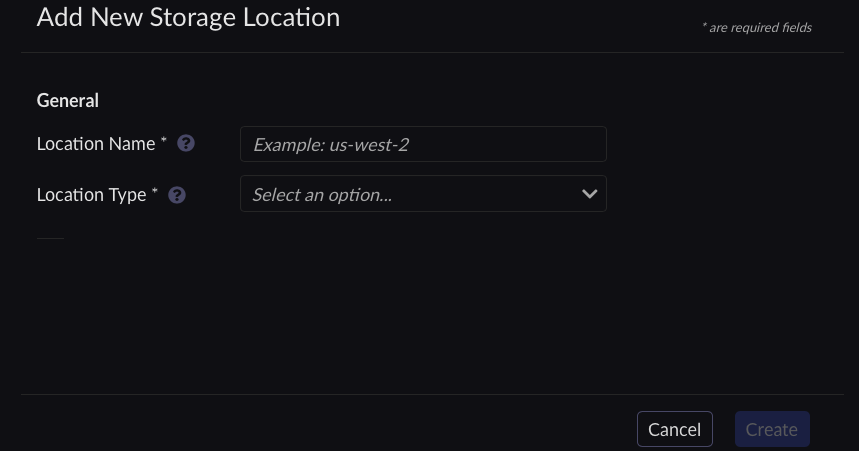
Location Name: This is the location name that you will use in ARTESCA Data Services. It is not known to the cloud storage provider.
Important
Only use lowercase letters, numbers, and dashes.
Location Type: Select a location type from the pull-down menu.
Location Types
Scality ARTESCA S3 [2]
Scality RING with S3 Connector [2]
Amazon S3
Google Cloud Storage
Microsoft Azure Blob Storage
Microsoft Azure Archive
Atlas Object Storage (Free Pro)
3DS OUTSCALE OOS Public
3DS OUTSCALE OOS SNC
Flexible Datastore
Wasabi
Oracle Cloud Object Storage
Tape DMF
Tape Atempo Miria
Amazon S3 Glacier
Scaleway Glacier
OVH Cold Archive
Versity Tape Archive
Scality RING with Sproxyd Connector
Each storage location type has its own requirements. These are detailed in Cloud Storage Locations.
Enter the Access Key and Secret Key credentials (if required).
Note
You can use account-level credentials, but it is a best practice to enter credentials specifically generated for this access. Before you add a location, create a user in that location (e.g. an AWS or S3 Connector account) for the purpose of ARTESCA Data Services access. Grant that user the permissions needed to perform the tasks.
Enter the Target Bucket Name (if required). This is the name of the bucket in the cloud location. Enter the name you see in the cloud service provider’s bucket dashboard.
For example, in the Amazon S3 interface, this is the Name value in the Buckets page.

When configuring an S3 Connector, assign the following policy to the special ARTESCA Data Services access user to ensure access to the Metadata service and the ability to perform operations on the bucket:
[artesca-os@bootstrap ~]${ "Version":"2012-10-17", "Statement":[ { "Action":"metadata:*", "Effect":"Allow", "Resource":"*" }, { "Action":"s3:*", "Effect":"Allow", "Resource":"*" } ] }
Click Create once you have filled in the required information.
The new location appears in the list of locations.
Retrieve tokens and instance ID as described in Retrieve Access Tokens.
Create a location.
Set a location name.
[artesca-os@bootstrap ~]$LOCATION_NAME="<name of the location>"
Amazon S3 location is
location-aws-s3-v1.[artesca-os@bootstrap ~]$LOCATION_TYPE="location-aws-s3-v1"
Set the required credentials Access Key and Secret Key.
[artesca-os@bootstrap ~]$AWS_S3_ACCESS_KEY="<AWS user access key>" AWS_S3_SECRET_KEY="<AWS user secret key>"
Set the Amazon S3 target bucket name.
Note
This is the name of the versioning-enabled bucket in Amazon S3.
[artesca-os@bootstrap ~]$AWS_S3_BUCKET_NAME="<AWS S3 versioned bucket name>"
[artesca-os@bootstrap ~]$LOCATION_PARAMS=$( echo '{}' | jq -c " .name=\"${LOCATION_NAME}\" | .locationType=\"${LOCATION_TYPE}\" | .details.bucketMatch="false" | .details.accessKey=\"${AWS_S3_ACCESS_KEY}\" | .details.secretKey=\"${AWS_S3_SECRET_KEY}\" | .details.bucketName=\"${AWS_S3_BUCKET_NAME}\" | .details.region=\"us-east-1\" " )
Note
If you have changed the default domain of your ARTESCA installation, you must reflect that change in the following command.
[artesca-os@bootstrap ~]$curl -s -k -X POST \ -H "X-Authentication-Token: ${TOKEN}" \ -H "Content-Type: application/json" \ -d "${LOCATION_PARAMS}" \ "https://management.<base-domain-name>/api/v1/config/${INSTANCE_ID}/location" | \ jq '.'
Set a location name.
[artesca-os@bootstrap ~]$LOCATION_NAME="<name of the location>"
Scality RING with S3 Connector location is
location-scality-ring-s3-v1.[artesca-os@bootstrap ~]$LOCATION_TYPE="location-scality-ring-s3-v1"
Set the required credentials Access Key and Secret Key.
[artesca-os@bootstrap ~]$RING_ACCESS_KEY="<RING account or user access key>" RING_SECRET_KEY="<RING account or user secret key>"
Set the Scality RING with S3 Connector target bucket name.
Note
This is the name of the versioning-enabled bucket in Scality RING with S3 Connector.
[artesca-os@bootstrap ~]$RING_BUCKET_NAME="<RING versioned bucket name>"
Set Scality RING with S3 Connector endpoint.
[artesca-os@bootstrap ~]$RING_ENDPOINT="<Ring S3C endpoint>"
[artesca-os@bootstrap ~]$LOCATION_PARAMS=$( echo '{}' | jq -c " .name=\"${LOCATION_NAME}\" | .locationType=\"${LOCATION_TYPE}\" | .details.bucketMatch="true" | .details.accessKey=\"${RING_ACCESS_KEY}\" | .details.secretKey=\"${RING_SECRET_KEY}\" | .details.bucketName=\"${RING_BUCKET_NAME}\" | .details.endpoint=\"${RING_ENDPOINT}\" | .details.region=\"us-east-1\" " )
Note
If you have changed the default domain of your ARTESCA installation, you must reflect that change in the following command.
[artesca-os@bootstrap ~]$curl -s -k -X POST \ -H "X-Authentication-Token: ${TOKEN}" \ -H "Content-Type: application/json" \ -d "${LOCATION_PARAMS}" \ "https://management.<base-domain-name>/api/v1/config/${INSTANCE_ID}/location" | \ jq '.'
Set a location name.
[artesca-os@bootstrap ~]$LOCATION_NAME="<name of the location>"
Microsoft Azure Blob Storage location is
location-azure-v1.[artesca-os@bootstrap ~]$LOCATION_TYPE="location-azure-v1"
Set the required credentials Azure account name and Azure key.
[artesca-os@bootstrap ~]$AZURE_ACCOUNT_NAME="<Azure account name>" AZURE_KEY="<Azure key>"
Set the Microsoft Azure Blob Storage target container name.
[artesca-os@bootstrap ~]$AZURE_CONTAINER_NAME="<Azure container name>"
Set Microsoft Azure Blob Storage Blob service endpoint.
[artesca-os@bootstrap ~]$AZURE_ENDPOINT="<Azure Blob service endpoint>"
[artesca-os@bootstrap ~]$LOCATION_PARAMS=$( echo '{}' | jq -c " .name=\"${LOCATION_NAME}\" | .locationType=\"${LOCATION_TYPE}\" | .details.accessKey=\"${AZURE_ACCOUNT_NAME}\" | .details.secretKey=\"${AZURE_KEY}\" | .details.bucketName=\"${AZURE_CONTAINER_NAME}\" | .details.endpoint=\"${AZURE_ENDPOINT}\" " )
Note
If you have changed the default domain of your ARTESCA installation, you must reflect that change in the following command.
[artesca-os@bootstrap ~]$curl -s -k -X POST \ -H "X-Authentication-Token: ${TOKEN}" \ -H "Content-Type: application/json" \ -d "${LOCATION_PARAMS}" \ "https://management.<base-domain-name>/api/v1/config/${INSTANCE_ID}/location" | \ jq '.'


