

Add a Cross-Region Replication Location
The Cross-Region Replication (CRR) feature enables you to copy your data across different instances of ARTESCA, ensuring your information is safely stored in multiple locations.
Important
Bucket versioning must be enabled on both the source and the destination data storage locations for CRR to track and replicate change accurately across sites.
To add a CRR location, follow this workflow:
Continue with the Next Step once the CRR location is created.
Configure IAM Components on the Destination Site
On the destination site, you must configure the IAM components that allow the source site to authenticate and perform replication operations.
Note
All the following procedures are performed within an account.
Create an IAM User for CRR
Under the Users tab, click Create User.

Name the IAM user
crr-userand click Create.
aws --endpoint-url <iam-endpoint> --region us-east-1 iam create-user --user-name crr-replication-user
Note
Save the user ARN from the response (e.g., arn:aws:iam::<account-id>:user/crr-replication-user)
as it will be needed when creating the trust policy for the IAM role.
Generate Access Keys for the CRR User
Under the Users tab, click the eye icon next to the CRR user previously created.
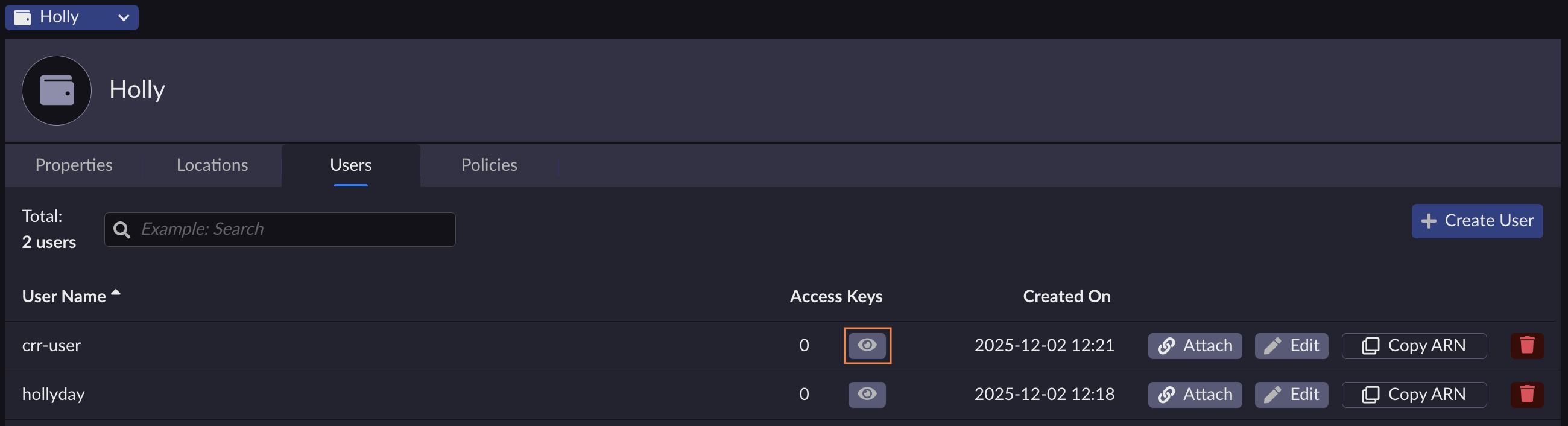
Click Create Access Keys and Continue on the dialog box.

The access key details display. Save the access key and secret key as they will be used later on to configure the CRR location and click Close.
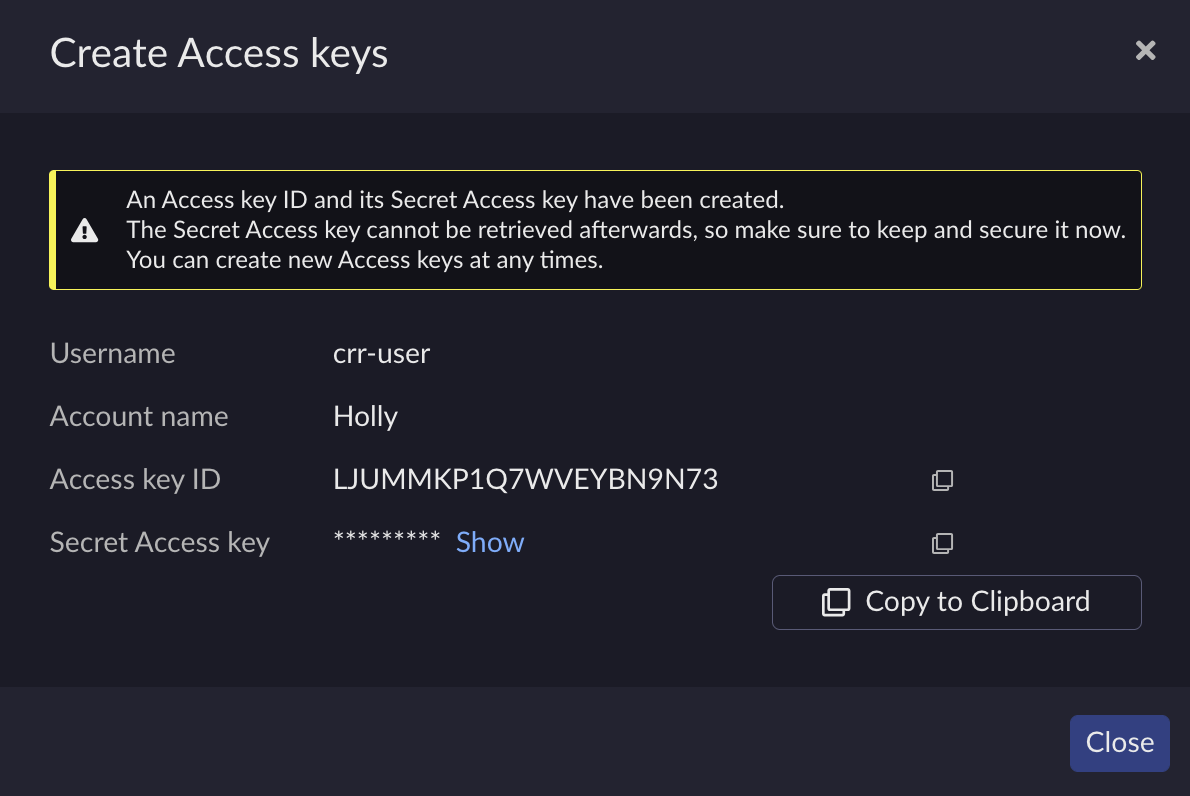
Important
If the secret access key is lost, it cannot be recovered and you will have to create a new access key for the user.
aws --endpoint-url <iam-endpoint> --region us-east-1 iam create-access-key --user-name crr-replication-user
Note
Save the AccessKeyId and SecretAccessKey from the response as it will
be used as the accessKey and secretKey in your CRR location configuration.
Create an IAM Policy for CRR
You must have the predefined StorageAccountOwner IAM role to
perform this procedure.
Under the Policies tab, click Create Policy.

In the Policy Creation dialog box, provide a name to your policy and edit the policy document with the following replication permissions.
{
    "Version": "2012-10-17",
    "Statement": [
      {
          "Effect":"Allow",
          "Action":[
              "s3:ReplicateObject"
          ],
          "Resource":[
              "arn:aws:s3:::*/*"
          ]
      }
    ]
}
Note
This policy grants replication permissions to all buckets (
arn:aws:s3:::*/*).For better security, you can customize the
Resourcefield to restrict access to specific buckets.Customize your policy
For example, to allow replication only to buckets named
my-bucketandbackup-bucket."Resource": [ "arn:aws:s3:::my-bucket/*", "arn:aws:s3:::backup-bucket/*" ]
Create a policy document file named
crr-replication-policy.json.{ "Version": "2012-10-17", "Statement": [ { "Effect":"Allow", "Action":[ "s3:ReplicateObject" ], "Resource":[ "arn:aws:s3:::*/*" ] } ] }Note
This policy grants replication permissions to all buckets (
arn:aws:s3:::*/*).For better security, you can customize the
Resourcefield to restrict access to specific buckets.Customize your policy
For example, to allow replication only to buckets named
my-bucketandbackup-bucket."Resource": [ "arn:aws:s3:::my-bucket/*", "arn:aws:s3:::backup-bucket/*" ]Create the policy using the AWS CLI.
aws --endpoint-url <iam-endpoint> --region us-east-1 iam create-policy \
    --policy-name crr-policy \
    --policy-document file://crr-replication-policy.json
Note
Save the policy ARN from the response as it will be needed when attaching the policy to the IAM role.
Create an IAM Role for CRR
Note
This procedure is only available using the AWS CLI. Refer to Configure and Use AWS CLI for more information on how to set up the AWS CLI.
Create a trust policy document file named
crr-trust-policy.json.{ "Version": "2012-10-17", "Statement": [ { "Effect": "Allow", "Principal": { "AWS": "arn:aws:iam::<account-id>:user/<user-name>" }, "Action": "sts:AssumeRole" } ] }Replace the
AWSvalue with the ARN of the IAM user previously created.Create the IAM role.
aws --endpoint-url <iam-endpoint> --region us-east-1 iam create-role \
    --role-name crr-role \
    --assume-role-policy-document file://crr-trust-policy.json \
    --no-verify-ssl
Attach the IAM Policy to the IAM Role
Under the Policies tab, select the CRR policy previously created and click Attach.
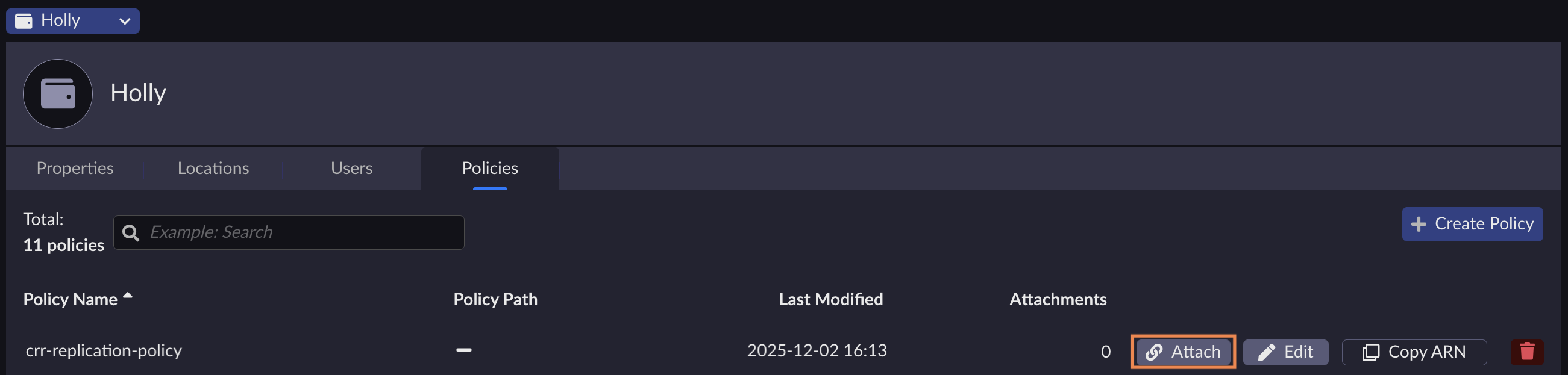
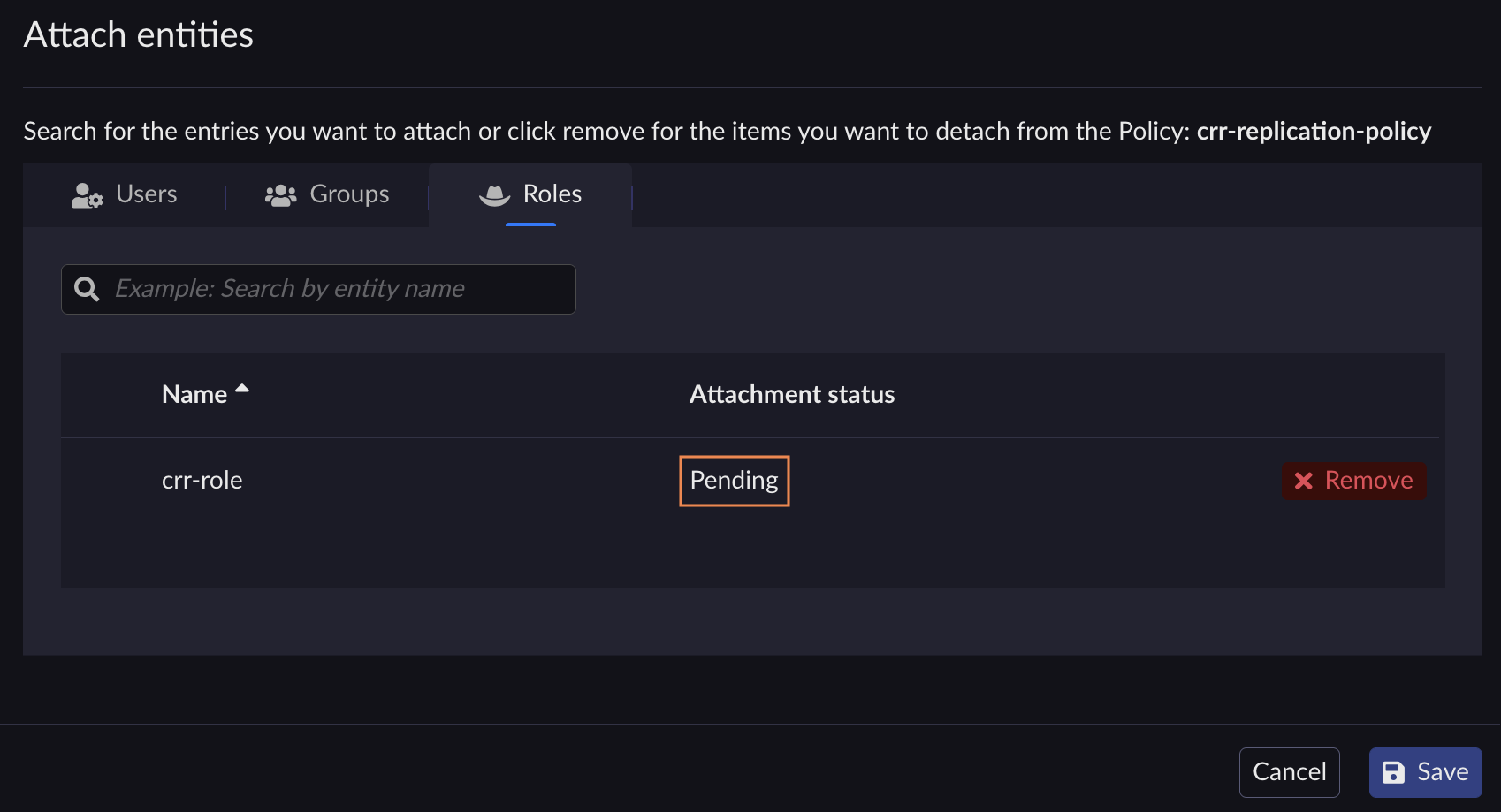
Select the Roles type entity and search for the CRR role previously created.
The policy attachment status is Pending. Click Save and Confirm.
aws --endpoint-url <iam-endpoint> --region us-east-1 iam attach-role-policy \
    --role-name crr-trust-role \
    --policy-arn arn:aws:iam::<account-id>:policy/crr-policy
Note
Replace the --policy-arn value with the actual policy ARN saved
from Create an IAM Policy for CRR.
Create a CRR Location on the Source Site
After setting up the IAM components on the destination site, create a CRR location on the source site. This location configuration stores the connection details and credentials needed to replicate data to the destination site.
Note
To create a CRR location, you must import the CA certificate into the ARTESCA Truststore to validate the server’s certificate and establish a trusted TLS connection. Refer to Manage Truststore for more information.
On the Locations page, click Create Location.

Provide the following information and click Create.
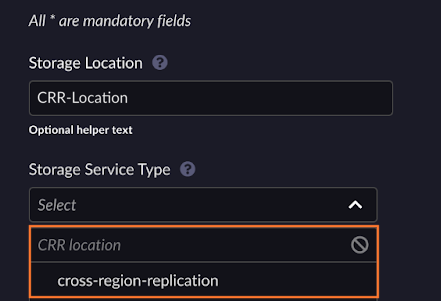
Storage Location: provide a name for your location.
Storage Service Type: select cross-region-replication.
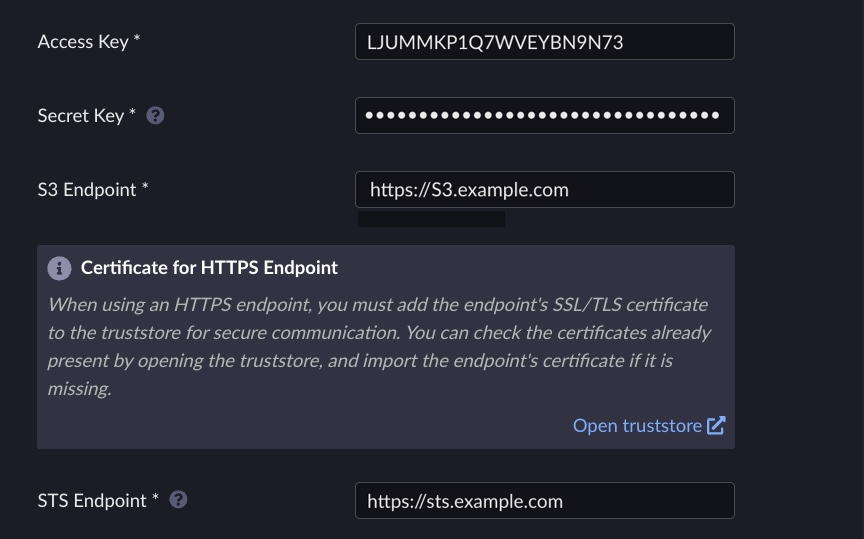
Access Key: enter the access key of the IAM user created in Create an IAM User for CRR.
Secret Key: enter the secret key of the IAM user created in Create an IAM User for CRR.
S3 Endpoint: enter the S3 endpoint of the destination site.
STS Endpoint: enter the STS endpoint of the destination site.
Set a location name.
[artesca-os@bootstrap ~]$LOCATION_NAME="<name of the location>"
Set the required credentials Access Key and Secret Key.
[artesca-os@bootstrap ~]$S3_ACCESS_KEY="<user access key>" S3_SECRET_KEY="<user secret key>"
Set the S3 and STS endpoints.
Note
The endpoints must include the full URL with protocol (http/https) and optionally port number (default https port 443).
[artesca-os@bootstrap ~]$S3_ENDPOINT="<S3 endpoint>" STS_ENDPOINT="<STS endpoint>"
Set the location parameters.
[artesca-os@bootstrap ~]$LOCATION_PARAMS=$( echo '{}' | jq -c " .name=\"${LOCATION_NAME}\" | .locationType=\"location-scality-crr-v1\" | .details.accessKey=\"${S3_ACCESS_KEY}\" | .details.secretKey=\"${S3_SECRET_KEY}\" | .details.endpoint=\"${S3_ENDPOINT}\" | .details.stsEndpoint=\"${STS_ENDPOINT}\" " )
Note
If you have changed the default domain of your ARTESCA installation, you must reflect that change in the following command.
Create the location.
[artesca-os@bootstrap ~]$curl -s -k -X POST \ -H "X-Authentication-Token: ${TOKEN}" \ -H "Content-Type: application/json" \ -d "${LOCATION_PARAMS}" \ "https://management.<base-domain-name>/api/v1/config/${INSTANCE_ID}/location" | \ jq '.'
Bi-directional Replication Setup
Use bi-directional replication when you need active-active configurations where both sites handle read and write operations.
For bi-directional replication, you must configure both sites to act as both source and destination. Each site needs its own IAM components and a CRR location pointing to the other site.
Procedure
On Site A, configure IAM components to create IAM user, access keys, policy, role, and attach the policy.
On Site B, create a CRR location to create a location pointing to Site A.
On Site B, configure IAM components to create IAM user, access keys, policy, role, and attach the policy.
On Site A, create a CRR location to create a location pointing to Site B.
Configure Unique Replication Group IDs
In a bi-directional setup, each site must have a unique replicationGroupId.
This identifier is used when generating object version IDs. Assigning different IDs
to each site prevents version ID collisions when both sites generate new object versions
concurrently. The default value is RG00001.
To change the replication group ID on a site, patch the Zenko CR with the following command.
Replace <NEW_VALUE> with a unique 7-character identifier.
[artesca-os@bootstrap ~]$
sudo kubectl --kubeconfig=/etc/kubernetes/admin.conf -n zenko patch zenko artesca-data --type=merge --patch '{"spec":{"cloudserver":{"replicationGroupId":"<NEW_VALUE>"}}}'
Next Step
Continue with the Replication Workflow configuration.


