

Replace a Data Disk
This procedure allows you to replace a faulty data disk in the ARTESCA storage services. It follows the following workflow:
Tip
Monitor the health and performance of data disks regularly using the UI. Replace disks when necessary to maintain data integrity and system stability.
Detect a Faulty Disk
To detect a faulty data disk, you have two options:
Click the Alerts menu. If a disk is not healthy, a DataVolumeDisabled alert is raised.
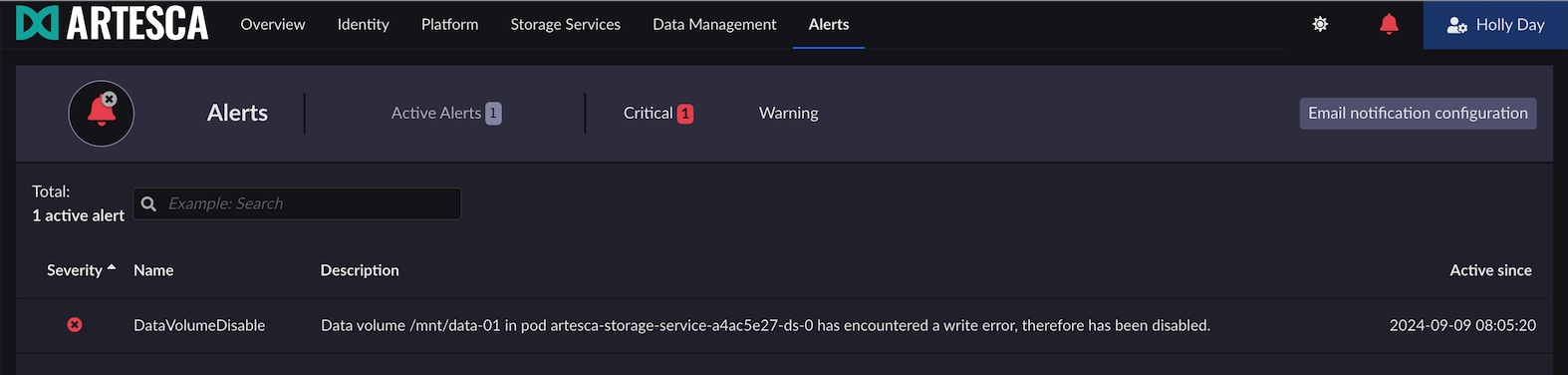
Go to the Storage Services menu, click the node and look for a disk with a Faulty status.
Note
If you have a multi-node cluster, check the status of disks on each node.
Unmount the Faulty Disk
Go to the Storage Services menu and click the node where the faulty disk is located.
Note
In a multi-node cluster, click the nodes where faulty disks are located.
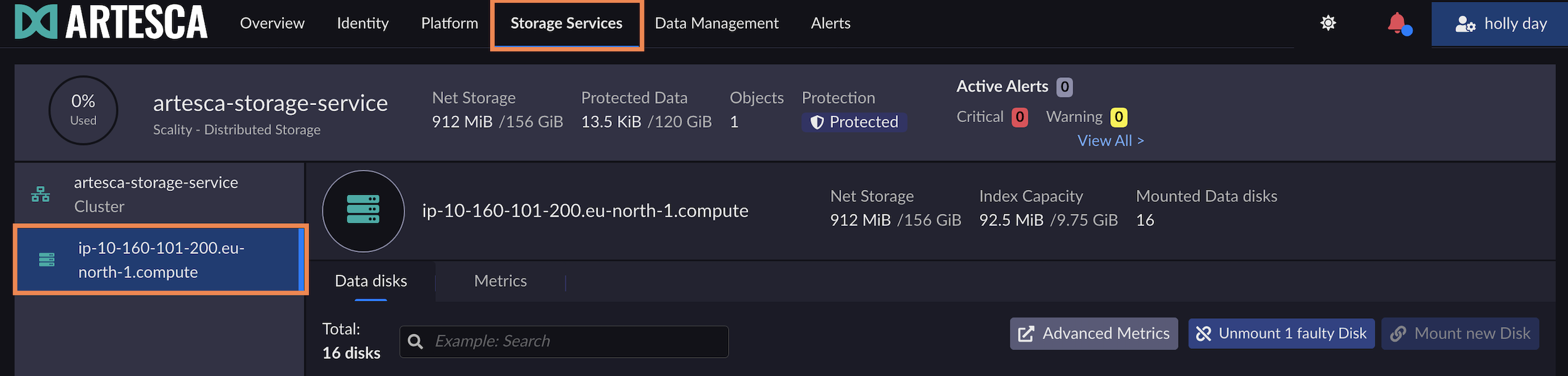
The system automatically detects the faulty disk.
Click Unmount 1 faulty Disk.
Important
If the number of faulty disks exceeds the supported failure events for your architecture, the Unmount Disks button remains disabled. A tooltip on hover will indicate that the protection threshold has been exceeded. The local protection status in the summary of the storage service will change from Protected to Invalid Protection Level. In this case, do not take further action via the UI and contact Scality Support.
For more information on ARTESCA hardware failure tolerance, refer to ARTESCA Hardware Failure Tolerance.

The Unmount Disks form opens. It is a three step form.
The first step is Detect faulty Disks. It provides information about the faulty disk such as the disk name and its status.
Warning
Unmounting a disk will trigger a restart of the storage services on the selected node. The restart process can take up to a few minutes.
If you are using a single-node system, the storage services will be unavailable during the restart process.
Click Remove.

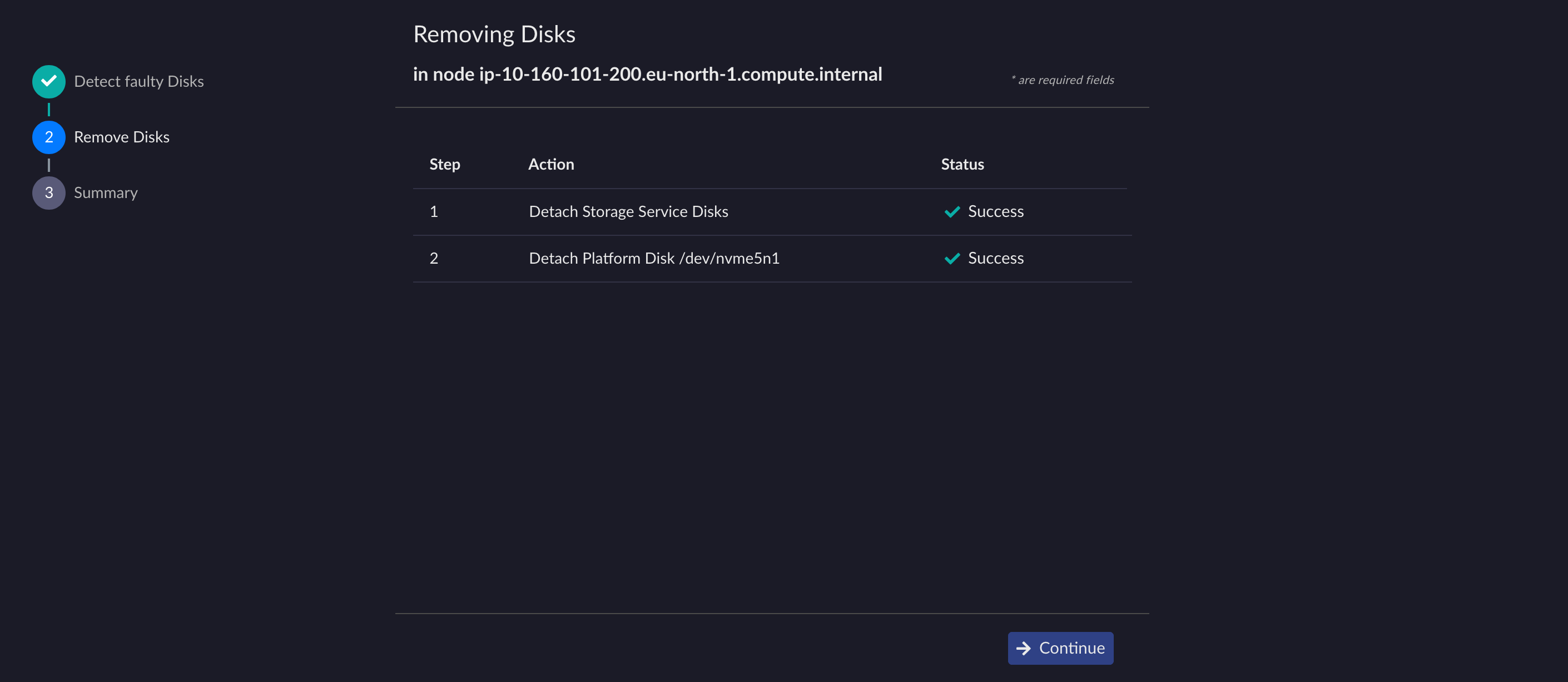
The second step is Remove Disks. It automatically detaches the faulty disk from the storage services and then deprovisions kubernetes volumes.
Click Continue.
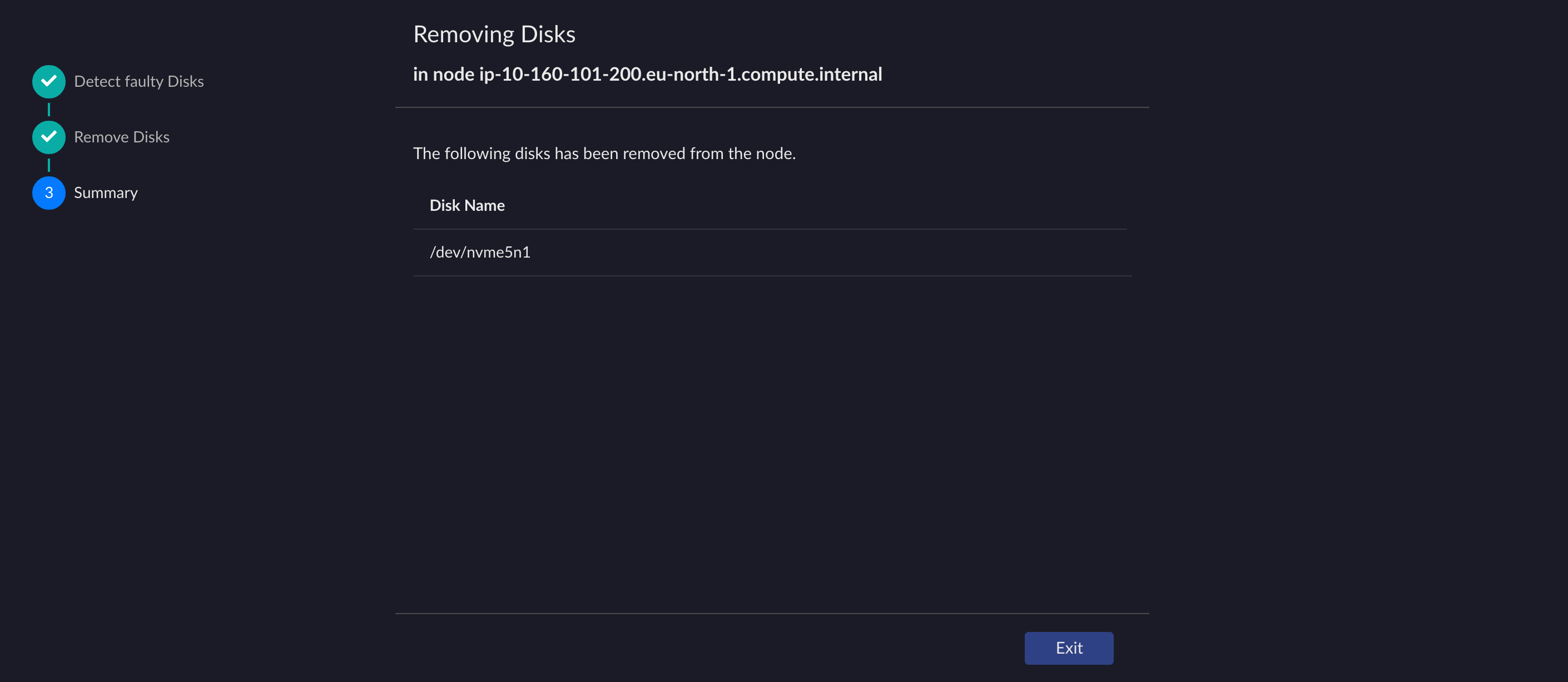
The third step is Summary. It displays a summary of the removed disk.
Click Exit.
Replace the Physical Disk
To physically replace your disk, you must first determine the RAID controller used on your machine.
Important
When adding a new disk, ensure that it has an equivalent size (20% margin) as the average size of the running disks in the node.
Detect the RAID controller used on your machine.
[artesca-os@<NODE_NAME> ~]$
lspci | grep -i -e 'raid' -e 'adaptec'
# Example output for Adaptec Smart:
5c:00.0 Serial Attached SCSI controller: Adaptec Smart Storage PQI SAS (rev 01)

# Example output for MegaRAID (SAS-3):
0d:00.0 RAID bus controller: Broadcom / LSI MegaRAID SAS-3 3108 [Invader] (rev 02)

# Example output for MegaRAID (SAS40xx):
10:00.0 RAID bus controller: Broadcom / LSI Fusion-MPT 24GSAS/PCIe SAS40xx (rev 01)
Note
Dell servers also have MegaRAID controller. However, the management tool is different. Use the Dell RAID controller procedure.
Important
HDD data drives must be configured in RAID0, with one drive per logical volume. The replacement drive must use the same configuration as the other data drives. Refer to Data Disks Preparation for the required configuration.
Ensure the RAID controller CLI is installed.
[artesca-os@<NODE_NAME> ~]$sudo dnf install ssacli
Retrieve the RAID controller index (
CONTROLLER_INDEX, depending on specific hardware, will usually be0or1).[artesca-os@<NODE_NAME> ~]$sudo ssacli ctrl all show
HPE Smart Array P816i-a SR Gen10 in Slot 0 (Embedded)  (sn: PWXLA0CRHF10J9)

# Note: CONTROLLER_INDEX is the value after "Slot" in the output.
Set the
CONTROLLER_INDEXvariable.Replace
<CONTROLLER_INDEX>placeholder with the value ofCtlcolumn in the output from the previous step.[artesca-os@<NODE_NAME> ~]$export CONTROLLER_INDEX=<CONTROLLER_INDEX>
Identify the failed physical drive’s ID.
[artesca-os@<NODE_NAME> ~]$sudo ssacli ctrl slot=$CONTROLLER_INDEX pd all show status
physicaldrive 1I:1:14 (port 1I:box 1:bay 14, 6 TB): Failed ***
physicaldrive 2I:1:2 (port 2I:box 1:bay 6, 1 TB): OK
physicaldrive 1I:1:49 (port 1I:box 1:bay 49, 6 TB): OK
physicaldrive 1I:1:15 (port 1I:box 1:bay 15, 6 TB): OK

# Note: The line we are looking for is the one ended by "Failed".
#       We need to take note of FAILED_DRIVE_ID value: the set of
#       values separated by colons (":") in the faulty line.
#       (e.g. 1I:1:14)
Set the
FAILED_DRIVE_IDvariable.Replace
<FAILED_DRIVE_ID>placeholder with the value from the previous step.[artesca-os@<NODE_NAME> ~]$export FAILED_DRIVE_ID=<FAILED_DRIVE_ID>
Run the following command for the faulty physical disk’s LED to blink.
[artesca-os@<NODE_NAME> ~]$sudo ssacli controller slot=$CONTROLLER_INDEX pd $FAILED_DRIVE_ID modify led=on
Replace the faulty physical disk.
Confirm the new disk is listed (in the
Unassignedsection).[artesca-os@<NODE_NAME> ~]$sudo ssacli ctrl slot=$CONTROLLER_INDEX pd all show
[...]
Unassigned

   physicaldrive 1I:1:1 (port 1I:box 1:bay 1, SAS HDD, 2 TB, OK)

# Note: The line we are looking for is the one below "Unassigned".
#       We need to take note of NEW_DRIVE_ID value: the set of
#       values separated by colons (":") in the faulty line. (e.g. 1I:1:1)
Set the
NEW_DRIVE_IDvariable.Replace
<NEW_DRIVE_ID>placeholder with the value from the previous step.[artesca-os@<NODE_NAME> ~]$export NEW_DRIVE_ID=<NEW_DRIVE_ID>
Identify the failed logical drive. It is the one with the status NOT OK.
[artesca-os@<NODE_NAME> ~]$sudo ssacli ctrl slot=$CONTROLLER_INDEX ld all show status
logicaldrive 1 (5.46 TB, RAID 1): OK
logicaldrive 2 (5.46 TB, RAID 0): OK
logicaldrive 3 (5.46 TB, RAID 0): NOT OK ***

# Note: The line we are looking for is the one ended by NOT OK.
#       We need to take note of FAILED_LOGICAL_DRIVE value:
#       the number that appears next to "logicaldrive" in the faulty line.
#       (e.g. 3)
Set the
FAILED_LOGICAL_DRIVEvariable to the value of the faulty drive.Replace the
<FAILED_LOGICAL_DRIVE>placeholder with the value of the faulty drive.[artesca-os@<NODE_NAME> ~]$export FAILED_LOGICAL_DRIVE=<FAILED_LOGICAL_DRIVE>
Delete the original logical drive.
[artesca-os@<NODE_NAME> ~]$sudo ssacli ctrl slot=$CONTROLLER_INDEX ld $FAILED_LOGICAL_DRIVE delete
Re-create the new logical drive.
[artesca-os@<NODE_NAME> ~]$sudo ssacli ctrl slot=$CONTROLLER_INDEX create type=ld drives=$NEW_DRIVE_ID raid=0
Important
HDD data drives must be configured in RAID0, with one drive per logical volume. The replacement drive must use the same configuration as the other data drives. Refer to Data Disks Preparation for the required configuration.
Ensure the RAID controller CLI is installed.
[artesca-os@<NODE_NAME> ~]$sudo dnf install storcli
Retrieve the RAID controller index (
CONTROLLER_INDEX, depending on specific hardware, will usually be0or1).[artesca-os@<NODE_NAME> ~]$sudo /opt/MegaRAID/storcli/storcli64 show
--------------------------------------------------------------------
Ctl Model   Ports PDs DGs DNOpt VDs VNOpt BBU sPR DS  EHS ASOs Hlth
--------------------------------------------------------------------
  0 SAS3916    16  12  12     0  12     0 N/A On  1&2 Y      4 Opt
--------------------------------------------------------------------
Set the
CONTROLLER_INDEXvariable.Replace
<CONTROLLER_INDEX>placeholder with the value ofCtlcolumn in the output from the previous step.[artesca-os@<NODE_NAME> ~]$export CONTROLLER_INDEX=<CONTROLLER_INDEX>
Identify the failed physical drive’s ID.
[artesca-os@<NODE_NAME> ~]$sudo /opt/MegaRAID/storcli/storcli64 /c$CONTROLLER_INDEX /eall /sall show
-----------------------------------------------------------------------------
EID:Slt DID State DG      Size Intf Med SED PI SeSz Model            Sp Type
-----------------------------------------------------------------------------
252:0    50 Offln  0 14.551 TB SAS  HDD N   N  512B MG08SCA16TE      U  -     ***
252:1    51 Onln   1 14.551 TB SAS  HDD N   N  512B MG08SCA16TE      U  -
252:2    52 Onln   2 14.551 TB SAS  HDD N   N  512B MG08SCA16TE      U  -
252:3    41 Onln   3 14.551 TB SAS  HDD N   N  512B MG08SCA16TE      U  -
-----------------------------------------------------------------------------

# Note: The line we are looking for is the one with "Offln" in the "State" column.
#       We need to take note of two values:
#       - FAILED_ENCLOSURE_DEVICE_ID: The value of "EID" column. (e.g. 252)
#       - FAILED_SLOT_NUMBER: The value of "Slt" column. (e.g. 0)
Set the
FAILED_ENCLOSURE_DEVICE_IDandFAILED_SLOT_NUMBERvariables.Replace
<FAILED_ENCLOSURE_DEVICE_ID>and<FAILED_SLOT_NUMBER>placeholders with the values from the previous step.[artesca-os@<NODE_NAME> ~]$export FAILED_ENCLOSURE_DEVICE_ID=<FAILED_ENCLOSURE_DEVICE_ID> FAILED_SLOT_NUMBER=<FAILED_SLOT_NUMBER>
Run the following command for the faulty physical disk’s LED to blink.
[artesca-os@<NODE_NAME> ~]$sudo /opt/MegaRAID/storcli/storcli64 /c$CONTROLLER_INDEX /e$FAILED_ENCLOSURE_DEVICE_ID /s$FAILED_SLOT_NUMBER start locate
Replace the faulty physical disk.
Confirm the new disk is listed (with
UGoodstatus, Unconfigured Good).[artesca-os@<NODE_NAME> ~]$sudo /opt/MegaRAID/storcli/storcli64 /c$CONTROLLER_INDEX /eall /sall show
-----------------------------------------------------------------------------
EID:Slt DID State DG      Size Intf Med SED PI SeSz Model            Sp Type
-----------------------------------------------------------------------------
252:0    50 Offln  0 14.551 TB SAS  HDD N   N  512B MG08SCA16TE      U  -
252:1    51 Onln   1 14.551 TB SAS  HDD N   N  512B MG08SCA16TE      U  -
252:2    52 Onln   2 14.551 TB SAS  HDD N   N  512B MG08SCA16TE      U  -
252:3    41 Onln   3 14.551 TB SAS  HDD N   N  512B MG08SCA16TE      U  -
252:10   48 UGood  - 14.551 TB SAS  HDD N   N  512B MG08SCA16TE      U  -    ***
-----------------------------------------------------------------------------

# Note: The line we are looking for is the one with "UGood" in the "State" column.
#       We need to take note of two values:
#       - NEW_ENCLOSURE_DEVICE_ID: The value of "EID" column. (e.g. 252)
#       - NEW_SLOT_NUMBER: The value of "Slt" column. (e.g. 10)
Set the
NEW_ENCLOSURE_DEVICE_IDandNEW_SLOT_NUMBERvariables to the values of the new disk.Replace the
<NEW_ENCLOSURE_DEVICE_ID>and<NEW_SLOT_NUMBER>placeholders with the values of the new disk.[artesca-os@<NODE_NAME> ~]$export NEW_ENCLOSURE_DEVICE_ID=<NEW_ENCLOSURE_DEVICE_ID> NEW_SLOT_NUMBER=<NEW_SLOT_NUMBER>
Identify the failed logical drive. It is the one with the status Ofln.
[artesca-os@<NODE_NAME> ~]$sudo /opt/MegaRAID/storcli/storcli64 /c$CONTROLLER_INDEX /vall show
---------------------------------------------------------------
DG/VD  TYPE  State Access Consist Cache Cac sCC      Size Name
---------------------------------------------------------------
3/236  RAID0 Optl  RW     Yes    NRWBD   -  ON  14.551 TB
2/237  RAID0 Optl  RW     Yes    NRWBD   -  ON  14.551 TB
1/238  RAID0 Optl  RW     Yes    NRWBD   -  ON  14.551 TB
0/239  RAID0 Ofln  RW     No     NRWBD   -  ON  14.551 TB      ***
---------------------------------------------------------------

# Note: The line we are interested in is the one with the status "Ofln".
#       We need to take note of FAILED_DRIVE_ID value: the number that appears
#       in VD column in the faulty line. (e.g. 239)
Set the
FAILED_DRIVE_IDvariable to the value of the faulty drive.Replace the
<FAILED_DRIVE_ID>placeholder with the value of the faulty drive.[artesca-os@<NODE_NAME> ~]$export FAILED_DRIVE_ID=<FAILED_DRIVE_ID>
Delete the original logical drive.
[artesca-os@<NODE_NAME> ~]$sudo /opt/MegaRAID/storcli/storcli64 /c$CONTROLLER_INDEX /v$FAILED_DRIVE_ID delete
Re-create the new logical drive.
[artesca-os@<NODE_NAME> ~]$sudo /opt/MegaRAID/storcli/storcli64 /c$CONTROLLER_INDEX add vd raid0 drives=$NEW_ENCLOSURE_DEVICE_ID:$NEW_SLOT_NUMBER wb nora direct
Confirm that the new drive cache type is correctly set-up.
The drives should be listed with the
NRWBDcache type.[artesca-os@<NODE_NAME> ~]$sudo /opt/MegaRAID/storcli/storcli64 /c$CONTROLLER_INDEX /vall show
---------------------------------------------------------------
DG/VD  TYPE  State Access Consist Cache Cac sCC      Size Name
---------------------------------------------------------------
3/236  RAID0 Optl  RW     Yes    NRWBD   -  ON  14.551 TB
2/237  RAID0 Optl  RW     Yes    NRWBD   -  ON  14.551 TB
1/238  RAID0 Optl  RW     Yes    NRWBD   -  ON  14.551 TB
0/239  RAID0 Optl  RW     Yes    NRWBD   -  ON  14.551 TB      ***
---------------------------------------------------------------
Important
SSD and NVMe data drives must be configured in JBOD mode. The replacement drive must use the same configuration as the other data drives. Refer to Data Disks Preparation for the required configuration.
Ensure the RAID controller CLI is installed.
[artesca-os@<NODE_NAME> ~]$sudo dnf install storcli
Retrieve the RAID controller index (
CONTROLLER_INDEX, depending on specific hardware, will usually be0or1).[artesca-os@<NODE_NAME> ~]$sudo /opt/MegaRAID/storcli/storcli64 show
--------------------------------------------------------------------
Ctl Model   Ports PDs DGs DNOpt VDs VNOpt BBU sPR DS  EHS ASOs Hlth
--------------------------------------------------------------------
  0 SAS3916    16  12  12     0  12     0 N/A On  1&2 Y      4 Opt
--------------------------------------------------------------------
Set the
CONTROLLER_INDEXvariable.Replace
<CONTROLLER_INDEX>placeholder with the value ofCtlcolumn in the output from the previous step.[artesca-os@<NODE_NAME> ~]$export CONTROLLER_INDEX=<CONTROLLER_INDEX>
Identify the failed physical drive’s ID.
[artesca-os@<NODE_NAME> ~]$sudo /opt/MegaRAID/storcli/storcli64 /c$CONTROLLER_INDEX /eall /sall show
-----------------------------------------------------------------------------
EID:Slt DID State DG      Size Intf Med SED PI SeSz Model            Sp Type
-----------------------------------------------------------------------------
252:0    50 Offln  - 14.551 TB SAS  SSD N   N  512B MG08SCA16TE      U  JBOD     ***
252:1    51 Onln   - 14.551 TB SAS  SSD N   N  512B MG08SCA16TE      U  JBOD
252:2    52 Onln   - 14.551 TB SAS  SSD N   N  512B MG08SCA16TE      U  JBOD
252:3    41 Onln   - 14.551 TB SAS  SSD N   N  512B MG08SCA16TE      U  JBOD
-----------------------------------------------------------------------------

# Note: The line we are looking for is the one with "Offln" in the "State" column.
#       We need to take note of two values:
#       - FAILED_ENCLOSURE_DEVICE_ID: The value of "EID" column. (e.g. 252)
#       - FAILED_SLOT_NUMBER: The value of "Slt" column. (e.g. 0)
Set the
FAILED_ENCLOSURE_DEVICE_IDandFAILED_SLOT_NUMBERvariables.Replace
<FAILED_ENCLOSURE_DEVICE_ID>and<FAILED_SLOT_NUMBER>placeholders with the values from the previous step.[artesca-os@<NODE_NAME> ~]$export FAILED_ENCLOSURE_DEVICE_ID=<FAILED_ENCLOSURE_DEVICE_ID> FAILED_SLOT_NUMBER=<FAILED_SLOT_NUMBER>
Run the following command for the faulty physical disk’s LED to blink.
[artesca-os@<NODE_NAME> ~]$sudo /opt/MegaRAID/storcli/storcli64 /c$CONTROLLER_INDEX /e$FAILED_ENCLOSURE_DEVICE_ID /s$FAILED_SLOT_NUMBER start locate
Replace the faulty physical disk.
Confirm the new disk is listed (with
UGoodstatus, Unconfigured Good).[artesca-os@<NODE_NAME> ~]$sudo /opt/MegaRAID/storcli/storcli64 /c$CONTROLLER_INDEX /eall /sall show
-----------------------------------------------------------------------------
EID:Slt DID State DG      Size Intf Med SED PI SeSz Model            Sp Type
-----------------------------------------------------------------------------
252:0    50 Offln  - 14.551 TB SAS  SSD N   N  512B MG08SCA16TE      U  JBOD
252:1    51 Onln   - 14.551 TB SAS  SSD N   N  512B MG08SCA16TE      U  JBOD
252:2    52 Onln   - 14.551 TB SAS  SSD N   N  512B MG08SCA16TE      U  JBOD
252:3    41 Onln   - 14.551 TB SAS  SSD N   N  512B MG08SCA16TE      U  JBOD
252:10   48 UGood  - 14.551 TB SAS  SSD N   N  512B MG08SCA16TE      U  -    ***
-----------------------------------------------------------------------------

# Note: The line we are looking for is the one with "UGood" in the "State" column.
#       We need to take note of two values:
#       - NEW_ENCLOSURE_DEVICE_ID: The value of "EID" column. (e.g. 252)
#       - NEW_SLOT_NUMBER: The value of "Slt" column. (e.g. 10)
Set the
NEW_ENCLOSURE_DEVICE_IDandNEW_SLOT_NUMBERvariables to the values of the new disk.Replace the
<NEW_ENCLOSURE_DEVICE_ID>and<NEW_SLOT_NUMBER>placeholders with the values of the new disk.[artesca-os@<NODE_NAME> ~]$export NEW_ENCLOSURE_DEVICE_ID=<NEW_ENCLOSURE_DEVICE_ID> NEW_SLOT_NUMBER=<NEW_SLOT_NUMBER>
Set the new drive in JBOD mode
[artesca-os@<NODE_NAME> ~]$sudo /opt/MegaRAID/storcli/storcli64 /c$CONTROLLER_INDEX /e$NEW_ENCLOSURE_DEVICE_ID /s$NEW_SLOT_NUMBER set jbod
Confirm that the new drive is correctly set-up.
[artesca-os@<NODE_NAME> ~]$sudo /opt/MegaRAID/storcli/storcli64 /c$CONTROLLER_INDEX /e$NEW_ENCLOSURE_DEVICE_ID /s$NEW_SLOT_NUMBER show
-----------------------------------------------------------------------------
EID:Slt DID State DG      Size Intf Med SED PI SeSz Model            Sp Type
-----------------------------------------------------------------------------
252:10   48 Onln   - 14.551 TB SAS  SSD N   N  512B MG08SCA16TE      U  JBOD
-----------------------------------------------------------------------------
Important
HDD data drives must be configured in RAID0, with one drive per logical volume. The replacement drive must use the same configuration as the other data drives. Refer to Data Disks Preparation for the required configuration.
Ensure the RAID controller CLI is installed.
[artesca-os@<NODE_NAME> ~]$sudo dnf install storcli2
Retrieve the RAID controller index (
CONTROLLER_INDEX, depending on specific hardware, will usually be0or1).[artesca-os@<NODE_NAME> ~]$sudo /opt/MegaRAID/storcli2/storcli2 show
-----------------------------------------------------------------------------------------
Ctrl Product Name       SASAddress         Personality Status  PD(s) VD(s) VNOpt EPack
-----------------------------------------------------------------------------------------
   0 SAS3916 Adapter 0XXXXXXX        RAID        Optimal    12    12     0 Optimal
-----------------------------------------------------------------------------------------
Set the
CONTROLLER_INDEXvariable.Replace
<CONTROLLER_INDEX>placeholder with the value ofCtlcolumn in the output from the previous step.[artesca-os@<NODE_NAME> ~]$export CONTROLLER_INDEX=<CONTROLLER_INDEX>
Identify the failed physical drive’s ID.
[artesca-os@<NODE_NAME> ~]$sudo /opt/MegaRAID/storcli2/storcli2 /c$CONTROLLER_INDEX /eall /sall show
-----------------------------------------------------------------------------------------------------
EID:Slt PID State Status DG      Size Intf Med SED_Type SeSz Model            Sp LU/NS Count Alt-EID
-----------------------------------------------------------------------------------------------------
288:0   275 Conf  Offline 0 7.276 TiB SAS  HDD -        512B ST8000NM024B     U            1 -     ***
288:1   276 Conf  Online  1 7.276 TiB SAS  HDD -        512B ST8000NM024B     U            1 -
288:2   277 Conf  Online  2 7.276 TiB SAS  HDD -        512B ST8000NM024B     U            1 -
288:3   278 Conf  Online  3 7.276 TiB SAS  HDD -        512B ST8000NM024B     U            1 -
-----------------------------------------------------------------------------------------------------

# Note: The line we are looking for is the one with "Offline" in the "Status" column.
#       We need to take note of two values:
#       - FAILED_ENCLOSURE_DEVICE_ID: The value of "EID" column. (e.g. 288)
#       - FAILED_SLOT_NUMBER: The value of "Slt" column. (e.g. 0)
Set the
FAILED_ENCLOSURE_DEVICE_IDandFAILED_SLOT_NUMBERvariables.Replace
<FAILED_ENCLOSURE_DEVICE_ID>and<FAILED_SLOT_NUMBER>placeholders with the values from the previous step.[artesca-os@<NODE_NAME> ~]$export FAILED_ENCLOSURE_DEVICE_ID=<FAILED_ENCLOSURE_DEVICE_ID> FAILED_SLOT_NUMBER=<FAILED_SLOT_NUMBER>
Run the following command for the faulty physical disk’s LED to blink.
[artesca-os@<NODE_NAME> ~]$sudo /opt/MegaRAID/storcli2/storcli2 /c$CONTROLLER_INDEX /e$FAILED_ENCLOSURE_DEVICE_ID /s$FAILED_SLOT_NUMBER start locate
Replace the faulty physical disk.
Confirm the new disk is listed (with
UConfstate andOnlinestatus, Unconfigured and Online).[artesca-os@<NODE_NAME> ~]$sudo /opt/MegaRAID/storcli2/storcli2 /c$CONTROLLER_INDEX /eall /sall show
-----------------------------------------------------------------------------------------------------
EID:Slt PID State Status DG      Size Intf Med SED_Type SeSz Model            Sp LU/NS Count Alt-EID
-----------------------------------------------------------------------------------------------------
288:0   275 Conf  Offline 0 7.276 TiB SAS  HDD -        512B ST8000NM024B     U            1 -
288:1   276 Conf  Online  1 7.276 TiB SAS  HDD -        512B ST8000NM024B     U            1 -
288:2   277 Conf  Online  2 7.276 TiB SAS  HDD -        512B ST8000NM024B     U            1 -
288:3   278 Conf  Online  3 7.276 TiB SAS  HDD -        512B ST8000NM024B     U            1 -
288:10  279 UConf Online  -  7.276 TiB SAS  HDD -        512B ST8000NM024B     U            1 -    ***
-----------------------------------------------------------------------------------------------------

# Note: The line we are looking for is the one with "UConf" in the "State" column.
#       We need to take note of two values:
#       - NEW_ENCLOSURE_DEVICE_ID: The value of "EID" column. (e.g. 288)
#       - NEW_SLOT_NUMBER: The value of "Slt" column. (e.g. 10)
Set the
NEW_ENCLOSURE_DEVICE_IDandNEW_SLOT_NUMBERvariables to the values of the new disk.Replace the
<NEW_ENCLOSURE_DEVICE_ID>and<NEW_SLOT_NUMBER>placeholders with the values of the new disk.[artesca-os@<NODE_NAME> ~]$export NEW_ENCLOSURE_DEVICE_ID=<NEW_ENCLOSURE_DEVICE_ID> NEW_SLOT_NUMBER=<NEW_SLOT_NUMBER>
Identify the failed logical drive. It is the one with the status Ofln.
[artesca-os@<NODE_NAME> ~]$sudo /opt/MegaRAID/storcli2/storcli2 /c$CONTROLLER_INDEX /vall show
------------------------------------------------------------------
DG/VD TYPE  State Access CurrentCache DefaultCache      Size Name
------------------------------------------------------------------
0/1   RAID0 Optl  RW     NR,WB        NR,WB        7.276 TiB
1/2   RAID0 Optl  RW     NR,WB        NR,WB        7.276 TiB
2/3   RAID0 Optl  RW     NR,WB        NR,WB        7.276 TiB
3/4   RAID0 Ofln  RW     NR,WB        NR,WB        7.276 TiB      ***
------------------------------------------------------------------

# Note: The line we are interested in is the one with the status "Ofln".
#       We need to take note of FAILED_DRIVE_ID value: the number that appears
#       in VD column in the faulty line. (e.g. 4)
Set the
FAILED_DRIVE_IDvariable to the value of the faulty drive.Replace the
<FAILED_DRIVE_ID>placeholder with the value of the faulty drive.[artesca-os@<NODE_NAME> ~]$export FAILED_DRIVE_ID=<FAILED_DRIVE_ID>
Delete the original logical drive.
[artesca-os@<NODE_NAME> ~]$sudo /opt/MegaRAID/storcli2/storcli2 /c$CONTROLLER_INDEX /v$FAILED_DRIVE_ID delete
Re-create the new logical drive.
[artesca-os@<NODE_NAME> ~]$sudo /opt/MegaRAID/storcli2/storcli2 /c$CONTROLLER_INDEX add vd raid0 drives=$NEW_ENCLOSURE_DEVICE_ID:$NEW_SLOT_NUMBER wb nora
Confirm that the new drive cache type is correctly set-up.
The drives should be listed with the
NR,WBcache type.[artesca-os@<NODE_NAME> ~]$sudo /opt/MegaRAID/storcli2/storcli2 /c$CONTROLLER_INDEX /vall show
------------------------------------------------------------------
DG/VD TYPE  State Access CurrentCache DefaultCache      Size Name
------------------------------------------------------------------
0/1   RAID0 Optl  RW     NR,WB        NR,WB        7.276 TiB
1/2   RAID0 Optl  RW     NR,WB        NR,WB        7.276 TiB
2/3   RAID0 Optl  RW     NR,WB        NR,WB        7.276 TiB
3/4   RAID0 Optl  RW     NR,WB        NR,WB        7.276 TiB      ***
------------------------------------------------------------------
Important
SSD and NVMe data drives must be configured in JBOD mode. The replacement drive must use the same configuration as the other data drives. Refer to Data Disks Preparation for the required configuration.
Ensure the RAID controller CLI is installed.
[artesca-os@<NODE_NAME> ~]$sudo dnf install storcli2
Retrieve the RAID controller index (
CONTROLLER_INDEX, depending on specific hardware, will usually be0or1).[artesca-os@<NODE_NAME> ~]$sudo /opt/MegaRAID/storcli2/storcli2 show
-----------------------------------------------------------------------------------------
Ctrl Product Name       SASAddress         Personality Status  PD(s) VD(s) VNOpt EPack
-----------------------------------------------------------------------------------------
   0 SAS3916 Adapter 0XXXXXXX        RAID        Optimal    12    12     0 Optimal
-----------------------------------------------------------------------------------------
Set the
CONTROLLER_INDEXvariable.Replace
<CONTROLLER_INDEX>placeholder with the value ofCtlcolumn in the output from the previous step.[artesca-os@<NODE_NAME> ~]$export CONTROLLER_INDEX=<CONTROLLER_INDEX>
Identify the failed physical drive’s ID.
[artesca-os@<NODE_NAME> ~]$sudo /opt/MegaRAID/storcli2/storcli2 /c$CONTROLLER_INDEX /eall /sall show
-----------------------------------------------------------------------------------------------------
EID:Slt PID State Status DG      Size Intf Med SED_Type SeSz Model            Sp LU/NS Count Alt-EID
-----------------------------------------------------------------------------------------------------
288:0   275 Conf  Offline - 7.276 TiB SAS  SSD JBOD        512B ST8000NM024B     U            1 -     ***
288:1   276 Conf  Online  - 7.276 TiB SAS  SSD JBOD        512B ST8000NM024B     U            1 -
288:2   277 Conf  Online  - 7.276 TiB SAS  SSD JBOD        512B ST8000NM024B     U            1 -
288:3   278 Conf  Online  - 7.276 TiB SAS  SSD JBOD        512B ST8000NM024B     U            1 -
-----------------------------------------------------------------------------------------------------

# Note: The line we are looking for is the one with "Offline" in the "Status" column.
#       We need to take note of two values:
#       - FAILED_ENCLOSURE_DEVICE_ID: The value of "EID" column. (e.g. 288)
#       - FAILED_SLOT_NUMBER: The value of "Slt" column. (e.g. 0)
Set the
FAILED_ENCLOSURE_DEVICE_IDandFAILED_SLOT_NUMBERvariables.Replace
<FAILED_ENCLOSURE_DEVICE_ID>and<FAILED_SLOT_NUMBER>placeholders with the values from the previous step.[artesca-os@<NODE_NAME> ~]$export FAILED_ENCLOSURE_DEVICE_ID=<FAILED_ENCLOSURE_DEVICE_ID> FAILED_SLOT_NUMBER=<FAILED_SLOT_NUMBER>
Run the following command for the faulty physical disk’s LED to blink.
[artesca-os@<NODE_NAME> ~]$sudo /opt/MegaRAID/storcli2/storcli2 /c$CONTROLLER_INDEX /e$FAILED_ENCLOSURE_DEVICE_ID /s$FAILED_SLOT_NUMBER start locate
Replace the faulty physical disk.
Confirm the new disk is listed (with
UConfstate andOnlinestatus, Unconfigured and Online).[artesca-os@<NODE_NAME> ~]$sudo /opt/MegaRAID/storcli2/storcli2 /c$CONTROLLER_INDEX /eall /sall show
-----------------------------------------------------------------------------------------------------
EID:Slt PID State Status DG      Size Intf Med SED_Type SeSz Model            Sp LU/NS Count Alt-EID
-----------------------------------------------------------------------------------------------------
288:0   275 Conf  Offline - 7.276 TiB SAS  SSD JBOD        512B ST8000NM024B     U            1 -
288:1   276 Conf  Online  - 7.276 TiB SAS  SSD JBOD        512B ST8000NM024B     U            1 -
288:2   277 Conf  Online  - 7.276 TiB SAS  SSD JBOD        512B ST8000NM024B     U            1 -
288:3   278 Conf  Online  - 7.276 TiB SAS  SSD JBOD        512B ST8000NM024B     U            1 -
288:10  279 UConf Online  -  7.276 TiB SAS  SSD -        512B ST8000NM024B     U            1 -    ***
-----------------------------------------------------------------------------------------------------

# Note: The line we are looking for is the one with "UConf" in the "State" column.
#       We need to take note of two values:
#       - NEW_ENCLOSURE_DEVICE_ID: The value of "EID" column. (e.g. 288)
#       - NEW_SLOT_NUMBER: The value of "Slt" column. (e.g. 10)
Set the
NEW_ENCLOSURE_DEVICE_IDandNEW_SLOT_NUMBERvariables to the values of the new disk.Replace the
<NEW_ENCLOSURE_DEVICE_ID>and<NEW_SLOT_NUMBER>placeholders with the values of the new disk.[artesca-os@<NODE_NAME> ~]$export NEW_ENCLOSURE_DEVICE_ID=<NEW_ENCLOSURE_DEVICE_ID> NEW_SLOT_NUMBER=<NEW_SLOT_NUMBER>
Set the new drive in JBOD mode
[artesca-os@<NODE_NAME> ~]$sudo /opt/MegaRAID/storcli2/storcli2 /c$CONTROLLER_INDEX /e$NEW_ENCLOSURE_DEVICE_ID /s$NEW_SLOT_NUMBER set jbod
Confirm that the new drive is correctly set-up.
[artesca-os@<NODE_NAME> ~]$sudo /opt/MegaRAID/storcli2/storcli2 /c$CONTROLLER_INDEX /e$NEW_ENCLOSURE_DEVICE_ID /s$NEW_SLOT_NUMBER show
-----------------------------------------------------------------------------------------------------
EID:Slt PID State Status DG      Size Intf Med SED_Type SeSz Model            Sp LU/NS Count Alt-EID
-----------------------------------------------------------------------------------------------------
288:0   275 Conf  Online  - 7.276 TiB SAS  SSD JBOD     512B ST8000NM024B     U            1 -
-----------------------------------------------------------------------------------------------------
Important
HDD data drives must be configured in RAID0, with one drive per logical volume. The replacement drive must use the same configuration as the other data drives. Refer to Data Disks Preparation for the required configuration.
Ensure the RAID controller CLI is installed.
[artesca-os@<NODE_NAME> ~]$sudo dnf install perccli
Retrieve the RAID controller index (
CONTROLLER_INDEX, depending on specific hardware, will usually be0or1).[artesca-os@<NODE_NAME> ~]$sudo /opt/MegaRAID/perccli/perccli64 show
--------------------------------------------------------------------
Ctl Model   Ports PDs DGs DNOpt VDs VNOpt BBU sPR DS  EHS ASOs Hlth
--------------------------------------------------------------------
  0 PERC H730  16  12  12     0  12     0 N/A On  1&2 Y      4 Opt
--------------------------------------------------------------------
Set the
CONTROLLER_INDEXvariable.Replace
<CONTROLLER_INDEX>placeholder with the value ofCtlcolumn in the output from the previous step.[artesca-os@<NODE_NAME> ~]$export CONTROLLER_INDEX=<CONTROLLER_INDEX>
Identify the failed physical drive’s ID.
[artesca-os@<NODE_NAME> ~]$sudo /opt/MegaRAID/perccli/perccli64 /c$CONTROLLER_INDEX /eall /sall show
-----------------------------------------------------------------------------
EID:Slt DID State DG      Size Intf Med SED PI SeSz Model            Sp Type
-----------------------------------------------------------------------------
252:0    50 Offln  0 14.551 TB SAS  HDD N   N  512B MG08SCA16TE      U  -     ***
252:1    51 Onln   1 14.551 TB SAS  HDD N   N  512B MG08SCA16TE      U  -
252:2    52 Onln   2 14.551 TB SAS  HDD N   N  512B MG08SCA16TE      U  -
252:3    41 Onln   3 14.551 TB SAS  HDD N   N  512B MG08SCA16TE      U  -
-----------------------------------------------------------------------------

# Note: The line we are looking for is the one with "Offln" in the "State" column.
#       We need to take note of two values:
#       - FAILED_ENCLOSURE_DEVICE_ID: The value of "EID" column. (e.g. 252)
#       - FAILED_SLOT_NUMBER: The value of "Slt" column. (e.g. 0)
Set the
FAILED_ENCLOSURE_DEVICE_IDandFAILED_SLOT_NUMBERvariables.Replace
<FAILED_ENCLOSURE_DEVICE_ID>and<FAILED_SLOT_NUMBER>placeholders with the values from the previous step.[artesca-os@<NODE_NAME> ~]$export FAILED_ENCLOSURE_DEVICE_ID=<FAILED_ENCLOSURE_DEVICE_ID> FAILED_SLOT_NUMBER=<FAILED_SLOT_NUMBER>
Run the following command for the faulty physical disk’s LED to blink.
[artesca-os@<NODE_NAME> ~]$sudo /opt/MegaRAID/perccli/perccli64 /c$CONTROLLER_INDEX /e$FAILED_ENCLOSURE_DEVICE_ID /s$FAILED_SLOT_NUMBER start locate
Replace the faulty physical disk.
Confirm the new disk is listed (with
UGoodstatus, Unconfigured Good).[artesca-os@<NODE_NAME> ~]$sudo /opt/MegaRAID/perccli/perccli64 /c$CONTROLLER_INDEX /eall /sall show
-----------------------------------------------------------------------------
EID:Slt DID State DG      Size Intf Med SED PI SeSz Model            Sp Type
-----------------------------------------------------------------------------
252:0    50 Offln  0 14.551 TB SAS  HDD N   N  512B MG08SCA16TE      U  -
252:1    51 Onln   1 14.551 TB SAS  HDD N   N  512B MG08SCA16TE      U  -
252:2    52 Onln   2 14.551 TB SAS  HDD N   N  512B MG08SCA16TE      U  -
252:3    41 Onln   3 14.551 TB SAS  HDD N   N  512B MG08SCA16TE      U  -
252:10   48 UGood  - 14.551 TB SAS  HDD N   N  512B MG08SCA16TE      U  -    ***
-----------------------------------------------------------------------------

# Note: The line we are looking for is the one with "UGood" in the "State" column.
#       We need to take note of two values:
#       - NEW_ENCLOSURE_DEVICE_ID: The value of "EID" column. (e.g. 252)
#       - NEW_SLOT_NUMBER: The value of "Slt" column. (e.g. 10)
Set the
NEW_ENCLOSURE_DEVICE_IDandNEW_SLOT_NUMBERvariables to the values of the new disk.Replace the
<NEW_ENCLOSURE_DEVICE_ID>and<NEW_SLOT_NUMBER>placeholders with the values of the new disk.[artesca-os@<NODE_NAME> ~]$export NEW_ENCLOSURE_DEVICE_ID=<NEW_ENCLOSURE_DEVICE_ID> NEW_SLOT_NUMBER=<NEW_SLOT_NUMBER>
Identify the failed logical drive. It is the one with the status Ofln.
[artesca-os@<NODE_NAME> ~]$sudo /opt/MegaRAID/perccli/perccli64 /c$CONTROLLER_INDEX /vall show
---------------------------------------------------------------
DG/VD  TYPE  State Access Consist Cache Cac sCC      Size Name
---------------------------------------------------------------
3/236  RAID0 Optl  RW     Yes    NRWBD   -  ON  14.551 TB
2/237  RAID0 Optl  RW     Yes    NRWBD   -  ON  14.551 TB
1/238  RAID0 Optl  RW     Yes    NRWBD   -  ON  14.551 TB
0/239  RAID0 Ofln  RW     No     NRWBD   -  ON  14.551 TB      ***
---------------------------------------------------------------

# Note: The line we are interested in is the one with the status "Ofln".
#       We need to take note of FAILED_DRIVE_ID value: the number that appears
#       in VD column in the faulty line. (e.g. 239)
Set the
FAILED_DRIVE_IDvariable to the value of the faulty drive.Replace the
<FAILED_DRIVE_ID>placeholder with the value of the faulty drive.[artesca-os@<NODE_NAME> ~]$export FAILED_DRIVE_ID=<FAILED_DRIVE_ID>
Delete the original logical drive.
[artesca-os@<NODE_NAME> ~]$sudo /opt/MegaRAID/perccli/perccli64 /c$CONTROLLER_INDEX /v$FAILED_DRIVE_ID delete
Re-create the new logical drive.
[artesca-os@<NODE_NAME> ~]$sudo /opt/MegaRAID/perccli/perccli64 /c$CONTROLLER_INDEX add vd raid0 drives=$NEW_ENCLOSURE_DEVICE_ID:$NEW_SLOT_NUMBER wb nora direct
Confirm that the new drive cache type is correctly set-up.
The drives should be listed with the
NRWBDcache type.[artesca-os@<NODE_NAME> ~]$sudo /opt/MegaRAID/perccli/perccli64 /c$CONTROLLER_INDEX /vall show
---------------------------------------------------------------
DG/VD  TYPE  State Access Consist Cache Cac sCC      Size Name
---------------------------------------------------------------
3/236  RAID0 Optl  RW     Yes    NRWBD   -  ON  14.551 TB
2/237  RAID0 Optl  RW     Yes    NRWBD   -  ON  14.551 TB
1/238  RAID0 Optl  RW     Yes    NRWBD   -  ON  14.551 TB
0/239  RAID0 Optl  RW     Yes    NRWBD   -  ON  14.551 TB      ***
---------------------------------------------------------------
Important
SSD and NVMe data drives must be configured in JBOD mode. The replacement drive must use the same configuration as the other data drives. Refer to Data Disks Preparation for the required configuration.
Ensure the RAID controller CLI is installed.
[artesca-os@<NODE_NAME> ~]$sudo dnf install perccli
Retrieve the RAID controller index (
CONTROLLER_INDEX, depending on specific hardware, will usually be0or1).[artesca-os@<NODE_NAME> ~]$sudo /opt/MegaRAID/perccli/perccli64 show
--------------------------------------------------------------------
Ctl Model   Ports PDs DGs DNOpt VDs VNOpt BBU sPR DS  EHS ASOs Hlth
--------------------------------------------------------------------
  0 PERC H730  16  12  12     0  12     0 N/A On  1&2 Y      4 Opt
--------------------------------------------------------------------
Set the
CONTROLLER_INDEXvariable.Replace
<CONTROLLER_INDEX>placeholder with the value ofCtlcolumn in the output from the previous step.[artesca-os@<NODE_NAME> ~]$export CONTROLLER_INDEX=<CONTROLLER_INDEX>
Identify the failed physical drive’s ID.
[artesca-os@<NODE_NAME> ~]$sudo /opt/MegaRAID/perccli/perccli64 /c$CONTROLLER_INDEX /eall /sall show
-----------------------------------------------------------------------------
EID:Slt DID State DG      Size Intf Med SED PI SeSz Model            Sp Type
-----------------------------------------------------------------------------
252:0    50 Offln  - 14.551 TB SAS  SSD N   N  512B MG08SCA16TE      U  JBOD     ***
252:1    51 Onln   - 14.551 TB SAS  SSD N   N  512B MG08SCA16TE      U  JBOD
252:2    52 Onln   - 14.551 TB SAS  SSD N   N  512B MG08SCA16TE      U  JBOD
252:3    41 Onln   - 14.551 TB SAS  SSD N   N  512B MG08SCA16TE      U  JBOD
-----------------------------------------------------------------------------

# Note: The line we are looking for is the one with "Offln" in the "State" column.
#       We need to take note of two values:
#       - FAILED_ENCLOSURE_DEVICE_ID: The value of "EID" column. (e.g. 252)
#       - FAILED_SLOT_NUMBER: The value of "Slt" column. (e.g. 0)
Set the
FAILED_ENCLOSURE_DEVICE_IDandFAILED_SLOT_NUMBERvariables.Replace
<FAILED_ENCLOSURE_DEVICE_ID>and<FAILED_SLOT_NUMBER>placeholders with the values from the previous step.[artesca-os@<NODE_NAME> ~]$export FAILED_ENCLOSURE_DEVICE_ID=<FAILED_ENCLOSURE_DEVICE_ID> FAILED_SLOT_NUMBER=<FAILED_SLOT_NUMBER>
Run the following command for the faulty physical disk’s LED to blink.
[artesca-os@<NODE_NAME> ~]$sudo /opt/MegaRAID/perccli/perccli64 /c$CONTROLLER_INDEX /e$FAILED_ENCLOSURE_DEVICE_ID /s$FAILED_SLOT_NUMBER start locate
Replace the faulty physical disk.
Confirm the new disk is listed (with
UGoodstatus, Unconfigured Good).[artesca-os@<NODE_NAME> ~]$sudo /opt/MegaRAID/perccli/perccli64 /c$CONTROLLER_INDEX /eall /sall show
-----------------------------------------------------------------------------
EID:Slt DID State DG      Size Intf Med SED PI SeSz Model            Sp Type
-----------------------------------------------------------------------------
252:0    50 Offln  - 14.551 TB SAS  SSD N   N  512B MG08SCA16TE      U  JBOD
252:1    51 Onln   - 14.551 TB SAS  SSD N   N  512B MG08SCA16TE      U  JBOD
252:2    52 Onln   - 14.551 TB SAS  SSD N   N  512B MG08SCA16TE      U  JBOD
252:3    41 Onln   - 14.551 TB SAS  SSD N   N  512B MG08SCA16TE      U  JBOD
252:10   48 UGood  - 14.551 TB SAS  SSD N   N  512B MG08SCA16TE      U  -    ***
-----------------------------------------------------------------------------

# Note: The line we are looking for is the one with "UGood" in the "State" column.
#       We need to take note of two values:
#       - NEW_ENCLOSURE_DEVICE_ID: The value of "EID" column. (e.g. 252)
#       - NEW_SLOT_NUMBER: The value of "Slt" column. (e.g. 10)
Set the
NEW_ENCLOSURE_DEVICE_IDandNEW_SLOT_NUMBERvariables to the values of the new disk.Replace the
<NEW_ENCLOSURE_DEVICE_ID>and<NEW_SLOT_NUMBER>placeholders with the values of the new disk.[artesca-os@<NODE_NAME> ~]$export NEW_ENCLOSURE_DEVICE_ID=<NEW_ENCLOSURE_DEVICE_ID> NEW_SLOT_NUMBER=<NEW_SLOT_NUMBER>
Set the new drive in JBOD mode
[artesca-os@<NODE_NAME> ~]$sudo /opt/MegaRAID/perccli/perccli64 /c$CONTROLLER_INDEX /e$NEW_ENCLOSURE_DEVICE_ID /s$NEW_SLOT_NUMBER set jbod
Confirm that the new drive is correctly set-up.
[artesca-os@<NODE_NAME> ~]$sudo /opt/MegaRAID/perccli/perccli64 /c$CONTROLLER_INDEX /e$NEW_ENCLOSURE_DEVICE_ID /s$NEW_SLOT_NUMBER show
-----------------------------------------------------------------------------
EID:Slt DID State DG      Size Intf Med SED PI SeSz Model            Sp Type
-----------------------------------------------------------------------------
252:10   48 Onln   - 14.551 TB SAS  SSD N   N  512B MG08SCA16TE      U  JBOD
-----------------------------------------------------------------------------
Important
HDD data drives must be configured in RAID0, with one drive per logical volume. The replacement drive must use the same configuration as the other data drives. Refer to Data Disks Preparation for the required configuration.
Ensure the RAID controller CLI is installed.
[artesca-os@<NODE_NAME> ~]$sudo dnf install perccli2
Retrieve the RAID controller index (
CONTROLLER_INDEX, depending on specific hardware, will usually be0or1).[artesca-os@<NODE_NAME> ~]$sudo /opt/MegaRAID/perccli2/perccli2 show
-----------------------------------------------------------------------------------------
Ctrl Product Name       SASAddress         Personality Status  PD(s) VD(s) VNOpt EPack
-----------------------------------------------------------------------------------------
   0 PERC H965i Adapter 0XXXXXXXX          RAID        Optimal    12    12     0 Optimal
-----------------------------------------------------------------------------------------
Set the
CONTROLLER_INDEXvariable.Replace
<CONTROLLER_INDEX>placeholder with the value ofCtlcolumn in the output from the previous step.[artesca-os@<NODE_NAME> ~]$export CONTROLLER_INDEX=<CONTROLLER_INDEX>
Identify the failed physical drive’s ID.
[artesca-os@<NODE_NAME> ~]$sudo /opt/MegaRAID/perccli2/perccli2 /c$CONTROLLER_INDEX /eall /sall show
-----------------------------------------------------------------------------------------------------
EID:Slt PID State Status DG      Size Intf Med SED_Type SeSz Model            Sp LU/NS Count Alt-EID
-----------------------------------------------------------------------------------------------------
288:0   275 Conf  Offline 0 7.276 TiB SAS  HDD -        512B ST8000NM024B     U            1 -     ***
288:1   276 Conf  Online  1 7.276 TiB SAS  HDD -        512B ST8000NM024B     U            1 -
288:2   277 Conf  Online  2 7.276 TiB SAS  HDD -        512B ST8000NM024B     U            1 -
288:3   278 Conf  Online  3 7.276 TiB SAS  HDD -        512B ST8000NM024B     U            1 -
-----------------------------------------------------------------------------------------------------

# Note: The line we are looking for is the one with "Offline" in the "Status" column.
#       We need to take note of two values:
#       - FAILED_ENCLOSURE_DEVICE_ID: The value of "EID" column. (e.g. 288)
#       - FAILED_SLOT_NUMBER: The value of "Slt" column. (e.g. 0)
Set the
FAILED_ENCLOSURE_DEVICE_IDandFAILED_SLOT_NUMBERvariables.Replace
<FAILED_ENCLOSURE_DEVICE_ID>and<FAILED_SLOT_NUMBER>placeholders with the values from the previous step.[artesca-os@<NODE_NAME> ~]$export FAILED_ENCLOSURE_DEVICE_ID=<FAILED_ENCLOSURE_DEVICE_ID> FAILED_SLOT_NUMBER=<FAILED_SLOT_NUMBER>
Run the following command for the faulty physical disk’s LED to blink.
[artesca-os@<NODE_NAME> ~]$sudo /opt/MegaRAID/perccli2/perccli2 /c$CONTROLLER_INDEX /e$FAILED_ENCLOSURE_DEVICE_ID /s$FAILED_SLOT_NUMBER start locate
Replace the faulty physical disk.
Confirm the new disk is listed (with
UConfstate andOnlinestatus, Unconfigured and Online).[artesca-os@<NODE_NAME> ~]$sudo /opt/MegaRAID/perccli2/perccli2 /c$CONTROLLER_INDEX /eall /sall show
-----------------------------------------------------------------------------------------------------
EID:Slt PID State Status DG      Size Intf Med SED_Type SeSz Model            Sp LU/NS Count Alt-EID
-----------------------------------------------------------------------------------------------------
288:0   275 Conf  Offline 0 7.276 TiB SAS  HDD -        512B ST8000NM024B     U            1 -
288:1   276 Conf  Online  1 7.276 TiB SAS  HDD -        512B ST8000NM024B     U            1 -
288:2   277 Conf  Online  2 7.276 TiB SAS  HDD -        512B ST8000NM024B     U            1 -
288:3   278 Conf  Online  3 7.276 TiB SAS  HDD -        512B ST8000NM024B     U            1 -
288:10  279 UConf Online  -  7.276 TiB SAS  HDD -        512B ST8000NM024B     U            1 -    ***
-----------------------------------------------------------------------------------------------------

# Note: The line we are looking for is the one with "UConf" in the "State" column.
#       We need to take note of two values:
#       - NEW_ENCLOSURE_DEVICE_ID: The value of "EID" column. (e.g. 288)
#       - NEW_SLOT_NUMBER: The value of "Slt" column. (e.g. 10)
Set the
NEW_ENCLOSURE_DEVICE_IDandNEW_SLOT_NUMBERvariables to the values of the new disk.Replace the
<NEW_ENCLOSURE_DEVICE_ID>and<NEW_SLOT_NUMBER>placeholders with the values of the new disk.[artesca-os@<NODE_NAME> ~]$export NEW_ENCLOSURE_DEVICE_ID=<NEW_ENCLOSURE_DEVICE_ID> NEW_SLOT_NUMBER=<NEW_SLOT_NUMBER>
Identify the failed logical drive. It is the one with the status Ofln.
[artesca-os@<NODE_NAME> ~]$sudo /opt/MegaRAID/perccli2/perccli2 /c$CONTROLLER_INDEX /vall show
------------------------------------------------------------------
DG/VD TYPE  State Access CurrentCache DefaultCache      Size Name
------------------------------------------------------------------
0/1   RAID0 Optl  RW     NR,WB        NR,WB        7.276 TiB
1/2   RAID0 Optl  RW     NR,WB        NR,WB        7.276 TiB
2/3   RAID0 Optl  RW     NR,WB        NR,WB        7.276 TiB
3/4   RAID0 Ofln  RW     NR,WB        NR,WB        7.276 TiB      ***
------------------------------------------------------------------

# Note: The line we are interested in is the one with the status "Ofln".
#       We need to take note of FAILED_DRIVE_ID value: the number that appears
#       in VD column in the faulty line. (e.g. 4)
Set the
FAILED_DRIVE_IDvariable to the value of the faulty drive.Replace the
<FAILED_DRIVE_ID>placeholder with the value of the faulty drive.[artesca-os@<NODE_NAME> ~]$export FAILED_DRIVE_ID=<FAILED_DRIVE_ID>
Delete the original logical drive.
[artesca-os@<NODE_NAME> ~]$sudo /opt/MegaRAID/perccli2/perccli2 /c$CONTROLLER_INDEX /v$FAILED_DRIVE_ID delete
Re-create the new logical drive.
[artesca-os@<NODE_NAME> ~]$sudo /opt/MegaRAID/perccli2/perccli2 /c$CONTROLLER_INDEX add vd raid0 drives=$NEW_ENCLOSURE_DEVICE_ID:$NEW_SLOT_NUMBER wb nora
Confirm that the new drive cache type is correctly set-up.
The drives should be listed with the
NR,WBcache type.[artesca-os@<NODE_NAME> ~]$sudo /opt/MegaRAID/perccli2/perccli2 /c$CONTROLLER_INDEX /vall show
------------------------------------------------------------------
DG/VD TYPE  State Access CurrentCache DefaultCache      Size Name
------------------------------------------------------------------
0/1   RAID0 Optl  RW     NR,WB        NR,WB        7.276 TiB
1/2   RAID0 Optl  RW     NR,WB        NR,WB        7.276 TiB
2/3   RAID0 Optl  RW     NR,WB        NR,WB        7.276 TiB
3/4   RAID0 Optl  RW     NR,WB        NR,WB        7.276 TiB      ***
------------------------------------------------------------------
Important
SSD and NVMe data drives must be configured in JBOD mode. The replacement drive must use the same configuration as the other data drives. Refer to Data Disks Preparation for the required configuration.
Ensure the RAID controller CLI is installed.
[artesca-os@<NODE_NAME> ~]$sudo dnf install perccli2
Retrieve the RAID controller index (
CONTROLLER_INDEX, depending on specific hardware, will usually be0or1).[artesca-os@<NODE_NAME> ~]$sudo /opt/MegaRAID/perccli2/perccli2 show
-----------------------------------------------------------------------------------------
Ctrl Product Name       SASAddress         Personality Status  PD(s) VD(s) VNOpt EPack
-----------------------------------------------------------------------------------------
   0 PERC H965i Adapter 0XXXXXXXX          RAID        Optimal    12    12     0 Optimal
-----------------------------------------------------------------------------------------
Set the
CONTROLLER_INDEXvariable.Replace
<CONTROLLER_INDEX>placeholder with the value ofCtlcolumn in the output from the previous step.[artesca-os@<NODE_NAME> ~]$export CONTROLLER_INDEX=<CONTROLLER_INDEX>
Identify the failed physical drive’s ID.
[artesca-os@<NODE_NAME> ~]$sudo /opt/MegaRAID/perccli2/perccli2 /c$CONTROLLER_INDEX /eall /sall show
-----------------------------------------------------------------------------------------------------
EID:Slt PID State Status DG      Size Intf Med SED_Type SeSz Model            Sp LU/NS Count Alt-EID
-----------------------------------------------------------------------------------------------------
288:0   275 Conf  Offline - 7.276 TiB SAS  SSD JBOD        512B ST8000NM024B     U            1 -     ***
288:1   276 Conf  Online  - 7.276 TiB SAS  SSD JBOD        512B ST8000NM024B     U            1 -
288:2   277 Conf  Online  - 7.276 TiB SAS  SSD JBOD        512B ST8000NM024B     U            1 -
288:3   278 Conf  Online  - 7.276 TiB SAS  SSD JBOD        512B ST8000NM024B     U            1 -
-----------------------------------------------------------------------------------------------------

# Note: The line we are looking for is the one with "Offline" in the "Status" column.
#       We need to take note of two values:
#       - FAILED_ENCLOSURE_DEVICE_ID: The value of "EID" column. (e.g. 288)
#       - FAILED_SLOT_NUMBER: The value of "Slt" column. (e.g. 0)
Set the
FAILED_ENCLOSURE_DEVICE_IDandFAILED_SLOT_NUMBERvariables.Replace
<FAILED_ENCLOSURE_DEVICE_ID>and<FAILED_SLOT_NUMBER>placeholders with the values from the previous step.[artesca-os@<NODE_NAME> ~]$export FAILED_ENCLOSURE_DEVICE_ID=<FAILED_ENCLOSURE_DEVICE_ID> FAILED_SLOT_NUMBER=<FAILED_SLOT_NUMBER>
Run the following command for the faulty physical disk’s LED to blink.
[artesca-os@<NODE_NAME> ~]$sudo /opt/MegaRAID/perccli2/perccli2 /c$CONTROLLER_INDEX /e$FAILED_ENCLOSURE_DEVICE_ID /s$FAILED_SLOT_NUMBER start locate
Replace the faulty physical disk.
Confirm the new disk is listed (with
UConfstate andOnlinestatus, Unconfigured and Online).[artesca-os@<NODE_NAME> ~]$sudo /opt/MegaRAID/perccli2/perccli2 /c$CONTROLLER_INDEX /eall /sall show
-----------------------------------------------------------------------------------------------------
EID:Slt PID State Status DG      Size Intf Med SED_Type SeSz Model            Sp LU/NS Count Alt-EID
-----------------------------------------------------------------------------------------------------
288:0   275 Conf  Offline - 7.276 TiB SAS  SSD JBOD        512B ST8000NM024B     U            1 -
288:1   276 Conf  Online  - 7.276 TiB SAS  SSD JBOD        512B ST8000NM024B     U            1 -
288:2   277 Conf  Online  - 7.276 TiB SAS  SSD JBOD        512B ST8000NM024B     U            1 -
288:3   278 Conf  Online  - 7.276 TiB SAS  SSD JBOD        512B ST8000NM024B     U            1 -
288:10  279 UConf Online  -  7.276 TiB SAS  SSD -        512B ST8000NM024B     U            1 -    ***
-----------------------------------------------------------------------------------------------------

# Note: The line we are looking for is the one with "UConf" in the "State" column.
#       We need to take note of two values:
#       - NEW_ENCLOSURE_DEVICE_ID: The value of "EID" column. (e.g. 288)
#       - NEW_SLOT_NUMBER: The value of "Slt" column. (e.g. 10)
Set the
NEW_ENCLOSURE_DEVICE_IDandNEW_SLOT_NUMBERvariables to the values of the new disk.Replace the
<NEW_ENCLOSURE_DEVICE_ID>and<NEW_SLOT_NUMBER>placeholders with the values of the new disk.[artesca-os@<NODE_NAME> ~]$export NEW_ENCLOSURE_DEVICE_ID=<NEW_ENCLOSURE_DEVICE_ID> NEW_SLOT_NUMBER=<NEW_SLOT_NUMBER>
Set the new drive in JBOD mode
[artesca-os@<NODE_NAME> ~]$sudo /opt/MegaRAID/perccli2/perccli2 /c$CONTROLLER_INDEX /e$NEW_ENCLOSURE_DEVICE_ID /s$NEW_SLOT_NUMBER set jbod
Confirm that the new drive is correctly set-up.
[artesca-os@<NODE_NAME> ~]$sudo /opt/MegaRAID/perccli2/perccli2 /c$CONTROLLER_INDEX /e$NEW_ENCLOSURE_DEVICE_ID /s$NEW_SLOT_NUMBER show
-----------------------------------------------------------------------------------------------------
EID:Slt PID State Status DG      Size Intf Med SED_Type SeSz Model            Sp LU/NS Count Alt-EID
-----------------------------------------------------------------------------------------------------
288:0   275 Conf  Online  - 7.276 TiB SAS  SSD JBOD     512B ST8000NM024B     U            1 -
-----------------------------------------------------------------------------------------------------
Warning
Do not format new drives.
Mounting the New Disk
Note
For non-production environments, mounting a disk that was previously unmounted will result in mount failure. This is due to the detection of existing filesystem signatures from its previous use.
To reuse this disk, clean any filesystem metadata before mounting it.
[artesca-os@<NODE_NAME> ~]$
sudo wipefs -a /dev/xvdf
Do not run this command in production environments as it can cause data loss.
Go to the Storage Services menu and click the node where you added the new disk.
The system automatically detects the new disk.
Note
The detection of the new disk only occurs if it has an equivalent size (20% margin) as the average size of the running disks in the node.
Click Mount 1 new Disk.

The Mount Disks form opens. It is a three step form.
The first step is Detect available Disks. It provides information about the new disk such as the disk name and its capacity.
Note
As the disk naming is based on the Linux path, the displayed name can change if the node is restarted, for example during a disk replacement.
Click Confirm.
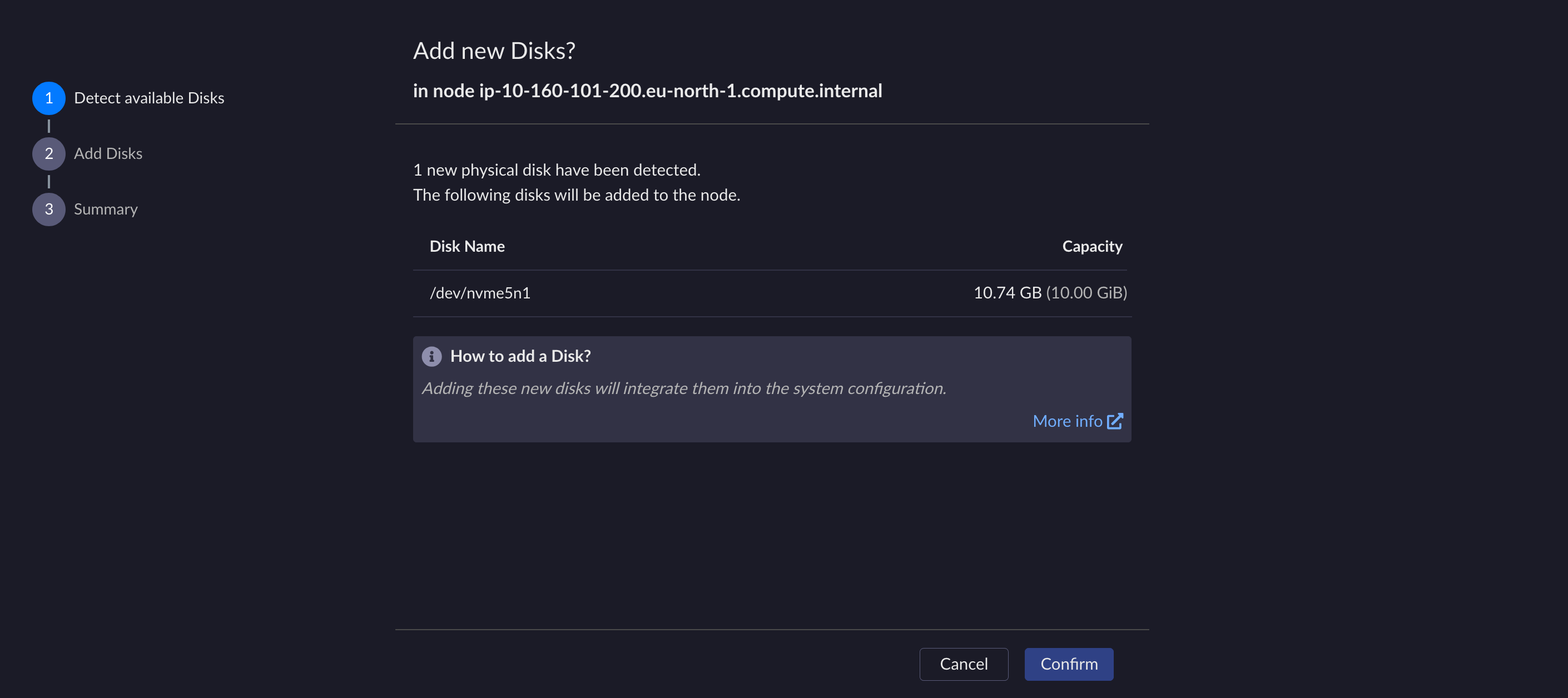
The second step is Add Disks. It automatically provisions kubernetes volumes and then attaches the new disk to the storage services.
Click Continue.

The third step is Summary. It displays a summary of the added disk.
Important
The displayed disk capacity will differ slightly from the one displayed in the list of all mounted data disks. This difference in value between the two is equivalent to adding a filesystem where the summary value is higher than the mounted value listed in the table. For example a difference will be noted for 1.0 TiB vs 0.95 TiB.
Click Exit.
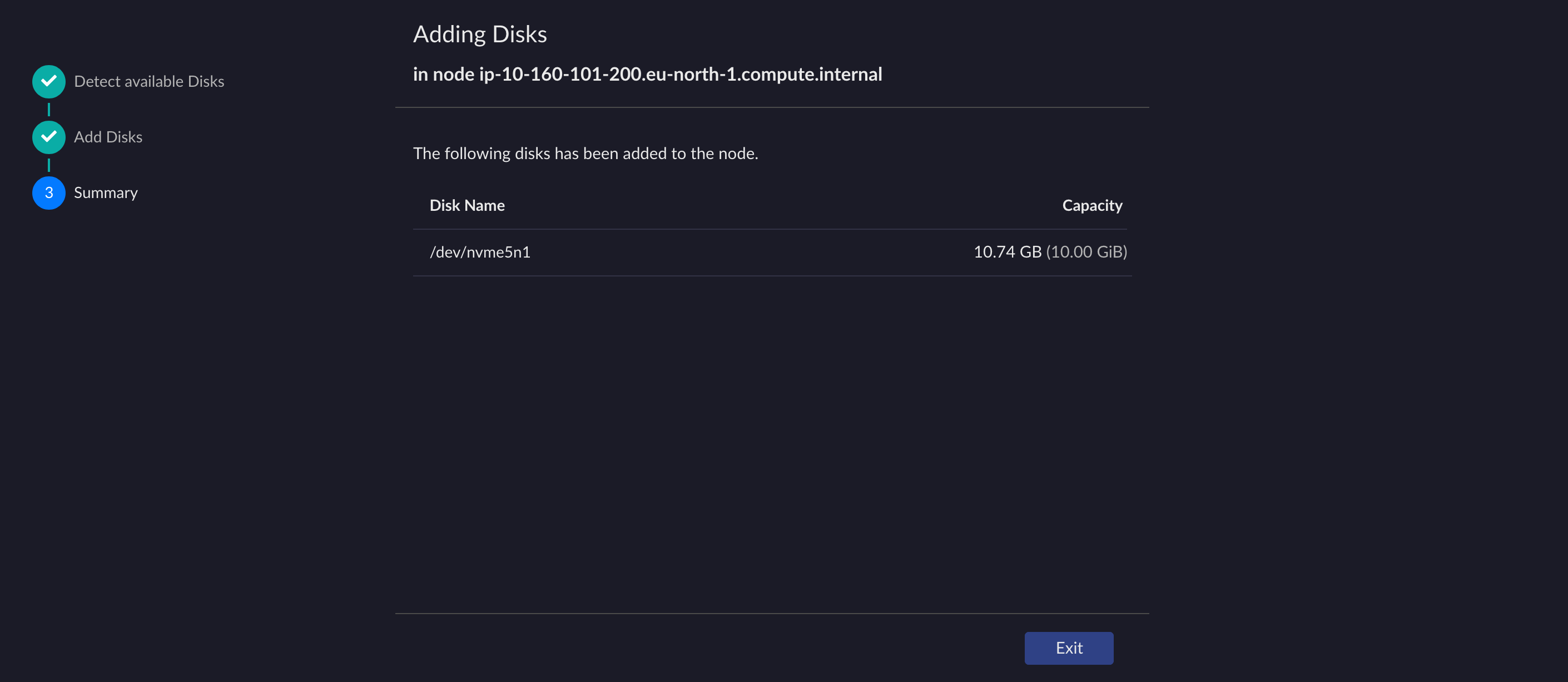
The ARTESCA storage services are reconfigured with the new disk. On the UI, the new disk is displayed with a healthy status.


