

Installation
Download ARTESCA
Download the ARTESCA virtual appliance OVA (artesca-demo.ova) file from https://downloads.scality.com/artesca-plus-veeam-preview/files/ova/artesca-demo.ova.
Deploy ARTESCA
Open the VMware vSphere Client:
https://<vcenter_server_ip_address_or_fqdn>/.Once connected, you can see the VMware logo on the top-left corner of your browser and the blue button LAUNCH VSPHERE CLIENT on the left.
Click LAUNCH VSPHERE CLIENT and log in with the VMware vSphere credentials.
The Virtual Machine inventory displays.
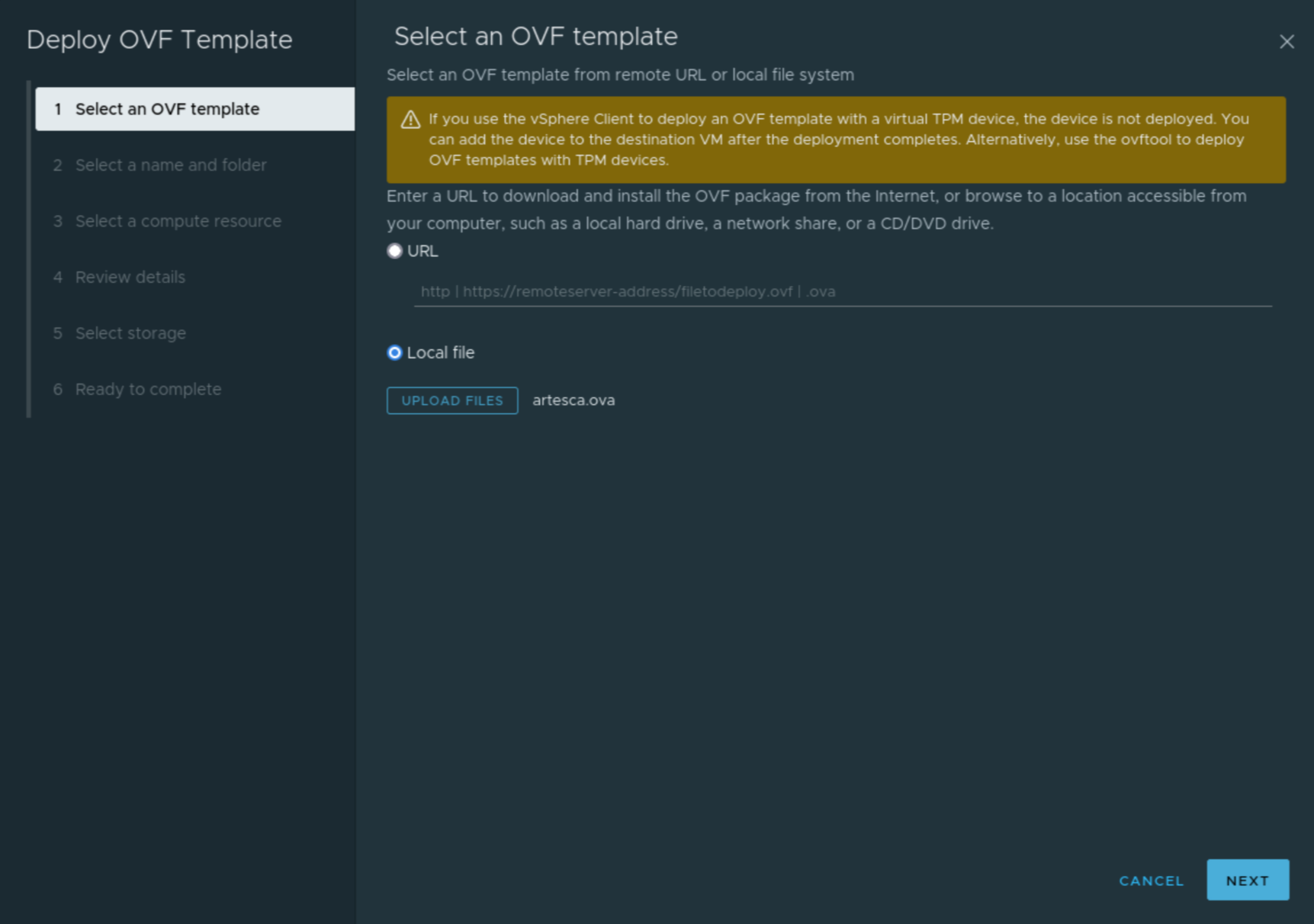
Click Deploy OVF Template and select an OVF template either from a remote URL or a local file. Click Next.
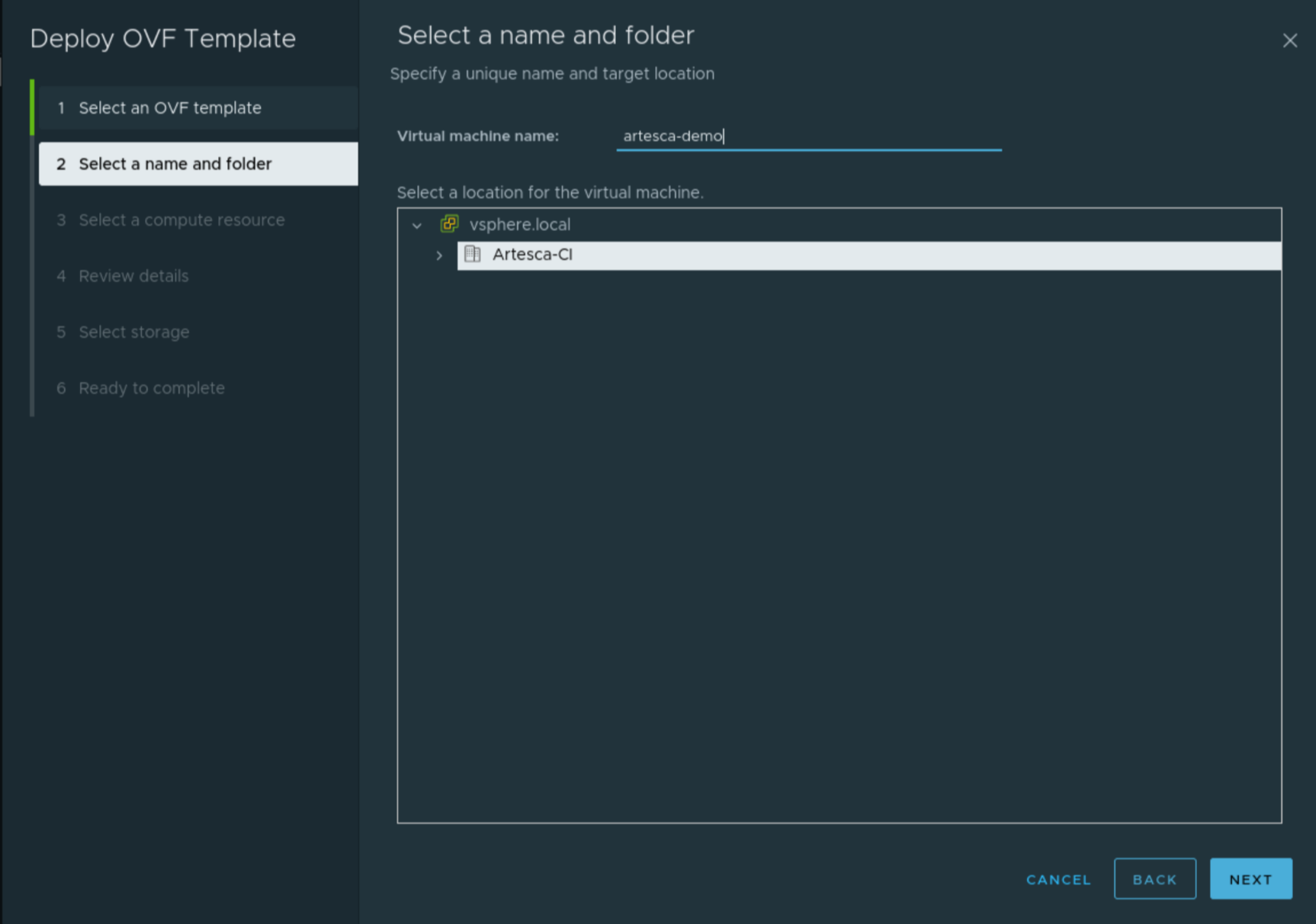
Enter a name for the virtual machine and specify its location. Click Next.
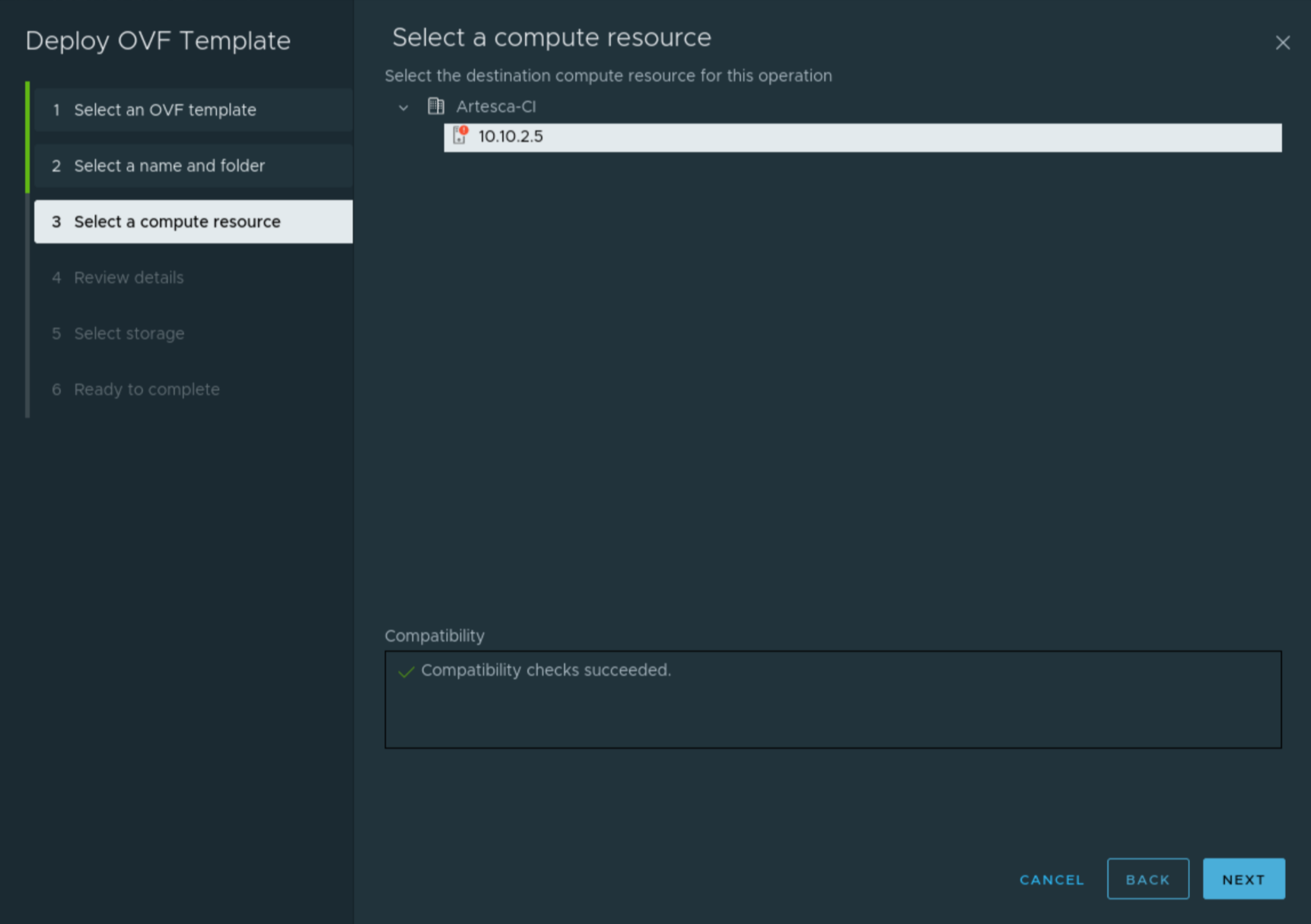
Select the compute resource, depending on the configuration of your vSphere infrastructure. Click Next.
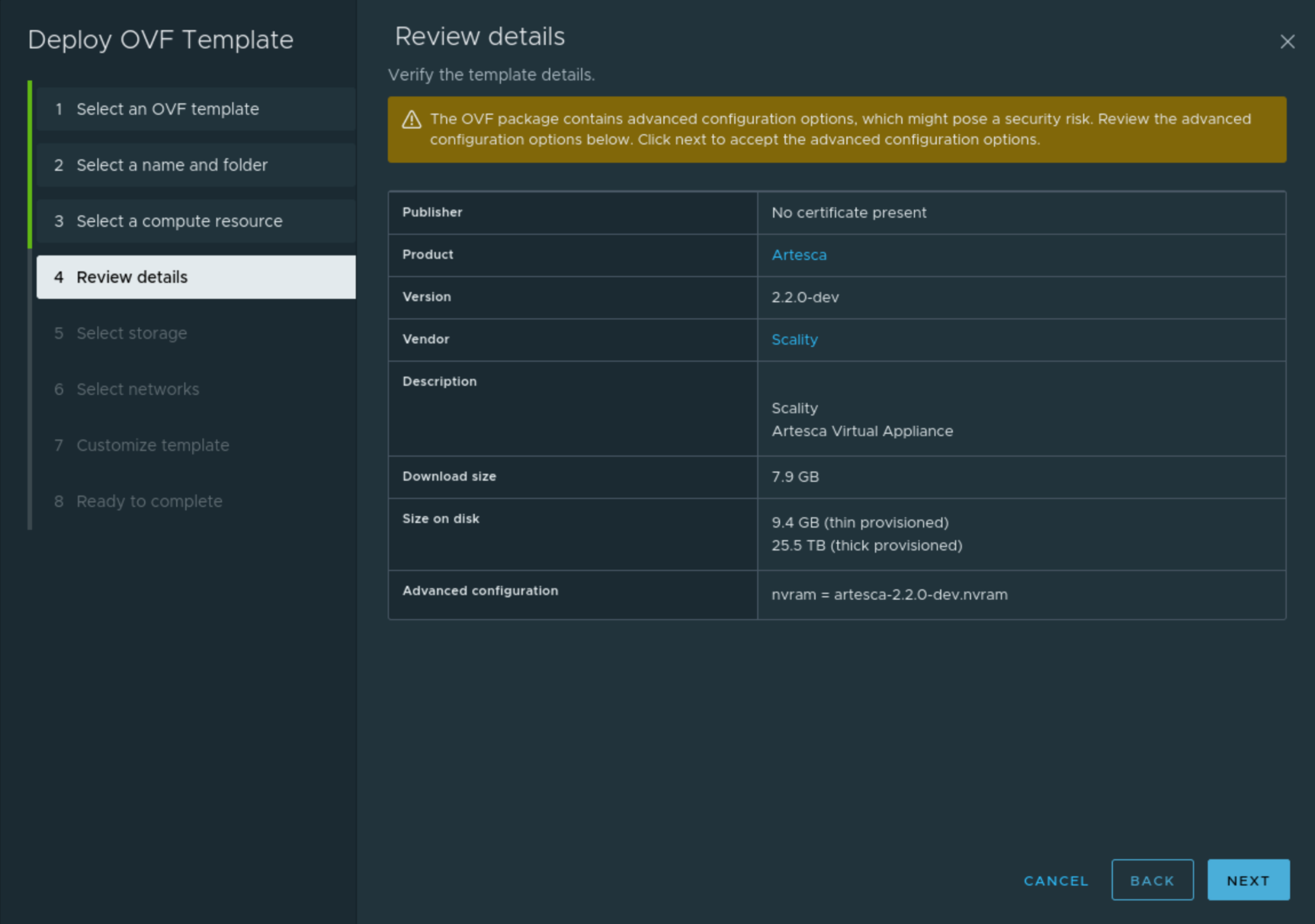
Review the imported OVA details. Click Next.
Select the type of virtual disk format and storage policy depending on the configuration of your vSphere infrastructure.
When using the
artesca-demo.ovavirtual appliance, first choose a datastore with at least 200 GB of available space, and then choose Thin Provisioning as the disk format.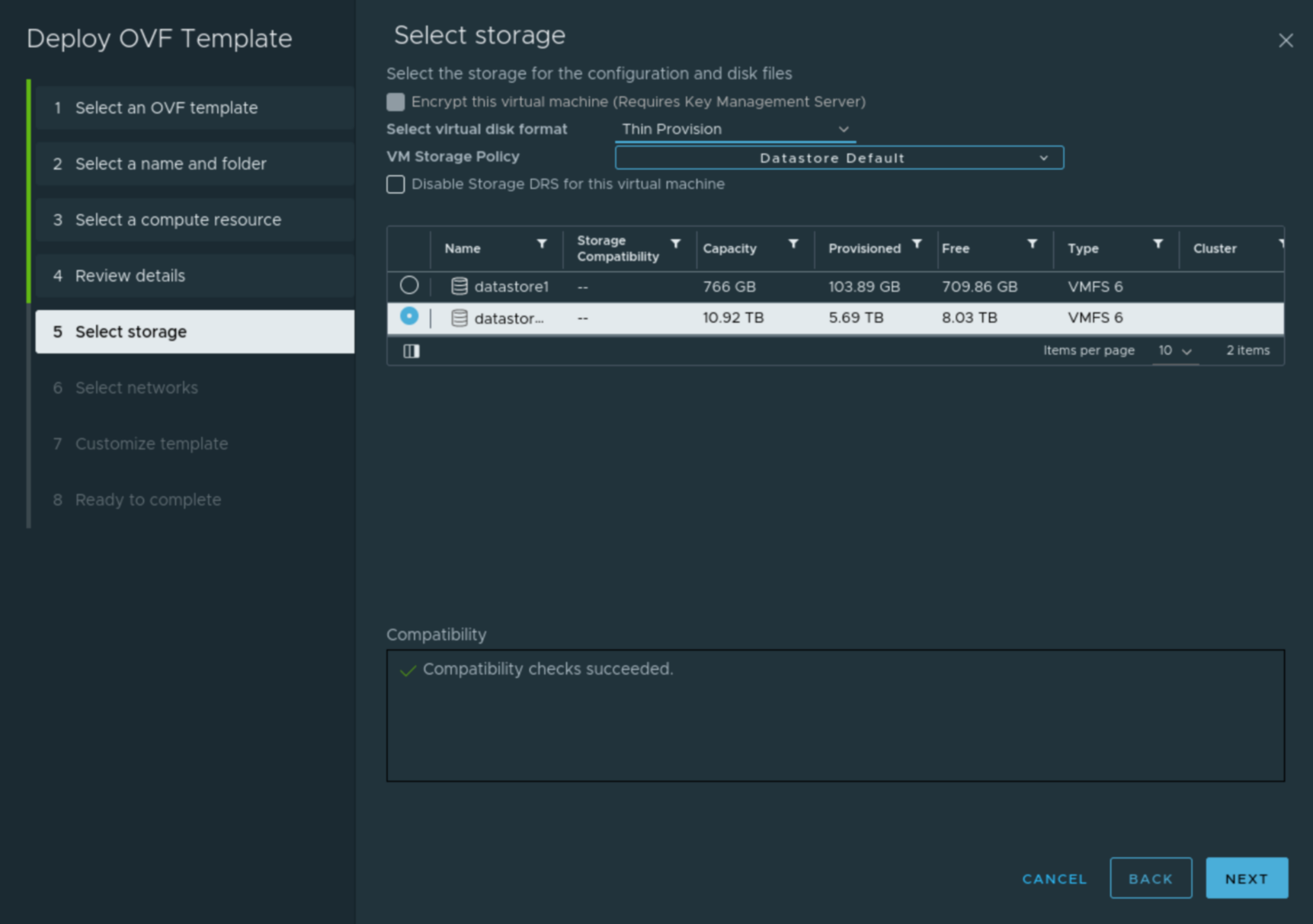
Make sure to check the provisioning method remains selected after you have chosen the datastore. Click Next.
Select the network depending on the configuration of your vSphere infrastructure. Deploying the ARTESCA Virtual Appliance requires a static IP address. Click Next.

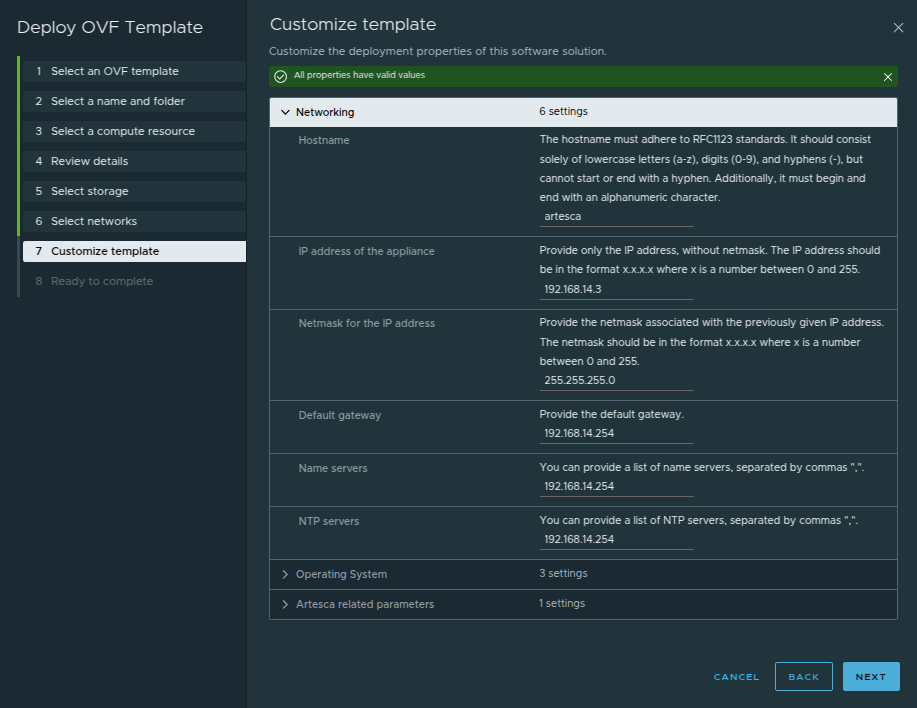
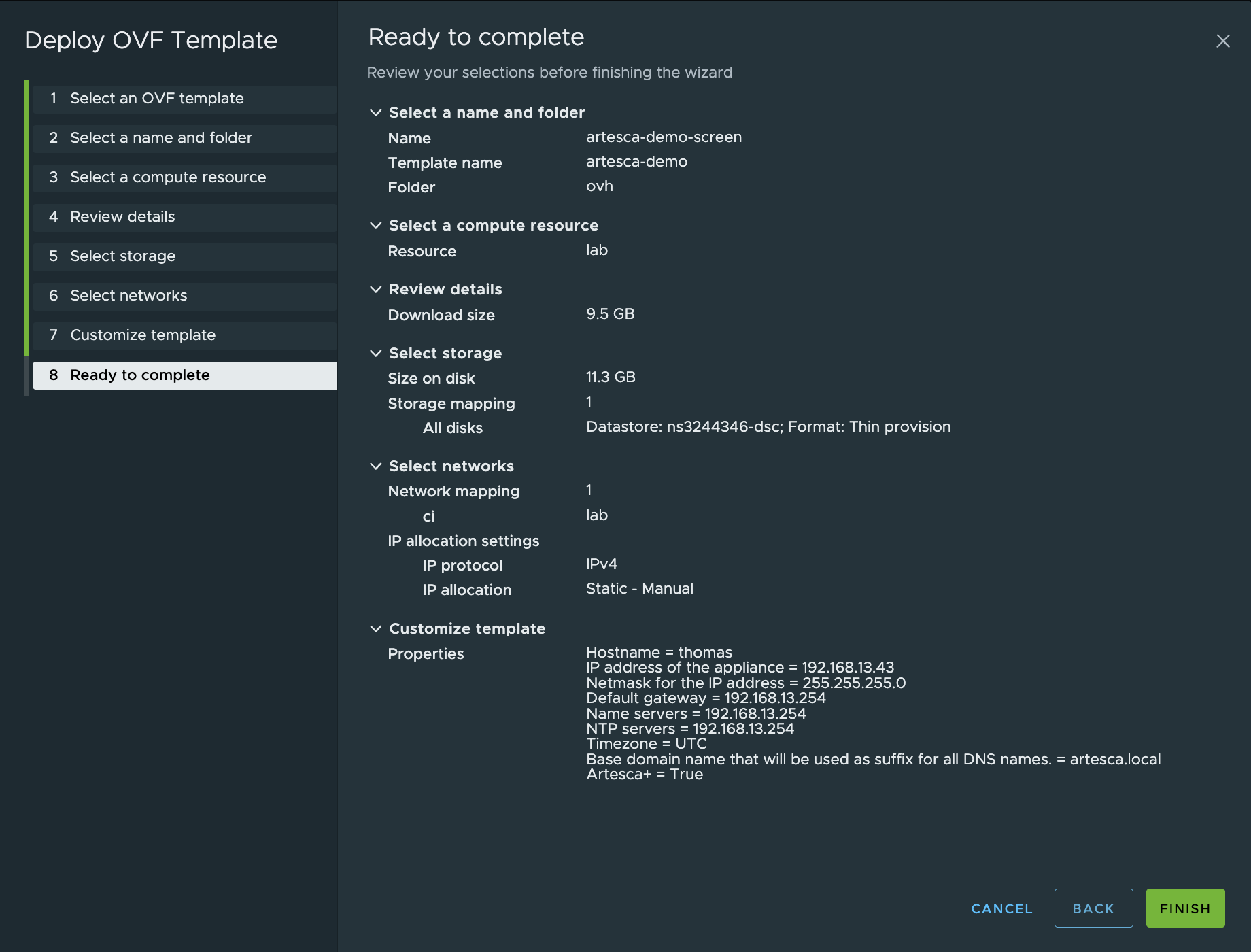
Customize the ARTESCA template according to your infrastructure.
Network
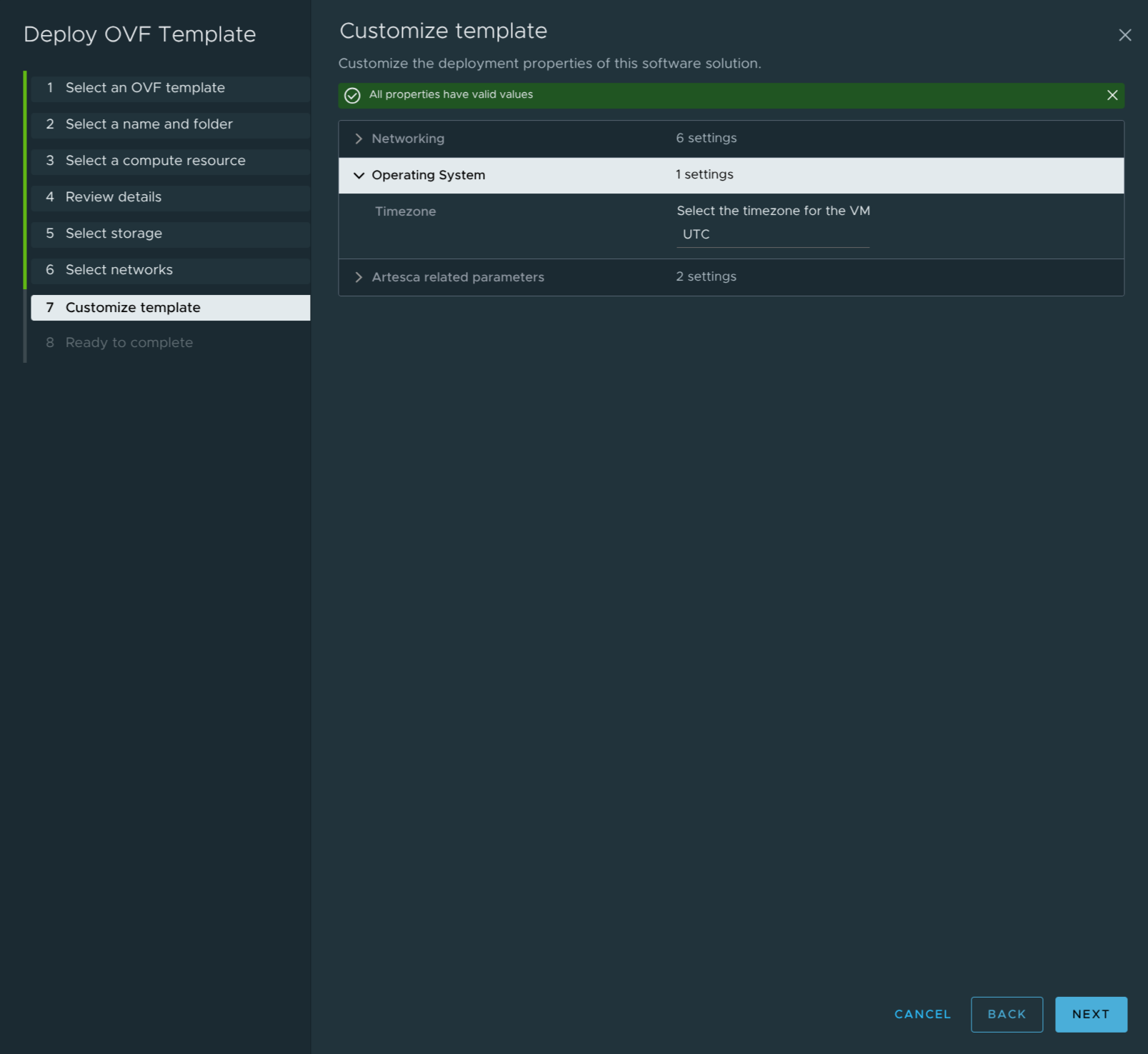
Operating System
Note
Refer to Password Constraints for more information on security constraints on all accounts in ARTESCA OS.
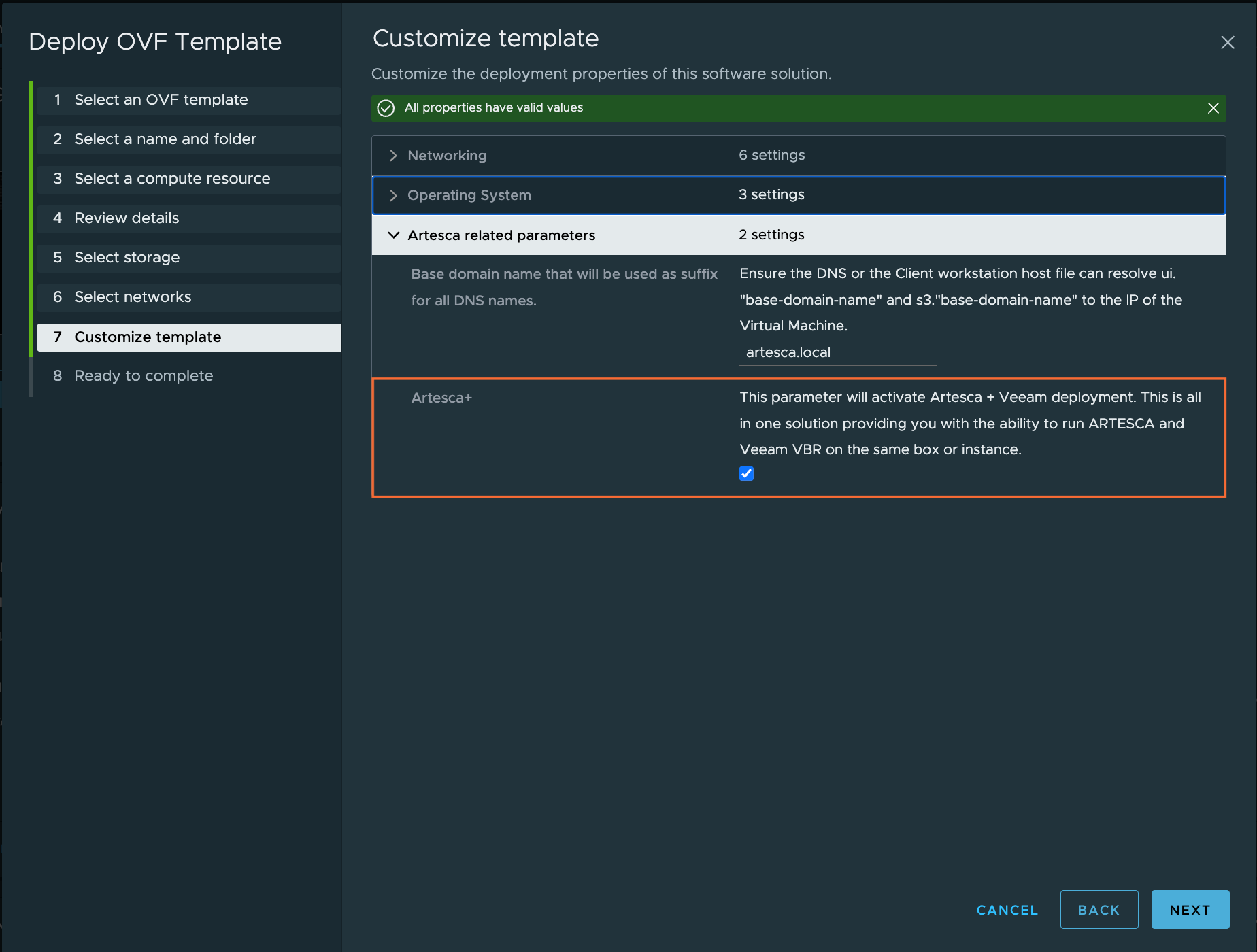
Artesca related parameters
Choose the base domain name and click Next.
For ARTESCA+, choose the ARTESCA+ option and click Next. The base domain name will be ignored in this case.
Note
Refer to the General DNS Setup documentation for more information on the DNS configuration.
The deployment of the Virtual Appliance is ready to be reviewed. Click Finish.
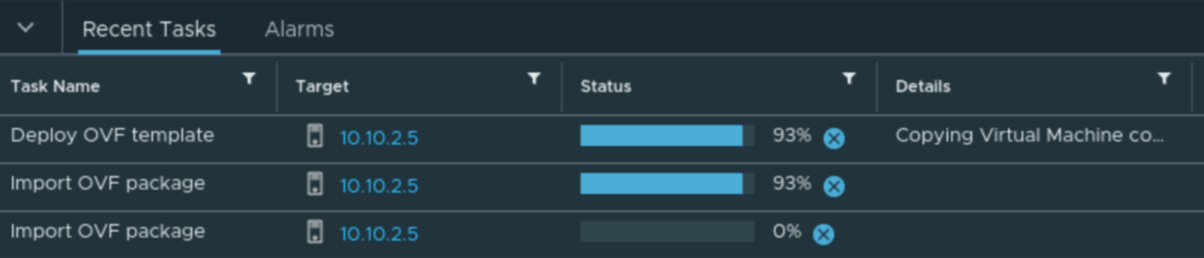
vSphere will import the Virtual Appliance and create the virtual machine. This can take time as the Virtual Appliance is large.
Once the Virtual Appliance import process is finished, go to the Virtual Machine inventory, select the ARTESCA virtual machine, and click Power On.

After powering on the virtual machine, launch the console. You can follow the auto installation of ARTESCA from there.
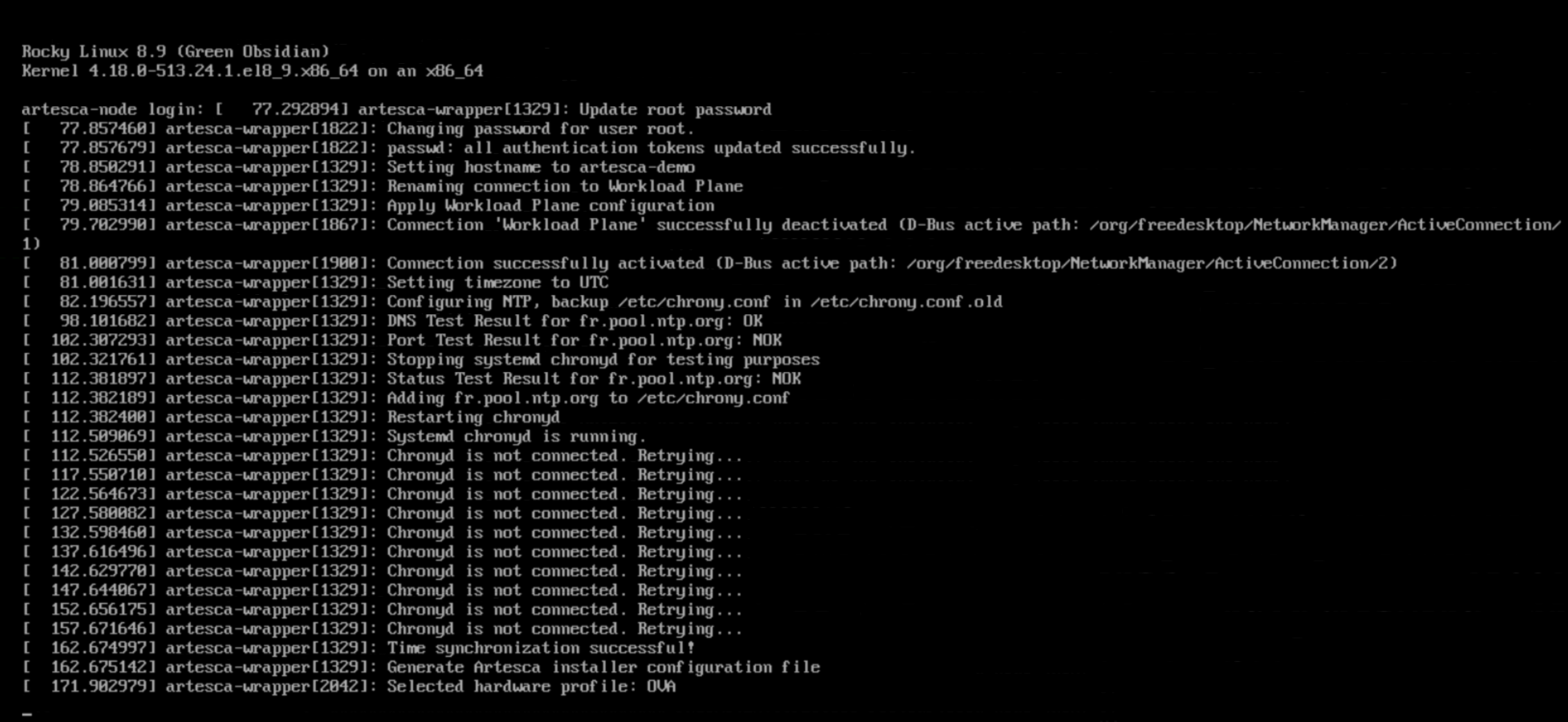
As mentioned on the console, the auto installation process of ARTESCA takes about one hour.

Once the installation is finished, the login prompt displays on the console, with some details regarding the installation.
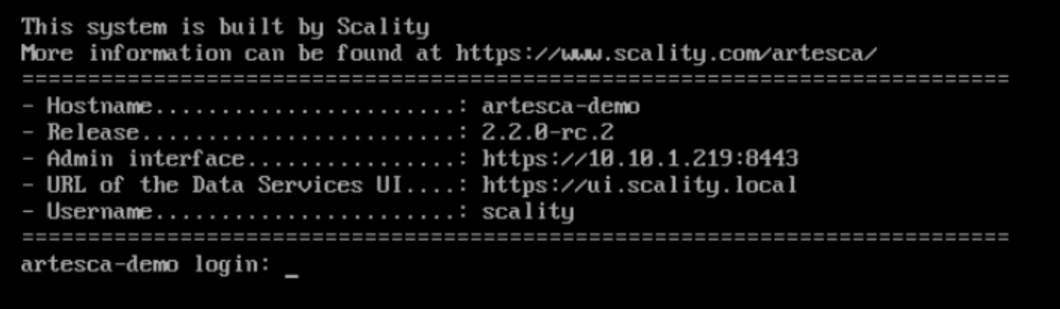
The virtual machine remote console can only emulate a QWERTY keyboard. In case of an error, the console shows a message. Once fixed, press the key to restart.
Important
If deploying standard ARTESCA, ensure the DNS or the Client workstation host file can resolve
s3.<base-domain-name>to the IP of the virtual machine. Refer to the General DNS Setup documentation for more information.If deploying ARTESCA+ Veeam, the s3 endpoint will not be exposed, and will only be accessible locally by the Veeam Virtual Machine.
Next Steps
Continue with the ARTESCA Post-Installation Guidelines.
Continue the installation with Install the Windows Virtual Machine.
Continue the installation with Install the Veeam Software Appliance.


