

Installation
Prerequisites
You need a static network interface configuration to deploy the Virtual Appliance.
Make sure you have the following information:
Important
Scality recommends that vCenter, ESXi, and ARTESCA use the same NTP server to avoid any issue during the OVA deployment.
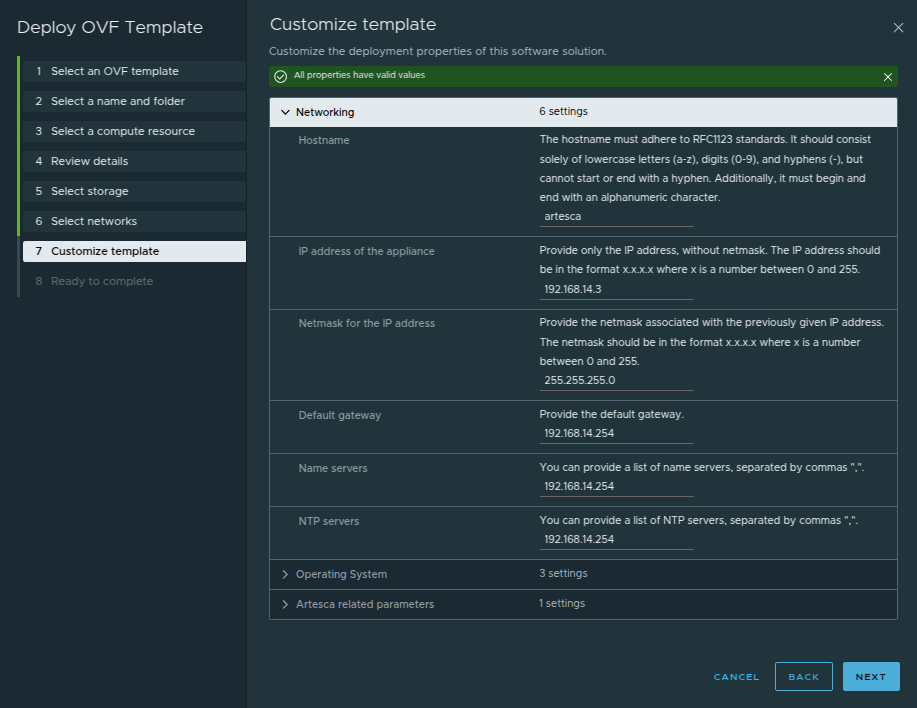
Static IP configuration for the virtual machine (IP address and netmask)
IP address of the gateway
Names or IP addresses of reachable NTP servers for clock synchronization
Names or IP addresses of DNS servers for name resolution
DNS or Client workstation host file must be configured with ARTESCA CNAMEs. Refer to General DNS Setup for more information.
Note
Open-vm-tools are installed with ARTESCA OVA.
Download ARTESCA
Download the ARTESCA virtual appliance.
For worldwide customers, the
artesca.ovafile is available at https://packages.scality.com/Artesca/4.3.4/ova/ .For Asia-pacific customers, the
artesca.ovafile is available at https://apac.packages.scality.com/Artesca/4.3.4/ova/ .
Note
This ova cannot be used for ARTESCA+ Veeam Unified Software Appliance deployment.
Save the downloaded file on the machine you use to access the virtual environment and where you plan on deploying the ARTESCA virtual appliance.
Deploy ARTESCA
Open the VMware vSphere Client:
https://<vcenter_server_ip_address_or_fqdn>/.Once connected, you can see the VMware logo on the top-left corner of your browser and the LAUNCH VSPHERE CLIENT button on the left.
Click LAUNCH VSPHERE CLIENT and log in with the VMware vSphere credentials.
The Virtual Machine inventory displays.
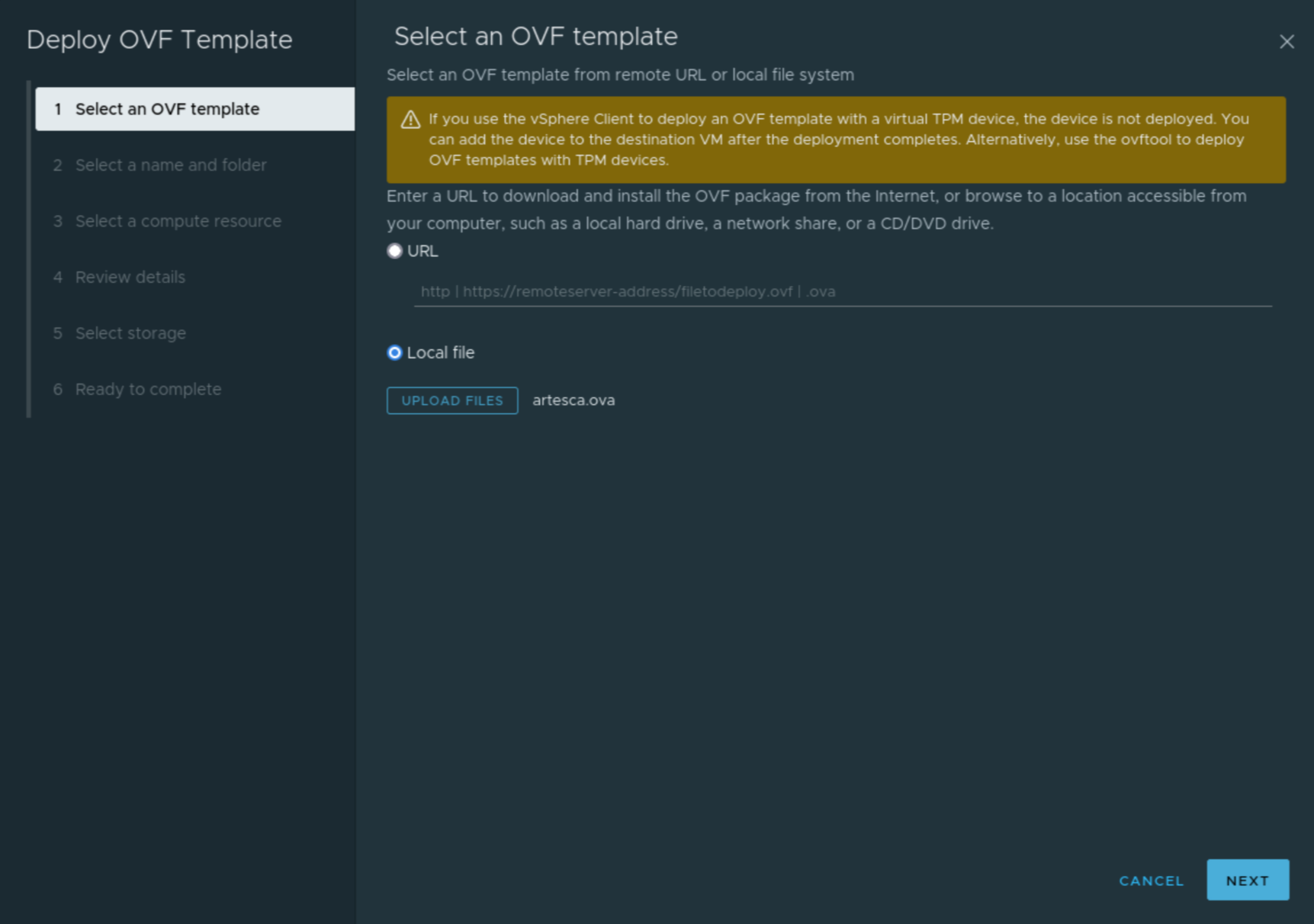
Click Deploy OVF Template and select an OVF template either from a remote URL or a local file. Click Next.
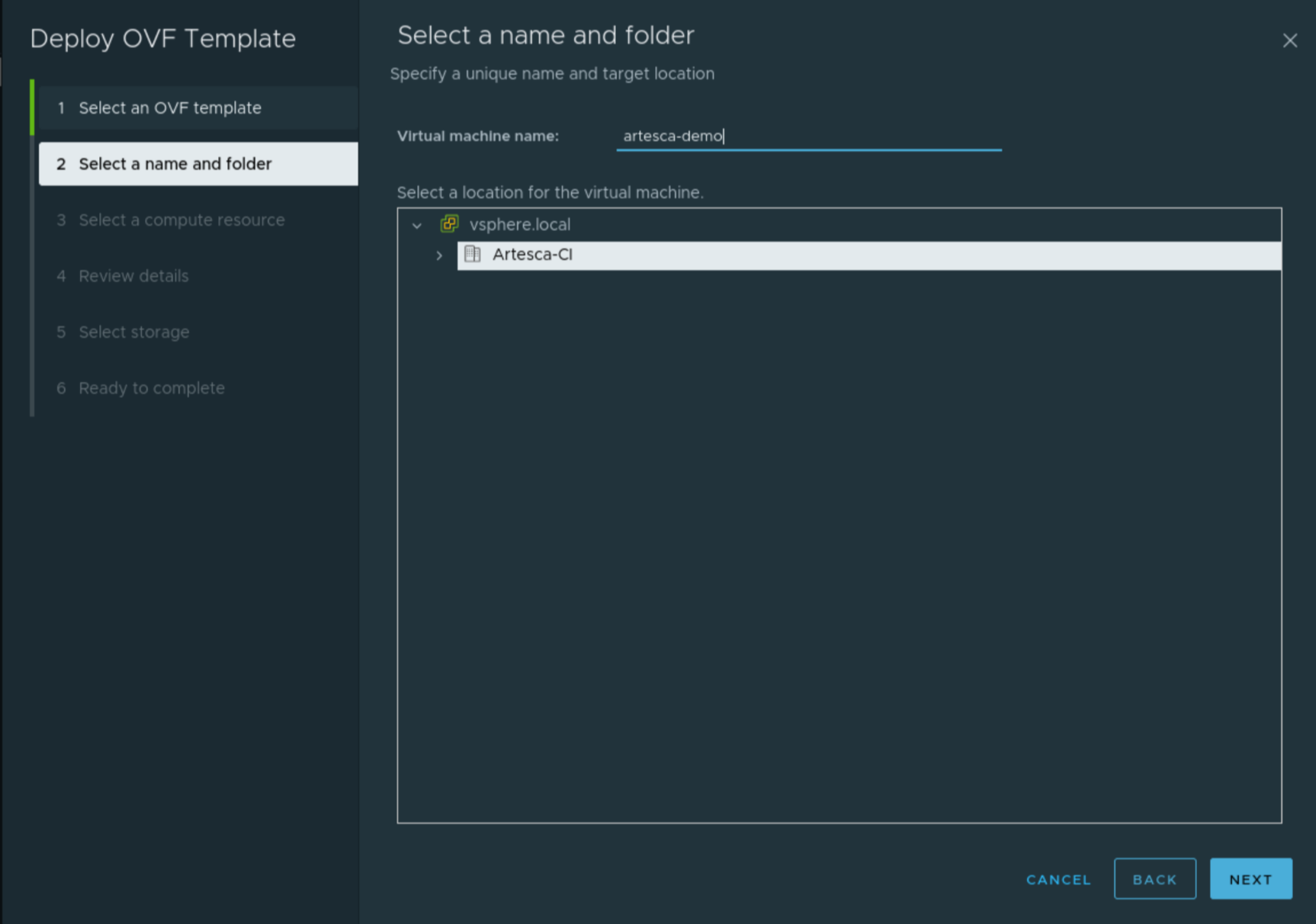
Enter a name for the virtual machine and specify its location. Click Next.
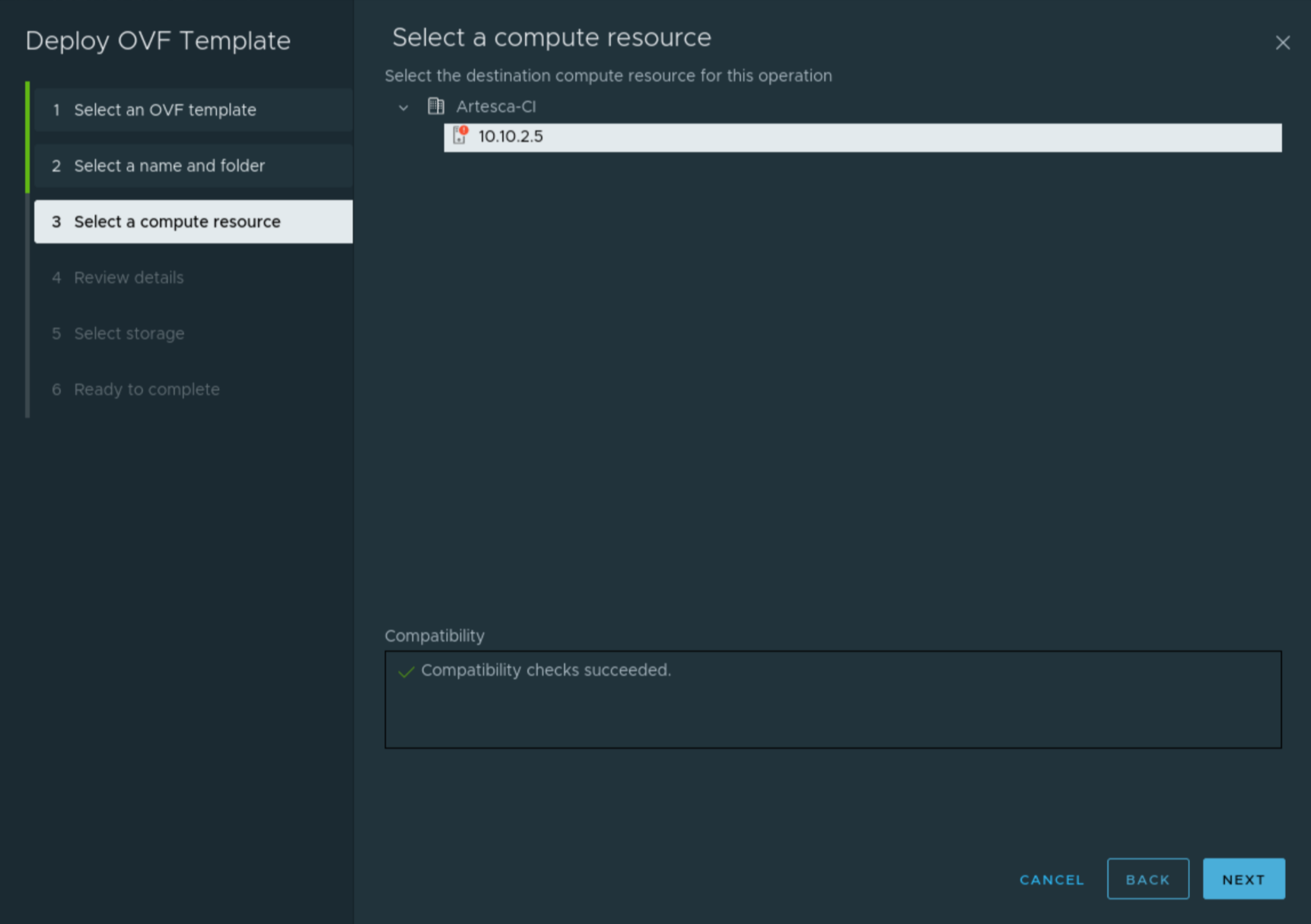
Select the compute resource, depending on the configuration of your vSphere infrastructure. Click Next.
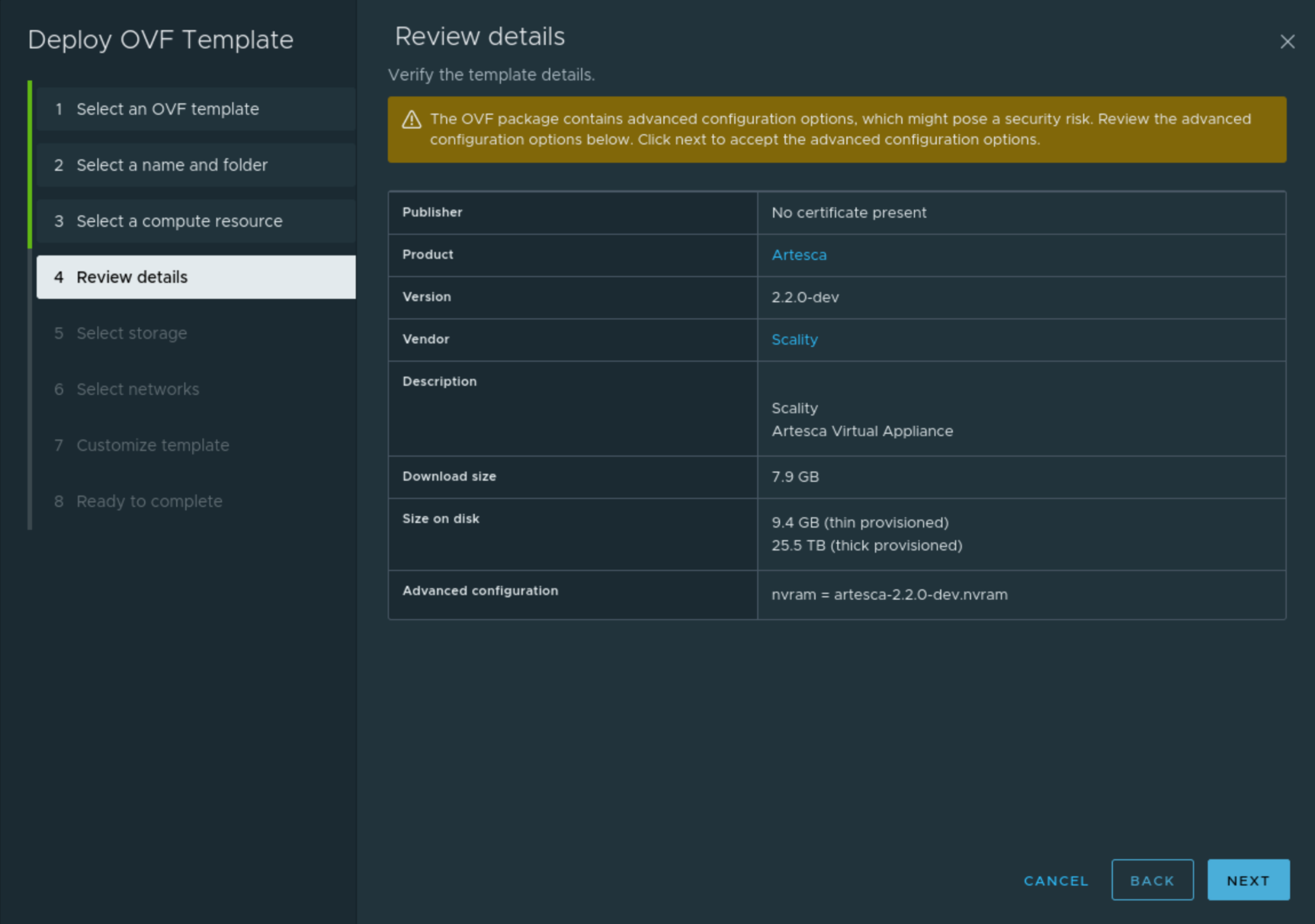
Review the imported OVA details. Click Next.
Select the type of storage -virtual disk format and storage policy- depending on the configuration of your vSphere infrastructure.
Choose Thick Provision for production environment.
When using the virtual appliance for production (
artesca.ova):For thick provisioning, at least 23 TB must be available on the datastore.
For thin provisioning, at least 600 GB must be available on the datastore.
Tip
Scality recommends to first choose the datastore and then the provisioning method. After choosing the datastore, check that the provisioning method you have chosen (thick or thin) is still as selected.
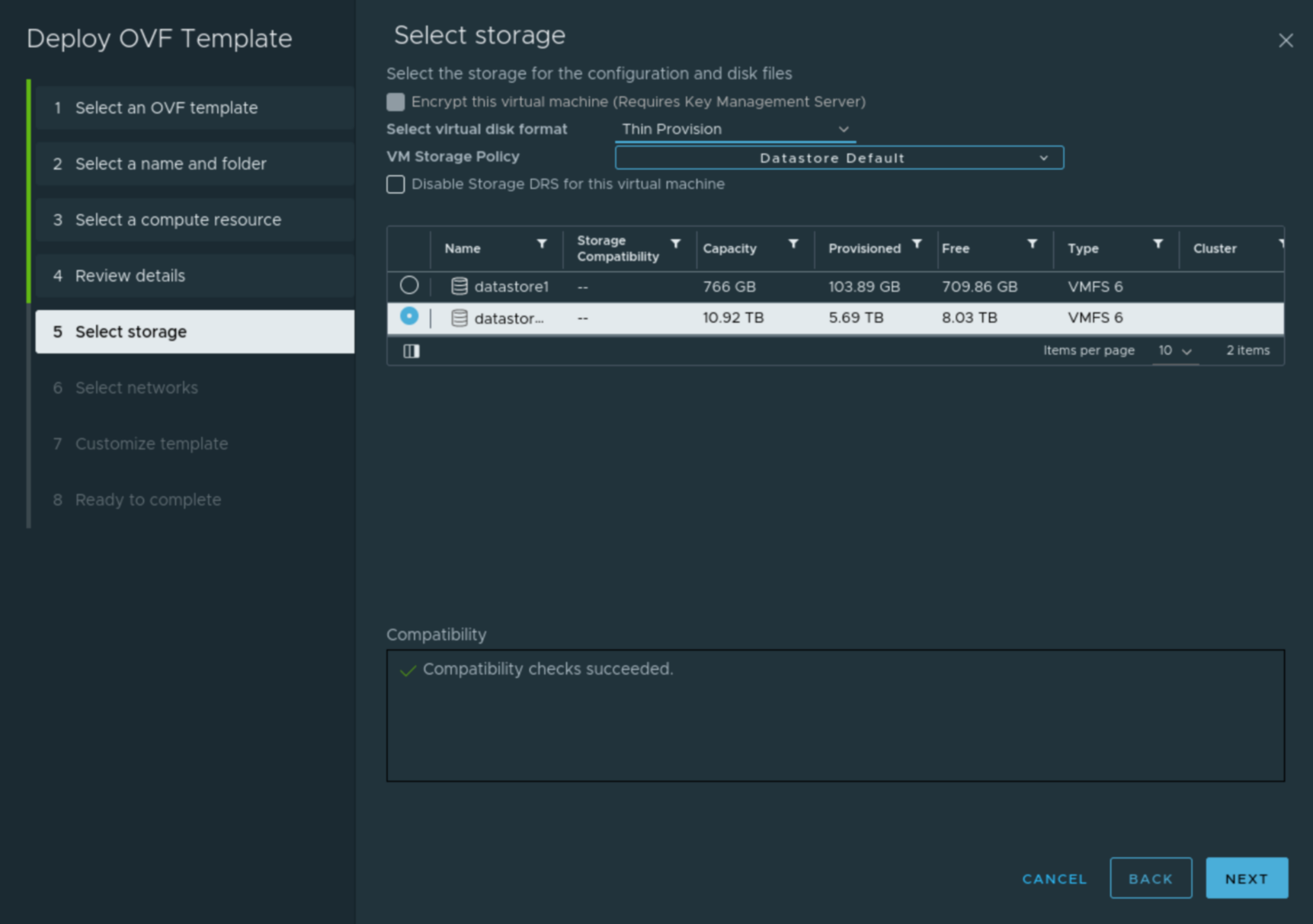
Click Next.
Select the network depending on the configuration of your vSphere infrastructure. Deploying the ARTESCA Virtual Appliance requires a static IP address. Click Next.

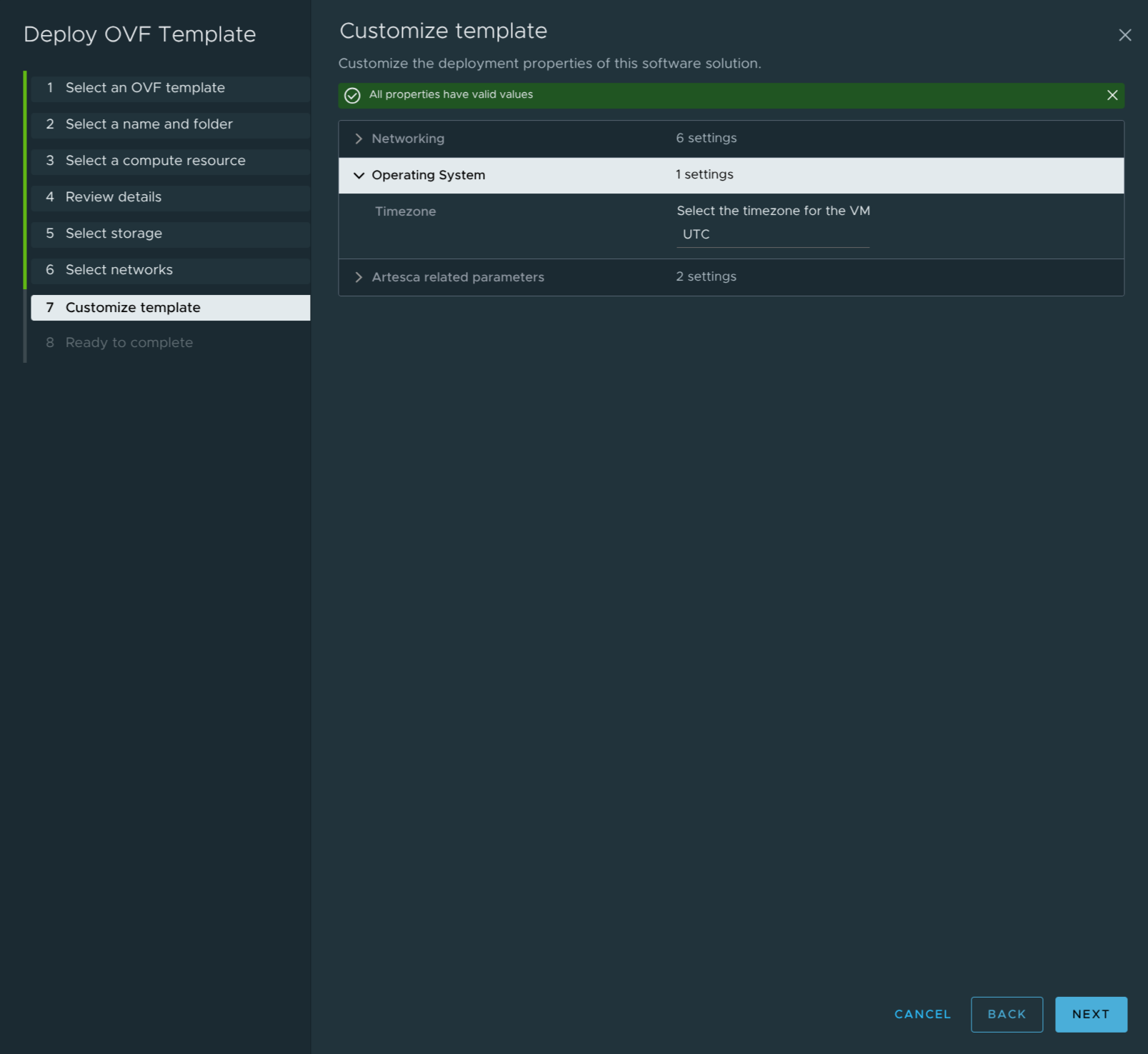
Customize the ARTESCA template according to your infrastructure.
Network
Operating System
Artesca related parameters
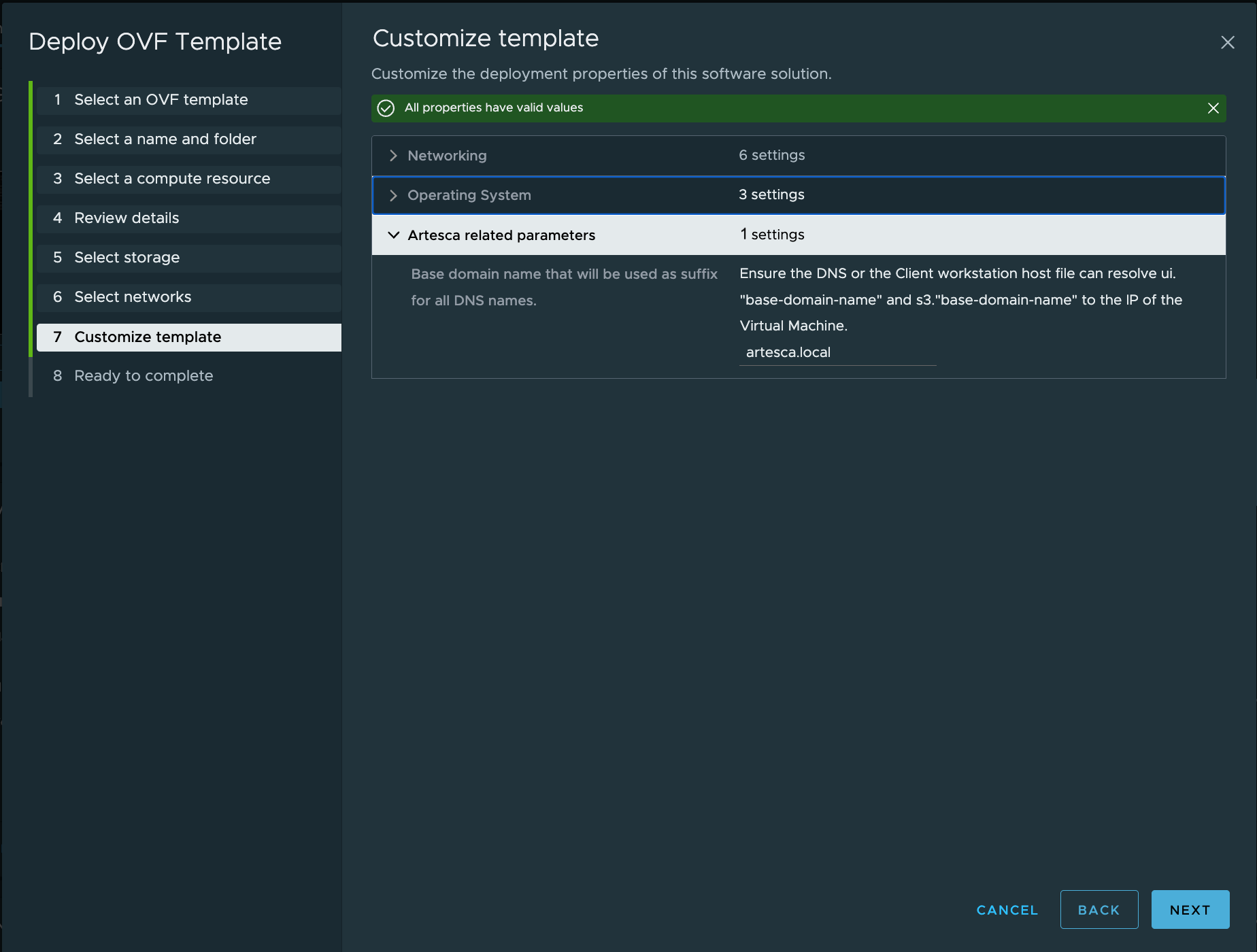
Choose the base domain name and click Next.
Note
Refer to the General DNS Setup documentation for more information on the DNS configuration.
The deployment of the Virtual Appliance is ready to be reviewed. Click Finish.
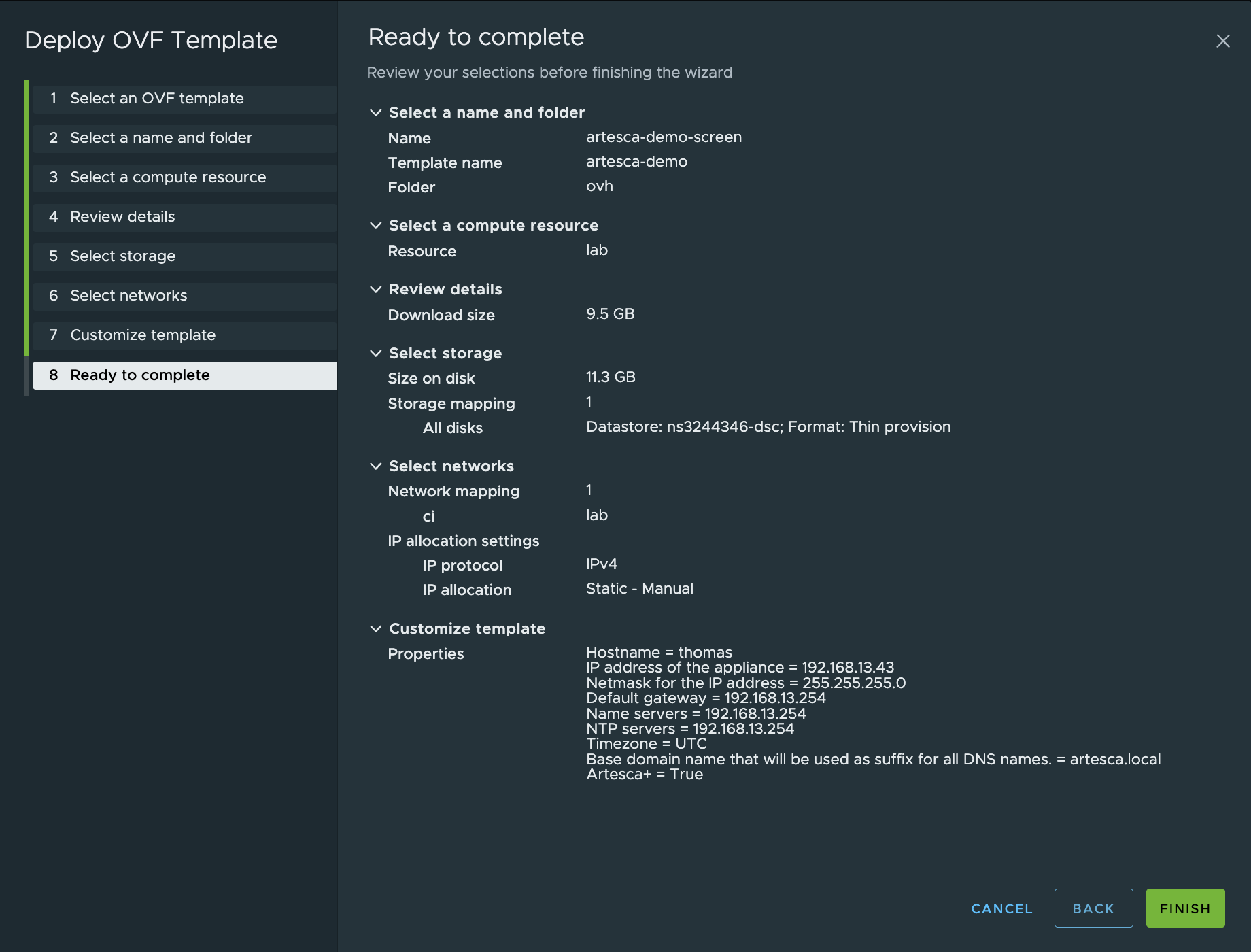
vSphere will import the Virtual Appliance and create the virtual machine. This can take time as the Virtual Appliance is large.
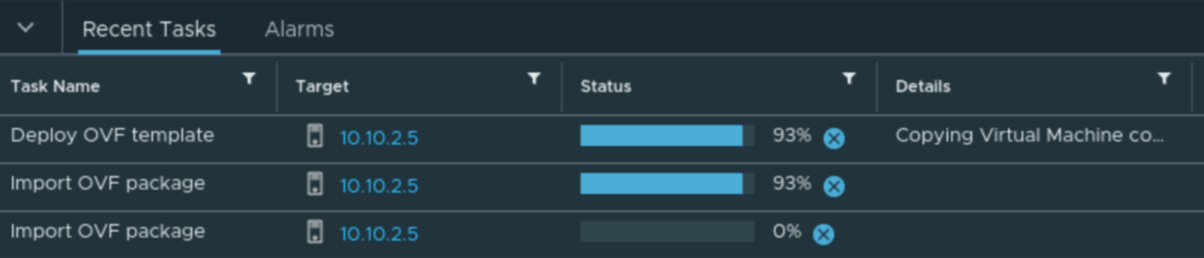
Once the Virtual Appliance import process is finished, and if you are using the production OVA (
artesca.ova), you can increase the virtual disk size from the vSphere interface:Select the virtual machine from the Inventory
Right-click the virtual machine.
Click
Edit SettingsSelect
Virtual DiskIncrease the size of the disk 3 to 14. All disks must be the same size.
Note
If this option is greyed out, the disk may be running on snapshots, or the disk may be at the maximum allowed size depending on the block size of the datastore.
Once the Virtual Appliance import process is finished, go to the Virtual Machine inventory, select the ARTESCA virtual machine, and click Power On.

After powering on the virtual machine, launch the console. You can follow the auto installation of ARTESCA from there.
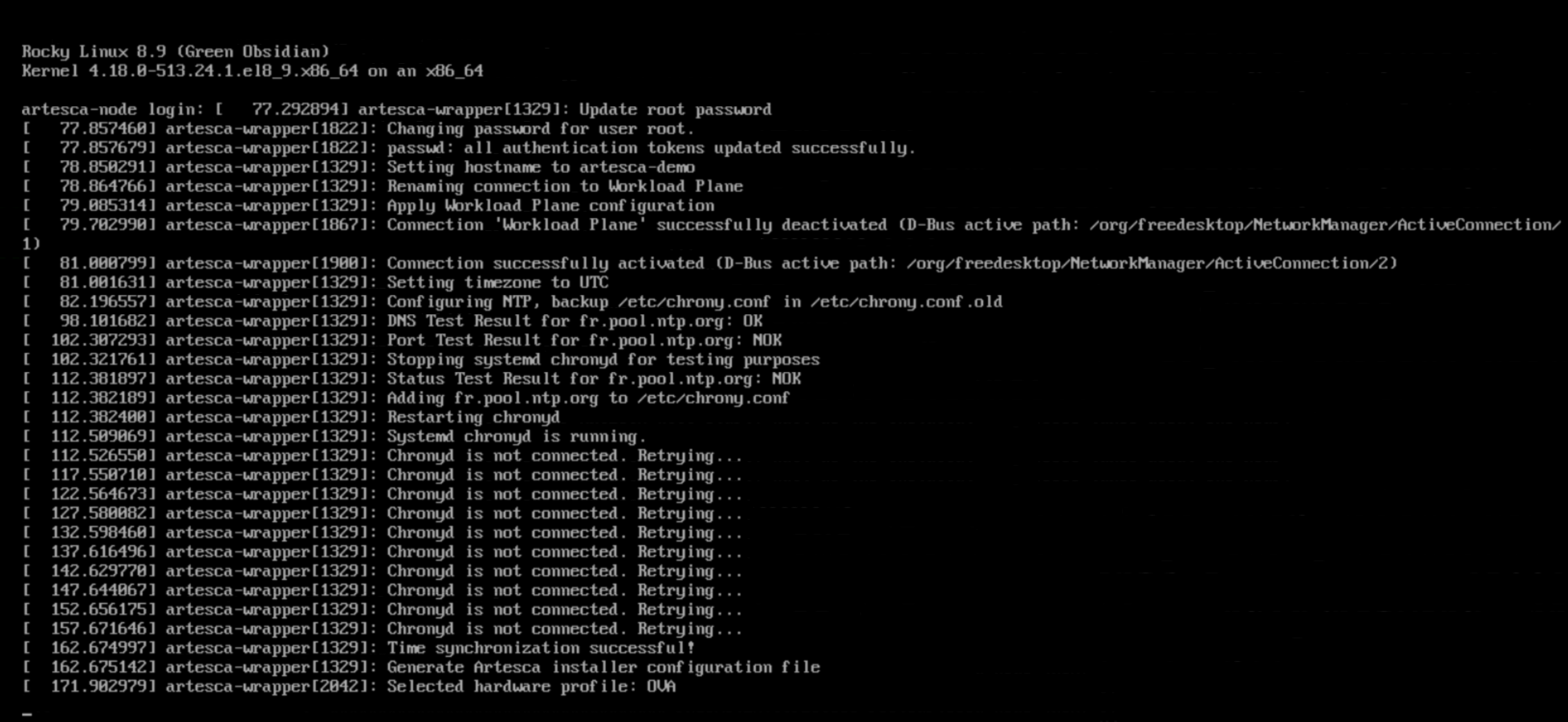
As mentioned on the console, the auto installation process of ARTESCA takes about one hour.

Once the installation is finished, the login prompt displays on the console, with some details regarding the installation.
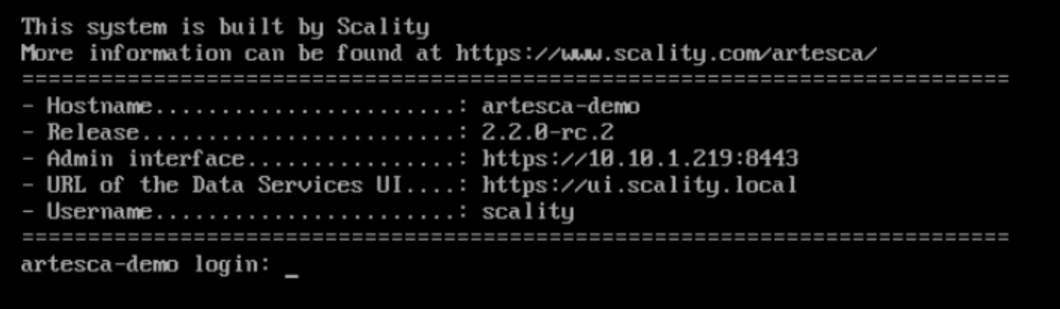
The virtual machine remote console can only emulate a QWERTY keyboard. In case of an error, the console shows a message. Once fixed, press the key to restart.
Important
Ensure the DNS or the Client workstation host file can resolve
s3.<base-domain-name> to the IP of the virtual
machine. Refer to the General DNS Setup documentation for more information.
Next Steps
Continue with the ARTESCA Post-Installation Guidelines.


